

Excel
Building the JDBC URL
After installing the license, open the connection management page by running java -jar kingswaysoft.jdbc.jar. Enter the required details to generate the JDBC connection URL. Click Test Connection to test the generated URL, or Copy to Clipboard to copy the connection string for use in your application.
Note: If the license is not installed, you can still use the connection manager to generate a JDBC URL; however, the Test Connection feature will be disabled.
The Excel driver treats the configured folder or file as the data source. Each spreadsheet within an Excel file is exposed as a table named after the file name (without the extension). For instance, if File.xlsx contains a spreadsheet Sheet1 you can query it as SELECT * FROM File/Sheet1 when a folder is set as the data source, or as SELECT * FROM Sheet1 when a file is set as the data source.
General Page
The General page allows you to specify the folder, file format, encoding, compression, and column layout used by the Excel service.
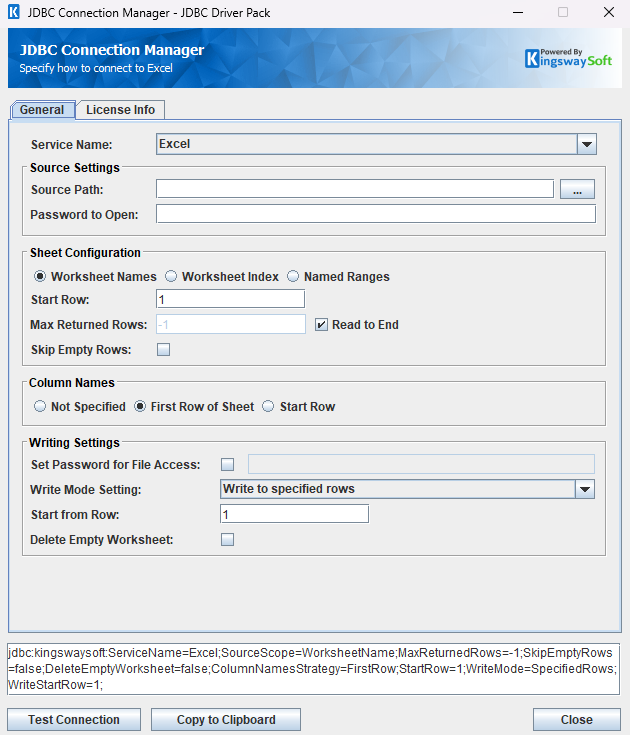
Source Settings
- Source Path
-
The file path to a single Excel workbook or a folder containing Excel files to be queried or updated. The connection manager will verify that the specified file is a valid Excel workbook, or that the specified folder contains at least one
.xlsxor.xlsfile. - Password to Open
-
The password used to access the file specified in Source Path.
Sheet Configuration
- Table Naming Strategy
-
When
Source Pathis set to a folder which contains Excel files, tables will be prefixed with the file name. You can also configure whether the suffix of the table name should be the worksheet name, the worksheet index or the named range.For example, when set to 'Worksheet Names', if the file is named ExcelFile and it contains a worksheet named 'firstSheet', the table name will be constructed as
ExcelFile/firstSheet.- Worksheet Names: Name of spreadsheets from workbook.
- Worksheet Index: Index of spreadsheets from workbook.
- Named Ranges: Name of Named Ranges from workbook.
- Start Row
-
Defines the row to start reading a spreadsheet from. By default the value is 1, meaning it reads from the first row.
- Max Returned Rows
-
Defines the maximum number of rows to retrieve from a spreadsheet via a
SELECTquery. To edit this field, uncheckRead to End. WhenRead to Endis checked, the value forMax Returned Rowsbecomes -1, indicating that reading will start at the set start row and read all rows until the end of the spreadsheet. - Skip Empty Rows
-
Determines whether empty rows are excluded when retrieving data from a spreadsheet.
Column Names
- Not Specified
-
Column header row values will be ignored and replaced with placeholder values (E.g.,
Column1). When used for anINSERTquery, the query will always use query column index and will not perform any mapping of columns. - First Row of Sheet
-
Column header values will be retrieved from first row of sheet. Column values are obtained from matching value column indices.
- Start Row
-
Column headers are read from the row specified in the
StartRowfield, while column values are retrieved by matching their corresponding column indices. - First Row of Named Range
-
Column header values will be obtained from the first row in the NamedRanges corresponding formula. Note: This option will only be available when
Source StrategyisNamed Ranges.
Writing Settings
- Set Password for File Access
-
The password used to protect the workbook being written to from Read and Write access.
- Write Mode Setting
-
- Clear and write new data: Clear the whole sheet and write rows.
- Append at end: Append new rows at then end of existing rows.
- Overwrite existing cells: Overwrite existing rows including column headers.
- Write to specified rows: Specifies the starting row index for the write operation. Data will begin writing at the row indicated by the
Start from Rowfield.
- Delete Empty Worksheet
-
When all values have been deleted, this property is used to indicate whether or not the sheet will be removed from the workbook.
Using the JDBC Driver
This section provides examples that use JDBC classes such as Connection, Statement, and ResultSet to manage interactions with Excel spreadsheet data. It covers regular statements and prepared statements for complex or frequently executed queries.
Executing Statements
After you have connected from your code, you can execute SQL statements using the Statement class. For connection details, see Connecting with DriverManager or Connecting with DataSource. For parameterized statements, see Executing Prepared Statements.
SELECT
Use the Statement class's generic execute method or the executeQuery method to execute SQL statements that return data. To retrieve the results of a query, call the getResultSet method of the Statement.
String sql = "SELECT * FROM Sheet1";
try {
    ResultSet resultSet = statement.executeQuery(sql);
    LOGGER.info(resultSet.toString());
} catch (SQLException e) {
    LOGGER.severe(e.toString());
}
String sql = "SELECT name, age FROM Sheet1 WHERE age = '40' AND name = 'Charlie'";
try {
    ResultSet resultSet = statement.executeQuery(sql);
    LOGGER.info(resultSet.toString());
} catch (SQLException e) {
    LOGGER.severe(e.toString());
}
INSERT
Use either the generic execute method or the executeUpdate method of the Statement class to execute an INSERT operation.
The results of SQL queries are saved in a ResultSet. You can retrieve the ResultSet after execution to view the inserted data's ID, exceptions raised during execution, and details of the affected data.
String sql = "INSERT INTO Sheet1 (id, name, age) VALUES ('4', 'David', '50')";
try {
    int rows = statement.executeUpdate(sql);
    LOGGER.info("Inserted rows: " + rows);
    LOGGER.info(statement.getResultSet().toString());
} catch (SQLException e) {
    LOGGER.severe(e.toString());
}
id,errorcode,errormessage,processdata,haserrors
null,null,null,{name=David, id=4, age=50},false
UPDATE
Use either the generic execute method or the executeUpdate method of the Statement class to execute an UPDATE operation.
The results of SQL queries are saved in a ResultSet. You can retrieve the ResultSet after execution to view the updated data's ID, exceptions raised during execution, and details of the affected data.
String sql = "UPDATE Sheet1 SET age = '26' WHERE name = 'David'";
try {
    int rows = statement.executeUpdate(sql);
    LOGGER.info("Updated rows: " + rows);
    LOGGER.info(statement.getResultSet().toString());
} catch (SQLException e) {
    LOGGER.severe(e.toString());
}
id,errorcode,errormessage,processdata,haserrors
null,null,null,{age=26},false
DELETE
Use either the generic execute method or the executeUpdate method of the Statement class to execute a DELETE operation.
The results of SQL queries are saved in a ResultSet. You can retrieve the ResultSet after execution to view the deleted data's ID, exceptions raised during execution, and details of the affected data.
String sql = "DELETE FROM Sheet1 WHERE name = 'David'";
try {
    int rows = statement.executeUpdate(sql);
    LOGGER.info("Deleted rows: " + rows);
    LOGGER.info(statement.getResultSet().toString());
} catch (SQLException e) {
    LOGGER.severe(e.toString());
}
id,errorcode,errormessage,processdata,haserrors
null,null,null,{name=David},false
Executing Prepared Statements
Using a PreparedStatement can improve performance when you need to execute a SQL statement multiple times with different parameters. Unlike a Statement object, a PreparedStatement object is provided with a SQL statement when it is created, which can then be executed with different values each time. This special type of statement is derived from the more general Statement class.
Below are the steps outlining how to execute a prepared statement:
Creating and Executing a Prepared Statement
- Create a PreparedStatement
-
Use the
prepareStatementmethod of theConnectionclass to instantiate aPreparedStatement.For connection details, see Connecting with DriverManager or Connecting with DataSource.
- Set Parameters
- Declare parameters by calling the corresponding setter method of the
PreparedStatement. - NOTE: The parameter indices start at 1.
- Execute the PreparedStatement
- Use the generic
executeorexecuteUpdatemethod of thePreparedStatement. - Retrieve Results
- Call the
getResultSetmethod of thePreparedStatementto obtain the query results, which are returned as aResultSet. - Iterate Over the Result Set
- Use the
nextmethod of theResultSetto iterate through the results. To obtain column information, use theResultSetMetaDataclass. Instantiate aResultSetMetaDataobject by calling thegetMetaDatamethod of theResultSet.
SELECT
Use the PreparedStatement class's generic execute method or the executeQuery method to execute SQL statements that return data.
The results of SQL queries are saved in a ResultSet. You can retrieve the ResultSet after execution to view the retrieved data.
String sql = "SELECT name, age FROM Sheet1 WHERE name = ?";
try (PreparedStatement ps = connection.prepareStatement(sql)) {
    ps.setString(1, "Charlie");

    try (ResultSet resultSet = ps.executeQuery()) {
        LOGGER.info(resultSet.toString());
    }
} catch (SQLException e) {
    LOGGER.severe(e.toString());
}
INSERT
Use either the generic execute method or the executeUpdate method of the PreparedStatement class to execute an INSERT operation.
The results of SQL queries are saved in a ResultSet. You can retrieve the ResultSet after execution to view the ID of inserted data, exceptions raised during execution, and the data affected by the insertion.
String sql = "INSERT INTO Sheet1 (id, name, age) VALUES (?, ?, ?)";
try (PreparedStatement ps = connection.prepareStatement(sql)) {
    ps.setString(1, "4");
    ps.setString(2, "David");
    ps.setString(3, "50");

    int rows = ps.executeUpdate();
    LOGGER.info("Inserted rows: " + rows);
    LOGGER.info(ps.getResultSet().toString());
} catch (SQLException e) {
    LOGGER.severe(e.toString());
}
id,errorcode,errormessage,processdata,haserrors
null,null,null,{name=David, id=4, age=50},false
UPDATE
Use either the generic execute method or the executeUpdate method of the PreparedStatement class to execute an UPDATE operation.
The results of SQL queries are saved in a ResultSet. You can retrieve the ResultSet after execution to view the ID of updated data, exceptions raised during execution, and the data affected by the update.
String sql = "UPDATE Sheet1 SET age = ? WHERE name = ?";
try (PreparedStatement ps = connection.prepareStatement(sql)) {
    ps.setString(1, "26");
    ps.setString(2, "Bob");

    int rows = ps.executeUpdate();
    LOGGER.info("Updated rows: " + rows);
    LOGGER.info(ps.getResultSet().toString());
} catch (SQLException e) {
    LOGGER.severe(e.toString());
}
id,errorcode,errormessage,processdata,haserrors
null,null,null,{name=Bob, id=2, age=40},false
DELETE
Use either the generic execute method or the executeUpdate method of the PreparedStatement class to execute a DELETE operation.
The results of SQL queries are saved in a ResultSet. You can retrieve the ResultSet after execution to view the deleted data's ID, exceptions raised during execution, and details of the affected data.
String sql = "DELETE FROM Sheet1 WHERE name = ?";
try (PreparedStatement ps = connection.prepareStatement(sql)) {
    ps.setString(1, "Bob");

    int rows = ps.executeUpdate();
    LOGGER.info("Deleted rows: " + rows);
    LOGGER.info(ps.getResultSet().toString());
} catch (SQLException e) {
    LOGGER.severe(e.toString());
}
id,errorcode,errormessage,processdata,haserrors
null,null,null,{name=Bob},false
USING OPTIONS Support
The Excel driver supports query-level USING OPTIONS (...) clauses for both read and write scenarios. These options affect only the current SQL statement.
Connection Setting Overrides
Excel connection settings can also be supplied in a USING OPTIONS (...) clause for the current SQL statement. When the same setting is configured in both the JDBC connection URL and USING OPTIONS, the value in USING OPTIONS takes precedence for that statement only.
Use the same property names and values as the JDBC connection URL. The following Excel connection settings can be overridden at statement level:
| Option | Type | Description |
|---|---|---|
| ColumnNamesStrategy | String | Overrides the strategy used to obtain columns from an Excel spreadsheet. Valid values are NotSpecified, FirstRow, StartRow, and FirstRowRange |
| SourceScope | String | Overrides the strategy used to obtain entities from an Excel workbook. Valid values are WorksheetName, WorksheetIndex, and NamedRanges |
| StartRow | String | Overrides the row index used when ColumnNamesStrategy is StartRow. |
Some statement-level overrides must be used with their related settings. An effective ColumnNamesStrategy of FirstRowRange requires the effective SourceScope to be NamedRanges. StartRow requires the effective ColumnNamesStrategy to be StartRow.
String sql = "SELECT * FROM NamedRange1 "
           + "USING OPTIONS(SourceScope = 'NamedRanges', ColumnNamesStrategy = 'FirstRowRange')";
try (ResultSet resultSet = statement.executeQuery(sql)) {
    LOGGER.info(resultSet.toString());
} catch (SQLException e) {
    LOGGER.severe(e.toString());
}
String sql = "INSERT INTO Sheet1 (FirstName, LastName, Age, BirthDate, IsMarried, Date, Row) VALUES "
           + "('John', 'Doe', 35, '1985-05-05T12:05:08Z', False, '2025-06-05', 1), "
           + "USING OPTIONS (WriteMode = 'Overwrite', ColumnNamesStrategy = 'FirstRow')";
try {
    int rows = statement.executeUpdate(sql);
    LOGGER.info("Inserted rows: " + rows);
} catch (SQLException e) {
    LOGGER.severe(e.toString());
}
SELECT USING OPTIONS
Use query-level read options to adjust how the driver interprets the source file.
The same clause can also be used with a PreparedStatement. Bind your parameters first, then call executeQuery() without passing the SQL string again.
| Option | Type | Default | Description |
|---|---|---|---|
| evaluateFormulas | Boolean | true | Whether or not to output the Formula cell as value or formula. |
| maxReturnedRows | Integer | -1 | Maximum number of entries in ResultSet. Set to -1 to read all rows. |
| skipEmptyRows | Boolean | false | Skips rows where all column values are blank. |
| useExcelFormat | Boolean | false | Outputs value as shown in the Excel spreadsheet for the current SELECT statement. |
String sql = "SELECT * FROM Sheet1 "
           + "USING OPTIONS (maxReturnedRows = 2, skipEmptyRows = true, useExcelFormat = true)";
try (ResultSet resultSet = statement.executeQuery(sql)) {
    while (resultSet.next()) {
        LOGGER.info(resultSet.getString("id") + "," + resultSet.getString("name"));
    }
} catch (SQLException e) {
    LOGGER.severe(e.toString());
}
Note: numberOfRows and skipEmptyRows are the SELECT-specific alias for NumberOfRows and SkipEmptyRows respectively. When specified in USING OPTIONS, it overrides the connection URL value for the current statement.
INSERT / UPDATE / DELETE USING OPTIONS
Use query-level write options to control how the target file is produced for the current write statement.
These write options also work with PreparedStatement. After setting parameter values, call executeUpdate() without passing the SQL string again.
| Option | Type | Default | Description |
|---|---|---|---|
| deleteEmptyWorksheet | Boolean | false | Controls whether the sheet will be removed if all values have been deleted. |
| modifyFilePassword | String | false | Used to protect the workbook being written from access. |
| multipleMatchAction | String | All Matches | Allows you to set the behavior for UPDATE/DELETE queries when multiple matches are found.
Valid values are:
|
| writeMode | String | "Append" | Controls how data is written to a sheet. Valid values are Clear, Append, Overwrite, and SpecifiedRows. When omitted, values are appended to end of existing rows. |
| writeStartRow | Integer | 1 | Specifies which row values will begin to be written to. |
The writeStartRow write option require the writeMode to be SpecifiedRows. When writing specified rows, start row defaults to row 1 if not explicit row is provided.
String sql = "INSERT INTO Sheet1 (FirstName, LastName, Age, BirthDate, IsMarried, Date, Row, City) VALUES "
           + "('John', 'Doe', 12, '2025-05-05', false, '2026-05-05', 1, 'Oakville'), "
           + "USING OPTIONS (writeMode = 'SpecifiedRows', columnNamesStrategy = 'FirstRow', "
           + "writeStartRow = 1)";
try {
    int rows = statement.executeUpdate(sql);
    LOGGER.info("Inserted rows: " + rows);
} catch (SQLException e) {
    LOGGER.severe(e.toString());
}
String sql = "DELETE FROM Sheet1 WHERE Row = '1' USING OPTIONS (deleteEmptyWorksheet = true)";
try {
    int rows = statement.executeUpdate(sql);
} catch (SQLException e) {
    LOGGER.severe(e.toString());
}
Metadata Discovery
This section provides examples on how to retrieve table and column metadata using the getTables and getColumns methods from the DatabaseMetaData interface. These are essential for discovering database structures.
Tables
The getTables method from the DatabaseMetaData interface can be used to retrieve a list of tables.
try {
    DatabaseMetaData metaData = connection.getMetaData();
    ResultSet rs = metaData.getTables(null, null, null, null);
    LOGGER.info("\r\n" + rs.toString());
} catch (SQLException e) {
    LOGGER.severe(e.toString());
}
TABLE_CAT,TABLE_SCHEM,TABLE_NAME,TABLE_TYPE,REMARKS,TYPE_CAT,TYPE_SCHEM,TYPE_NAME,SELF_REFERENCING_COL_NAME,REF_GENERATION
null,null,Sheet1,TABLE,null,null,null,null,null,null
null,null,Sheet2,TABLE,null,null,null,null,null,null
null,null,Sheet3,TABLE,null,null,null,null,null,null
The getTables method returns the following metadata columns:
| Column Name | Data Type | Description |
|---|---|---|
| TABLE_CAT | String | The catalog that contains the table. |
| TABLE_SCHEM | String | The schema of the table. |
| TABLE_NAME | String | The name of the table. |
| TABLE_TYPE | String | The type of the table (e.g., TABLE or VIEW). |
| REMARKS | String | An optional description of the table. |
Columns
Use the getColumns method of the DatabaseMetaData interface to retrieve detailed information about database columns.
try {
    DatabaseMetaData metaData = connection.getMetaData();
    ResultSet rs = metaData.getColumns(null, null, "Sheet1", null);
    LOGGER.info("\r\n" + rs.toString());
} catch (SQLException e) {
    LOGGER.severe(e.toString());
}
TABLE_CAT,TABLE_SCHEM,TABLE_NAME,COLUMN_NAME,DATA_TYPE,TYPE_NAME,COLUMN_SIZE,BUFFER_LENGTH,DECIMAL_DIGITS,NUM_PREC_RADIX,NULLABLE,REMARKS,COLUMN_DEF,SQL_DATA_TYPE,SQL_DATETIME_SUB,CHAR_OCTET_LENGTH,ORDINAL_POSITION,IS_NULLABLE,SCOPE_CATALOG,SCOPE_SCHEMA,SCOPE_TABLE,SOURCE_DATA_TYPE,IS_AUTOINCREMENT,IS_GENERATEDCOLUMN,DTS_TYPE
null,null,Sheet1,id,-5,BIGINT,null,null,0,0,null,null,null,-5,null,null,null,null,null,null,null,null,null,null,DT_I8
null,null,Sheet1,name,12,VARCHAR,null,null,0,0,null,null,null,12,null,null,null,null,null,null,null,null,null,null,DT_WSTR
null,null,Sheet1,age,-5,BIGINT,null,null,0,0,null,null,null,-5,null,null,null,null,null,null,null,null,null,null,DT_I8
The getColumns method returns the following columns:
| Column Name | Data Type | Description |
|---|---|---|
| TABLE_CAT | String | The database name. |
| TABLE_SCHEM | String | The table schema. |
| TABLE_NAME | String | The table name. |
| COLUMN_NAME | String | The column name. |
| DATA_TYPE | Integer | The data type represented by a constant value from java.sql.Types. |
| TYPE_NAME | String | The data type name used by the driver. |
| COLUMN_SIZE | Integer | The length in characters of the column or the numeric precision. |
| BUFFER_LENGTH | Integer | The buffer length. |
| DECIMAL_DIGITS | Integer | The column scale or number of digits to the right of the decimal point. |
| NUM_PREC_RADIX | Integer | The radix, or base. |
| NULLABLE | Integer | Whether the column can contain null as defined by the following JDBC DatabaseMetaData constants: columnNoNulls (0) or columnNullable (1). |
| REMARKS | String | The comment or note associated with the object. |
| COLUMN_DEF | String | The default value for the column. |
| SQL_DATA_TYPE | Integer | Reserved by the specification. |
| SQL_DATETIME_SUB | Integer | Reserved by the specification. |
| CHAR_OCTET_LENGTH | Integer | The maximum length of binary and character-based columns. |
| ORDINAL_POSITION | Integer | The position of the column in the table, starting at 1. |
| IS_NULLABLE | String | Whether a null value is allowed: YES or NO. |
| SCOPE_CATALOG | String | The catalog of the table referenced by a reference attribute (null if DATA_TYPE is not REF). |
| SCOPE_SCHEMA | String | The schema of the table referenced by a reference attribute (null if DATA_TYPE is not REF). |
| SCOPE_TABLE | String | The name of the table referenced by a reference attribute (null if DATA_TYPE is not REF). |
| SOURCE_DATA_TYPE | Short | The source type of a distinct type or user-defined REF type (null if DATA_TYPE is neither DISTINCT nor a user-defined REF). |
| IS_AUTOINCREMENT | String | Whether the column value is assigned by Excel in fixed increments. |
| IS_GENERATEDCOLUMN | String | Whether the column is generated: YES or NO. |
| DTS_TYPE | String | Object DTS attribute type. |
Connection Settings
Note: The Excel settings shown in the Connection Setting Overrides section can be overridden for an individual SQL statement by specifying the same property name in USING OPTIONS (...). Statement-level values take precedence over values from the JDBC connection URL.
| Connection Setting | Type | Default Value | Description | |
|---|---|---|---|---|
| BatchSizeForReading | Integer | 100 | The number of rows to read per internal batch. | |
| BatchSizeForWriting | Integer | 200 | The number of rows to write per internal batch. | |
| ColumnNamesStrategy | String | "FirstRow" | Strategy used to obtain column header values from a spreadsheet. Valid values are NotSpecified, FirstRow, StartRow, and FirstRowRange. |
|
| ContinueOnErrors | Boolean | false | Determines whether the driver continues executing SQL statements after encountering an error. | |
| DeleteEmptyWorksheet | Boolean | false | Indicates whether the deletion of the last value row in a spreadsheet should also remove the spreadsheet from workbook. | |
| LogFileSize | String | "10000000" | The maximum size in bytes for a log file. | |
| LogLevel | String | "INFO" | The logging level used by the JDBC driver. | |
| LogPath | String | "./jdbcLogs" | The directory where log files are stored. | |
| MaxReturnedRows | Integer | -1 | The maximum number of rows output in ResultSet for SELECT queries. |
|
| ModifyFilePassword | String | "" | Password used to encrypt the workbook to allow for read & write access. | |
| OemKey | String | "" | The OEM license key. | |
| OpenPassword | String | "" | The password used to access an Excel file. Only available when an Excel file is provided for source path. | |
| ResultPath | String | "" | The path where execution result files are saved. | |
| SaveResult | Boolean | false | Indicates whether execution results are persisted to a file. | |
| ServiceName | String | "" | The selected service name. Use Excel for the Excel driver. |
|
| SkipEmptyRows | Boolean | false | Indicates whether blank rows should be output in ResultSet for SELECT queries. |
|
| SourcePath | String | "" | The folder that contains the Excel files. | |
| SourceScope | String | "WorksheetName" | Strategy used to obtain tables from source path. Valid values are WorksheetName, WorksheetIndex, and NamedRanges. |
|
| StartRow | Integer | 1 | Row index used to begin reading from spreadsheet to obtain both metadata and data. | |
| WriteMode | String | "Append" | Strategy used to write values to a spreadsheet. Valid values are Clear, Append, Overwrite, and SpecifiedRows. |
|
| WriteStartRow | Integer | 1 | Row index used to begin writing values. Property is only used when WriteMode is set to SpecifiedRows. |