

Sage Business Cloud
Building the JDBC URL
After installing the license, open the connection management page by running java -jar kingswaysoft.jdbc.jar. Enter the required details to generate the JDBC connection URL. Click Test Connection to test the generated URL, or Copy to Clipboard to copy the connection string for use in your application.
Note: If the license is not installed, you can still use the connection manager to generate a JDBC URL; however, the 'Test Connection' feature will be disabled.
General Page
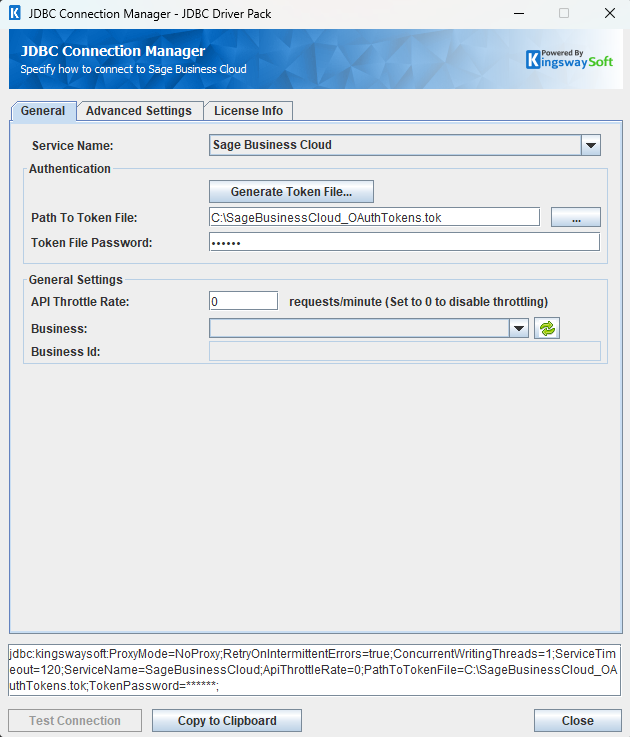
The General page allows you to specify connection properties and login credentials for the Sage Business Cloud REST service.
Authorization Code
A saved token file and token password can be used to establish a connection. If you wish to generate a new token file, click Generate Token File to go through the token generation process, save the token file locally, and use the specified token password to connect.
- Authentication
-
- Path To Token File
-
The path to the token file on the file system.
- Token File Password
-
The password for the token file.
- Generate Token File
-
This button completes the OAuth authentication process to generate a new token.
- Client ID: The Client ID option allows you to specify the unique ID that identifies the application making the request.
- Client Secret: The Client Secret option allows you to specify the client secret for your app.
- Redirect URL: The Redirect URL option allows you to specify the Redirect URL used to complete the authentication process.
- Scope: The Scope option allows you to specify the scope of the token file being generated.
- PKCE (Enhanced Security): The PKCE (Proof Key for Code Exchange) option can be enabled for a PKCE app type. It ensures that the client that initiates the OAuth flow is the same client that completes the flow.
General Settings
- API Throttling Rate
-
The API Throttling Rate limits the number of requests that can be sent per second. Set this value to 0 to disable API throttling.
- Business
-
This option allows you to select the Business you are trying to connect to.
- Business Id
-
The Business Id of the selected Business.
Advanced Settings Page
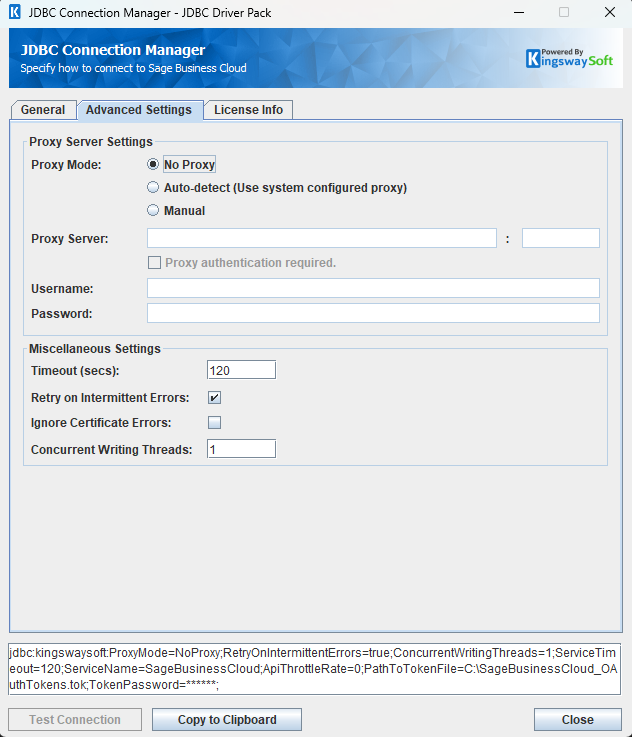
The Advanced Settings page allows you to specify advanced settings for the connection.
Proxy Server Settings
- Proxy Server Settings
-
- Proxy Mode
-
The Proxy Mode option allows you to specify how you want to configure the proxy server setting. There are three options available.
- No Proxy
- Auto-detect (Use system configured proxy)
- Manual
- Proxy Server
-
Using the Proxy Server option allows you to specify the name of the proxy server for the connection.
- Port
-
The Port option allows you to specify the port number of the proxy server for the connection.
- Username (Proxy Server Authentication)
-
The Username option (under Proxy Server Authentication) allows you to specify the proxy user account.
- Password (Proxy Server Authentication)
-
The Password option (under Proxy Server Authentication) allows you to specify the proxy user's password.
Miscellaneous Settings
- Miscellaneous Settings
-
- Timeout (secs)
-
The Timeout (secs) option allows you to specify a timeout value in seconds for the connection. The default value is 120 seconds. Specify 0 for infinite timeout.
- Retry on Intermittent Errors
-
The retry on intermittent errors determines if requests will be retried when there is an error. If this option is checked requests will be retried up to 3 times.
- Ignore Certificate Errors
-
This option can be used to ignore those SSL certificate errors when connecting to the target server.
Warning: Enabling the "Ignore Certificate Errors" option is generally NOT recommended, particularly for production instances. Unless there is a strong reason to believe the connection is secure - such as the network communication is only happening in an internal infrastructure, this option should be unchecked for best security.
Note: When this option is enabled, it applies to all HTTP-based SSL connections in the same job process.
- Concurrent Writing Threads
-
This option can be used to set the number of threads to be used during write operations. This can improve performance during large-volume write operations.
Using the JDBC Driver
This section provides examples that use JDBC classes such as Connection, Statement, and ResultSet to manage interactions with Sage Business Cloud data. It covers regular statements and prepared statements for complex or frequently executed queries.
Executing Statements
After you have connected from your code, you can execute SQL statements using the Statement class. For connection details, see Connecting with DriverManager or Connecting with DataSource. For parameterized statements, see Executing Prepared Statements.
SELECT
Use the Statement class's generic execute method or the executeQuery method to execute SQL statements that return data. To retrieve the results of a query, call the getResultSet method of the Statement.
String sql = "SELECT * FROM contact_opening_balances";
try {
    ResultSet resultSet = statement.executeQuery(sql);
    LOGGER.info(resultSet.toString());
} catch (SQLException e) {
    LOGGER.severe(e.toString());
}
INSERT
Use either the generic execute method or the executeUpdate method of the Statement class to execute an INSERT operation.
The results of SQL queries are saved in a ResultSet. You can retrieve the ResultSet after execution to view the inserted data's ID, exceptions raised during execution, and details of the affected data.
String sql = "INSERT INTO addresses (address.contact_id, address.name, address.address_type_id, address.is_main_address) VALUES ('1', 'name', '1', true)";
try {
    statement.executeUpdate(sql);
    LOGGER.info(statement.getResultSet().toString());
} catch (SQLException e) {
    LOGGER.severe(e.toString());
}
id,errorcode,errormessage,processdata,haserrors
123456,null,null,{"address":{"contact_id":"1","name":"name","address_type_id":"1","is_main_address":true}},false
UPDATE
Use either the generic execute method or the executeUpdate method of the Statement class to execute an UPDATE operation.
The results of SQL queries are saved in a ResultSet. You can retrieve the ResultSet after execution to view the updated data's ID, exceptions raised during execution, and details of the affected data.
String sql = "UPDATE tax_rates SET tax_rate.name = 'testName' WHERE key = '1234567890'";
try {
    statement.executeUpdate(sql);
    LOGGER.info(statement.getResultSet().toString());
} catch (SQLException e) {
    LOGGER.severe(e.toString());
}
id,errorcode,errormessage,processdata,haserrors
234567,null,null,{"tax_rate":{"name":"testName"}},false
DELETE
Use either the generic execute method or the executeUpdate method of the Statement class to execute a DELETE operation.
The results of SQL queries are saved in a ResultSet. You can retrieve the ResultSet after execution to view the deleted data's ID, exceptions raised during execution, and details of the affected data.
String sql = "DELETE FROM tax_rates WHERE key = '1234567890'";
try {
    statement.executeUpdate(sql);
    LOGGER.info(statement.getResultSet().toString());
} catch (SQLException e) {
    LOGGER.severe(e.toString());
}
id,errorcode,errormessage,processdata,haserrors
null,null,null,null,false
Executing Prepared Statements
Using a PreparedStatement can improve performance when you need to execute a SQL statement multiple times with different parameters. Unlike a Statement object, a PreparedStatement object is provided with a SQL statement when it is created, which can then be executed with different values each time. This special type of statement is derived from the more general Statement class.
Below are the steps outlining how to execute a prepared statement:
Creating and Executing a Prepared Statement
- Create a PreparedStatement
-
-
Use the
prepareStatementmethod of theConnectionclass to instantiate aPreparedStatement.For connection details, see Connecting with DriverManager or Connecting with DataSource.
-
- Set Parameters
-
- Declare parameters by calling the corresponding setter method of the
PreparedStatement. - NOTE: The parameter indices start at 1.
- Declare parameters by calling the corresponding setter method of the
- Execute the PreparedStatement
-
- Use the generic
executeorexecuteUpdatemethod of thePreparedStatement.
- Use the generic
- Retrieve Results
-
- Call the
getResultSetmethod of thePreparedStatementto obtain the query results, which are returned as aResultSet.
- Call the
- Iterate Over the Result Set
-
- Use the
nextmethod of theResultSetto iterate through the results. To obtain column information, use theResultSetMetaDataclass. Instantiate aResultSetMetaDataobject by calling thegetMetaDatamethod of theResultSet.
- Use the
SELECT
Use the PreparedStatement class's generic execute method or the executeQuery method to execute SQL statements that return data.
The results of SQL queries are saved in a ResultSet. You can retrieve the ResultSet after execution to view the retrieved data.
String sql = "SELECT * FROM contact_opening_balances WHERE key = ?";
try {
    PreparedStatement ps = connection.prepareStatement(sql);
    ps.setString(1, "d2b7ed37544e444887e49f3f74482474");
    boolean ret = ps.execute(sql);
    if (ret) {
        ResultSet rs = ps.getResultSet();
        LOGGER.info(rs.toString());
    }
} catch (SQLException e) {
    LOGGER.severe(e.toString());
}
INSERT
Use either the generic execute method or the executeUpdate method of the PreparedStatement class to execute an INSERT operation.
The results of SQL queries are saved in a ResultSet. You can retrieve the ResultSet after execution to view the ID of inserted data, exceptions raised during execution, and the data affected by the insertion.
String sql = "INSERT INTO addresses (address.contact_id, address.name, address.address_type_id, address.is_main_address) VALUES (?, ?, ?, ?)";
try {
    PreparedStatement ps = connection.prepareStatement(sql);
    ps.setString(1, "1");
    ps.setString(2, "name");
    ps.setString(3, "1");
    ps.setBoolean(4, true);
    ps.executeUpdate();
    LOGGER.info(ps.getResultSet().toString());
} catch (SQLException e) {
    LOGGER.severe(e.toString());
}
id,errorcode,errormessage,processdata,haserrors
123456,null,null,{"address":{"contact_id":"1","name":"name","address_type_id":"1","is_main_address":true}},false
UPDATE
Use either the generic execute method or the executeUpdate method of the PreparedStatement class to execute an UPDATE operation.
The results of SQL queries are saved in a ResultSet. You can retrieve the ResultSet after execution to view the ID of updated data, exceptions raised during execution, and the data affected by the update.
String sql = "UPDATE tax_rates SET tax_rate.name = ? WHERE key = ?";
try {
    PreparedStatement ps = connection.prepareStatement(sql);
    ps.setString(1, "testName");
    ps.setString(2, "1234567890");
    ps.executeUpdate();
    LOGGER.info(ps.getResultSet().toString());
} catch (SQLException e) {
    LOGGER.severe(e.toString());
}
id,errorcode,errormessage,processdata,haserrors
234567,null,null,{"tax_rate":{"name":"testName"}},false
DELETE
Use either the generic execute method or the executeUpdate method of the PreparedStatement class to execute a DELETE operation.
The results of SQL queries are saved in a ResultSet. You can retrieve the ResultSet after execution to view the deleted data's ID, exceptions raised during execution, and details of the affected data.
String deleteSql = "DELETE FROM tax_rates WHERE key = ?";
try {
    PreparedStatement ps = connection.prepareStatement(deleteSql);
    ps.setString(1, "1234567890");
    ps.executeUpdate();
    LOGGER.info(ps.getResultSet().toString());
} catch (SQLException e) {
    e.printStackTrace();
}
id,errorcode,errormessage,processdata,haserrors
null,null,null,null,false
Metadata Discovery
This section provides examples on how to retrieve table and column metadata using the getTables, getColumns, and getPrimaryKeys methods from the DatabaseMetaData interface. These are essential for discovering database structures.
Tables
The getTables method from the DatabaseMetaData interface can be used to retrieve a list of tables.
This method only retrieves tables that are not write-only.
To get a list of tables that includes write-only tables, query the table system.tables.
try {
    Connection connection = buildRestConnectionFromDriverManager();
    ResultSet rs = connection.getMetaData().getTables(null, null, null, null);
    LOGGER.info("\r\n" + rs.toString());
} catch (SQLException e) {
    LOGGER.severe(e.getMessage());
}
TABLE_CAT,TABLE_SCHEM,TABLE_NAME,TABLE_TYPE,REMARKS
null,null,address_regions,Table,null
null,null,address_types,Table,null
null,null,addresses,Table,null
null,null,artefact_statuses,Table,null
null,null,attachment_context_types,Table,null
null,null,attachments,Table,null
null,null,attachments/file,Table,null
......
The getTables method returns the following metadata columns:
| Column Name | Data Type | Description |
|---|---|---|
| TABLE_CAT | String | The catalog that contains the table. |
| TABLE_SCHEM | String | The schema of the table. |
| TABLE_NAME | String | The name of the table. |
| TABLE_TYPE | String | The type of the table (e.g., TABLE or VIEW). |
| REMARKS | String | An optional description of the table. |
Columns
Use the getColumns method of the DatabaseMetaData interface to retrieve detailed information about database columns.
This method returns columns only for tables that are not write-only.
To get columns for write-only tables, query the table system.columns.
try {
    Connection connection = buildRestConnectionFromDriverManager();
    ResultSet rs = connection.getMetaData().getColumns(null, null, "addresses", null);
    LOGGER.info(rs.toString());
} catch (SQLException e) {
    e.printStackTrace();
}
TABLE_CAT,TABLE_SCHEM,TABLE_NAME,COLUMN_NAME,DATA_TYPE,TYPE_NAME,COLUMN_SIZE,BUFFER_LENGTH,DECIMAL_DIGITS,NUM_PREC_RADIX,NULLABLE,REMARKS,COLUMN_DEF,SQL_DATA_TYPE,SQL_DATETIME_SUB,CHAR_OCTET_LENGTH,ORDINAL_POSITION,IS_NULLABLE,IS_AUTOINCREMENT,IS_GENERATEDCOLUMN,DTS_TYPE
null,null,addresses,$path,12,VARCHAR,0,null,0,0,null,null,null,12,null,null,null,null,null,null,DT_WSTR
null,null,addresses,address.address_line_1,12,VARCHAR,0,null,0,0,null,null,null,12,null,null,null,null,null,null,DT_WSTR
null,null,addresses,address.address_line_2,12,VARCHAR,0,null,0,0,null,null,null,12,null,null,null,null,null,null,DT_WSTR
null,null,addresses,address.address_type_id,12,VARCHAR,0,null,0,0,null,null,null,12,null,null,null,null,null,null,DT_WSTR
null,null,addresses,address.bank_account_id,12,VARCHAR,0,null,0,0,null,null,null,12,null,null,null,null,null,null,DT_WSTR
null,null,addresses,address.city,12,VARCHAR,0,null,0,0,null,null,null,12,null,null,null,null,null,null,DT_WSTR
The getColumns method returns the following columns:
| Column Name | Data Type | Description |
|---|---|---|
| TABLE_CAT | String | The database name. |
| TABLE_SCHEM | String | The table schema. |
| TABLE_NAME | String | The table name. |
| COLUMN_NAME | String | The column name. |
| DATA_TYPE | Integer | The data type represented by a constant value from java.sql.Types. |
| TYPE_NAME | String | The data type name used by the driver. |
| COLUMN_SIZE | Integer | The length in characters of the column or the numeric precision. |
| BUFFER_LENGTH | Integer | The buffer length. |
| DECIMAL_DIGITS | Integer | The column scale or number of digits to the right of the decimal point. |
| NUM_PREC_RADIX | Integer | The radix, or base. |
| NULLABLE | Integer | Whether the column can contain null as defined by the following JDBC DatabaseMetaData constants: columnNoNulls (0) or columnNullable (1). |
| REMARKS | String | The comment or note associated with the object. |
| COLUMN_DEF | String | The default value for the column. |
| SQL_DATA_TYPE | Integer | Reserved by the specification. |
| SQL_DATETIME_SUB | Integer | Reserved by the specification. |
| CHAR_OCTET_LENGTH | Integer | The maximum length of binary and character-based columns. |
| ORDINAL_POSITION | Integer | The position of the column in the table, starting at 1. |
| IS_NULLABLE | String | Whether a null value is allowed: YES or NO. |
| SCOPE_CATALOG | String | The catalog of the table referenced by a reference attribute (null if DATA_TYPE is not REF). |
| SCOPE_SCHEMA | String | The schema of the table referenced by a reference attribute (null if DATA_TYPE is not REF). |
| SCOPE_TABLE | String | The name of the table referenced by a reference attribute (null if DATA_TYPE is not REF). |
| SOURCE_DATA_TYPE | Short | The source type of a distinct type or user-defined REF type (null if DATA_TYPE is neither DISTINCT nor a user-defined REF). |
| IS_AUTOINCREMENT | String | Whether the column value is assigned by Sage Business Cloud in fixed increments. |
| IS_GENERATEDCOLUMN | String | Whether the column is generated: YES or NO. |
| DTS_TYPE | String | Object DTS attribute type. |
Primary Keys
The getPrimaryKeys method in the DatabaseMetaData interface is used to retrieve metadata about primary keys for a given table in Sage Business Cloud.
try {
    Connection connection = buildRestConnectionFromDriverManager();
    ResultSet resultSet = connection.getMetaData().getPrimaryKeys(null, null, "addresses");
    LOGGER.info("\r\n" + resultSet.toString());
} catch (SQLException e) {
    LOGGER.severe(e.getMessage());
}
TABLE_NAME,PRIMARY_COLUMN_NAME
addresses,id
The getPrimaryKeys method returns the following columns:
| Column Name | Data Type | Description |
|---|---|---|
| TABLE_NAME | String | The name of the table that contains the primary key. |
| PRIMARY_COLUMN_NAME | String | The name of the column that serves as the primary key for the table. |
Connection Settings
| Connection Setting | Type | Default Value | Description | |
|---|---|---|---|---|
| ApiThrottleRate | Integer | 0 | The maximum number of API requests a client can make to the server within a specific time period, defined in the ThrottleRateUnit setting. A value of 0 disables throttling. | |
| Business | String | "" | This option allows you to select the business you are trying to connect to. | |
| BusinessId | String | "" | The Id of the Business which has been selected. | |
| CacheExpirationTime | Integer | 30 | Defines the expiration time for cache. A value of 0 disables caching. | |
| ConcurrentWritingThreads | Integer | 1 | The number of threads for executing operations in parallel. A value of 0 will disable multi threading. | |
| ConnectionTimeout | Integer | 30 | ConnectionTimeout is the maximum amount of time the program will wait to set up a connection to the Sage Business Cloud API. | |
| IgnoreCertificateErrors | Boolean | false | Specifies whether to verify the certificate when connecting to Sage Business Cloud. If certificate verification is not required, you can set this value to 'true'. | |
| ContinueOnErrors | Boolean | false | Determines if the program continues executing SQL statements after encountering an error. | |
| InstanceType | String | "Default" | This allows you to specify the Instance Type of your Sage Business Cloud account. | |
| LogFileSize | String | "10485760" | A string specifying the maximum size in bytes for a log file. | |
| LogLevel | String | "INFO" | The logging level for the JDBC driver. | |
| LogPath | String | "./jdbcLogs" | The directory where log files are stored. | |
| OemKey | String | "" | The OEM license key. | |
| PathToTokenFile | String | "" | The path to the token file. | |
| ProxyMode | String | NoProxy | This setting configures the proxy. Allowed values are "NoProxy", "AutoDetect" and "Manual". | |
| ProxyPassword | String | "" | The password to be used to authenticate to the proxy. | |
| ProxyServer | String | "" | The host of the proxy server. | |
| ProxyServerPort | Integer | 0 | The port of the proxy server. | |
| ProxyUsername | String | "" | The username to be used to authenticate to the proxy. | |
| ReadBatchSize | Integer | 100 | ReadBatchSize is used to set how many records can be read from Sage Business Cloud in a single call. | |
| ResultPath | String | "" | The path where the execution result files are saved. | |
| RetryOnIntermittentErrors | Boolean | true | The RetryOnIntermittentErrors parameter indicates whether to retry the connection when it might occasionally fail due to temporary issues. | |
| SaveResult | Boolean | false | The SaveResult parameter indicates whether to save the execution results to a file. | |
| ServiceName | String | "" | The ServiceName refers to the name of the service API selected by the user. | |
| ServiceTimeout | Integer | 120 | The ServiceTimeout is the timeout to receive the full response from Sage Business Cloud API. | |
| Suppress404NotFoundError | Boolean | true | When set to true, if a query results in an HTTP 404 error, a result set will still be created. When set to false, an error is logged instead and no result set is created. | |
| ThrottleRateUnit | String | "PerMinute" | The unit of time for limiting API requests to avoid being throttled. Valid values include, "PerSecond", "PerMinute" and "PerHour". | |
| TokenPassword | String | "" | The password used to read the token file. | |
| WriteBatchSize | Integer | 1 | WriteBatchSize is used to set how many records can be written to Sage Business Cloud in a single call. |