

Box.com
Building the JDBC URL
After installing the license, open the connection management page by running java -jar kingswaysoft.jdbc.jar. Enter the required details to generate the JDBC connection URL. Click Test Connection to test the generated URL, or Copy to Clipboard to copy the connection string for use in your application.
Note: If the license is not installed, you can still use the connection manager to generate a JDBC URL; however, the Test Connection feature will be disabled.
General Page
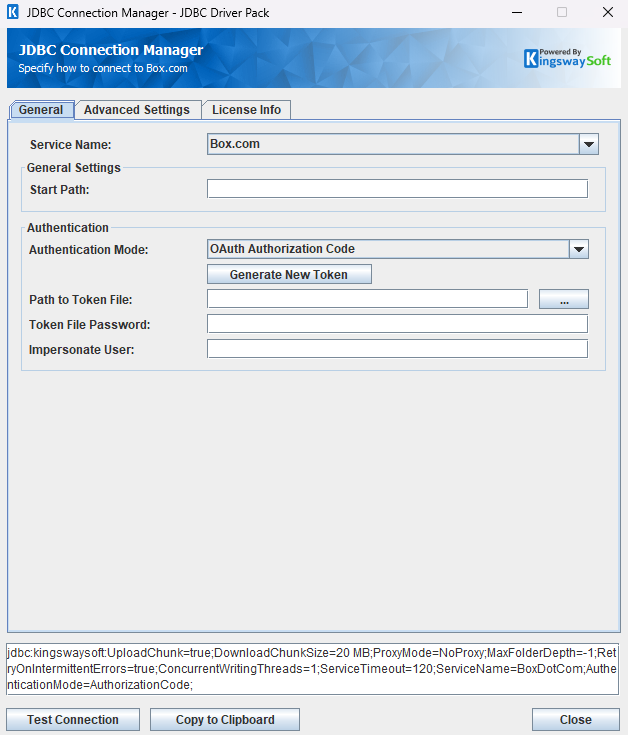
The General page allows you to specify connection properties and login credentials for the Box.com REST service.
General Settings
General Settings
- Start Path
-
The folder where metadata discovery begins. Leave this blank to scan from All Files. A path such as
Projectsor/Projects/Designlimits discovered folder tables to the children of that folder.MaxFolderDepthis counted from this folder. When this value is set,pathbecomes opitonal.SELECTfromFiles,Folders, orItemscan omitpath.When Start Path is set, you may optionally specify
pathin the query. When set in the query, the specified querypathis appended to the value of the start path.When this value is blank,
pathstays required on those tables. A query that addresses an item by path, file id, or folder id still resolves from All Files.
Authentication Methods for Box.com
OAuth Authorization Code
A saved token file and token password can be used to establish a connection. If you wish to generate a new token file, click Generate New Token to go through the token generation process, save the token file locally, and use the specified token password to connect.
- Generate New Token
-
This button completes the OAuth authentication process to generate a new token.
- Client ID: The Client ID option allows you to specify the unique ID which identifies the application making the request.
- Client Secret: The Client Secret option allows you to specify the client secret belonging to your app.
- Redirect URL: The Redirect URL option allows you to specify the Redirect URL to complete the authentication process.
- Scope: The Scope option allows you to specify the Box.com OAuth scopes granted to the token being generated.
- Path to Token File
-
The path to the token file on the file system.
- Token File Password
-
The password for the token file.
- Impersonate User
-
The Box user ID to impersonate when making API requests. When specified, the driver sends the
As-Userheader so requests run as that user.
OAuth Client Credentials
OAuth Client Credentials can be used to authenticate and connect to Box.com. Provide the Client ID, Client Secret, Subject Type, and Subject ID.
- Client ID
-
The Client ID option allows you to specify the unique ID which identifies the application making the request.
- Client Secret
-
The Client Secret option allows you to specify the client secret belonging to your app.
- Subject Type
-
The Subject Type option allows you to specify whether the token is requested for an enterprise or a user. Available options are:
- enterprise
- user
- Subject ID
-
The Subject ID option allows you to specify the enterprise ID or user ID that matches the selected Subject Type.
JWT
JWT authentication can be used when a Box.com app is configured to authenticate with an RSA private key. Provide the Client ID, Client Secret, Subject Type, Subject ID, Public Key ID, and Private Key Path.
- Client ID
-
The Client ID option allows you to specify the unique ID which identifies the application making the request.
- Client Secret
-
The Client Secret option allows you to specify the client secret belonging to your app.
- Subject Type
-
The Subject Type option allows you to specify whether the JWT is issued for an enterprise or a user. Available options are:
- enterprise
- user
- Subject ID
-
The Subject ID option allows you to specify the enterprise ID or user ID that matches the selected Subject Type.
- Public Key ID
-
The Public Key ID option allows you to specify the ID of the public key configured in the Box.com app. This value is used as the
kidin the JWT header. - Private Key Path
-
The path to the RSA private key file on the file system used to sign the JWT assertion.
- Private Key Password
-
The password for the private key file, if the key is encrypted. Leave this field blank if the private key is not password-protected.
- Impersonate User
-
The Box user ID to impersonate when making API requests. When specified, the driver sends the
As-Userheader so requests run as that user.
After completing the configuration for all required connection and authentication settings in the JDBC Connection Manager, you can use the Test Connection button to validate your configuration and verify API requests will authenticate successfully.
Advanced Settings Page
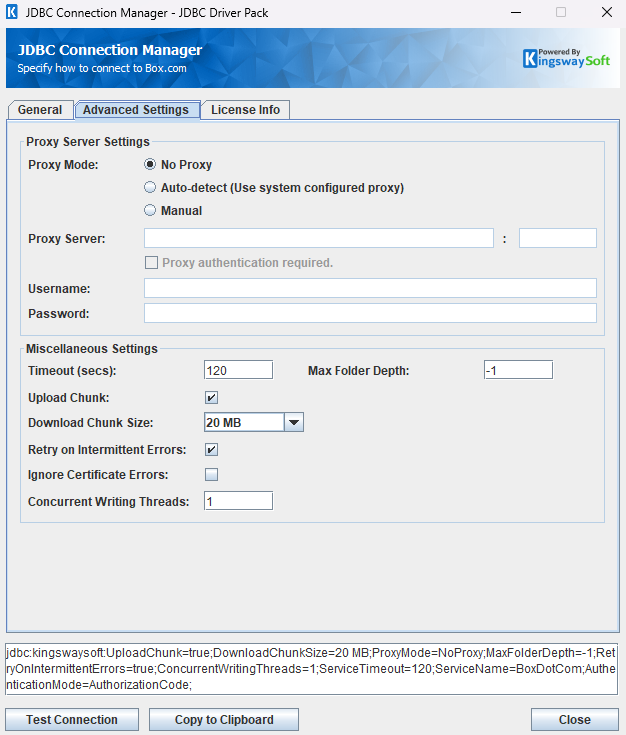
The Advanced Settings page allows you to specify advanced settings for the connection.
Proxy Server Settings
- Proxy Mode
-
The Proxy Mode option allows you to specify how you want to configure the proxy server setting. There are three options available.
- No Proxy
- Auto-detect (Use system configured proxy)
- Manual
- Proxy Server
-
Using the Proxy Server option allows you to specify the name of the proxy server for the connection.
- Port
-
The Port option allows you to specify the port number of the proxy server for the connection.
- Username (Proxy Server Authentication)
-
The Username option (under Proxy Server Authentication) allows you to specify the proxy user account.
- Password (Proxy Server Authentication)
-
The Password option (under Proxy Server Authentication) allows you to specify the proxy user's password.
Miscellaneous Settings
- Timeout (secs)
-
The Timeout (secs) option allows you to specify a timeout value in seconds for the connection. The default value is 120 seconds. Specify 0 for an infinite timeout.
- Upload Chunk
-
The Upload Chunk option determines whether large files are uploaded using Box.com chunked upload. When this option is checked, files that are 20 MB or larger are uploaded in chunks. This option is enabled by default.
- Download Chunk Size
-
The Download Chunk Size option allows you to specify the size of each chunk when downloading file content. The default value is 20 MB. Available options are:
- 20 MB
- 32 MB
- 64 MB
- 128 MB
- Retry on Intermittent Errors
-
The Retry on Intermittent Errors option determines whether requests will be retried when an error occurs. If this option is checked, requests will be retried up to 3 times.
- Ignore Certificate Errors
-
This option can be used to ignore those SSL certificate errors when connecting to the target server.
Warning: Enabling the "Ignore Certificate Errors" option is generally NOT recommended, particularly for production instances. Unless there is a strong reason to believe the connection is secure - such as the network communication is only happening in an internal infrastructure, this option should be unchecked for best security.
Note: When this option is enabled, it applies to all HTTP-based SSL connections in the same job process.
- Concurrent Writing Threads
-
This option can be used to set the number of threads to be used during write operations. This can improve performance during large-volume write operations. The default value is 1.
- Max Folder Depth
-
The depth to scan folders for child folders. A value of -1 indicates unlimited depth. Lower values will increase performance.
Using the JDBC Driver
This section provides examples that use JDBC classes such as Connection, Statement, and ResultSet to manage interactions with Box.com data. It covers regular statements and prepared statements for complex or frequently executed queries.
Query Level Options
The driver supports passing some options directly within the query. Append the clause USING OPTIONS (\{option\}=\{value\}) to your SELECT/INSERT/CALL/MOVE query. This clause is optional.
Box.com queries support the following query options:
| Option Name | Data Type | Description |
|---|---|---|
| SelectionMode | String | Controls which items are returned by a SELECT from a folder table. |
| FileOverwriteMode | String | Controls what happens when a copy or move would conflict with an existing item. |
| BatchSize | Integer | Overrides the read batch size for a specific SELECT query. For example, USING OPTIONS (batchsize=N). |
SelectionMode
To control which items are returned from a folder table, add USING OPTIONS (SelectionMode='\{value\}') to the end of the query.
| Option Name | Description |
|---|---|
| Selected Item | Returns only the selected folder. |
| Selected Level | Returns the selected folder and its immediate children. |
| Recursive | Returns the selected folder and all descendant items. This is the default when SelectionMode is not provided. |
| Selected Level (Files Only) | Returns files in the selected folder only. Subfolders are not returned. |
| Recursive (Files Only) | Returns files in the selected folder and all descendant folders. Subfolders are not returned. |
FileOverwriteMode
When a INSERT, UPSERT, UPDATE or CALL query encounters a conflict due to a duplicate file name by default an error will be returned. To change the behavior in these situations, use the option FileOverwriteMode in your query.
Valid values for CALL:
| Option Name | Description |
|---|---|
| RaiseError | Default value. Stops the operation and returns an error when the destination already has an item with the same name. |
| SkipExisting | Skips the copy or move when the destination already has an item with the same name. |
Valid values for INSERT and UPSERT:
| Option Name | Description |
|---|---|
| RaiseError | Default value. Stops the operation and returns an error when the destination path already has a file with the same name. |
| Overwrite | Overwrites the existing file. |
| SkipExisting | Skips the operation when the destination path already has a file with the same name. |
Files, Folders, and Items
The driver exposes the following virtual tables for Box.com files and folders:
- Files — Files only. Locate a file by
pathorfile_id. Search withqueryis not supported. - Folders — Folders only. Locate a folder by
pathorfolder_id. - Items — Files and folders. Use
path,file_id, orfolder_idto list from a location, orqueryto search. OnlyItemssupportsquery. - Folder.* — A discovered folder, such as
Folder.Box_Test/QA. The table itself is the starting folder. Optionalpath,file_id, orfolder_idlocates an item under that folder.
When Start Path is set, Files, Folders, and Items can omit path. The query lists that folder. A path written in the query overrides Start Path. When Start Path is blank, path stays required, together with the other locators for that table. An explicit path, file_id, or folder_id still resolves from All Files.
Executing Statements
After you have connected from your code, you can execute SQL statements using the Statement class. For connection details, see Connecting with DriverManager or Connecting with DataSource. For parameterized statements, see Executing Prepared Statements.
SELECT
Use the Statement class's generic execute method or the executeQuery method to execute SQL statements that return data. To retrieve the results of a query, call the getResultSet method of the Statement.
String sql = "SELECT * FROM Folder.Test USING OPTIONS(SelectionMode='Recursive')";
try {
    ResultSet resultSet = statement.executeQuery(sql);
    LOGGER.info(resultSet.toString());
} catch (SQLException e) {
    LOGGER.severe(e.toString());
}
String sql = "SELECT id, name, type FROM Folder.Box_Test/QA USING OPTIONS(SelectionMode='Selected Level (Files Only)')";
try {
    ResultSet resultSet = statement.executeQuery(sql);
    LOGGER.info(resultSet.toString());
} catch (SQLException e) {
    LOGGER.severe(e.toString());
}
Files can locate a file by path or by file_id. Folders can locate a folder by path or by folder_id. Items and Folder tables such as Folder.Box_Test/QA accept either file_id or folder_id.
String sql = "SELECT id, name, type, path FROM Files WHERE file_id = '12345'";
try {
    ResultSet resultSet = statement.executeQuery(sql);
    LOGGER.info(resultSet.toString());
} catch (SQLException e) {
    LOGGER.severe(e.toString());
}
String sql = "SELECT id, name, type, path FROM Folders WHERE folder_id = '0' USING OPTIONS(SelectionMode='Selected Level')";
try {
    ResultSet resultSet = statement.executeQuery(sql);
    LOGGER.info(resultSet.toString());
} catch (SQLException e) {
    LOGGER.severe(e.toString());
}
INSERT
Use either the generic execute method or the executeUpdate method of the Statement class to execute an INSERT operation.
The results of SQL queries are saved in a ResultSet. You can retrieve the ResultSet after execution to view the inserted data's ID, exceptions raised during execution, and details of the affected data.
String sql = "INSERT INTO Weblinks (path, url, description) VALUES ('testPath', 'https://www.example.com/example/', 'testDescription')";

try {
    int result = statement.executeUpdate(sql);
    LOGGER.info(statement.getResultSet().toString());
} catch (SQLException e) {
    LOGGER.severe(e.toString());
}
id,errorcode,errormessage,processdata,haserrors
48228690729,null,null,{"url":"https://www.example.com/example/34d3f873","parent":{"id":"171238269897"},"name":"jdbc-weblink-34d3f873","description":"jdbc weblink"},false
Items and folder tables such as Folder.Box_Test/QA can create an item by path. Use _isFolder to create a folder or a file. When creating a file, provide either file_content or local_file_path, but not both.
The file_content column is a BLOB. As such, use PreparedStatement.setBytes with the raw file bytes. SQL string literals may still use a Base64-encoded string. The local_file_path column is an absolute path to a file on the machine running the driver; the driver reads the file and uploads the bytes.
String sql = "INSERT INTO Folder.Box_Test/QA (_isFolder, path) VALUES (true, '/Box_Test/QA/jdbc-folder')";
try {
    int result = statement.executeUpdate(sql);
    LOGGER.info(statement.getResultSet().toString());
} catch (SQLException e) {
    LOGGER.severe(e.toString());
}
id,errorcode,errormessage,processdata,haserrors,relatederrorcode,relatederrormessage
429017190138,null,null,{"name":"jdbc-folder","parent":{"id":"171238269897"}},false,null,null
UPDATE
Use either the generic execute method or the executeUpdate method of the Statement class to execute an UPDATE operation.
The results of SQL queries are saved in a ResultSet. You can retrieve the ResultSet after execution to view the updated data's ID, exceptions raised during execution, and details of the affected data.
Files can locate a file by path or by file_id. Folders can locate a folder by path or by folder_id. Items and folder tables such as Folder.Box_Test/QA accept either file_id or folder_id.
String sql = "UPDATE Folders SET description = 'updated folder' WHERE path = '/Box_Test/QA'";
try {
    statement.executeUpdate(sql);
    LOGGER.info(statement.getResultSet().toString());
} catch (SQLException e) {
    LOGGER.severe(e.toString());
}
id,errorcode,errormessage,processdata,haserrors
171238269897,null,null,{"description":"updated folder"},false
String sql = "UPDATE Files SET tags = 't1,t2' WHERE file_id = '1823742270968'";
try {
    statement.executeUpdate(sql);
    LOGGER.info(statement.getResultSet().toString());
} catch (SQLException e) {
    LOGGER.severe(e.toString());
}
id,errorcode,errormessage,processdata,haserrors,relatederrorcode,relatederrormessage
1823742270968,null,null,{"tags":["t1","t2"]},false,null,null
CALL
Use CALL Copy or CALL Move to copy or move a file or folder. Identify the source with from_path or id, and the destination with to_path or PathToParent.
Use either the generic execute method or the executeUpdate method of the Statement class to execute an CALL operation.
The results of SQL queries are saved in a ResultSet. You can retrieve the ResultSet after execution to view the updated data's ID, exceptions raised during execution, and details of the affected data.
String sql = "CALL Copy (from_path, to_path) VALUES ('/Box_Test/sample.txt', '/destination/jdbc-copy.txt')";
try {
    statement.executeUpdate(sql);
    LOGGER.info(statement.getResultSet().toString());
} catch (SQLException e) {
    LOGGER.severe(e.toString());
}
id,errorcode,errormessage,processdata,haserrors
182456301112,null,null,{"from_path":"/Box_Test/sample.txt","to_path":"/destination/jdbc-copy.txt"},false
String sql = "CALL Move (from_path, to_path) VALUES ('/Box_Test/sample.txt', '/test-folder/sample.txt')";
try {
    statement.executeUpdate(sql);
    LOGGER.info(statement.getResultSet().toString());
} catch (SQLException e) {
    LOGGER.severe(e.toString());
}
id,errorcode,errormessage,processdata,haserrors
171238269897,null,null,{"from_path":"/Box_Test/sample.txt","to_path":"/test-folder/sample.txt"},false
String sql = "CALL Copy (from_path, to_path) VALUES ('/Box_Test/QA/sample.txt', '/Box_Test/QA/jdbc-copy.txt') USING OPTIONS (FileOverwriteMode='SkipExisting')";
try {
    statement.executeUpdate(sql);
    LOGGER.info(statement.getResultSet().toString());
} catch (SQLException e) {
    LOGGER.severe(e.toString());
}
id,errorcode,errormessage,processdata,haserrors,relatederrorcode,relatederrormessage
2536920395531,null,The item /Box_Test/QA/sample.txt already exists and FileOverwriteMode is set to 'SkipExisting', so the operation was skipped.,null,true,null,null
DELETE
Use either the generic execute method or the executeUpdate method of the Statement class to execute a DELETE operation.
The results of SQL queries are saved in a ResultSet. You can retrieve the ResultSet after execution to view the deleted data's ID, exceptions raised during execution, and details of the affected data.
Files can delete a file by path or by file_id. Folders can delete a folder by path or by folder_id. Items and folder tables such as Folder.Box_Test/QA accept either file_id or folder_id.
String sql = "DELETE FROM Files WHERE path = '/Box_Test/QA/jdbc-test-file-82e5c11b.txt'";
try {
    statement.executeUpdate(sql);
    LOGGER.info(statement.getResultSet().toString());
} catch (SQLException e) {
    LOGGER.severe(e.toString());
}
id,errorcode,errormessage,processdata,haserrors
2407892557962,null,null,null,false
String sql = "DELETE FROM Files WHERE file_id = '12345'";
try {
    statement.executeUpdate(sql);
    LOGGER.info(statement.getResultSet().toString());
} catch (SQLException e) {
    LOGGER.severe(e.toString());
}
id,errorcode,errormessage,processdata,haserrors,relatederrorcode,relatederrormessage
1823742270968,null,null,null,false,null,null
UPSERT
Using the UPSERT operation, you can either insert or update an existing record in one call.
Not all tables support the upsert operation. Query the system.tables table to identify which tables support UPSERT operations.
The results of SQL queries are saved in a ResultSet. You can retrieve the ResultSet after execution to view the ID of upserted data, exceptions raised during execution, and the data affected by the upsert.
String sql = "UPSERT INTO Files (path, file_content, description) VALUES ('/Box_Test/jdbc-upsert.txt', '{Base64 encoded string}', 'upserted')";
try {
    statement.executeUpdate(sql);
    LOGGER.info(statement.getResultSet().toString());
} catch (SQLException e) {
    LOGGER.severe(e.toString());
}
id,errorcode,errormessage,processdata,haserrors,isnew
2419046546342,null,null,{"name":"jdbc-upsert.txt","parent":{"id":"171238269897"},"description":"upserted"},false,true
Items and folder tables such as Folder.Box_Test/QA can upsert by path. Use _isFolder to choose a folder or a file. When creating or replacing a file, provide either file_content or local_file_path, but not both.
The file_content column is a BLOB. As such, use PreparedStatement.setBytes with the raw file bytes. SQL string literals may still use a Base64-encoded string. The local_file_path column is an absolute path to a file on the machine running the driver; the driver reads the file and uploads the bytes.
String sql = "UPSERT INTO Items (_isFolder, path) VALUES (true, '/Box_Test/QA/jdbc-upsert-folder')";
try {
    statement.executeUpdate(sql);
    LOGGER.info(statement.getResultSet().toString());
} catch (SQLException e) {
    LOGGER.severe(e.toString());
}
id,errorcode,errormessage,processdata,haserrors,isnew,relatederrorcode,relatederrormessage
429018519926,null,null,{"name":"jdbc-upsert-folder","parent":{"id":"171238269897"}},false,true,null,null
Executing Prepared Statements
Using a PreparedStatement can improve performance when you need to execute a SQL statement multiple times with different parameters. Unlike a Statement object, a PreparedStatement object is provided with a SQL statement when it is created, which can then be executed with different values each time. This special type of statement is derived from the more general Statement class.
Below are the steps outlining how to execute a prepared statement:
Creating and Executing a Prepared Statement
- Create a PreparedStatement
-
Use the
prepareStatementmethod of theConnectionclass to instantiate aPreparedStatement.For connection details, see Connecting with DriverManager or Connecting with DataSource.
- Set Parameters
- Declare parameters by calling the corresponding setter method of the
PreparedStatement. - NOTE: The parameter indices start at 1.
- Execute the PreparedStatement
- Use the generic
executeorexecuteUpdatemethod of thePreparedStatement. - Retrieve Results
- Call the
getResultSetmethod of thePreparedStatementto obtain the query results, which are returned as aResultSet. - Iterate Over the Result Set
- Use the
nextmethod of theResultSetto iterate through the results. To obtain column information, use theResultSetMetaDataclass. Instantiate aResultSetMetaDataobject by calling thegetMetaDatamethod of theResultSet.
SELECT
Use the PreparedStatement class's generic execute method or the executeQuery method to execute SQL statements that return data.
The results of SQL queries are saved in a ResultSet. You can retrieve the ResultSet after execution to view the retrieved data.
String sql = "SELECT * FROM Folder.Test USING OPTIONS(SelectionMode = ?)";
try {
    PreparedStatement ps = connection.prepareStatement(sql);
    ps.setString(1, "Recursive");
    boolean ret = ps.execute();
    if (ret) {
        ResultSet rs = ps.getResultSet();
        LOGGER.info(rs.toString());
    }
} catch (SQLException e) {
    LOGGER.severe(e.toString());
}
INSERT
Use either the generic execute method or the executeUpdate method of the PreparedStatement class to execute an INSERT operation.
The results of SQL queries are saved in a ResultSet. You can retrieve the ResultSet after execution to view the ID of inserted data, exceptions raised during execution, and the data affected by the insertion.
String sql = "INSERT INTO Weblinks (path, url, description) VALUES (?, ?, ?)";
try {
    PreparedStatement ps = connection.prepareStatement(sql);
    ps.setString(1, "testPath");
    ps.setString(2, "https://www.example.com/example/");
    ps.setString(3, "testDescription");
    ps.executeUpdate();

    LOGGER.info(ps.getResultSet().toString());
} catch (SQLException e) {
    LOGGER.severe(e.toString());
}
id,errorcode,errormessage,processdata,haserrors
48228690729,null,null,{"url":"https://www.example.com/example/34d3f873","parent":{"id":"171238269897"},"name":"jdbc-weblink-34d3f873","description":"jdbc weblink"},false
UPDATE
Use either the generic execute method or the executeUpdate method of the PreparedStatement class to execute an UPDATE operation.
The results of SQL queries are saved in a ResultSet. You can retrieve the ResultSet after execution to view the ID of updated data, exceptions raised during execution, and the data affected by the update.
String sql = "UPDATE Folders SET description = ? WHERE path = ?";
try {
    PreparedStatement ps = connection.prepareStatement(sql);
    ps.setString(1, "updated folder");
    ps.setString(2, "/Box_Test/QA");
    ps.executeUpdate();

    LOGGER.info(ps.getResultSet().toString());
} catch (SQLException e) {
    LOGGER.severe(e.toString());
}
id,errorcode,errormessage,processdata,haserrors
171238269897,null,null,{"description":"updated folder"},false
CALL
Use CALL Copy or CALL Move to copy or move a file or folder. Identify the source with from_path or id, and the destination with to_path or PathToParent.
Use either the generic execute method or the executeUpdate method of the PreparedStatement class to execute an CALL operation.
The results of SQL queries are saved in a ResultSet. You can retrieve the ResultSet after execution to view the ID of updated data, exceptions raised during execution, and the data affected by the query.
String sql = "CALL Copy (from_path, to_path) VALUES (?, ?)";
try {
    PreparedStatement ps = connection.prepareStatement(sql);
    ps.setString(1, "/Box_Test/sample.txt");
    ps.setString(2, "/destination/jdbc-copy.txt");
    ps.executeUpdate();

    LOGGER.info(ps.getResultSet().toString());
} catch (SQLException e) {
    LOGGER.severe(e.toString());
}
id,errorcode,errormessage,processdata,haserrors
182456301112,null,null,{"from_path":"/Box_Test/sample.txt","to_path":"/destination/jdbc-copy.txt"},false
String sql = "CALL Move (from_path, to_path) VALUES (?, ?)";
try {
    PreparedStatement ps = connection.prepareStatement(sql);
    ps.setString(1, "/Box_Test/sample.txt");
    ps.setString(2, "/test-folder/sample.txt");
    ps.executeUpdate();

    LOGGER.info(ps.getResultSet().toString());
} catch (SQLException e) {
    LOGGER.severe(e.toString());
}
id,errorcode,errormessage,processdata,haserrors
171238269897,null,null,{"from_path":"/Box_Test/sample.txt","to_path":"/test-folder/sample.txt"},false
String sql = "CALL Copy (from_path, to_path) VALUES (?, ?) USING OPTIONS (FileOverwriteMode=?)";
try {
    PreparedStatement ps = connection.prepareStatement(sql);
    ps.setString(1, "/Box_Test/QA/sample.txt");
    ps.setString(2, "/Box_Test/QA/jdbc-copy.txt");
    ps.setString(3, "SkipExisting");
    ps.executeUpdate();

    LOGGER.info(ps.getResultSet().toString());
} catch (SQLException e) {
    LOGGER.severe(e.toString());
}
id,errorcode,errormessage,processdata,haserrors,relatederrorcode,relatederrormessage
2536920395531,null,The item /Box_Test/QA/sample.txt already exists and FileOverwriteMode is set to 'SkipExisting', so the operation was skipped.,null,true,null,null
DELETE
Use either the generic execute method or the executeUpdate method of the PreparedStatement class to execute a DELETE operation.
The results of SQL queries are saved in a ResultSet. You can retrieve the ResultSet after execution to view the deleted data's ID, exceptions raised during execution, and details of the affected data.
String sql = "DELETE FROM Files WHERE path = ?";
try {
    PreparedStatement ps = connection.prepareStatement(sql);
    ps.setString(1, "/Box_Test/QA/jdbc-test-file-82e5c11b.txt");
    ps.executeUpdate();
    LOGGER.info(ps.getResultSet().toString());
} catch (SQLException e) {
    LOGGER.severe(e.toString());
}
id,errorcode,errormessage,processdata,haserrors
2407892557962,null,null,null,false
UPSERT
Using the UPSERT operation, you can either insert or update an existing record in one call.
Not all tables support the upsert operation. Query the system.tables table to identify which tables support UPSERT operations.
The results of SQL queries are saved in a ResultSet. You can retrieve the ResultSet after execution to view the ID of upserted data, exceptions raised during execution, and the data affected by the upsert.
String sql = "UPSERT INTO Files (path, file_content, description) VALUES (?, ?, ?)";
try {
    PreparedStatement ps = connection.prepareStatement(sql);
    ps.setString(1, "/Box_Test/jdbc-upsert.txt");
    ps.setBytes(2, fileBytes);
    ps.setString(3, "upserted");
    ps.executeUpdate();
    LOGGER.info(ps.getResultSet().toString());
} catch (SQLException e) {
    LOGGER.severe(e.toString());
}
id,errorcode,errormessage,processdata,haserrors,isnew
2419046546342,null,null,{"name":"jdbc-upsert.txt","parent":{"id":"171238269897"},"description":"upserted"},false,true
Metadata Discovery
This section provides examples on how to retrieve table and column metadata using the getTables, getColumns, and getPrimaryKeys methods from the DatabaseMetaData interface. These are essential for discovering database structures.
Tables
The getTables method from the DatabaseMetaData interface can be used to retrieve a list of tables.
This method only retrieves tables that are not write-only.
To get a list of tables that includes write-only tables, query the table system.tables.
try {
    ResultSet rs = connection.getMetaData().getTables(null, null, null, null);
    LOGGER.info("\r\n" + rs.toString());
} catch (SQLException e) {
    LOGGER.severe(e.getMessage());
}
TABLE_CAT,TABLE_SCHEM,TABLE_NAME,TABLE_TYPE,REMARKS,TYPE_CAT,TYPE_SCHEM,TYPE_NAME,SELF_REFERENCING_COL_NAME,REF_GENERATION
null,null,Collaborations,TABLE,null,null,null,null,null,null
null,null,Comments,TABLE,null,null,null,null,null,null
null,null,Files,TABLE,null,null,null,null,null,null
null,null,Folder.19072,TABLE,null,null,null,null,null,null
null,null,Folder.19072/Folder3,TABLE,null,null,null,null,null,null
......
The getTables method returns the following metadata columns:
| Column Name | Data Type | Description |
|---|---|---|
| TABLE_CAT | String | The catalog that contains the table. |
| TABLE_SCHEM | String | The schema of the table. |
| TABLE_NAME | String | The name of the table. |
| TABLE_TYPE | String | The type of the table (e.g., TABLE or VIEW). |
| REMARKS | String | An optional description of the table. |
Columns
Use the getColumns method of the DatabaseMetaData interface to retrieve detailed information about database columns.
This method returns columns only for tables that are not write-only.
To get columns for write-only tables, query the table system.columns.
try {
    ResultSet rs = connection.getMetaData().getColumns(null, null, "Folder.Box_Test/QA", null);
    LOGGER.info(rs.toString());
} catch (SQLException e) {
    LOGGER.severe(e.getMessage());
}
TABLE_CAT,TABLE_SCHEM,TABLE_NAME,COLUMN_NAME,DATA_TYPE,TYPE_NAME,COLUMN_SIZE,BUFFER_LENGTH,DECIMAL_DIGITS,NUM_PREC_RADIX,NULLABLE,REMARKS,COLUMN_DEF,SQL_DATA_TYPE,SQL_DATETIME_SUB,CHAR_OCTET_LENGTH,ORDINAL_POSITION,IS_NULLABLE,SCOPE_CATALOG,SCOPE_SCHEMA,SCOPE_TABLE,SOURCE_DATA_TYPE,IS_AUTOINCREMENT,IS_GENERATEDCOLUMN,DTS_TYPE
null,null,Folder.Box_Test/QA,_isFolder,16,BOOLEAN,null,null,0,0,null,null,null,16,null,null,null,null,null,null,null,null,null,null,DT_BOOL
null,null,Folder.Box_Test/QA,content_created_at,93,TIMESTAMP,null,null,0,0,null,null,null,93,null,null,null,null,null,null,null,null,null,null,DT_DBTIMESTAMP
null,null,Folder.Box_Test/QA,content_modified_at,93,TIMESTAMP,null,null,0,0,null,null,null,93,null,null,null,null,null,null,null,null,null,null,DT_DBTIMESTAMP
null,null,Folder.Box_Test/QA,created_at,93,TIMESTAMP,null,null,0,0,null,null,null,93,null,null,null,null,null,null,null,null,null,null,DT_DBTIMESTAMP
null,null,Folder.Box_Test/QA,created_by.id,12,VARCHAR,null,null,0,0,null,null,null,12,null,null,null,null,null,null,null,null,null,null,DT_WSTR
......
The getColumns method returns the following columns:
| Column Name | Data Type | Description |
|---|---|---|
| TABLE_CAT | String | The database name. |
| TABLE_SCHEM | String | The table schema. |
| TABLE_NAME | String | The table name. |
| COLUMN_NAME | String | The column name. |
| DATA_TYPE | Integer | The data type represented by a constant value from java.sql.Types. |
| TYPE_NAME | String | The data type name used by the driver. |
| COLUMN_SIZE | Integer | The length in characters of the column or the numeric precision. |
| BUFFER_LENGTH | Integer | The buffer length. |
| DECIMAL_DIGITS | Integer | The column scale or number of digits to the right of the decimal point. |
| NUM_PREC_RADIX | Integer | The radix, or base. |
| NULLABLE | Integer | Whether the column can contain null as defined by the following JDBC DatabaseMetaData constants: columnNoNulls (0) or columnNullable (1). |
| REMARKS | String | The comment or note associated with the object. |
| COLUMN_DEF | String | The default value for the column. |
| SQL_DATA_TYPE | Integer | Reserved by the specification. |
| SQL_DATETIME_SUB | Integer | Reserved by the specification. |
| CHAR_OCTET_LENGTH | Integer | The maximum length of binary and character-based columns. |
| ORDINAL_POSITION | Integer | The position of the column in the table, starting at 1. |
| IS_NULLABLE | String | Whether a null value is allowed: YES or NO. |
| SCOPE_CATALOG | String | The catalog of the table referenced by a reference attribute (null if DATA_TYPE is not REF). |
| SCOPE_SCHEMA | String | The schema of the table referenced by a reference attribute (null if DATA_TYPE is not REF). |
| SCOPE_TABLE | String | The name of the table referenced by a reference attribute (null if DATA_TYPE is not REF). |
| SOURCE_DATA_TYPE | Short | The source type of a distinct type or user-defined REF type (null if DATA_TYPE is neither DISTINCT nor a user-defined REF). |
| IS_AUTOINCREMENT | String | Whether the column value is assigned by Box.com in fixed increments. |
| IS_GENERATEDCOLUMN | String | Whether the column is generated: YES or NO. |
| DTS_TYPE | String | Object DTS attribute type. |
Primary Keys
The getPrimaryKeys method in the DatabaseMetaData interface is used to retrieve metadata about primary keys for a given table in Box.com.
try {
    ResultSet resultSet = connection.getMetaData().getPrimaryKeys(null, null, "Folder.Box_Test/QA");
    LOGGER.info("\r\n" + resultSet.toString());
} catch (SQLException e) {
    LOGGER.severe(e.getMessage());
}
TABLE_CAT,TABLE_SCHEM,TABLE_NAME,COLUMN_NAME,KEY_SEQ,PK_NAME
null,null,Folder.Box_Test/QA,id,1,null
The getPrimaryKeys method returns the following columns:
| Column Name | Data Type | Description |
|---|---|---|
| TABLE_CAT | String | The catalog name. |
| TABLE_SCHEM | String | The schema name. |
| TABLE_NAME | String | The name of the table that contains the primary key. |
| COLUMN_NAME | String | The name of the column that serves as the primary key for the table. |
| KEY_SEQ | Short | The sequence number within the primary key. |
| PK_NAME | String | The primary key name. |
Connection Settings
| Connection Setting | Type | Default Value | Description |
|---|---|---|---|
| AuthenticationMode | String | AuthorizationCode | The authentication method used to connect to Box.com. Supported values are AuthorizationCode, ClientCredentials, and JWT. |
| BatchSizeForReading | Integer | 1000 | BatchSizeForReading is used to set how many records can be read from Box.com in a single call. |
| CacheExpirationTime | Integer | 30 | Defines the expiration time for the cache, in minutes. A value of 0 disables caching. |
| ClientId | String | "" | The Client ID that identifies the Box.com application. Used by ClientCredentials and JWT authentication. |
| ClientSecret | String | "" | The client secret belonging to the Box.com application. Used by ClientCredentials and JWT authentication. |
| ConcurrentWritingThreads | Integer | 1 | The number of threads for executing operations in parallel. A value of 0 will disable multithreading. |
| ConnectionTimeout | Integer | 30 | The maximum amount of time, in seconds, that the driver will wait to establish a connection to the Box.com API. |
| ContinueOnErrors | Boolean | false | Determines if the program continues executing SQL statements after encountering an error. |
| DownloadChunkSize | Integer | 20 MB | The size of each chunk when downloading file content. Specify the value with a unit, for example 20 MB. Available values are 20 MB, 32 MB, 64 MB, and 128 MB. |
| IgnoreCertificateErrors | Boolean | false | When set to true, SSL certificate errors are ignored when connecting to Box.com. |
| ImpersonateUser | String | "" | The Box user ID to impersonate when making API requests. When specified, the driver sends the As-User header so requests run as that user. Used by AuthorizationCode and JWT authentication. |
| LogFileSize | String | "10485760" | A string specifying the maximum size in bytes for a log file. |
| LogLevel | String | "INFO" | The logging level for the JDBC driver. |
| LogPath | String | "./jdbcLogs" | The directory where log files are stored. |
| MaxFolderDepth | Integer | -1 | The depth to scan folders for child folders. A value of -1 indicates unlimited depth. Lower values will increase performance. |
| OemKey | String | "" | The OEM license key. |
| PathToPrivateKey | String | "" | The path to the RSA private key file used to sign the JWT assertion. Used by JWT authentication. |
| PathToTokenFile | String | "" | The path to the token file. Used by AuthorizationCode authentication. |
| PrivateKeyPassword | String | "" | The password for the private key file, if the key is encrypted. Leave this value blank if the private key is not password-protected. Used by JWT authentication. |
| ProxyMode | String | NoProxy | This setting configures the proxy. Allowed values are "NoProxy", "AutoDetect", and "Manual". |
| ProxyPassword | String | "" | The password to be used to authenticate to the proxy. |
| ProxyServer | String | "" | The host of the proxy server. |
| ProxyServerPort | Integer | 0 | The port of the proxy server. |
| ProxyUsername | String | "" | The username to be used to authenticate to the proxy. |
| PublicKeyId | String | "" | The ID of the public key configured in the Box.com app. This value is used as the kid in the JWT header. Used by JWT authentication. |
| ResultPath | String | "" | The path where the execution result files are saved. |
| RetryOnIntermittentErrors | Boolean | true | The RetryOnIntermittentErrors parameter indicates whether to retry the connection when it might occasionally fail due to temporary issues. |
| SaveResult | Boolean | false | The SaveResult parameter indicates whether to save the execution results to a file. |
| ServiceName | String | "" | The ServiceName refers to the name of the service API selected by the user. |
| ServiceTimeout | Integer | 120 | The ServiceTimeout is the timeout to receive the full response from the Box.com API. |
| StartPath | String | "" | The folder where metadata discovery begins. Leave this blank to scan from All Files. Folder tables are discovered only under this path. When set, a SELECT from Files, Folders, or Items can omit path and lists this folder. A path in the query overrides it. When blank, path stays required on those tables. |
| SubjectId | String | "" | The enterprise ID or user ID that matches the selected Subject Type. Used by ClientCredentials and JWT authentication. |
| SubjectType | String | "" | Whether the token or JWT is requested for an enterprise or a user. Supported values are enterprise and user. Used by ClientCredentials and JWT authentication. |
| Suppress404NotFoundError | Boolean | true | When set to true, if a query results in an HTTP 404 error, a result set will still be created. When set to false, an error is logged instead and no result set is created. |
| TokenPassword | String | "" | The password used to read the token file. Used by AuthorizationCode authentication. |
| UploadChunk | Boolean | true | Determines whether large files are uploaded using Box.com chunked upload. When set to true, files that are 20 MB or larger are uploaded in chunks. |