

MongoDB is a popular pick when it comes to choosing a NoSQL database system, which offers scalability and flexibility, along with easy querying and indexing. And since it's document-based, instead of Columns and Rows, the data is stored in JSON like format called BSON, which can have varying non-tabular unstructured data, and also supports conventional datatypes. However, when integrating data into MongoDB, you often run into a hard limit of 16MB BSON document size. If your integration involves storing large high-resolution images, video files, or massive PDF files etc., a standard MongoDB document upload may fail because of the size restrictions. This is where GridFS comes into play.
GridFS is a specialized MongoDB specification designed for storing and retrieving files that exceed the 16MB document limit. Instead of assigning a massive file to a single document, GridFS partitions the file into smaller sections called chunks. And while reading back these files, these chunks are assembled back as needed. GridFS uses two collections to store the files, and these are placed in a common bucket by default. And due to that, the collection names are prefixed as "fs". Note that you can always choose a different bucket name (which will change the prefix), as well as create multiple buckets in a single database, too. Assuming that we use the default one, the collection names are as follows:
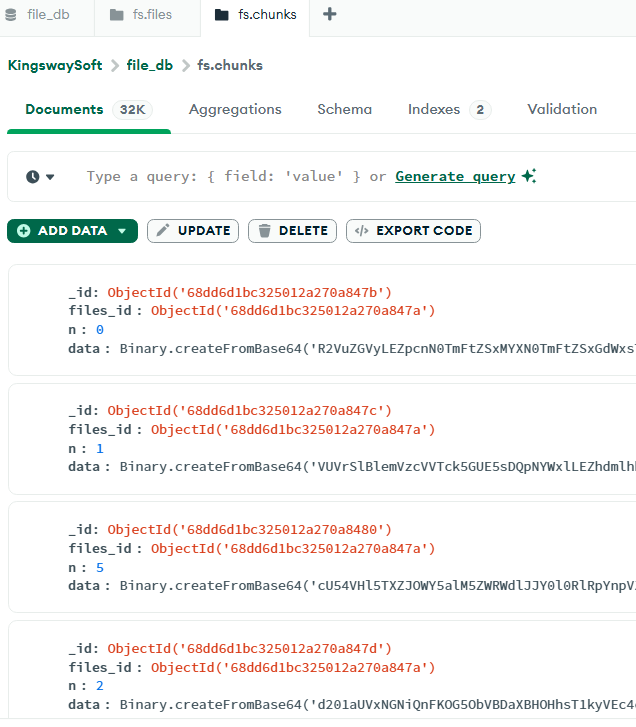
- fs.chunks: This collection stores binary chunks, and the documents in this collection will have the below format.
-
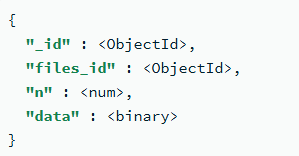
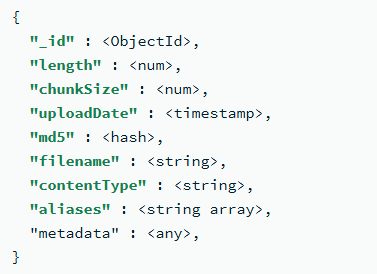
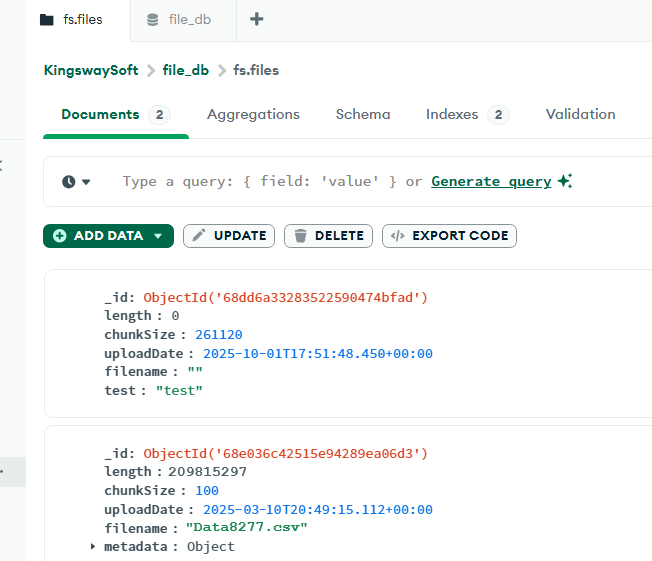
- fs.files: This collection stores the file's metadata, such as filename, upload date, file size, etc. The documents in this collection would be in the below format.
-
KingswaySoft offers MongoDB components as part of our SSIS Integration Toolkit, and since our release v26.1, we support using GridFS for easily writing (and reading) large files to MongoDB. In this blog post, we will see how this can be achieved.
Configuring the SSIS Data Flow Task
In our use case, we have a large file in our local folder, which needs to be uploaded to MongoDB. And since the file is over the size limit allowed by BSON, we will use GridFS, which is supported in the KingswaySoft MongoDB Destination component. As a first step, within your SSIS Data flow, to access the binary content metadata of the file, our KingswaySoft Premium File System Source Component can be used.
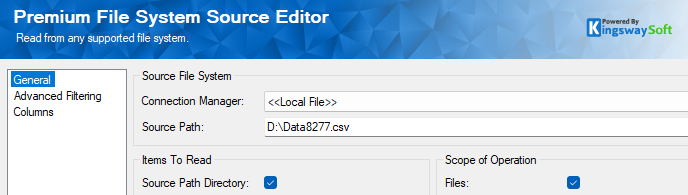
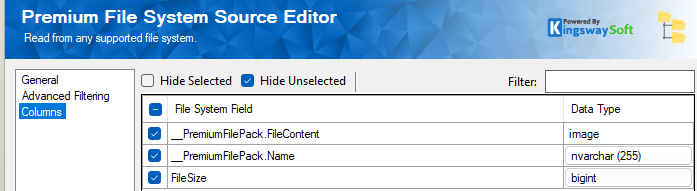
The Source path captures the file in question, and if you have more than one file, you can specify the folder, or use Advanced Filtering (the second page in the component) to get the files. The Columns page will have the metadata of the file along with "FileContent", which is the binary field. You can pick other metadata, such as File Name, etc., as required.
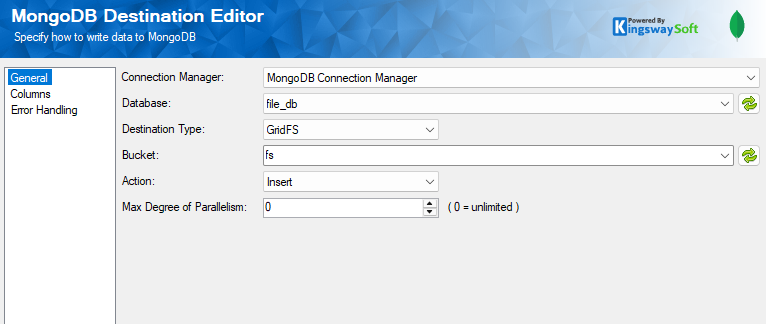
Now we drag and drop the MongoDB Destination Component and connect the source component to it. And create a MongoDB connection manager to connect to your instance, and configure the Destination Component as shown below to choose the Destination Type as GridFS, and the bucket for the collections. We leave it as the default "fs" bucket. For more details on how to configure the connection manager, please refer to our Online Help Manual using this link.
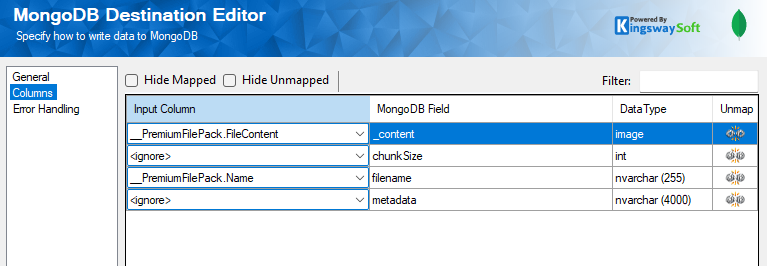
In the Columns page, the MongoDB Field called _content represents the binary field for the file. We have mapped the filename along with it and left the others as default, which could be mapped as required. The below can be used as a reference:
- chunkSize: The size of each chunk in bytes. GridFS divides the document into chunks of size chunkSize, except for the last, which is only as large as needed. The default size is 255 KiB.
- metadata (Optional): The metadata field may be of any data type and can hold any additional information you want to store. If you wish to add additional arbitrary fields to documents in the files collection, add them to an object in the metadata field.
Once the components are configured, it's time to run the Data Flow. We have enabled a data viewer to view the file details.
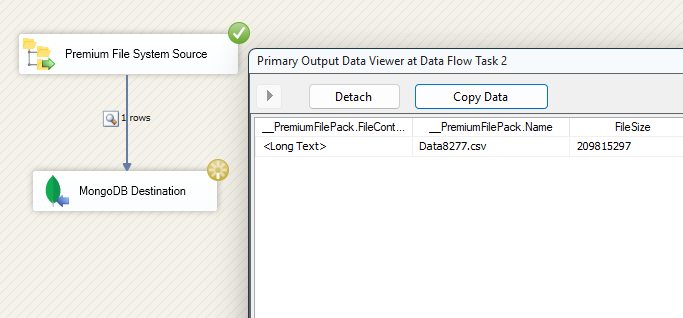
When it's executed successfully, let's move on to our MongoDB instance to view how the collections are organized as chunks and files.
GridFS collections within MongoDB
Within your MongoDB instance, navigate to your cluster in Data Explorer and choose your Database. In here, you can see the GridFS related collections ".chunks" and ".files" prefixed by the default buckets we have used (fs). As mentioned in the above section, you could create your own if required.
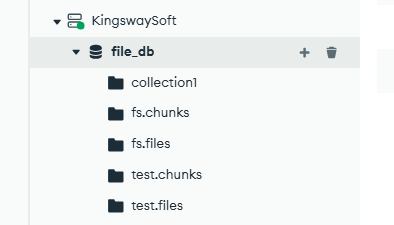
Select fs.chunks collection, and you can see the below document with the binary information about the file chunks.
Similarly, the fs.files collection shows the metadata of the file, such as the file name you had set while uploading, along with the upload date, and any additional metadata you might have specified.
Now that we have seen how the file upload works, let's take a quick peek at how the files are read back from MongoDB using GridFS.
Reading the files using GridFS in SSIS
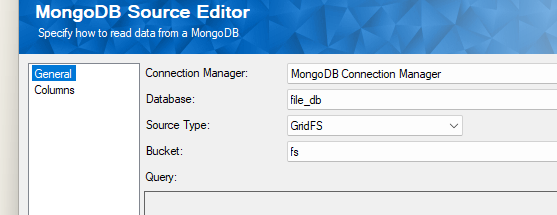
In your SSIS Data Flow Task, drag and drop the Kingswaysoft MongoDB Source component. Choose the connection manager, database, and set the Source Type as GridFS and select your bucket.
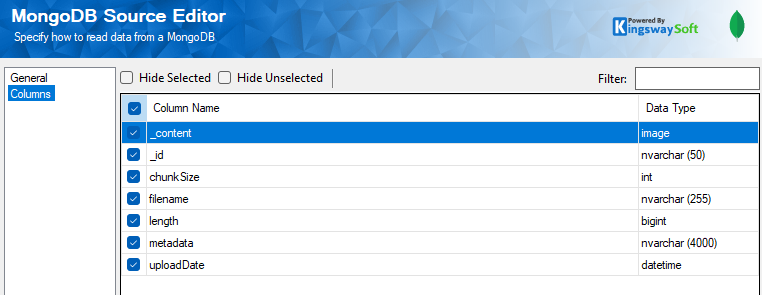
In the columns page, the _content field would have the binary content of the file as indicated by the image datatype. And the rest of the available metadata can be used as required and optionally.
Conclusion
By combining the chunk based storage of MongoDB GridFS, along with the easy configuration offered by KingswaySoft MongoDB components, you can bypass document size limits while maintaining a high-performance, scalable integration. Whether you are archiving massive documents or streaming media, this approach ensures your data remains organized, accessible, and ready for growth.
We hope this has helped!