

When loading large volumes of data into Snowflake, performance is everything. High-throughput ingestion requires a staging layer, a temporary holding area where data is prepared before being copied into the destination table. Until our SSIS Productivity Pack v25.2 release, KingswaySoft's Snowflake Destination component has supported this through External Stages, leveraging cloud storage providers such as Amazon S3, Azure Blob Storage, and Google Cloud Storage. While effective, this approach requires developers to provision a separate storage account, manage access credentials, and configure an additional Connection Manager within their SSIS package. To give development teams greater flexibility and a simpler path to high-performance loads, we have expanded the Snowflake Destination component to natively support Snowflake Internal Stages starting from our most recent v26.1 release (which also has consolidated SSIS Productivity Pack into one, single unified solution: SSIS Integration Toolkit). In this blog post, we will explain what this change means, how it works, and how to configure it in your SSIS environment.
Understanding Snowflake Stages
Before diving into the configuration, it is worth understanding the distinction between the two staging approaches. In Snowflake, a Stage is simply a designated storage location used to hold data files temporarily before they are loaded into a target table. The key difference between the two is where that storage lives:
- An External Stage points to a cloud storage location, such as an S3 bucket, or an Azure Blob container that is owned, provisioned, and secured by your organization. You are responsible for creating the storage resource, generating the access credentials, and maintaining it over time.
- An Internal Stage is a storage location that is hosted and managed entirely by Snowflake itself, natively within the Snowflake platform. The storage is allocated automatically by Snowflake on your behalf, with no external infrastructure required.
The practical implication of using an Internal Stage is significant: there is no third-party cloud storage account to provision, no additional credentials to generate, and no extra Connection Manager to configure in SSIS. The staging infrastructure is handled entirely within your existing Snowflake environment.
With our KingswaySoft Release Wave v26.1 of SSIS Integration Toolkit, the Snowflake Destination component now includes a dedicated Snowflake Internal Storage option under the Bulk Copy Connection Manager setting. This new mode is designed to work exclusively with your existing Snowflake connection, the same one already defined in your SSIS package. No new Connection Managers or supplementary credentials are needed to take advantage of it. The result is a streamlined bulk load workflow that is easier to configure, easier to maintain, and fully contained within the Snowflake ecosystem.
Configuring Internal Stage Bulk Loading
Setting up the Snowflake Internal Storage mode takes only a few steps inside the Snowflake Destination Editor. Here is how to configure it:
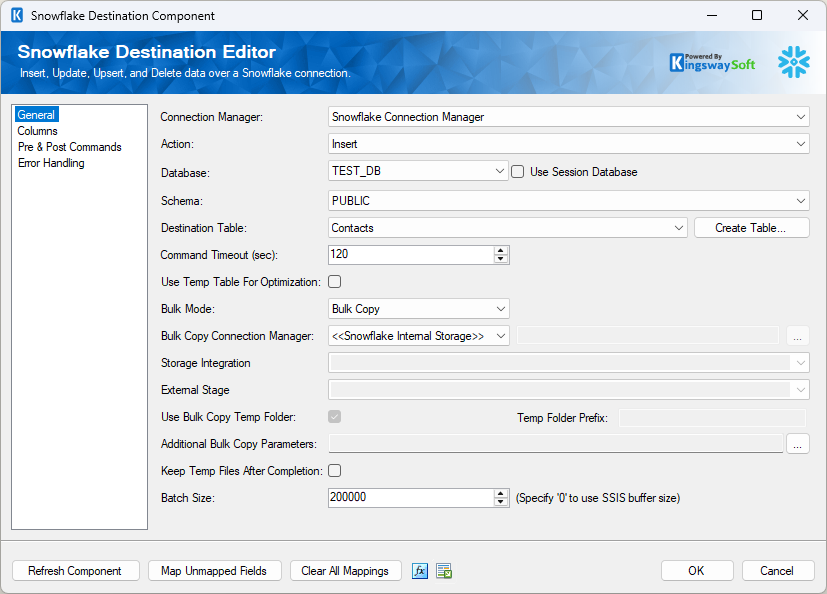
- Open the Snowflake Destination Editor and navigate to the General page.
- Ensure that the Action is set to Insert. Note that Bulk Copy is also supported for the Full Sync action, but we will focus on Insert for this walkthrough.
- Set the Bulk Mode option to Bulk Copy.
- Under the Bulk Copy Connection Manager dropdown, select <<Snowflake Internal Storage>>.
- Review the Keep Temp Files After Completion checkbox. By default, this option is unchecked, meaning the component will automatically delete the temporary CSV files from the internal stage once the load is complete. If your requirements dictate that the raw staged files must be retained, check this box to preserve them within Snowflake after execution.
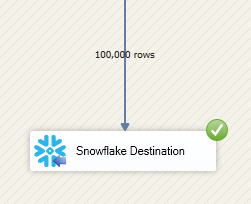
During execution, you should observe significantly faster performance compared to the standard batch approach.
How It Works
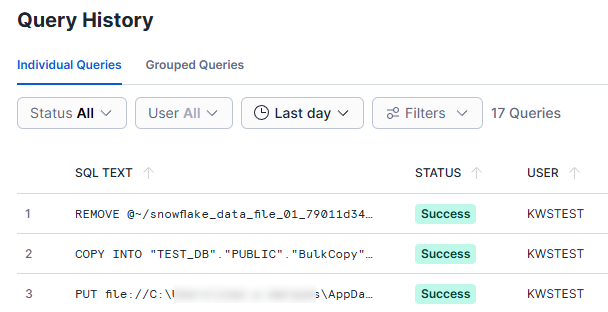
When your SSIS package runs with Internal Stage mode enabled, the component automatically manages the entire staging and loading lifecycle natively within Snowflake. It does this by executing three sequential SQL commands:
- PUT: Securely uploads the data file from the SSIS runtime environment to the Snowflake internal stage.
- COPY INTO: Executes the bulk load, moving the staged data into the target destination table.
- REMOVE: Unless the Keep Temp Files After Completion option is enabled, this deletes the temporary file from the internal stage to free up storage space.
Because the cleanup step is performed automatically by default, you will not find these transient files by browsing the database in Snowflake's UI. Instead, full visibility into the execution is available through Snowflake's native query logging. Verifying that the bulk load executed correctly and reviewing the exact commands issued by the component is straightforward usingBecause the cleanup step is performed automatically by default, you will not find these transient files by browsing the database in Snowflake's UI. Instead, full visibility into the execution is available through Snowflake's native query logging. Verifying that the bulk load executed correctly and reviewing the exact commands issued by the component is straightforward using Snowflake Query History. Navigate to Monitoring > Query History in the Snowflake UI and filter by the user account configured to run the SSIS package. From there, administrators will see a list of every SQL statement executed during the package run, including the exact PUT, COPY INTO, and REMOVE commands in the order they were issued.

When evaluating whether Internal Stage loading is the right fit for your architecture, the following technical facts are worth noting:
- Infrastructure: No external cloud storage accounts, buckets, or containers need to be provisioned or managed by your organization. All staging is handled within your Snowflake environment.
- Authentication: The component reuses the authentication method already defined in your SSIS Snowflake Connection Manager. No additional credentials are needed.
- Storage Billing: Any storage consumed by the staged files, particularly if the Keep Temp Files option is enabled, is accounted for and billed directly through your Snowflake environment, consistent with how Snowflake bills for standard storage usage.
Conclusion
With the latest release of v26.1 of KingswaySoft's SSIS Integration Toolkit, developers now have full support for both External Stages and Internal Stages when executing Bulk Copy operations. The choice between the two approaches is an architectural and organizational decision. External Stages remain an excellent choice for teams with established cloud storage infrastructure or specific data lake requirements. Internal Stages offer a simplified, infrastructure-light alternative for teams that prefer to keep everything contained within their Snowflake environment. Both are fully supported, and both are available today.
Download the latest release of the SSIS Integration Toolkit to explore these capabilities in your own environment.