

Document Templates in Dynamics 365 Dataverse/CRM are essential, standardized Microsoft Word and Excel files that allow users to generate data-populated documents, such as contracts and reports, directly from records. They ensure brand consistency and save significant time, and with the click of a button, you can generate reports for a specific set of records in a readable, professional business format.
When it comes to migrating these document templates, this can be easily done by using the components in our SSIS Integration Toolkit. To achieve this, connect to your Dataverse/CRM instances, use a Source component to read from the documenttemplate entity in your source connection, and then write to the same entity using an appropriate write action in the Destination component connected to the target instance.
Now, this is generally a straightforward process. Typically, you would map the required metadata from source to destination, including the primary GUID, the entity code for the associated entity, the name of the document template, etc. This entire process will likely take you only a few minutes to complete if you are working with a system entity.
However, when working with document templates that target a custom entity, a special challenge occurs: a Dataverse/CRM custom entity can have a different entity code across two instances. Because of this, the output value of the associatedentitytypecode field in the source component might point to a completely different entity in the target instance. So, if you are doing a straight write to the documenttemplate entity in a different instance that involves a custom entity, it might end up creating or updating a document template record that is associated with the wrong entity in the target instance. Since the target entity code (integer) is actually saved in the document template file, an incorrect entity code will make the migrated template unusable.
The good news is, this specific situation can be handled by our components, through the use of an artificial field calledassociatedentitytypecode.old. This field is made available specifically to overcome the problem by looking for the entity code referenced in the document template and replacing it with the correct entity code before saving the template to the target instance. All the magic happens automatically within our software when you have the original associated entity's type code from your source system passed to the destination component. With the correct associatedentitytypecode.old field provided, our toolkit intelligently rewrites the template's file content to associate all occurrences of the original entity to the correct new entity code in the target Dataverse/CRM instance. This ensures the template file is correctly associated.
In this blog post, we will see an example of how proper document template migration is performed using KingswaySoft.
Source Dataverse/CRM configuration
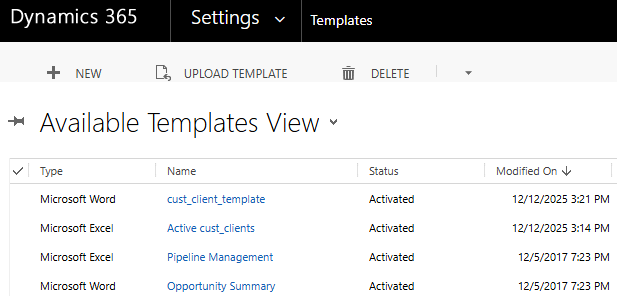
In our demonstration, we are considering the migration of a document template from an On-premises Dataverse/CRM instance to an Online Dataverse/CRM instance. In your On-prem source, let's assume that the document template below is one of the many that you have with custom and out-of-the-box entities associated with each respectively. In this case, the document template in focus is called cust_client_template.
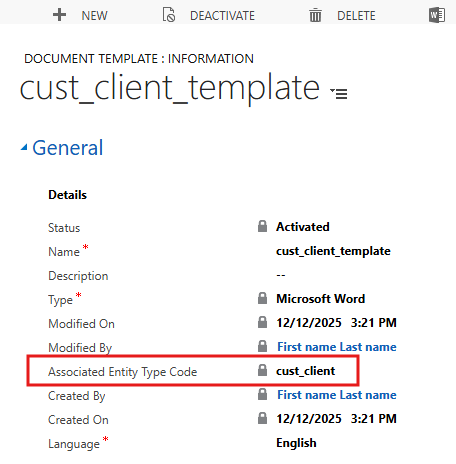
When you open it, the associated entity is denoted by an Associated Entity Type Code, and in this case, it's a custom entity called cust_client.
Our aim is to migrate the document template above with the same GUIDs and other metadata to the target online instance, while preserving the entity it is associated with.
Target Dataverse/CRM customization
In your Target instance, you would make sure that the same custom entity has been created. This can be done manually or through the import of your customization solution exported from the source instance.
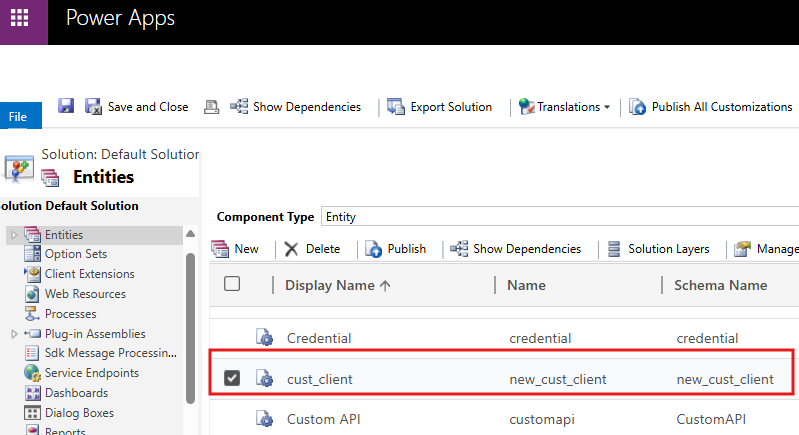
Once you have published all customizations, we are ready to move on to our SSIS data flow design.
Data Flow Design
In your SSIS package, you would be working with two instances, thereby two connection managers: one for your source and the other for your target instance. Note that the connection managers we use are the Dynamics 365 Dataverse/CRM ones; however, they are valid for Dataverse connections as well.

The strategy here would be:
Step 1: Read the documenttemplate entity from your Source Dataverse/CRM instance
Step 2: Get the ObjectTypeCodes for the associated entities from the Source, which will be used as the input of the associatedentitytypecode.old field in Step 3 below.
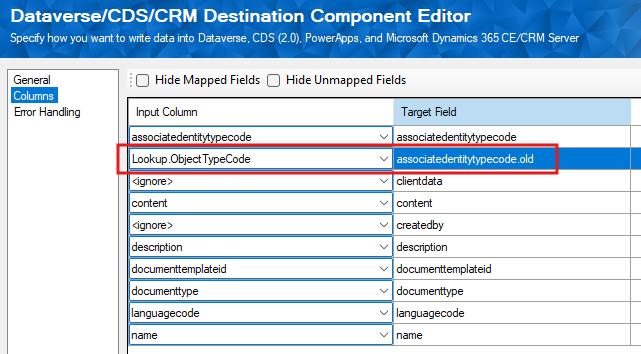
Step 3: Write to Target Online instance to create new documenttemplate record, while maintaining the associations with the custom entity by having both the associatedentitytypecode and associatedentitytypecode.old fields mapped.
The Data Flow Design would look as shown below. Let's look at the steps in detail.
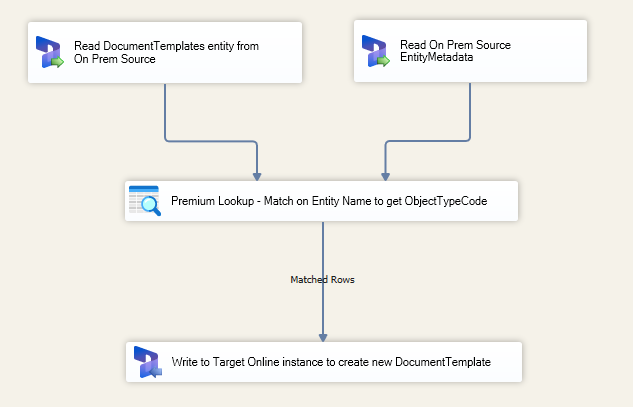
Step 1 is straightforward; you would use a Dataverse/CRM Source component and pull the records from the DocumentTemplate entity. You can also use a fetchXML if you wish to read specific records or a specific range.
Step 2, however, would require an important additional column called ObjectTypeCode (which is an integer value and different from the associatedentitytypecode from the source). This would be a unique number assigned by the Source Dataverse/CRM for the entity you are associating the document template with, to be written to the associatedentitytypecode.old field in the Dataverse/CRM Destination. Since in a real-life migration scenario you would have numerous templates and their respective associated entities, it wouldn't be viable to have a list of integer values hardcoded in the design. Therefore, we would use a lookup mechanism to get these object type codes. The lookup can be performed against the EntityMetadata entity, which KingswaySoft's Dataverse/CRM source component supports, from which you can retrieve each entity's logicalName and ObjectTypeCode.
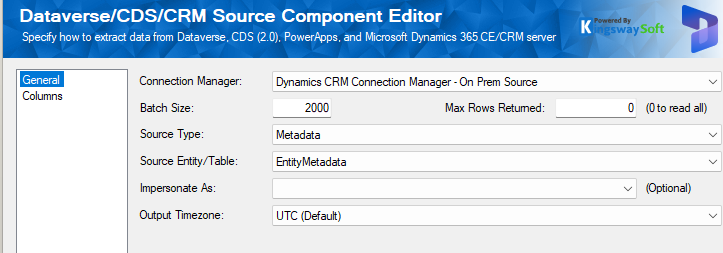
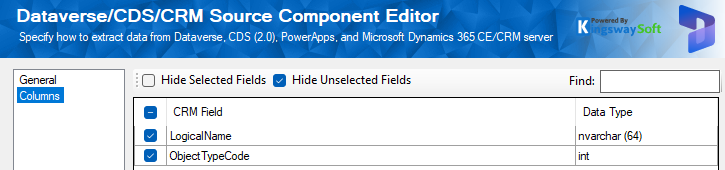
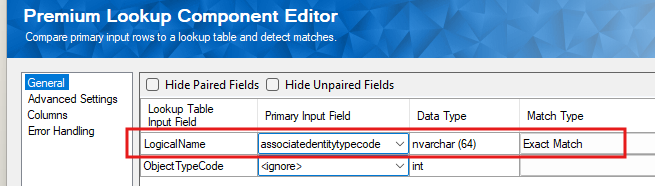
We use the Dataverse/CRM Source from Step 1 as the primary source of the data low, and lookup against the above EntityMetadata source, using our Premium Lookup component. The entity name related field from each Source components can be used as the Key to join and get the ObjectTypeCode for each available entity to be written to the Destination.
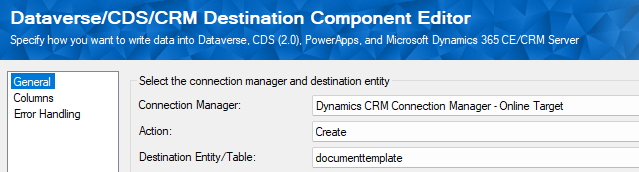
Step 3 would involve writing to the Target instance using the Dataverse/CRM Destination component. In here, you would choose the entity documenttemplate to perform a Create action (or an Upsert action if that makes more sense).
On the columns page, you could map the required metadata, including the associatedentitytypecode.old field, which is an arbitrary field added by us in the Dataverse/CRM destination component to specifically handle the document conversion from the old object type code to the new one in the target instance. The Lookup.ObjectTypeCode is the integer value that we get as a part of the Lookup in step 2.
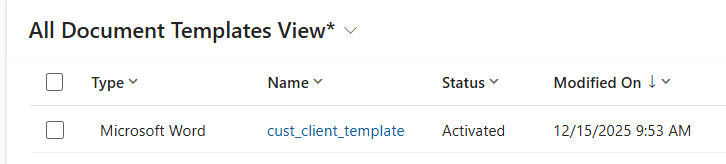
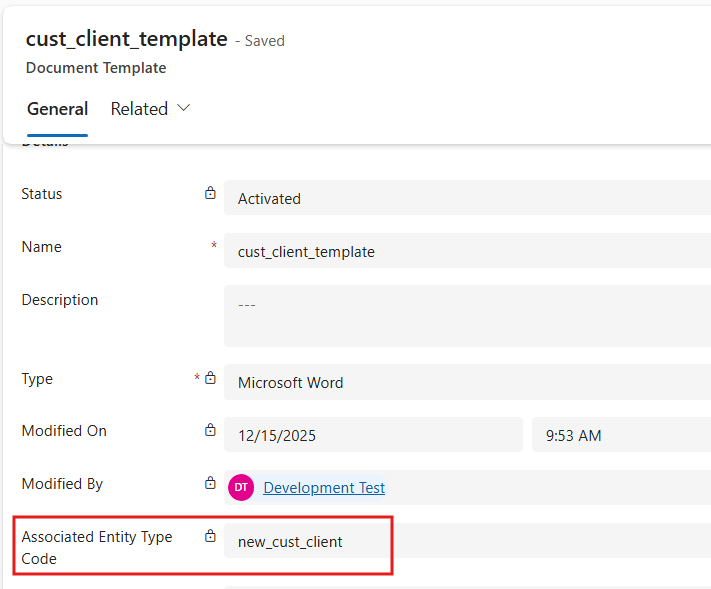
Once it is executed, the new document templates will be created in the target Dataverse/CRM instance and can be verified from the Dataverse/CRM side.
Conclusion
The availability of the associatedentitytypecode.old field in the KingswaySoft Dynamics 365 Dataverse/CRM destination represents a significant advancement in template management when working with the documenttemplate entity. This feature ensures the reliable, automated migration of all document templates, safeguarding data integrity and accelerating deployment cycles, particularly for custom entities.
We hope this has helped!