

Keeping data synchronized across systems is rarely as simple as copying rows from one database to another. The real engineering challenge is reliably identifying which records were inserted, updated, or deleted since the last integration run, without locking production tables or repeatedly scanning millions of unchanged rows.
Traditional incremental patterns often fall short here. Polling a ModifiedDate or timestamp column requires schema modifications, adds index overhead, and cannot detect hard deletes. Database triggers capture deletes, but they execute synchronously inside the user transaction, adding write latency to high-throughput workloads.
SQL Server Change Data Capture (CDC) is the database engine's built-in answer. Once CDC is enabled for a database and selected tables, SQL Server's capture process asynchronously reads the transaction log and writes the committed INSERT, UPDATE, and DELETE operations on those tables into dedicated change tables. Each change row carries the captured column values and metadata, including the operation type and the transaction's Log Sequence Number (LSN). Integration processes then query a range of LSNs to get exactly the changes that occurred within it, rather than touching the transaction log or rescanning the source tables.CDC is not instantaneous, however. Changes become available in the change tables only after the capture process has processed the log, and CDC comes with operational responsibilities of its own: capture and cleanup job health, change-table storage, and a finite retention window. A reliable integration has to be designed around these factors, not just around the ideal scenario.
While CDC provides a structured, low-impact change feed, it operates asynchronously; changes only become queryable after the capture job processes the transaction log.
Common enterprise use cases for SQL Server CDC include:
- Data Warehouse & Lakehouse Ingestion: Streaming inserts, updates, and deletes incrementally into analytical platforms without costly full-table reloads.
- Cross-System Synchronization: Keeping operational databases in sync with ERP and CRM platforms such as Microsoft Dynamics 365.
- Auditing & Compliance History: Preserving an accurate trail of row-level modifications within the configured CDC retention window.
With the v26.3 release, the SSIS Integration Toolkit introduced two dedicated components for building end-to-end SQL Server CDC pipelines: the Premium SQL Server CDC Task and the Premium SQL Server CDC Source. The CDC Task orchestrates extraction state and LSN boundaries in the Control Flow, while the CDC Source extracts the corresponding incremental changes in the Data Flow. Together, they provide a clean, repeatable framework for both the initial baseline load and ongoing incremental synchronizations.
In this guide, we will walk through the database prerequisites, the full-load and incremental-load package design, state persistence across executions, and automated recovery if CDC change data expires before it is consumed. You can also download here our Free Sample Packages to follow along with the examples.
Prerequisites for Working with SQL Server CDC
Before configuring the KingswaySoft CDC components, ensure Change Data Capture is enabled on the target SQL Server database and each source table you plan to track. The steps below use SQL Server’s built-in CDC system stored procedures (which require sysadmin or db_owner permissions).
Step 1: Enable CDC at the database level. Run the following command against your source database to initialize the CDC metadata tables and schema:
USE YourDatabaseName;
GO
EXEC sys.sp_cdc_enable_db;
GO
You can verify database-level enablement by checking the is_cdc_enabled flag in sys.databases.
Step 2: Enable CDC for each tracked table. Enabling CDC on a database does not automatically track individual tables. Enable CDC explicitly for each source table required by your integration:
EXEC sys.sp_cdc_enable_table
    @source_schema = N'dbo',
    @source_name   = N'YourTableName',
    @role_name     = NULL; -- Specify a gating database role to restrict access, or NULL for no role restriction
GO
Enable CDC only on the specific tables and columns (via @captured_column_list) required by your integration needs, as every tracked column adds log-reader and change-table storage overhead. Enabling CDC on the first table in a database also creates two SQL Server Agent jobs: the capture job and the cleanup job.
Step 3: Create a CDC Token table. Your SSIS pipeline needs durable storage for the latest State variable so subsequent executions know exactly where the previous run left off. In this walkthrough, we store that state in a dedicated CDC Token table (which KingswaySoft's CDC Task can generate for you automatically).
Step 4: Define the SSIS variables. Create the two package-level variables shown below. @[User::CDC_State] holds the JSON CDC state payload, while @[User::CapturedError] captures the error details for the automated recovery workflow covered later.
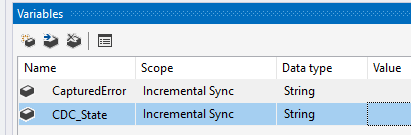
For SQL Server instances relying on SQL Server Agent for CDC, verify that the SQL Server Agent service is running and that both the capture and cleanup jobs are active. Because the cleanup job automatically purges change records older than the configured retention period (72 hours by default), schedule your SSIS packages frequently enough to consume changes well before they expire.
With these prerequisites in place, you are ready to build the change-capture workflow using KingswaySoft components.
Understanding CDC Operations and the State Variable
The Premium SQL Server CDC Task exposes five CDC Control actions that manage extraction state and calculate exact LSN boundaries for both initial and incremental runs:
- Mark Initial Load Start: Captures the starting LSN boundary immediately before the initial full load begins.
- Mark Initial Load End: Captures the ending LSN boundary immediately after the initial full load finishes, establishing the overlap window needed to catch concurrent writes that occurred during the full load.
- Mark Incremental Load Start: Reads the persisted state and calculates the from and to LSN boundaries for the current incremental window. Execute this before the CDC Source runs.
- Mark Incremental Load End: Advances the from pointer to the completed to LSN after downstream processing succeeds, preparing the state for the next scheduled execution.
- Mark CDC Start: Sets an explicit LSN value as the starting point for CDC processing, which is useful when initializing incremental syncs from a known point in time without running a full load.
The State variable is a lightweight JSON object that stores these hexadecimal LSN boundaries across runs:
- initial_load_start: The LSN recorded by Mark Initial Load Start.
- initial_load_end: The LSN recorded by Mark Initial Load End.
- from: The lower LSN boundary (exclusive) for the current incremental extraction.
- to: The upper LSN boundary (inclusive) established for the current incremental extraction.
Below is an example of the State variable JSON payload managed by the CDC Task:
{
    "initial_load_start": "0x000000520000E7D80003",
    "initial_load_end": "0x000000520000FEE80003",
    "from": "0x000000520000E7D80003",
    "to": "0x000000520000E7D80003"
}
Persisting this State variable in the CDC Token table after each successful stage ensures reliable recovery and zero data loss across package executions.
With the state-management model clear, let’s examine how to structure the SSIS packages.
Designing the SSIS Packages
A complete CDC architecture uses two KingswaySoft components: the Premium SQL Server CDC Task in the Control Flow to manage LSN state transitions, and the Premium SQL Server CDC Source in the Data Flow to stream row-level changes. The implementation is split into two phases: an initial full synchronization and recurring incremental synchronizations.
Initial Full Synchronization
The initial full synchronization populates the baseline dataset in the destination before incremental tracking begins. Because live source tables often continue receiving writes while a full load is running, the workflow brackets the full load with two CDC Task actions: Mark Initial Load Start before reading the source table, and Mark Initial Load End once the load completes. Recording both boundaries ensures that any changes committed during the initial load window are captured on the first incremental run (using idempotent upsert/delete logic in the destination).
At each boundary, the CDC Task writes the updated State variable to the CDC Token table. The complete full-sync Control Flow is shown below.
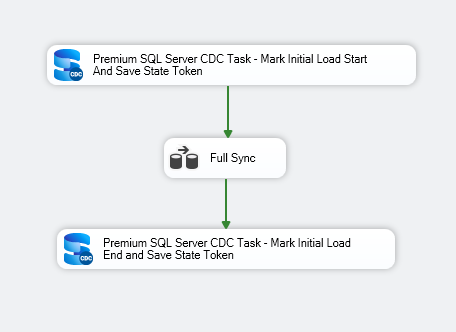
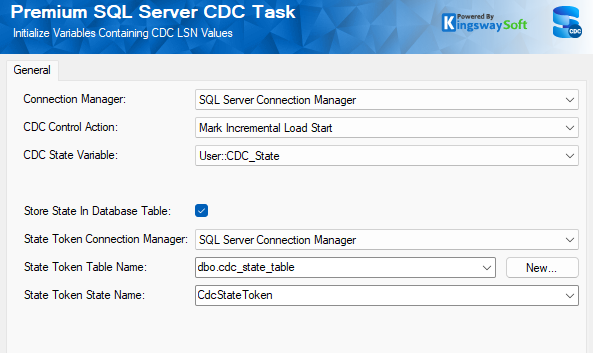
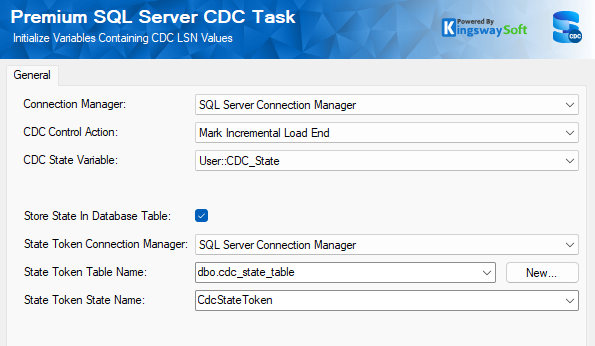
In both the Start and End Premium SQL Server CDC Task instances, enable Store State in Database Table and specify the State Token connection manager, Token Table, and Token State Name so the task automatically reads and persists the state record.
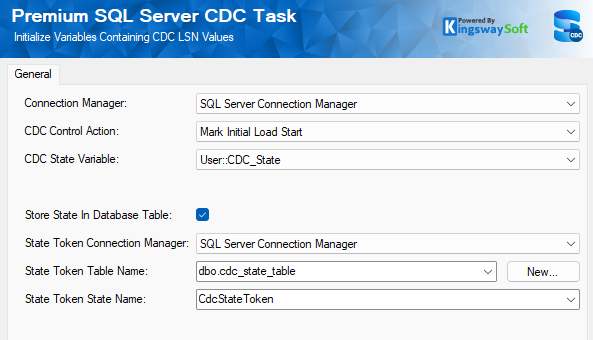
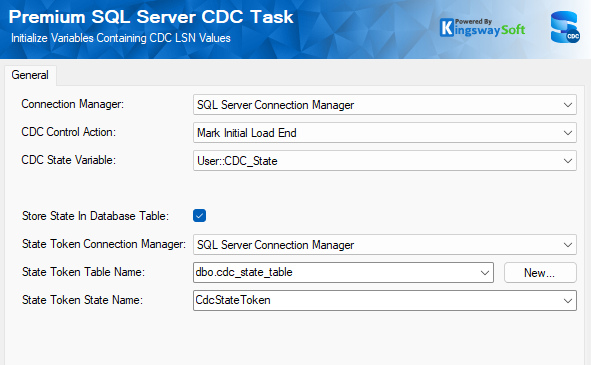
If you have not created a State Token table yet, click New... directly inside the component editor to launch the CDC Token Table Creator.
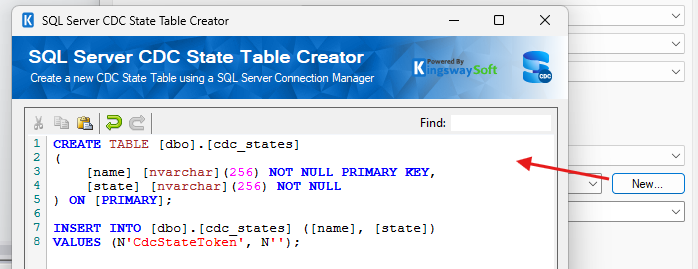
The creator generates the CREATE TABLE and INSERT INTO statements needed to provision the token table and seed an initial row for your Token State Name. You can customize the table name in the generated script to match your database naming conventions.
Recurring Incremental Synchronization
Once the baseline load finishes, the incremental package can run on a recurring schedule to process ongoing changes. First, the Premium SQL Server CDC Task loads the saved State variable from the CDC Token table and sets the from and to LSN boundaries via Mark Incremental Load Start. Next, the Data Flow extracts and applies only the changes within that LSN range. Finally, after the Data Flow succeeds, a second CDC Task executes Mark Incremental Load End to commit the new LSN watermark back to the token table.
The overall incremental-sync Control Flow is shown below.
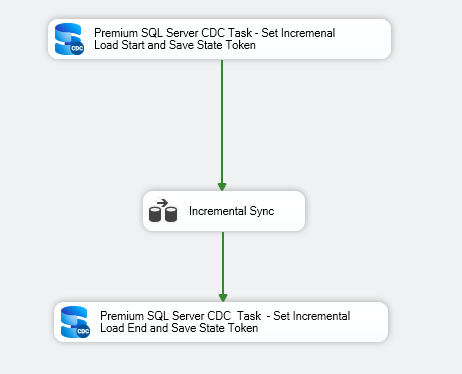
Just like the full-load package, enable the Store State in Database Table checkbox in both the start and end CDC Tasks, pointing both to the exact same Token Table and Token State Name.
Inside the Incremental Sync Data Flow task, configure the Premium SQL Server CDC Source to reference the @[User::CDC_State] variable populated by the Control Flow. The component queries only the change records bounded by the current LSN range, eliminating full-table scans on every run.
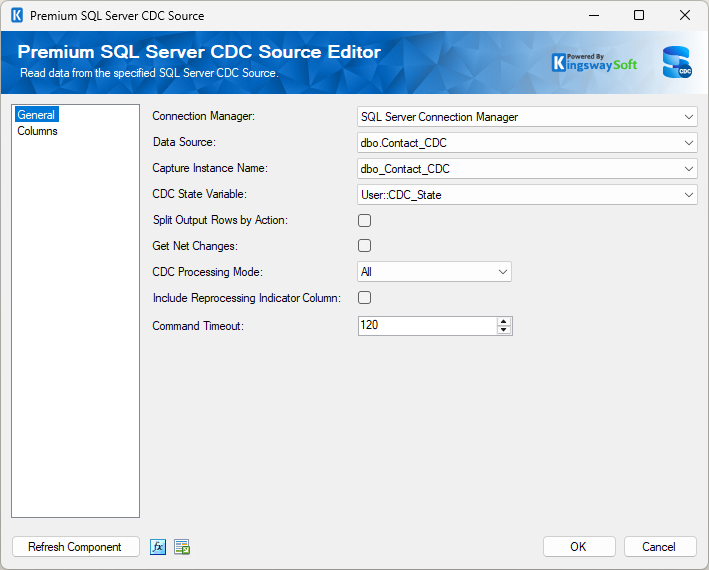
Always place Mark Incremental Load End after the Data Flow task on a Success precedence constraint. This guarantees that if a destination write fails mid-batch, the LSN watermark does not advance, allowing the next run to reprocess the uncommitted window safely.
Handling Expired CDC Data
Because SQL Server’s CDC cleanup job purges change-table entries once they exceed the retention period, an integration that is paused or delayed for too long can fall behind the oldest available LSN. When that happens, the saved LSN boundary is no longer valid, and incremental extraction cannot proceed without resetting the baseline via a full synchronization.
You can automate this self-healing fallback directly inside SSIS. First, add an OnError Event Handler to the Incremental Sync Data Flow task, as shown below.
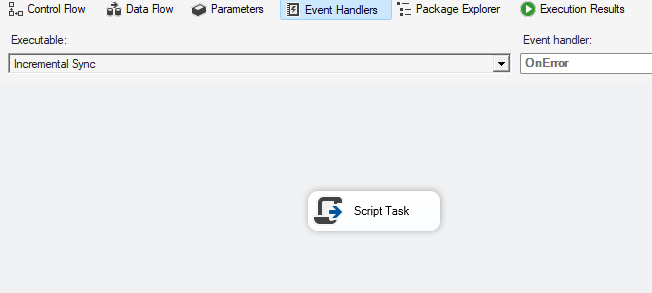
Use a Script Task inside the event handler to copy @[System::ErrorDescription] into the package-scoped variable @[User::CapturedError] so it can be evaluated in the Control Flow:
Dts.Variables["User::CapturedError"].Value =
Dts.Variables["System::ErrorDescription"].Value.ToString();
Back in the Control Flow, group your Full Sync tasks inside a Sequence Container and connect it to the Incremental Sync Data Flow task using a Precedence Constraint, as shown below.
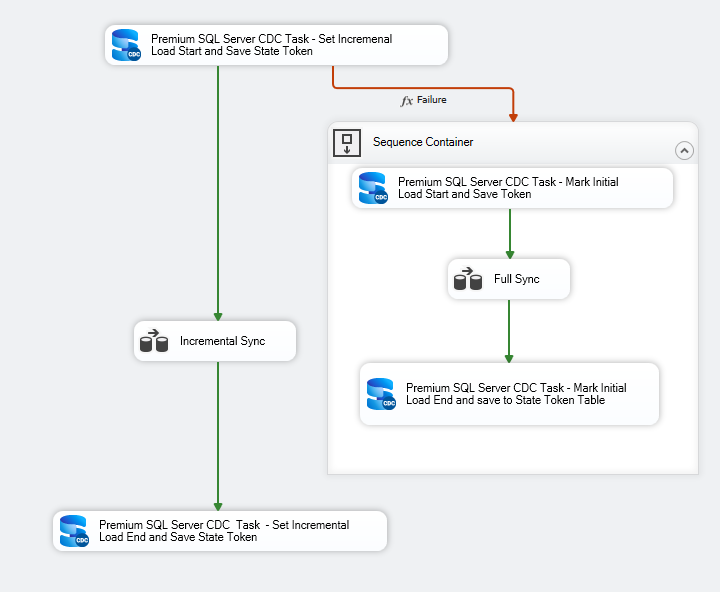
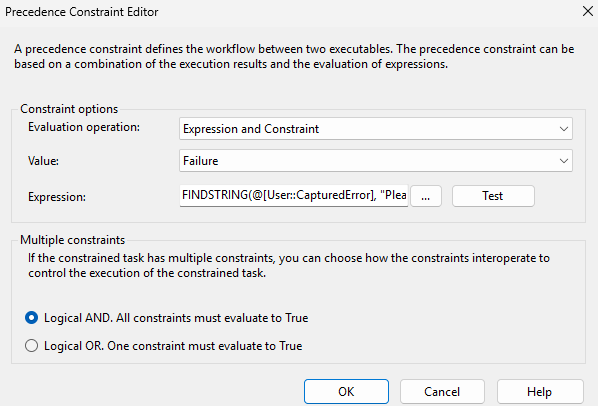
Configure the Precedence Constraint to evaluate both Expression and Constraint, set the value to Failure, and enter the following expression to detect an expired CDC token error:
FINDSTRING(@[User::CapturedError], "Please run full sync to regenerate CDC token", 1) > 0
With this pattern in place, if the incremental Data Flow fails due to an expired LSN token, the package automatically triggers the Full Sync container to rebuild the destination baseline and reset the CDC State variable. In production environments, pair this fallback with operational alerting so your team is notified whenever a full resync is triggered, and ensure your destination load logic is idempotent.
Conclusion
SQL Server Change Data Capture offers a low-overhead, log-based foundation for incremental data integration, capturing inserts, updates, and deletes without schema changes or expensive table scans. With KingswaySoft's Premium SQL Server CDC Task and Premium SQL Server CDC Source, SSIS developers can orchestrate initial baseline loads, track exact LSN watermarks, and persist extraction state cleanly across runs.
By pairing these components with proactive SQL Server Agent monitoring, appropriate retention sizing, and automated token-expiration recovery, you can build resilient, high-throughput incremental pipelines that keep downstream systems synchronized with minimal load on your source database.
We hope this walkthrough helps you get started with KingswaySoft’s Premium SQL Server CDC components. Download the Free Sample Packages to explore the full implementation in Visual Studio.