

Using the Premium SQL Server CDC Command Task
The Premium SQL Server CDC Command Task manages the lifecycle of your Change Data Capture, performing specific CDC control actions. It maintains package state in SSIS variables or database tables, enabling state persistence across executions. The Task has only one configuration page:
- General
General Page
The General page includes the general properties of the component.
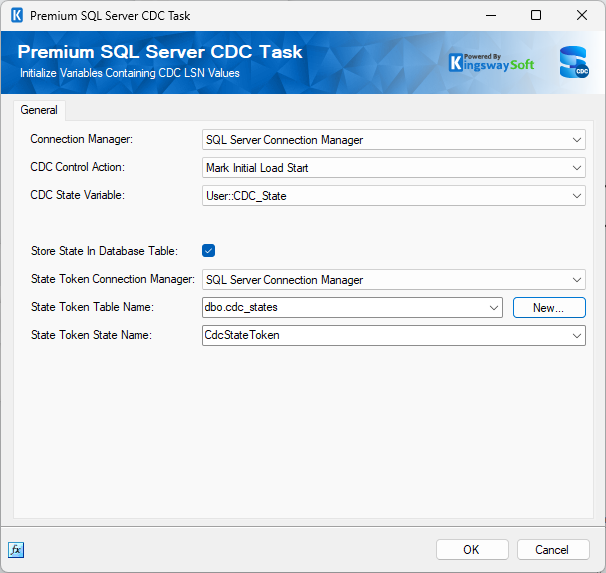
- Connection Manager
-
The Connection Manager drop-down displays a list of all connection managers that are available in your current SSIS package.
- CDC Control Action
-
The following actions are supported for both initial full synchronization and ongoing incremental synchronization:
- Mark CDC Start: This action takes a given LSN or gets the current LSN. In this way, you can establish where to start capturing changes.
- Mark Initial Load Start: This action is primarily used when you perform a Full Sync for the first time. This would be an initial full load to get everything written across from the Source to the Destination.
- Mark Initial Load End: This action is used right after the initial full sync. The initial load end value is written to the variable, which can be saved for the incremental load in the next run.
- Mark Incremental Load Start: This action is used after the first full sync action, when you need to perform an incremental load. The action uses the token from the first initial load end and provides it as a starting point for the Premium SQL Server CDC Source component to start reading changes.
- Mark Incremental Load End: This action is used to set the incremental load end token in the variable. This value can be stored and used as the starting point in the next incremental run.
- Mark CDC Start: This action takes a given LSN or gets the current LSN. In this way, you can establish where to start capturing changes.
- CDC State Variable
-
The CDC State Variable stores the token value to be used for subsequent runs. This contains a JSON token that has initial_load_start, initial_load_end, from, and to values.
- Store State in Database Table
-
This checkbox can be enabled in order to store the State variable in a database table that you choose. This is useful for ongoing incremental loads.
- State Token Connection Manager
-
Choose the SQL Server connection manager that connects to your database that holds the State token table.
- State Token Table Name
-
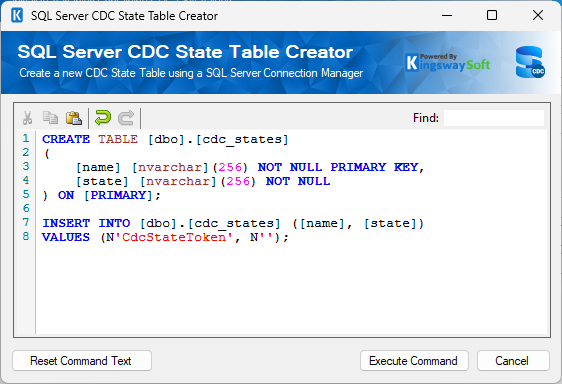
The State Token Table name can be chosen from the available list. You could also create a new one by clicking on the "New" button that opens up the window below. Here, the "Create table" and "Insert into the same table" commands are auto-generated. The table name can be modified as required. The Insert command helps in creating a record to hold the State value, as well as the State Name, which is used internally by the Task to update the State values in each stage.
- State Token State Name
-
The name of the State Token that you had provided in the State Token table can be chosen here.
- Expression fx Button
-
Click the fx button to launch SSIS Expression Editor to enable dynamic updates of the property at runtime.
Note: If you have used our pre-release/beta build before the v26.3 release for the Premium SQL Server CDC Task, you may need some manual fixes after upgrading to the latest version. The previously configured Premium SQL Server CDC Task may show as unregistered components in your Visual Studio designer, as we have had some functionality/framework enhancements in the latest version.
The easiest approach to fix this would be to just create a new Premium SQL Server CDC Task and replace the old one in your design. If not, you could also right-click on your package from within the Solution explorer, and select "View Code" (or press F7). This will bring up the package XML, where you can find and replace "CommandTask.PremiumSqlServerCdcCommandTask" with "CdcTask.PremiumSqlServerCdcTask".
Once done, please DO NOT save the modified XML directly. Instead, leave the XML in edit mode and go back to the package UI and save it from there. Once done, you can close the XML.