

XML files are commonly used in integration scenarios; however, they can sometimes be a source of runtime failures when consistent structure or content is not upheld. KingswaySoft offers XML components as a part of the SSIS Productivity Pack, which has a sophisticated document designer that can handle advanced XML designs, along with the ability to customize. However, at runtime, if any of the XML source files that are meant to be processed do not conform to the preset document designer, the issue will not appear during validation but will instead occur when the XML file is being actively read. To prevent such package-breaking failures, in this blog post we will demonstrate how to easily pre-validate your XML files using a PowerShell script with our Windows Command Task (part of SSIS Productivity Pack). This approach ensures that even if a failure occurs due to a missing required value or node, it would occur upstream rather than in the source component that reads the XML file. As a result, instead of your package failing abruptly, the XML file will be skipped so that the process continues smoothly. Additionally, you will be able to log the errored files to keep a record for tracking or investigation as needed (although that is not the primary focus of this blog post).
If you expect the XML document's file structure to remain stable, node validation provides a reliable way to ensure the file is complete. The good news is that PowerShell natively supports working with XML files you won't need additional libraries/modules, it would just work out of the box. Since these components are all included in our SSIS Productivity Pack, you can easily follow along the procedure described below in your own Integration Services project.
SSIS Package Design
Your SSIS flow Design may change based on your use case but the process can be generally carried forward. In our example, we've generated some files to showcase this: a valid XML document to demonstrate the Success Path flow, and two XML documents to cover scenarios involving a missing node and an empty value in an expected identifier element. In both these cases the Source component should fail and the execution would be halted for just that document. The goal is to acknowledge the error but continue as there may be more documents to process. The overall control flow would look as shown below.
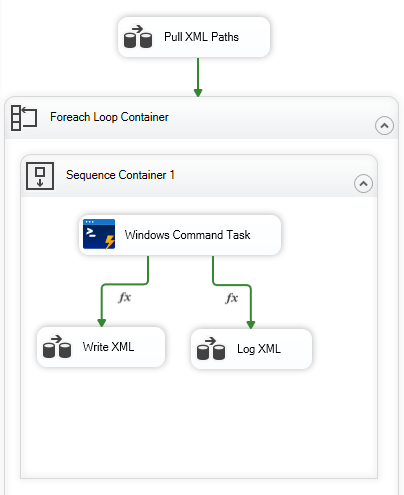
To gain a better understanding of the processes that occur at the top level upstream, there is a dataflow 'Pull XML Paths' for pulling all XML document names from a local directory using the Premium File System Source component. These paths are stored within an object variable using the out-of-the-box Recordset Destination.
Connected downstream, we have added a Foreach Loop Container so that, in each iteration, an XML file path is read from the object variable and used within our Windows Command Task. You can see in the next section that our variable @[User::CurrentPath] is dynamically set in the command, so it targets a new file each loop. The foreach Loop container simplifies this, as the process continues until all XML documents have been iterated. Next, we configure the flow in order to validate our XML files.
Configuring the Package to Validate XML File
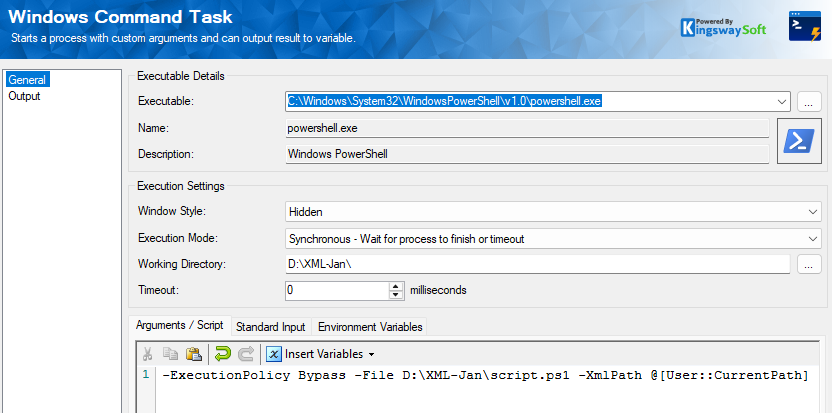
The Windows Command Task can be set to execute a PowerShell Script. As we set the Working directory, the argument portion does not have to provide the entire path to our files (however, the entire path can still be provided and will work just the same).
- -File: set this as the path to the script file. We provide an example of the command when the path is provided after the working directory (syntax highlighter), but you may also provide the full path as part of the command if required (as per the Windows Command Task screenshot below).
- -XmlPath: provide the path to the current XML File. You can easily set a variable and select one from the dropdown. This would be helpful in our case as we are expecting multiple files to be processed.
- We use the -ExecutionPolicy Bypass to allow the PowerShell script to run without being blocked by the machine’s execution policy, which often restricts unsigned scripts by default. This ensures the SSIS Windows Command Task can execute the validation script reliably without requiring system-wide policy changes.
-ExecutionPolicy Bypass -File script.ps1 -XmlPath @[User::CurrentPath]
This approach works best when the XML structure is stable and does not change over time. In many integrations, the source system produces XML that follows a fixed format, and downstream logic implicitly assumes that required elements will always be present.
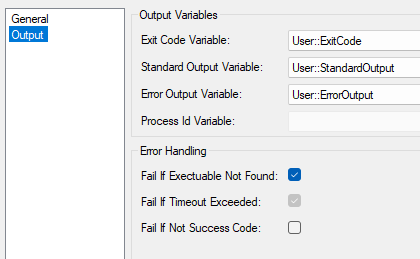
The Output Variable ErrorOutput is helpful because, when logging the XML file that caused the issue, we can also capture the error output. The StandardOutput can be excluded depending on your use case; for our example, we included a successful message just to include for clarity.
The ExitCode Variable, on the other hand, will help us determine the result of the validation. To have our files flow to the correct path, we need to go back into our Control Flow and work with our precedence constraints.
When an exit code of zero occurs, we want the Write XML dataflow to be triggered; we can set an Expression and Constraint with a value of Success from the dropdown and an expression of @[User::ExitCode]=="0".
On the other hand, when we receive an exit code other than zero (in our example, we left this as the default exit code 1), we shouldn't write our XML document, but instead have it pass the details and error to our other data flow, Log XML. The setup for this would be similar but expressed on a non-zero value: @[User::ExitCode]!="0".
What to Expect when Running the Job?
When a valid XML file is processed, and all of these checks pass cleanly, you would see the exit code 0, meaning success, as well as the current file we are working with.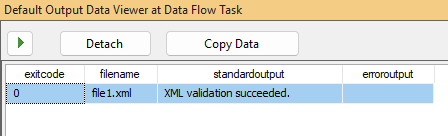
Note that when the XML validation fails, the PowerShell script returns a non-zero exit code. This causes the Windows Command Task to evaluate as a failure and follow the Failure precedence constraint in SSIS. The same diagnostic details that would normally appear in a Data Viewer are now captured in the task’s ErrorOutput variable, allowing you to quickly see why the file was rejected in the logs. Both error types have been configured to get their own ErrorOutput message, which can help identify and pinpoint where the document needs to be adjusted before attempting to reprocess it.
Because the Windows Command Task exposes the exit code, standard output, and error output, validation failures can be logged or monitored using the same mechanisms already in place for other operational checks. Missing or empty required elements are reported as clear validation errors, and the offending file can be identified and addressed without stopping the entire job.
When executing the sequence container for the first case of a missing required Identifier node in an XML file, the below is how we would expect the output to be shown.
In our second case when we execute the sequence container and come across an XML file where our required Identifier value is empty, you would see an output similar to the below.

PowerShell Script Context
This PowerShell script is designed to validate an XML file against our pre-configured constraints to return a clear success or failure signal that can be consumed by an SSIS control flow.
param (
    [string]$XmlPath
)

try {

    $xml = New-Object System.Xml.XmlDocument
    $xml.Load($XmlPath)


    $identifier = $xml.SelectSingleNode("/Document/Header/Identifier")

    if (-not $identifier) {
        Write-Error "Test Failure: Identifier node is missing."
        exit 1
    }

    if ([string]::IsNullOrWhiteSpace($identifier.InnerText)) {
        Write-Error "Test Failure: Identifier node is empty."
        exit 1
    }


    Write-Output "XML validation succeeded."
    exit 0
}
catch {
    Write-Error $_.Exception.Message
    exit 1
}
The script accepts an input parameter for the path to the XML file being processed.
As the XML file is read, validation is automatically triggered by the .NET XML reader. For our configured constraints, such as missing required elements or elements that exist but contain empty values when a minimum length is enforced, is captured through a validation event handler instead of stopping the execution immediately. This allows the script to collect all validation issues encountered while parsing the document. Once the entire XML file has been read, the script checks whether any validation errors were recorded.
If a validation error is detected, the script throws an exception and exits with a non-zero exit code, indicating a controlled failure. This causes the SSIS Windows Command Task to evaluate as failed and follow the Failure precedence constraint, while the detailed validation message is written to the task’s error output for troubleshooting and logging. If no errors are found, the script writes a success message to standard output and exits with code 0, allowing the package to continue down the success path.
Conclusion
By validating XML files against a set of configured constraints before they reach the XML Source, you can eliminate an entire class of runtime failures and streamline your SSIS packages. This approach ensures that files do not reach a downstream Data Flow where the invalid XML needs to be read. This will help ensure required nodes are present, values are populated, and the file matches the expected document design. We hope this guide has been helpful!