

Microsoft is retiring Exchange Web Services (EWS) for Exchange Online, with the phase-out beginning in October 2026. According to Microsoft's official announcement and timeline available here, legacy EWS-based integrations will gradually stop working as the retirement progresses.
For organizations that rely on automated email processing in SQL Server Integration Services (SSIS), this change is significant. EWS has long been used for reading and sending emails in Exchange Online, but Microsoft is now moving customers toward Microsoft Graph and modern OAuth-based access. As a result, updating existing integrations is no longer just recommended—it is essential for maintaining business continuity and avoiding future service disruptions.
Fortunately, if your packages use the KingswaySoft Email Connection Manager and Email Source/Destination components, you do not need to rebuild your data flows from scratch. In most cases, the migration involves updating Azure Entra ID permissions, switching the connection manager to use the newly introduced Microsoft Graph option (available starting with v26.2), and refreshing component metadata to account for a few API differences.
Before proceeding, it is important to understand that Microsoft Graph does not provide complete feature parity with EWS. Certain properties that were previously available through EWS may not be exposed through Microsoft Graph. You can find additional details about the EWS retirement and the current Microsoft Graph limitations on our resources page.
With that in mind, let's walk through the steps required to upgrade an existing KingswaySoft email integration to Microsoft Graph.
Update Azure Entra ID Application Permissions
If your existing EWS integration already uses OAuth authentication, you can typically continue using the same Azure Entra ID application. The main change is to add the required Microsoft Graph API permissions.
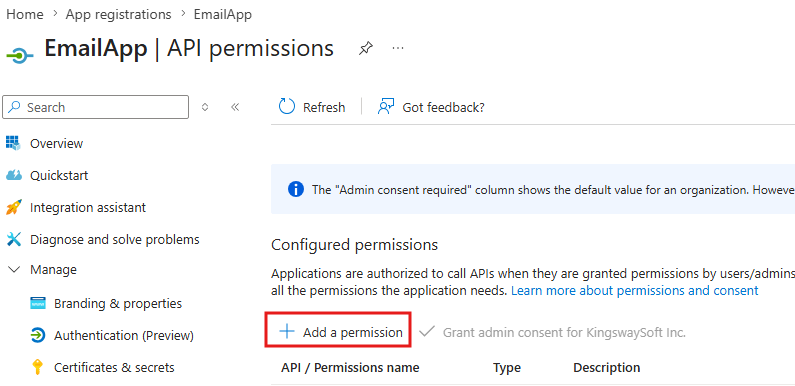
Open your registered application in Azure Entra ID, navigate to the API permissions page, and click + Add a permission.
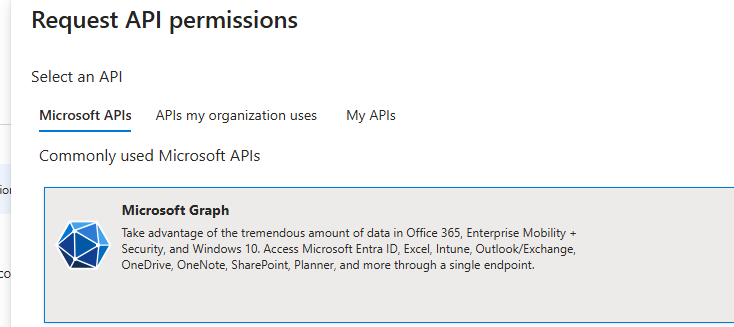
On the Request API permissions page, select Microsoft Graph, then choose either Delegated or Application permissions depending on how your package authenticates and accesses mailboxes.
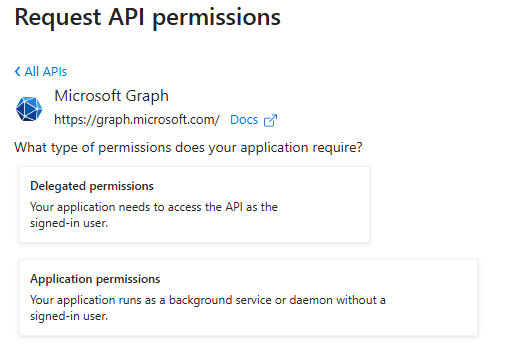
Some permissions require administrator consent. After adding the necessary permissions, click Grant admin consent if applicable.
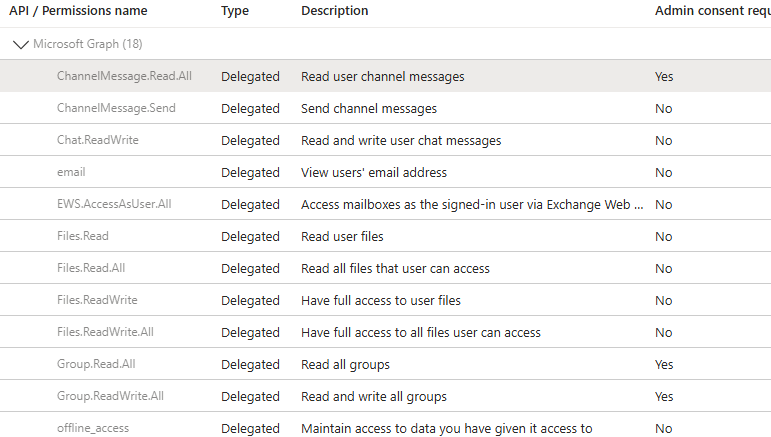
The exact permissions required will vary depending on whether your package reads mail, sends mail, accesses shared mailboxes, or performs other mailbox operations.
Update the KingswaySoft Email Connection Manager
Once the Azure application is ready, open your SSIS package. You can either:
- Modify the existing Email Connection Manager, or
- Create a new Email Connection Manager configured for Microsoft Graph.
In the connection manager, set the Protocol to Exchange Online (Microsoft Graph).
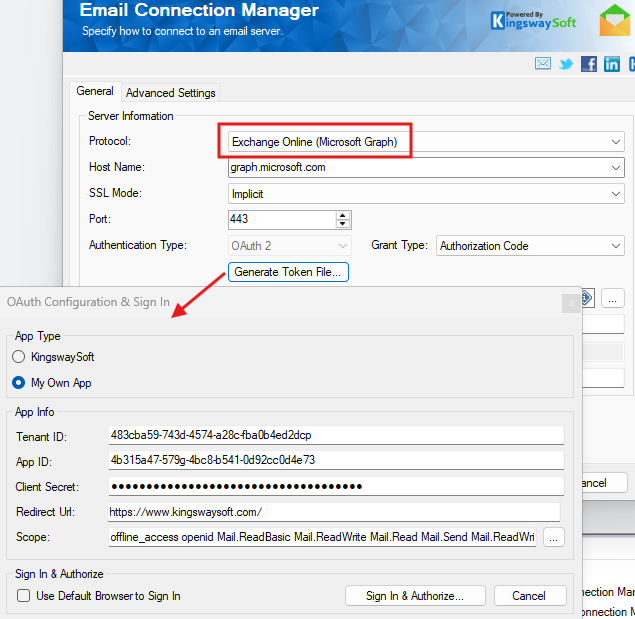
Next, click Generate Token File and complete the OAuth authorization process using the same approach you normally use for any other Microsoft Graph connections.
If you updated an existing connection manager, you can proceed directly to the metadata refresh step. If you created a new connection manager, continue with the next section to replace the connection without losing your component configuration.
Replace the Connection Manager Without Resetting Component Settings
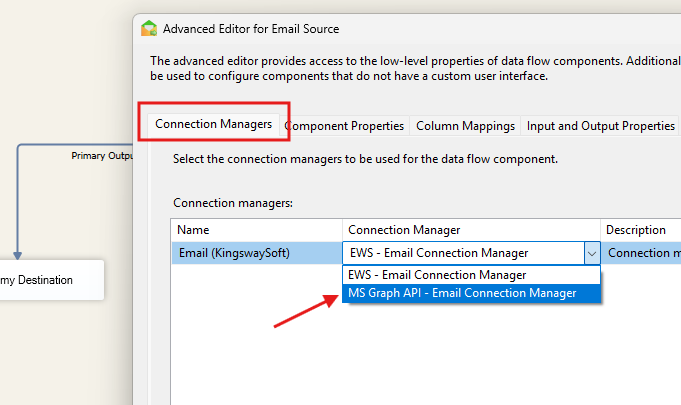
When a connection manager is changed through the standard component UI, SSIS may reset portions of the component configuration. To avoid reconfiguring the Email Source or Email Destination, use the Advanced Editor instead.
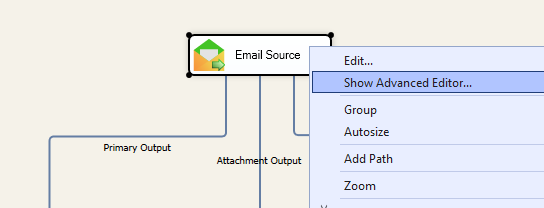
Right-click the Email Source or Email Destination component and select Show Advanced Editor.
In the editor, select the newly created Microsoft Graph connection manager and click OK to save the change.
Refresh Component Metadata
This is the most important step in the migration process.
Because Microsoft Graph does not expose all of the fields that were previously available through EWS, some output columns may no longer be valid. Examples can include properties such as ChangeKey, Priority, and other EWS-specific fields.
Open the Email Source or Email Destination component and click Refresh to reload the metadata from Microsoft Graph.
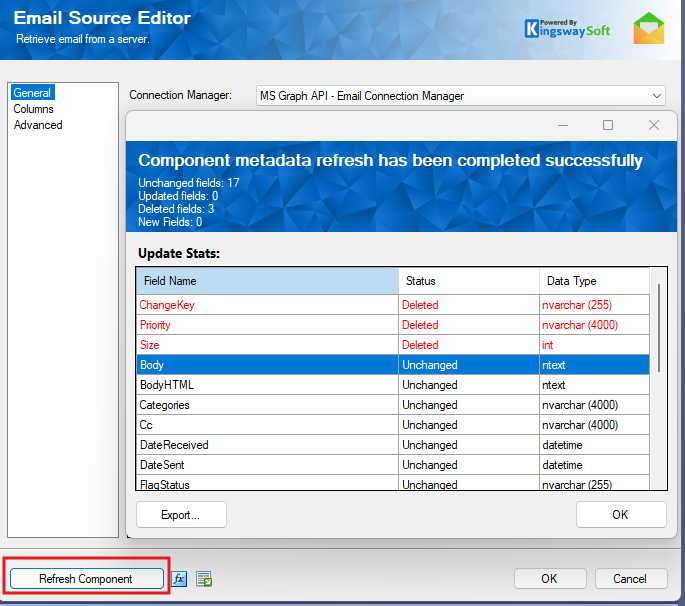
After the refresh completes, click OK to save the component.
Resolve Unmapped Columns
After refreshing metadata, SSIS may show a red X on the data flow path because some previously mapped columns no longer exist.
Right-click the affected path and choose Resolve References.
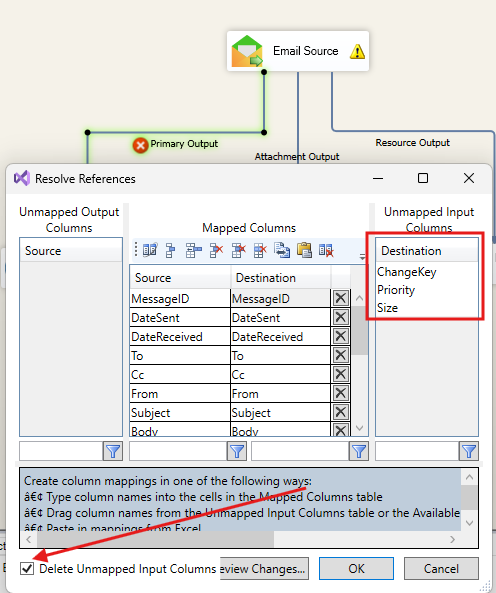
In the dialog, select Delete Unmapped Input Columns to remove references to fields that are no longer available from Microsoft Graph.
Validate and Test the Package
At this point, the package is configured to use Microsoft Graph instead of EWS. Before deploying to production, run the package and validate the following:
- Authentication succeeds and the token is acquired correctly.
- Emails can be read or sent as expected.
- Shared mailbox access works if applicable.
- Downstream transformations do not depend on those removed EWS-specific columns.
Final Thoughts
Migrating from EWS to Microsoft Graph is a necessary step for all Exchange Online integrations. While there are a few feature-parity gaps between the two APIs, Microsoft Graph provides a more modern and secure foundation with OAuth 2.0 authentication, a lightweight JSON-based API, and unified access across the Microsoft 365 ecosystem.
For existing KingswaySoft SSIS packages, the upgrade is typically straightforward: update Azure permissions, switch the Email Connection Manager to Microsoft Graph, refresh metadata, and remove any obsolete column mappings. Performing this migration now helps ensure that your automated email workflows continue to run reliably as Microsoft phases out EWS over the coming months.
We hope this guide helps you transition your existing KingswaySoft email integrations to Microsoft Graph with minimal disruption.