

Setting Up an Enthuse REST Connection Manager
The REST Connection Manager is an SSIS connection manager that can be used to establish connections and facilitate data integration with REST-based APIs and services such as Enthuse, among many more.
Integration for Enthuse is enabled by the following two components:
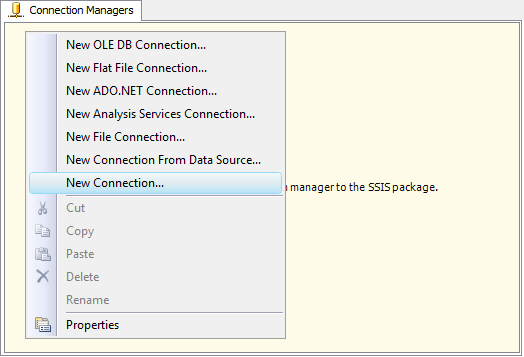
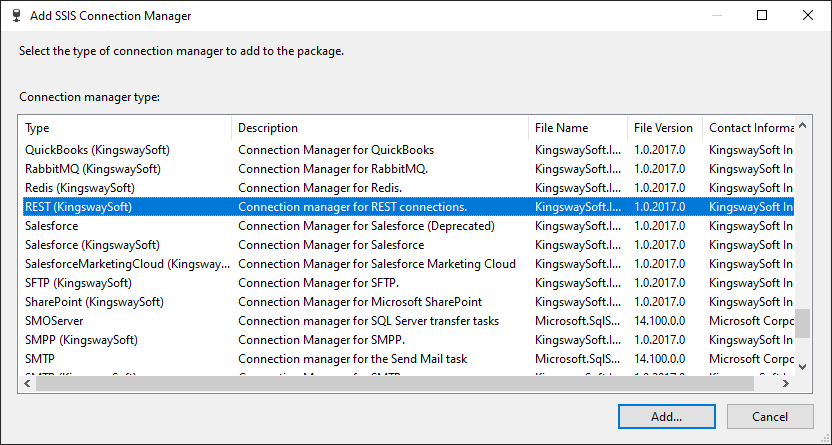
To add a new connection, right-click the Connection Manager area in your Visual Studio project and choose "New Connection..." from the context menu. You will be prompted with the "Add SSIS Connection Manager" window. Select the "REST (KingswaySoft)" item to add a new REST Connection Manager.
The REST Connection Manager contains 3 pages of configuration.
- General
- Advanced Settings
- Custom Headers
General Page
The General page allows you to specify connection properties and authentication credentials for the Enthuse REST service.
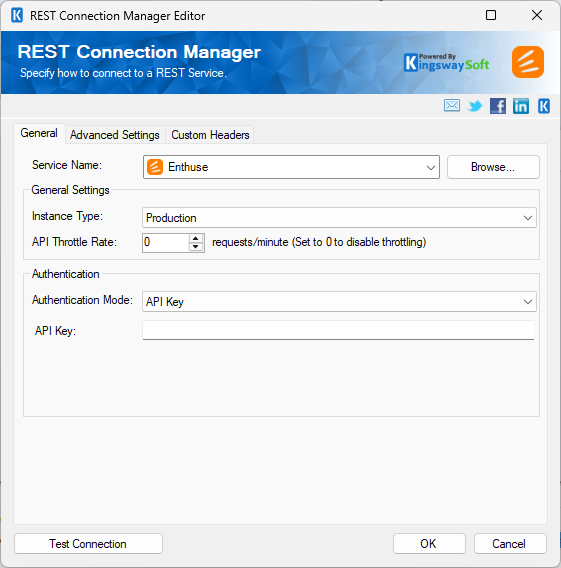
- Service Name
-
The REST service that will be connected to.
- General Settings
-
- Instance Type
-
The Instance Type option allows you to specify the Enthuse environment that you want to connect to. Available options are:
- Production
- Development
- API Throttle Rate
-
The API Throttling Rate will limit the number of requests that can be sent per minute. Set this value to 0 to disable throttling.
- Authentication
-
- Organization ID
-
The numeric identifier of the Enthuse organization that will be accessed by the connection.
- Client ID
-
The unique client identifier that will be used to authenticate the connection to Enthuse.
- Scope
-
The Scope option allows you to specify the permissions that will be requested when connecting to Enthuse.
Click the ellipsis button to open the Scope selection dialog.
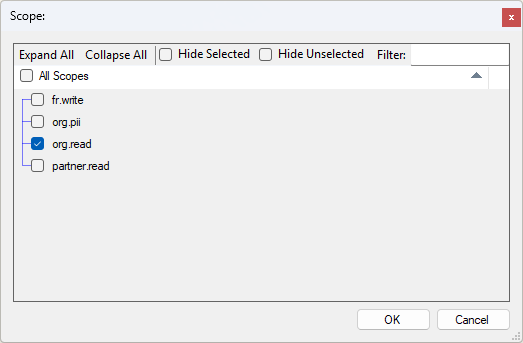
The Scope dialog provides the following options:
- Expand All: Expands all available scope groups.
- Collapse All: Collapses all available scope groups.
- Hide Selected: Hides scopes that are currently selected.
- Hide Unselected: Hides scopes that are not currently selected.
- Filter: Filters the available scopes using a keyword.
- All Scopes: Selects or clears all available scopes.
Available scopes include:
- fr.write: Write fundraising data.
- org.pii: Access personally identifiable information.
- org.read: Read organisation data.
- partner.read: Read partner-specific data.
Note: Select the scopes required for the operations that will be performed by the connection. The scopes available to a client may vary.
- JSON Key File Path
-
The path to the JSON key file containing the private key in JWK format that will be used to authenticate the connection.
Click the ellipsis button to browse to and select the JSON key file from the file system.
- Test Connection
-
After all the connection information has been provided, click the "Test Connection" button to test whether the supplied credentials can connect to the selected REST service.
Advanced Settings Page
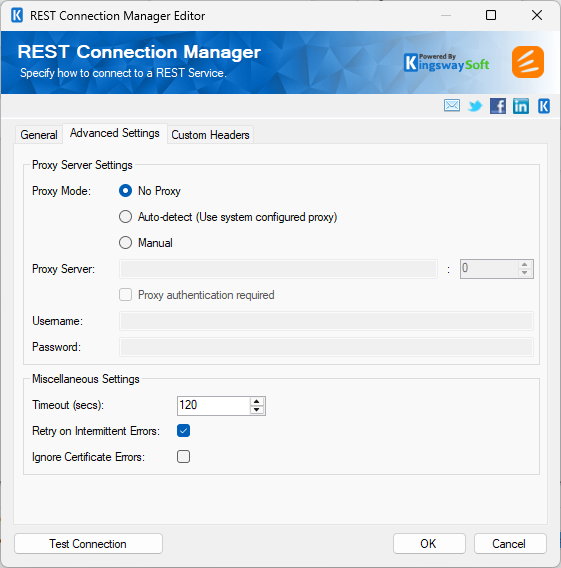
- Proxy Mode
-
The Proxy Mode option allows you to specify how you want to configure the proxy server settings. There are three options available:
- No Proxy
- Auto-detect (Use system-configured proxy)
- Manual
- Proxy Server
-
The Proxy Server option allows you to specify the name of the proxy server for the connection.
- Port
-
The Port option allows you to specify the port number of the proxy server for the connection.
- Username (Proxy Server Authentication)
-
The Username option (under Proxy Server Authentication) allows you to specify the proxy user account.
- Password (Proxy Server Authentication)
-
The Password option (under Proxy Server Authentication) allows you to specify the proxy user's password.
Note: The Proxy Password is not included in the connection manager's ConnectionString property by default. This is by design for security reasons. However, you can include it in your ConnectionString if you want to parameterize your connection manager. The format would be ProxyPassword=myProxyPassword; (make sure you have a semicolon as the last character). It can be anywhere in the ConnectionString.
- Timeout
-
The number of seconds requests should wait before timing out.
- Retry on Intermittent Errors
-
The retry on intermittent errors option determines whether requests will be retried when an error occurs. If this option is checked, requests will be retried up to 3 times.
- Ignore Certificate Errors
-
This option can be used to ignore SSL certificate errors when connecting to Enthuse servers.
Warning: Enabling the "Ignore Certificate Errors" option is generally NOT recommended, particularly for production instances. Unless there is a strong reason to believe the connection is secure, such as when network communication is occurring only within an internal infrastructure, this option should remain unchecked for best security.
Custom Headers Page
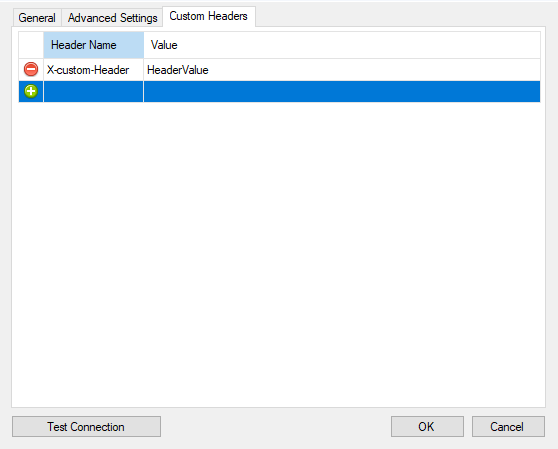
The Custom Headers page allows you to set the Header Name and Header Value. You may select the green icon to add another row and the red icon to remove an existing header you have configured.