

Using the Enthuse REST Source Component
The REST Source component is an SSIS source component that can be used to read/retrieve data from Enthuse REST services and produce column data, which can then be consumed by a downstream SSIS pipeline component.
See Enthuse REST Connection Manager for how to connect to Enthuse and Enthuse REST Destination Component for how to write data to Enthuse.
The Source component includes the following two pages to configure how you want to read data:
- General
- Columns
General Page
The General page of the REST Source Component allows you to specify the general settings of the component.
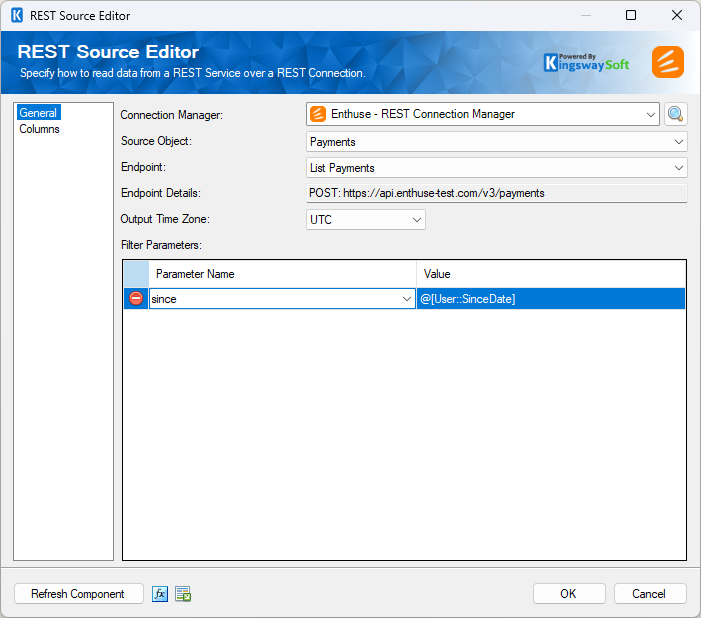
- Connection Manager
-
The source component requires a REST connection to Enthuse. The Connection Manager drop-down will show a list of all connection managers that are available for your current SSIS package.
- Search
-
Click the search button (or press Ctrl + F on your keyboard) to launch the Search Objects & Endpoints dialog. This dialog allows you to search for an object or endpoint. Clicking a result will select that object or endpoint in the source editor.
- Source Object
-
The Source Object drop-down lists the available objects that you can read from.
- Endpoint
-
The Endpoint drop-down lists all available REST endpoints for the selected object.
- Endpoint Details
-
The Endpoint Details show the route and HTTP method of the selected endpoint.
- Batch Size
-
The Batch Size lets you specify how many records to retrieve per service call to Enthuse.
Note: Some endpoints do not support batch size, in which case this option will not be available.
- Output Time Zone
-
The Output Time Zone option lets you specify how all datetime fields should be retrieved. Available options are:
- UTC
- Local
- Filter Parameters
-
The Filter Parameters section allows you to provide parameter values that control which records are returned by the selected endpoint.
The grid consists of:
- Parameter Name: The name of the parameter that will be included in the request.
- Value: The value that will be supplied for the parameter.
Use the green plus icon to add an optional parameter when supported by the selected endpoint.
Note: Available and required filter parameters may vary depending on the selected object and endpoint.
- Refresh Component Button
-
Clicking the Refresh Component button causes the component to retrieve the latest metadata and update each field to its most recent metadata.
(Since v24.1) By clicking Refresh Component, a new window opens with three options that determine how metadata updates should be performed.
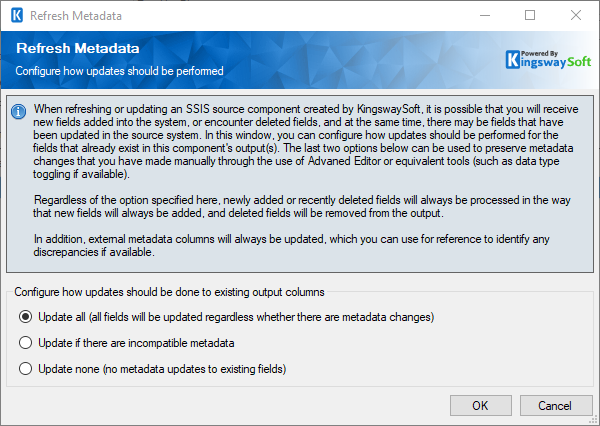
- Update all: Updates all fields regardless of whether metadata changes are detected.
- Update if there are incompatible metadata: Updates fields that have metadata incompatible with the newly discovered metadata.
- Update none: Does not apply metadata updates to existing fields.
- Expression fx Icon
-
Click the blue fx icon to launch the SSIS Expression Editor and enable dynamic updates of the property at run time.
- Generate Documentation Icon
-
Click the Generate Documentation icon to generate a Word document that describes the component's metadata, including relevant mappings, and so on.
Columns Page
The Columns page of the REST Source Component shows all available attributes from the endpoint specified on the General page.
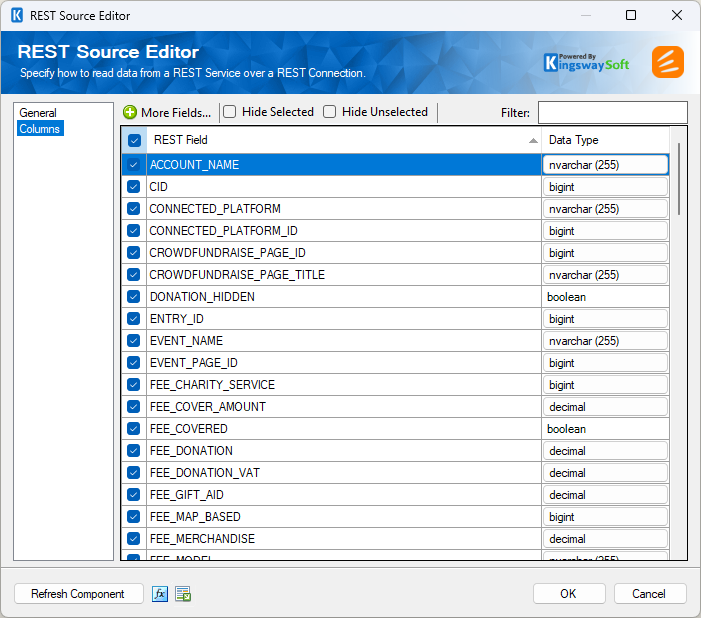
On the top-left of the grid, there is a checkbox that can be used to toggle the selection of all available fields. This provides a convenient way to check or uncheck all fields.
The Hide Selected and Hide Unselected options allow you to control which fields are displayed in the grid. The Filter option allows you to find fields using a keyword.
The Columns Page grid consists of:
- REST Field: The column that will be retrieved from the Enthuse REST service.
- Additional Field Details: An information icon will appear if the column has special characteristics. Hover over the icon to view additional details.
- Data Type: The data type of the field.
- More Fields
-
This button opens the Manage Additional Fields editor, where you can select additional outputs or fields from the object returned by the server.
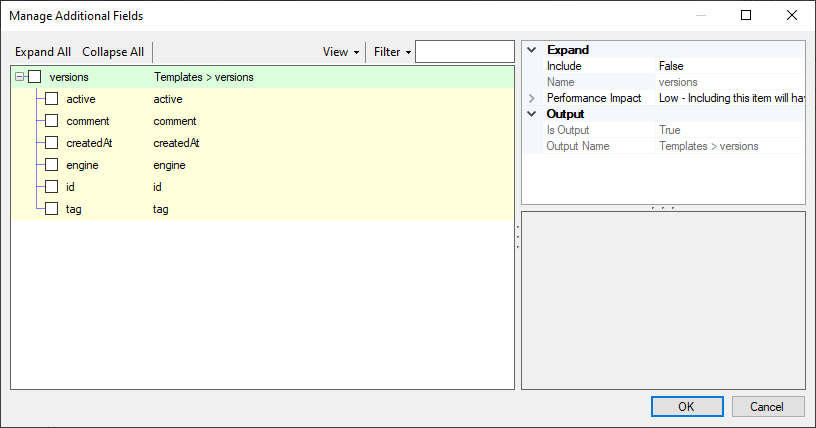
- Expand All: Expands the tree view of all fields under each object.
- Collapse All: Collapses the tree view to show only the sub-objects of the returned JSON document.
- View: Allows you to view or hide the Details and Summary sections of the Manage Additional Fields editor.
- Filter: Allows you to show checked or unchecked items and filter the list of fields using a keyword.
- Details section: Displays information about the selected field or output, including its expected performance impact when enabled.
- Summary section: Displays a summary of the secondary outputs or fields that will be added to the component.
Note: As a general best practice, you should only select the fields that are needed for downstream pipeline components.