

Setting Up a Salesforce Marketing Cloud REST Connection Manager
The REST Connection Manager is an SSIS connection manager that can be used to establish connections and facilitate data integration with REST-based APIs and services such as Salesforce Marketing Cloud, among many others. For SOAP-based integrations, dedicated Salesforce Marketing Cloud (SOAP) Components are also available.
Integration for Salesforce Marketing Cloud is enabled by the following components:
- Salesforce Marketing Cloud REST Source Component
- Salesforce Marketing Cloud REST Destination Component
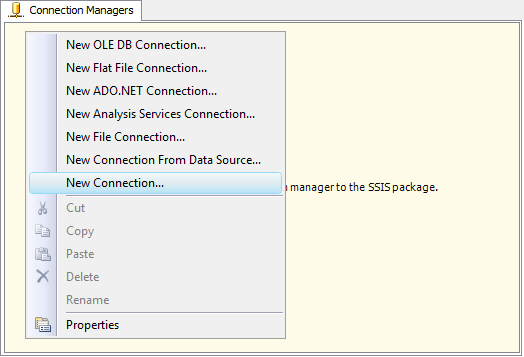
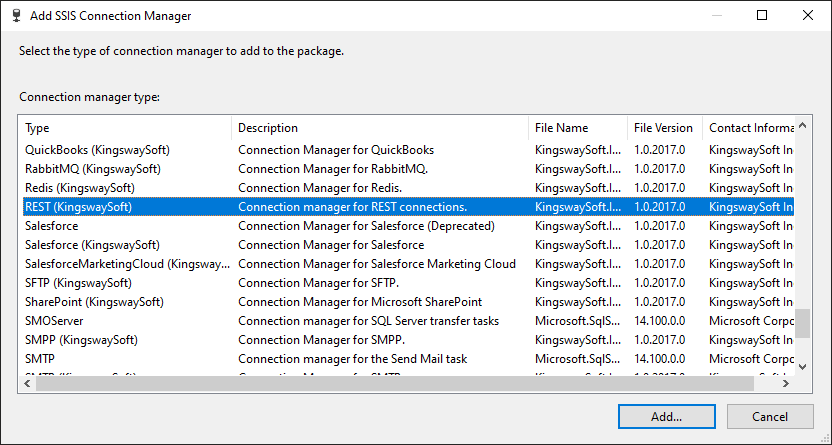
To add a new connection, right-click the Connection Manager area in your Visual Studio project, and choose "New Connection..." from the context menu. You will be prompted the "Add SSIS Connection Manager" window. Select the "REST (KingswaySoft)" item to add a new REST Connection Manager.
The REST Connection Manager contains the following configuration pages:
- General
- Advanced Settings
- Custom Headers
General Page
The General page allows you to specify connection properties and login credentials for the Salesforce Marketing Cloud REST service:
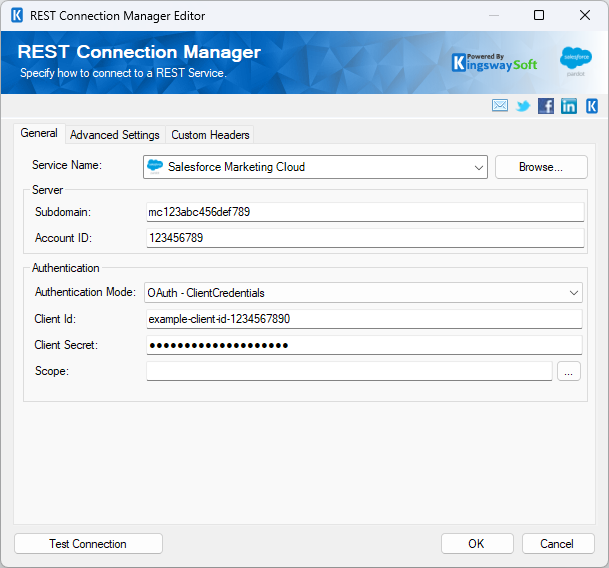
- Service Name
-
The REST service that will be connected to.
- Server
-
- Subdomain
-
The Subdomain specifies the tenant-specific subdomain used to connect to Salesforce Marketing Cloud.
Note: Specify the subdomain portion of the tenant-specific endpoint, rather than the full URL. For more information about tenant-specific endpoints, see Salesforce's API documentation.
- Account ID
-
The Account ID specifies the Member ID (MID) of the Salesforce Marketing Cloud business unit that you want to access.
- Authentication
-
- Authentication Mode
-
The Authentication Mode option allows you to specify how to authenticate with Salesforce Marketing Cloud. Available options are:
- OAuth - ClientCredentials
- OAuth2
- OAuth - ClientCredentials
-
The OAuth - ClientCredentials authentication mode uses a client ID and client secret to authenticate with Salesforce Marketing Cloud without requiring an interactive user sign-in.
- Client ID
-
The Client ID identifies the API integration that will be used to authenticate with Salesforce Marketing Cloud.
- Client Secret
-
The Client Secret specifies the client secret associated with the API integration.
- Scope
-
The Scope option allows you to specify the permissions requested when accessing Salesforce Marketing Cloud. Click the button beside this field to select from the available scopes.
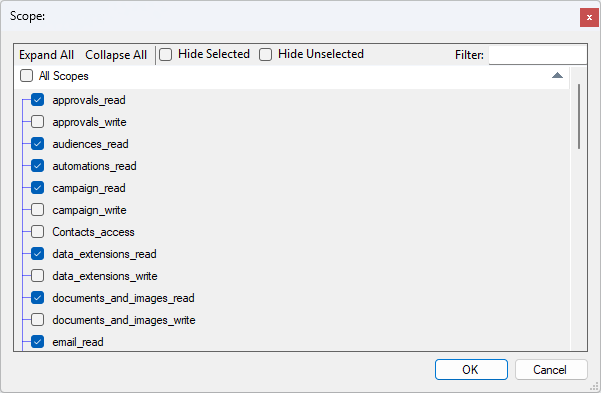
Note: The requested scopes must be permitted by the API integration in Salesforce Marketing Cloud. For more information, see Salesforce's API Integration Permission Scopes documentation.
- OAuth2
-
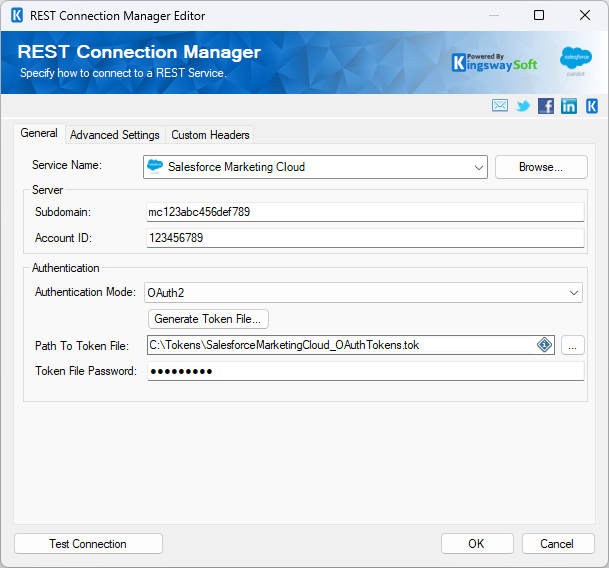
The OAuth2 authentication mode allows you to authenticate with Salesforce Marketing Cloud using an OAuth token file.
- Generate Token File...
-
Click the Generate Token File... button to open the OAuth Configuration & Sign In dialog, where you can provide the authentication information and complete the authorization process.
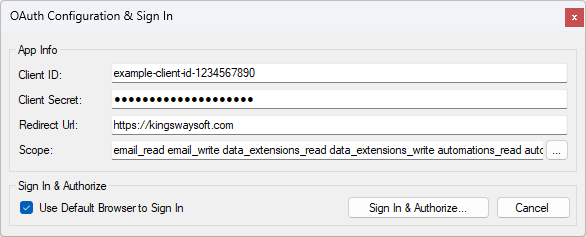
- Client ID: The client ID used for OAuth authentication.
- Client Secret: The client secret associated with the client ID.
- Redirect Url: The redirect URL used during the OAuth authorization process.
- Scope: The permissions requested when authenticating with Salesforce Marketing Cloud.
- Use Default Browser to Sign In: When this option is checked, the Sign In & Authorize... button opens your default web browser to complete OAuth authentication. When unchecked, the authentication process is completed inside the toolkit.
- Sign In & Authorize...: Click this button to sign in to Salesforce Marketing Cloud and authorize the application.
- Path To Token File
-
The Path To Token File specifies the location of the OAuth token file used for authentication.
- Token File Password
-
The Token File Password specifies the password used to protect the OAuth token file.
- Test Connection
-
After all the connection information has been provided, you may click the "Test Connection" button to test if the credentials entered can connect to the selected REST service.
Advanced Settings Page
- Proxy Server Settings
-
- Proxy Mode
-
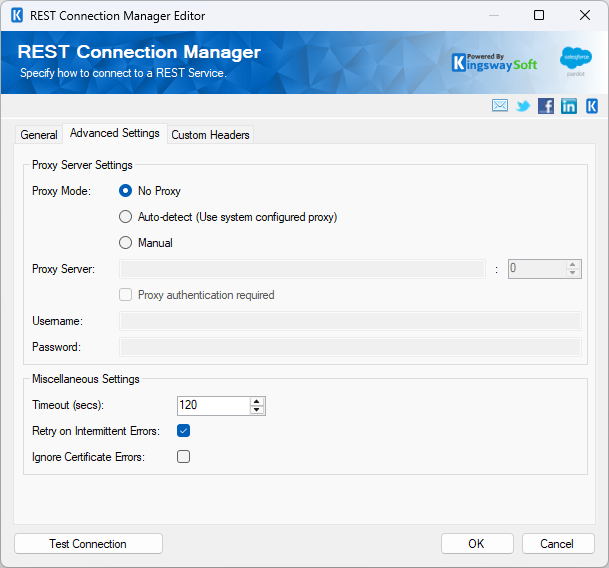
The Proxy Mode option allows you to specify how you want to configure the proxy server setting. There are three options available:
- No Proxy
- Auto-detect (Using system-configured proxy)
- Manual
- Proxy Server
-
Using the Proxy Server option allows you to specify the name of the proxy server for the connection.
- Port
-
The Port option allows you to specify the port number of the proxy server for the connection.
- Username (Proxy Server Authentication)
-
The Username option (under Proxy Server Authentication) allows you to specify the proxy user account.
- Password (Proxy Server Authentication)
-
The Password option (under Proxy Server Authentication) allows you to specify the proxy user's password.
Note: The Proxy Password is not included in the connection manager's ConnectionString property by default. This is by design for security reasons. However, you can include it in your ConnectionString if you want to parameterize your connection manager. The format would be ProxyPassword=myProxyPassword; (make sure you have a semicolon as the last character). It can be anywhere in the ConnectionString.
- Miscellaneous Settings
-
- Timeout
-
The number of seconds requests should wait before timing out.
- Retry on Intermittent Errors
-
The Retry on Intermittent Errors option determines if requests will be retried when there is an error. If this option is checked, requests will be retried up to 3 times.
- Ignore Certificate Errors
-
This option can be used to ignore SSL certificate errors when connecting to Salesforce Marketing Cloud servers.
Warning: Enabling the "Ignore Certificate Errors" option is generally NOT recommended, particularly for production instances. Unless there is a strong reason to believe the connection is secure, such as when network communication occurs only within an internal infrastructure, this option should be unchecked for best security.
Custom Headers Page
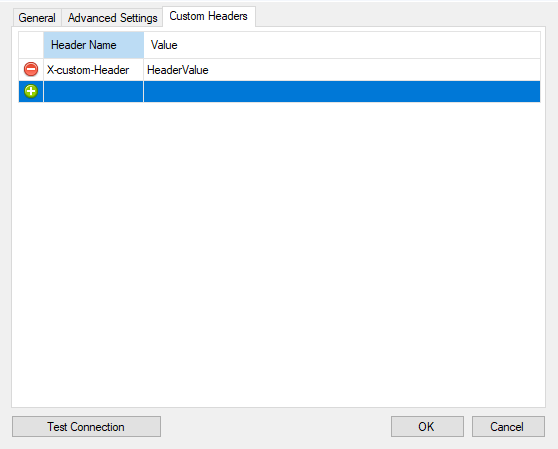
The Custom Headers page allows you to set the Header Name and Header Value. You may select the green icon to add another row, and the red icon to remove an existing header you have configured.