Assigning Permissions
The QuickBooks Connection Manager retrieves tokens from the QuickBooks app, once you give authorization. These tokens are then stored in the Registry so that once they have expired, our component will automatically request new tokens from QuickBooks to minimize user effort, and replace the existing tokens with these new ones in Registry. In order to achieve this, there must be proper permissions given to the KingswaySoft folder in Registry.
Start by opening the Registry Editor, and navigate into the following folders:
- HKEY_LOCAL_MACHINE > SOFTWARE > KingswaySoft > SSIS Integration Toolkit for QuickBooks

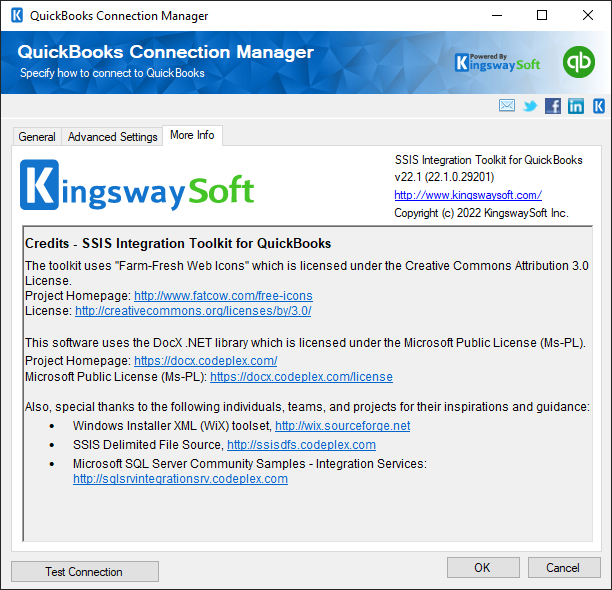
- Right-click on the SSIS Integration Toolkit for QuickBooks in the KingswaySoft folder and select the Permissions option. Enable the following permissions to give yourself permission to modify this folder.
Using the QuickBooks Connection Manager
SSIS Integration Toolkit includes a QuickBooks SSIS Connection Manager to help you establish connections to QuickBooks web services.
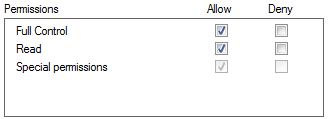
To add a new QuickBooks connection to your SSIS package, right-click the Connection Manager area, and choose "New Connection..." from the context menu.
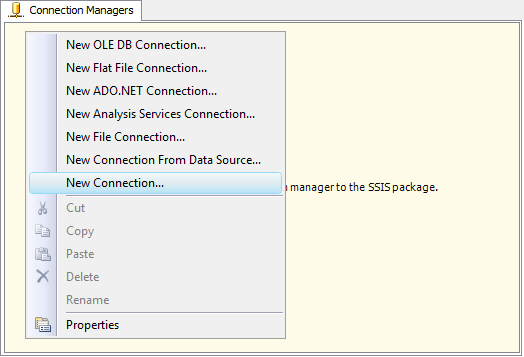
You will be prompted the "Add SSIS Connection Manager" window, where you can select "QuickBooks (KingswaySoft)" and click "Add..." to create the connection.
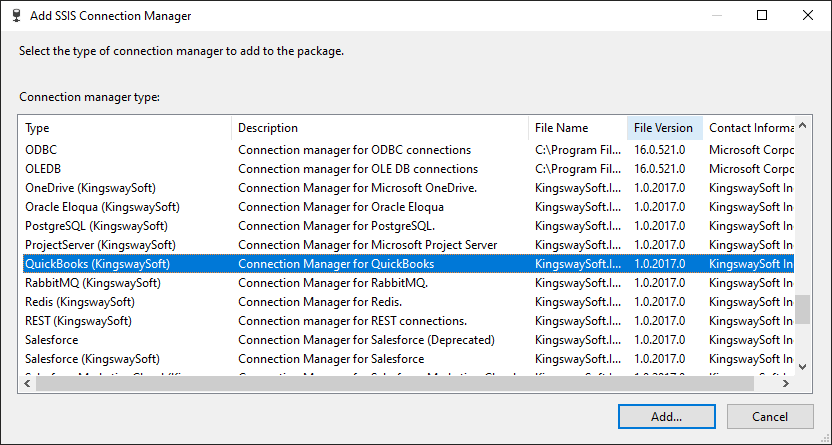
The QuickBooks Connection Manager contains the following tabs:
- General
- Advanced Settings
- More Info
General Page
The General tab of the QuickBooks Connection Manager allows you to specify connection string settings. It supports connections to both QuickBooks Online and QuickBooks Desktop. In order to connect to QuickBooks for Desktop, the QuickBooks Desktop Gateway needs to be installed and running on the machine running QuickBooks for Desktop.
- Deployment
-
The Deployment option allows you to specify what type of QuickBooks instance you want to connect to. There are two options available:
- Online instance
- Desktop instance
- Note that when using the Desktop connection, you need to make sure that the QuickBooks Gateway program is installed on the computer where you have QuickBooks installed, and you need to make sure the program and the service have been started. Please refer to the Using the QuickBooks Desktop Gateway section for instructions on how to install QuickBooks Desktop Gateway.
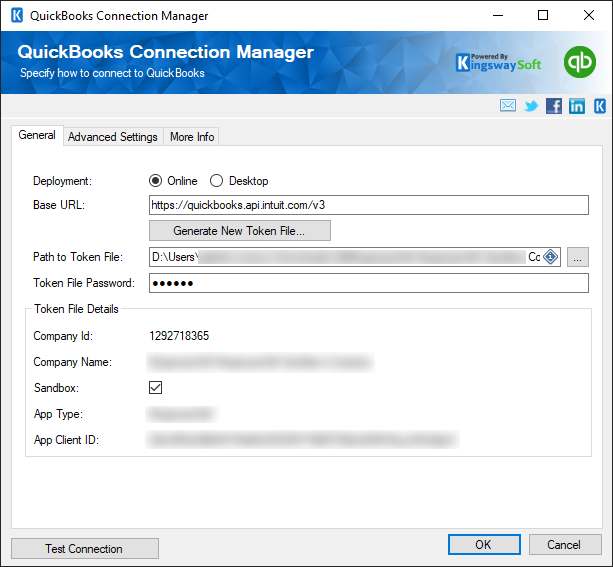
- Deployment - Online
-
- Generate New Token File
-
This button will open a dialog in order to generate a new Token File.
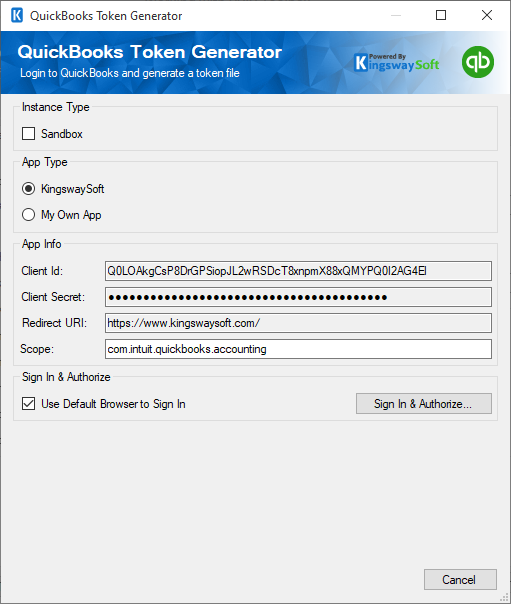
- Instance Type: This option allows you to specify if you want to connect to your Sandbox instance or your production instance.
-
App Type
-
KingswaySoft: The Connection Manager will use the Client ID and Secret that is provided by KingswaySoft for your convenience when setting up the connection. It is important to note that this app is provided for convenience; we generally don't recommend using this app for production use.
- Note: The KingswaySoft Shared OAuth App is no longer recommended and may be subject to API errors due to limits imposed by the platform. Please refer to our blog post (link here) for more details and action required if you are already using this App type. A warning will be shown if you are using our version 25.2 or above.
- My Own App: Selecting this option will allow you to use your own Client ID and Secret to connect to QuickBooks. To create your own app, you can log in to the QuickBooks developer portal to create from there. We generally recommend you use this option for better security and better control over the app itself.
-
KingswaySoft: The Connection Manager will use the Client ID and Secret that is provided by KingswaySoft for your convenience when setting up the connection. It is important to note that this app is provided for convenience; we generally don't recommend using this app for production use.
- Client ID: The Client ID option allows you to specify the unique ID that identifies the application making the request.
- Client Secret: The Client Secret option allows you to specify the client secret belonging to your app.
- Redirect URI: The Redirect URL option allows you to specify the Redirect URL which was assigned to your app.
- Scope: The scope that your app will need access to.
- Use Default Browser to Sign In: When this option is checked, the Sign In and Authorize button will open your default web browser in order to complete the OAuth authentication. When this option is unchecked, the Sign In and Authorize button will complete the entire OAuth authentication process inside of the toolkit.
- Sign In and Authorize: This button allows you to log in to the service endpoint and authorize your app to generate a token.
-
Signed In Account Details
- Company ID: Displays the QuickBooks Company ID for for which the token file was created.
- Company Name: Displays the QuickBooks Company Name for which the token file was created.
- Password: This option allows you to assign a new password for the token file, which will be created.
- Save To Token File: This option allows you to specify the location where the token file will be saved.
- Path to Token File
-
This option allows you to specify the path to the token file on the file system. This option supports both file system paths as well as Azure Blob Storage Shared Access Signature (SAS) URLs. Please note that you would need to write permission when specifying the URL.
- Token File Password
-
This option allows you to specify the password of the selected token file.
- Token File Details
-
- Company ID: Displays the QuickBooks Company ID which the token file was created for.
- Company Name: Displays the QuickBooks Company Name for which the token file was created for.
- Sandbox: Displays the instance type the token file was created for.
- App Type: Displays the client application Type with for which the token file was created.
- App Client ID: Displays the client application ID which the token file was created with.
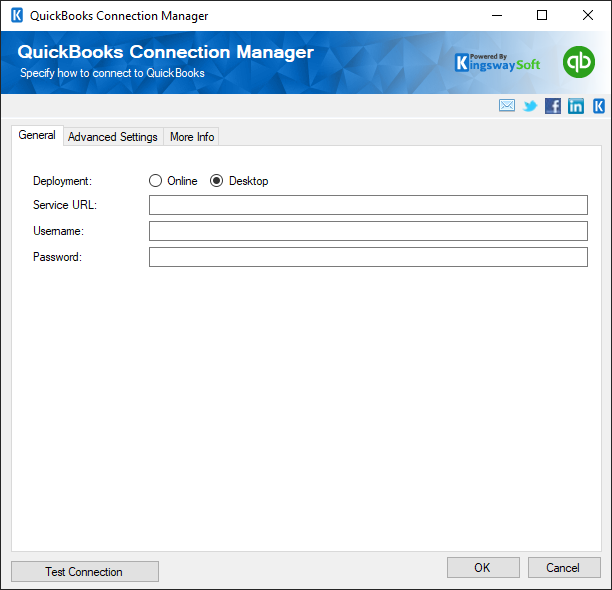
- Deployment - Desktop
-
- Service URL
-
The Service URL field allows you to connect to the QuickBooks Desktop Gateway. A Service URL is made up of the machine name or IP address along with the configured port number. ex: http://MyQuickBooksMachineName:7777.
- Username
-
The Username field is used to connect to the QuickBooks Desktop Gateway as a particular user. On the QuickBooks Desktop Gateway, you can associate users with company files on the machine. This allows you to differentiate connections to different company files on the same machine.
- Password
-
The Password field is used to authenticate the QuickBooks Desktop Gateway user.
- Test Connection
-
After all the connection information has been provided, you may click Test Connection to test if the user can successfully authenticate with QuickBooks.
Advanced Settings Page
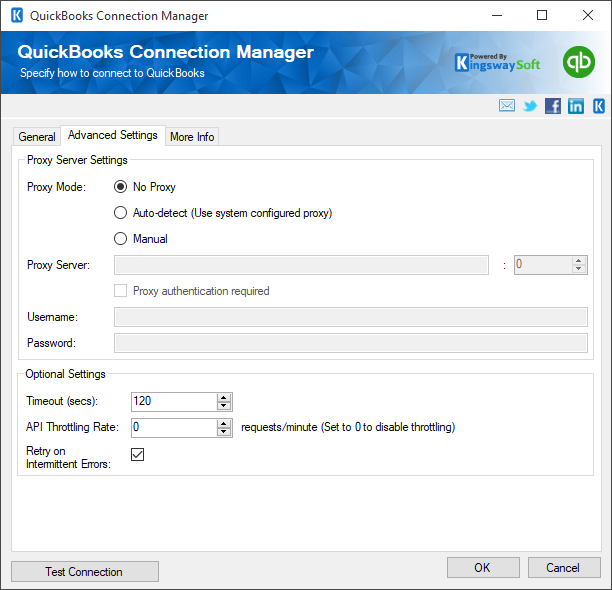
The Advanced Settings tab of QuickBooks Connection Manager allows you to specify some advanced and optional settings for the connection.
- Proxy Mode
-
The Proxy Mode option allows you to specify how you want to configure the proxy server settings. There are three options available.
- No Proxy
- Auto-detect (Using system-configured proxy)
- Manual
- Proxy Server
-
Using the Proxy Server option, you can provide a proxy server to connect to QuickBooks.
- Port
-
The Port option allows you to specify the port number of the proxy server for the connection.
- Username
-
The Username option allows you to specify the proxy user account.
- Password
-
The Password option allows you to specify the proxy user’s password.
Note: Proxy Password is not included in the QuickBooks connection manager's ConnectionString property by default. This is done by design for security reasons. However, you can include it in your ConnectionString if you want to parameterize your connection manager. The format would be ProxyPassword=myProxyPassword; (make sure you have a semicolon as the last character). It can be anywhere in the ConnectionString.
- Timeout (secs)
-
The Timeout (secs) option allows you to specify a timeout value in seconds for the connection. The default value is 120 seconds.
- API Throttling Rate (requests/sec)
-
The API Throttling Rate will limit the number of requests that can be sent per hour. Set this value to 0 to disable API Throttling.
- Retry on Intermittent Errors
-
This is an option designed to help recover from possible intermittent outages or disruption of service. It prevents the integration process from stopping due to temporary issues. Enabling this option will allow service calls to be retried upon certain types of failure. A service call may be retried up to 4 times at different intervals before an exception is fired.
Warning: We have designed our retry feature carefully such that the retry should only occur when it is deemed safe to do so; however, on some occasions, such retry service calls could result in the creation of duplicate data, we believe this would only happen in extreme situations.
More Info Page
The More Info page shows some basic information about where to find support and additional information about the toolkit. On this page, you can find the version information of the toolkit.