

Using the QuickBooks Destination Component

The QuickBooks Destination Component is an SSIS data flow pipeline component that can be used to write data to QuickBooks Online. You may Create, Update, and Delete records with this component.

General Page

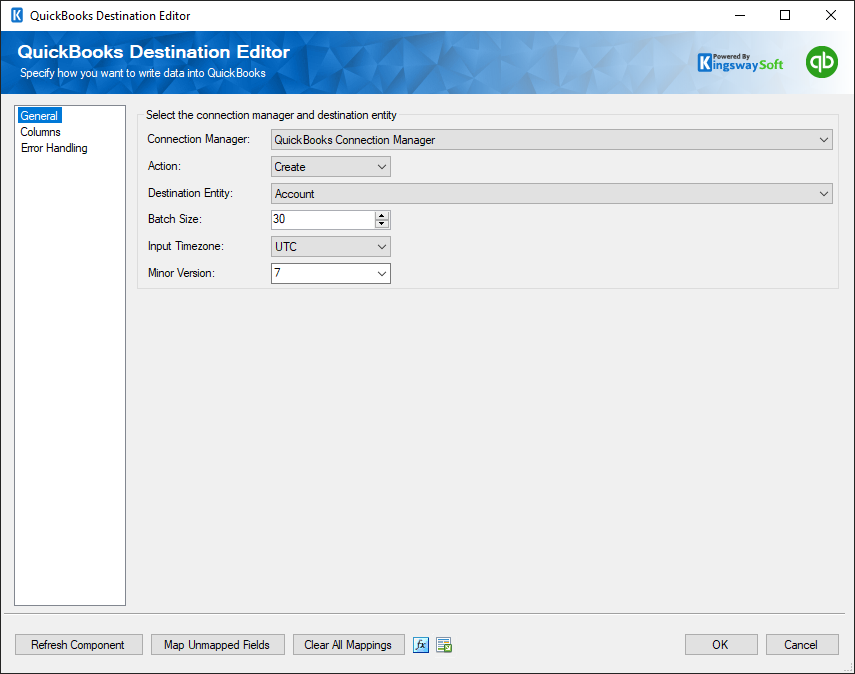
The General page of the QuickBooks Destination Component allows you to specify the general settings of the component.
QuickBooks Destination Editor

Connection Manager

The QuickBooks destination component requires an active connection to QuickBooks. You can specify a Connection Manager here to facilitate that connectivity.

Action

The Action option allows you to specify how the data should be written into QuickBooks, there are different action types available depending on what instance type of your QuickBooks system is.

  • For QuickBooks Online instance, there are four (4) action types available:
    • Create: Create new record(s) in QuickBooks Online
    • Update: Update existing record(s) in QuickBooks Online
    • HardDelete: Hard Delete record(s) from QuickBooks Online
    • SoftDelete: Deactivates record(s) from QuickBooks Online
  • For QuickBooks Desktop instance, there are four (4) action types available:
    • Create: Create new record(s) in QuickBooks Desktop
    • Update: Update existing record(s) in QuickBooks Desktop
    • Delete: Delete record(s) from QuickBooks Desktop
    • Void: Void record(s) in QuickBooks Desktop
Destination Entity

The Destination Entity option allows you to specify which QuickBooks entity to write data to. A drop-down with available entities is listed here.

Batch Size

The Batch Size allows you to specify how many entities should be written from a single service call. For example, when working with QuickBooks online instances, it has a maximum limit of 25 batched operations per service call.

Input Timezone

This option allows you to specify the input timezone setting when writing to QuickBooks. There are two options available:

  • UTC
  • Local Time
Minor Version

This option allows you to choose the API Minor version you want to use from a drop-down list.

Refresh Component button

By clicking this button, the component will retrieve the latest metadata from QuickBooks' web services. After clicking this button, you will receive a status message indicating how many fields have been updated, added, or deleted.

Map Unmapped Fields button

By clicking this button, the component will map any unmapped fields by matching their names with the input columns from the upstream component. This is useful when your source component has recently added more columns, in which case you can use this button to automatically establish associations between input columns and unmapped fields.

Clear All Mappings button

By clicking this button, the component will remove all field mappings. You can use this button to reset your mappings.

Hard Delete vs Soft Delete

A Hard Delete can be performed on QuickBooks Transaction entities (e.g., Invoice). A Hard Delete will permanently delete the record. If you attempt to perform a Hard Delete and get an Operation Delete is not Supported error message, it means that the entity you specified does not support a hard delete operation. Most likely, it is a Name list entity that you are attempting to hard delete.

A Soft Delete can be performed on QuickBooks Name list entities (e.g., Customer). A Soft Delete essentially performs an update on the record to set the Active field to false. If you attempt to perform a Soft Delete and get a Property Name: Unrecognized field "Active" error message, the entity that you are trying to soft delete does not contain a field called Active, and therefore cannot be soft deleted. Most likely, it is a Transaction entity that you are attempting to soft delete.

Utilizing the Child Input of the Destination Component

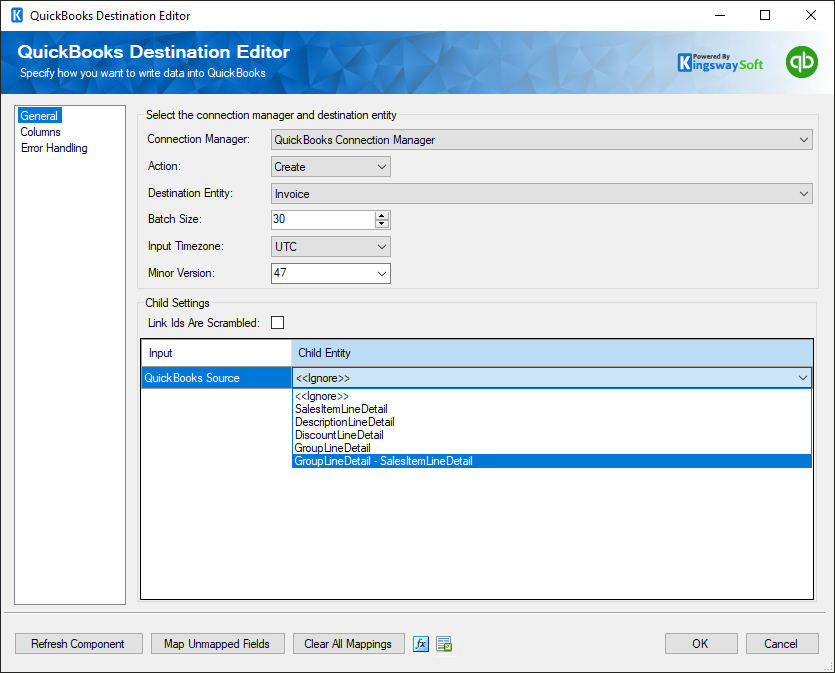
If you want to write child entity data to a QuickBooks entity, you can connect an inbound component containing child entity data to the secondary inputs. Once you have made a connection to a Secondary Input, you must specify the Child Entity you are adding in the Child Setting grid on the General page.
QuickBooks Destination Editor

When a child is mapped in the Child Settings grid on the General page, it will be available in the select input drop-down on the Columns page. This allows for selecting input for both parent and child fields. The parent input (Primary Input) will have a field called _LinkId, which can be any string and is used to link the parent to its child object. All child inputs (Secondary Inputs) will have a field called _ParentLinkId. This field should have a value that matches the value used for the _LinkId of the parent.

Note: Each input must be sorted; for the primary input, sort by the _LinkId field, and for secondary inputs, sort by the _ParentLinkId field.

Columns Page

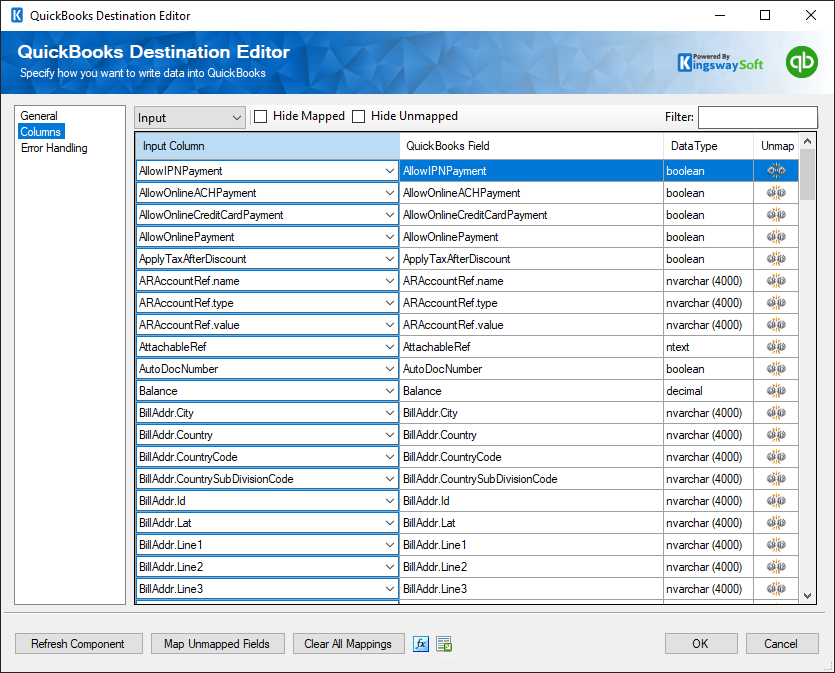
The Columns page of the QuickBooks Destination Component allows you to map the columns from upstream components to fields for the destination entity.
QuickBooks Destination Editor

On the Columns page, you will see a grid with four columns as seen above.

  • Input Column: You can select a column from your upstream component to be used as the input of the corresponding field.
  • QuickBooks Field: The field that you are writing data.
  • Data Type: This column indicates the type of value for the current field in QuickBooks. Typically you would need to pass in the value using the format indicated in the Data Type column.
  • Unmap: This column can be used to unmap the field from the upstream input column, or otherwise it can be used to map the field to an upstream input column by matching its name if the field is not currently mapped.

Error Handling Page

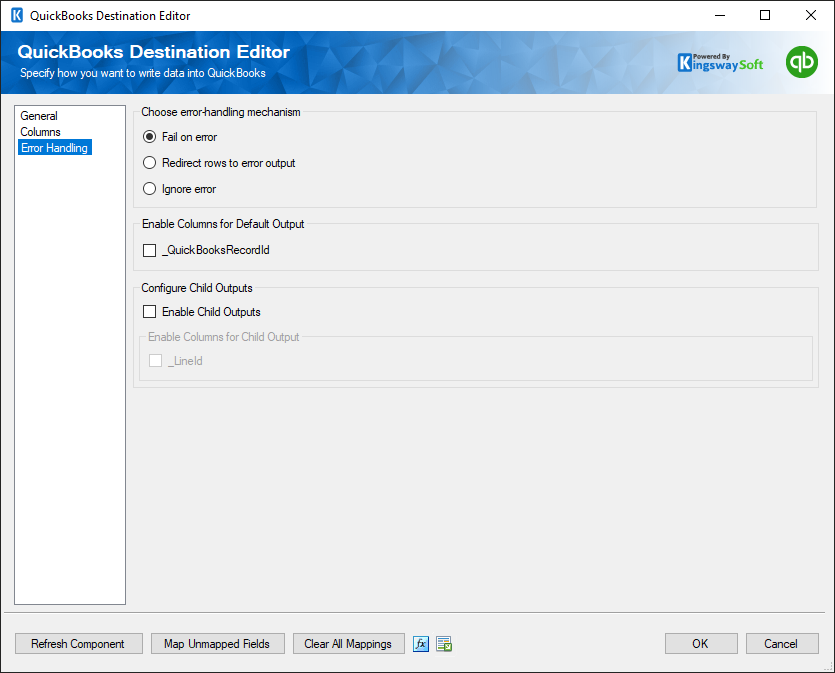
The Error Handling page allows you to specify how errors should be handled when they happen.
QuickBooks Destination Editor

There are three options available:

  1. Fail on error
  2. Redirect rows to error output
  3. Ignore error

When the Redirect rows to error output option is selected, rows that failed to write to QuickBooks will be redirected to the 'Primary Error Output' of the Destination Component. The 'ErrorMessage' output column found in the Error Output may contain the error message that was reported by QuickBooks or the component itself.
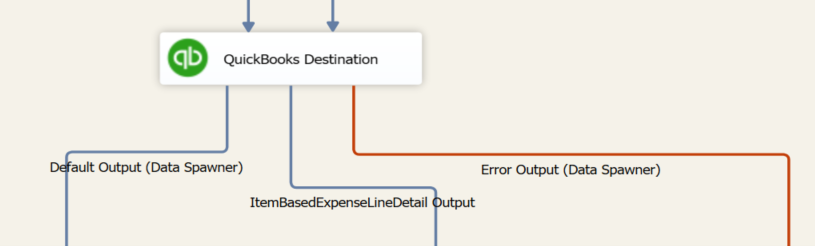
QuickBooks Error Output

Note: Use extra caution when selecting the Ignore error option, since the component will remain silent for any errors that have occurred.

On the Error Handling page, there is also an option that can be used to enable or disable the following output field for the destination component.

  • _QuickBooksRecordId: contains the newly created QuickBooks record's ID, which you can use to write to a log or further process using additional data flow components.
  • Enable Child Outputs: This option will enable the child outputs if there is a secondary input attached to the child lines. This output would be named {childentityname} Output.
  • _LinkId: If this option is enabled, the child link ID would be available in the child output.

Using the QuickBooks Desktop Gateway

The QuickBooks Desktop Gateway is a utility used to bridge the gap between SSIS and QuickBooks for Desktop (on-premises). This is done by installing the QuickBooks Desktop Gateway on the machine running QuickBooks Desktop and then connecting to it with the QuickBooks Connection Manager using "Desktop Deployment" settings.

Note: To install the QuickBooks Desktop Gateway, download and install the Integration Toolkit and select "QuickBooks Desktop Gateway" as the Setup Type during installation. After the installation is complete, version 16 of QBFC (The QuickBooks SDK) will be installed on the machine as well. This is a mandatory component for the QuickBooks Desktop Gateway to function. If it fails to install or you wish to uninstall the SDK, you can manually run the installer "C:\Program Files\KingswaySoft\SSIS Integration Toolkit for QuickBooks\QBFC16_0Installer.exe". Note that you might be working with a different SDK version if you are working with a prior version of the QuickBooks toolkit. 

The QuickBooks Desktop Gateway has 3 pages of settings:

  • General
  • Security
  • Advanced

The settings for the QuickBooks Desktop Gateway are saved in a file by the name of "QbDesktopGatewayByKingswaySoft.conf" in the same directory as the gateway executable. After configuring the settings, use the "Start", "Stop", and "Restart" buttons to manage the gateway.

General Page

The General page allows you to specify general connection properties to QuickBooks Desktop.

QuickBooks Desktop Gateway

Port Number

The Port Number option allows you to specify the port number of the QuickBooks server.

Allow IP Addresses

The Allow IP Addresses option allows you to specify the IP Addresses of the users who are allowed to connect to the QuickBooks server.

QBFC page (since v21.1)

The QBFC page allows you to specify the additional QBFC SDK options to open a connection and begin a session.

QuickBooks Desktop Gateway - Security Page

QB Connection Type

The QB Connection Type allows you to specify the connection type when opening the connection. The available options are:

  • Local QBD & Launch UI: This option tells the request processor to connect to a local QuickBooks and then request that the local copy of QuickBooks start up its user interface and prompt for the user to log in.
  • Local QBD Only: This option tells the request processor to connect to QuickBooks running locally (i.e. on the same machine as the request processor and the client application).
QB Auth Preferences

There is an Unattended Mode Required option available in QB Auth Preferences. Setting the option to False to indicate that the application does not require unattended mode; the authorization dialog will display the three default authorization options and let the administrator choose from them (including the option to allow unattended mode). Enable the "Unattended Mode Required" option to indicate that the application requires unattended mode to function properly; the authorization dialog will display only two choices: Yes, allow access even if QuickBooks is not running, which authorizes unattended mode, and No, which declines any authorization for the application.

QB Open Mode

The QB Open Mode parameter indicates whether the application is requesting access to the company file in single-user mode or multi-user mode. There are three options available:

  • Default: The Default option allows for either multi-user or single-user mode, depending on whether the company file is currently open or not.
  • Single-User
  • Multi-User

Security Page

The Security page allows you to specify security properties for QuickBooks Desktop.

QuickBooks Desktop Gateway - Security Page

Users

The Users grid allows you to add and remove users. When adding a new user, you have the option to associate a QuickBooks company file with this user. If no company file is specified, then the user will access whatever company file is open at the time of the request. This makes differentiating connections to different company files on the same machine possible while adding an additional layer of security.

Certificate

To enable https you will need to use a custom certificate and provide a path to the certificate file along with the password.

Advanced Page

The Advanced page allows you to specify advanced connection properties to QuickBooks Desktop.

QuickBooks Desktop Gateway - Advanced

Enable Logging

When enabled, this option will log requests made to the QuickBooks Desktop Gateway and log them in the file specified by Path to Log File.

Path to Log File

The file to log requests to.

Paging Cache Lifespan

This option is used for reading operations on that page. It specifies how long the nextPageTokens and the block of records they point to will be available in minutes.

Using the QuickBooks Token Manager

Note: Our QuickBooks Token Manager has been deprecated and can only be used to migrate tokens saved by older versions to the new file format.

The QuickBooks Token Manager is a utility external to SSIS that allows you to add, remove, import, and export your QuickBooks Tokens from machine to machine.

QuickBooks Token Manager

Once you have developed your integration package, and you are getting ready to deploy, this utility will assist you in getting your QuickBooks tokens from your development environment to your integration server:

  1. Open the QuickBooks Token Manager on your development machine.
  2. Select the tokens you wish to export.
  3. Click the 'Export' button.
  4. Save the 'tokens.json' file.
  5. Move the file manually to your integration server.
  6. Open the QuickBooks Token Manager on your integration server.
  7. Click the 'Import' button.
  8. Select the 'tokens.json' file.

This is the simplest way to get your tokens from your development environment to your integration server, but in some cases, you may need to add tokens manually, in which case, simply click the 'Add' button. Adding tokens in the QuickBooks Token Manager is exactly like adding tokens in the QuickBooks Connection Manager.

You may also need to remove tokens from your machine. Simply select the tokens you wish to remove and click the 'Remove' button.

Overall, the QuickBooks Token Manager is a simple and secure utility that helps make your integration easy and safe.

Note: As of Version 20.1.0, we have switched to using token files instead of relying on the Windows registry for managing tokens due to better security and easier deployment. If you have old tokens available, and if you wish to switch them to token files, select each token and click on the Export Selected button to export the tokens as token files.

License Manager

SSIS Integration Toolkit comes with a license manager program that helps you manage and activate the product license key to be used for the toolkit. The information below is useful for development workstations and Single-Server license management. For Azure-SSIS IR deployments, license management and activation will be handled through the PowerShell script, see Running SSIS Integration Toolkit on the Cloud for further details.

Without a commercial license, SSIS Integration Toolkit will operate under the Developer License, which is free to use for development or evaluation purposes. Under the developer license, you can use the software within the development tool (SSDT-BI, BIDS, or Visual Studio).

KingswaySoft License Manager

The only limitation of the free developer license is the inability to run the software outside of the development tool (SSDT-BI, BIDS, or Visual Studio). If you would like to run the software outside the development tool, such as running SSIS packages on a scheduled basis or from a command line, you will need to acquire a license from us.

If you want to test out the functionality by scheduling your SSIS packages, a trial license can be requested. To do so, you can launch the License Manager program, then click the "Change/Update License Key..." button, where you can request a free trial license after filling out the necessary Licensee Information.

KingswaySoft License Manager

If you have received a product license key from us after placing an order through our online shopping cart system, you can also click the "Change/Update License Key..." button and enter the product license key in order to activate the software to use the fully-featured commercial license.

The Licensee field is where you will specify the company the software is licensed to; you can include your system's machine name for future reference. For example, the Licensee can be "ABC Inc." or "XYZ Corp (SQLSVR-001)." The Contact Email would be the person we reach out to for any license-related notices, such as renewal reminders.

To request a free trial license or activate a product license key that you have received, you can use the Web Service option to complete the process by sending the request to our license server directly. An Internet connection is required when the Web Service option is used. This is the option that we recommend.

Alternatively, you can choose the Email option so that the license manager will generate an email for you which you can send to us. The Email option should only be used if your system has no Internet access. It requires manual processing so please expect to wait for 24 to 48 hours before receiving a license file from us. Once you have received the license file from us through email, you can save it to a local file, which you can then install by clicking the "Install License File..." button in License Manager.

If you have acquired a license from us, once the software has been activated, your license manager should look as shown below:

KingswaySoft License Manager

Connection Tier will display the number of distinct connections your license supports per connection type within a 24-hour period at runtime. Multiple connections to the same instance are typically treated as 1 distinct connection (exceptions may apply depending on the nature of the service). Selecting the magnify icon will launch the Runtime Connection Usage Summary window which will display counts on the number of connections made per connection type and when the 24-hour period will reset.

License Manager Runtime Connection Usage Summary

If you own a perpetual license from us, you should be able to see your Maintenance Expiry Date in the License Manager program. By default, your perpetual license should be instated with a one-year maintenance and upgrade included, which entitles you to use any version of the software released before your Maintenance Expiry Date. To extend your software license maintenance, log in to our portal and navigate to the license key using the License Keys menu. From there, you can renew the license or otherwise reach out to our Client Services team to request their assistance in renewing your license terms.

Note: Perpetual license is only applicable to clients who have previously acquired such a license before the deprecation of the license type. It is no longer offered for any new purchases.

KingswaySoft License Manager

If your commercial license is a subscription license, you will not see the Maintenance Expiry Date option in the License Manager program, since your subscription license comes with maintenance and upgrade for the entire subscription period. Instead, you will see your license expiry date and a progress bar with the number of days left on your subscription.

Note: You must run the License Manager program under a local administrative account due to the privileges required to write license files to the system.

Contact Us

If you need any further assistance with the toolkit, please don't hesitate to contact us.