

Using the QuickBooks Desktop Gateway
The QuickBooks Desktop Gateway is a utility used to bridge the gap between SSIS and QuickBooks for Desktop (on-premises). This is done by installing the QuickBooks Desktop Gateway on the machine running QuickBooks Desktop and then connecting to it with the QuickBooks Connection Manager using "Desktop Deployment" settings.
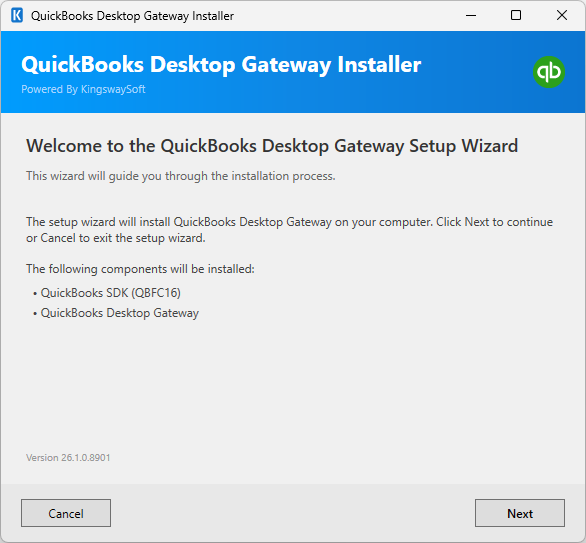
Note: With our v26.1 release, Quickbooks Gateway now needs to be installed seperately. You can download it from our website by clicking this download request link. Once downloaded, you can use the quickbooks-desktop-gateway-installer.exe file to install the gateway.
Note: To install the QuickBooks Desktop Gateway, download and install the Integration Toolkit and select "QuickBooks Desktop Gateway" as the Setup Type during installation. After the installation is complete, version 16 of QBFC (The QuickBooks SDK) will be installed on the machine as well. This is a mandatory component for the QuickBooks Desktop Gateway to function. If it fails to install or you wish to uninstall the SDK, you can manually run the installer "C:\Program Files\KingswaySoft\SSIS Integration Toolkit for QuickBooks\QBFC16_0Installer.exe". Note that you might be working with a different SDK version if you are working with a prior version of the QuickBooks toolkit.
The QuickBooks Desktop Gateway has 3 pages of settings:
- General
- Security
- Advanced
The settings for the QuickBooks Desktop Gateway are saved in a file by the name of "QbDesktopGatewayByKingswaySoft.conf" in the same directory as the gateway executable. After configuring the settings, use the "Start", "Stop", and "Restart" buttons to manage the gateway.
General Page
The General page allows you to specify general connection properties to QuickBooks Desktop.
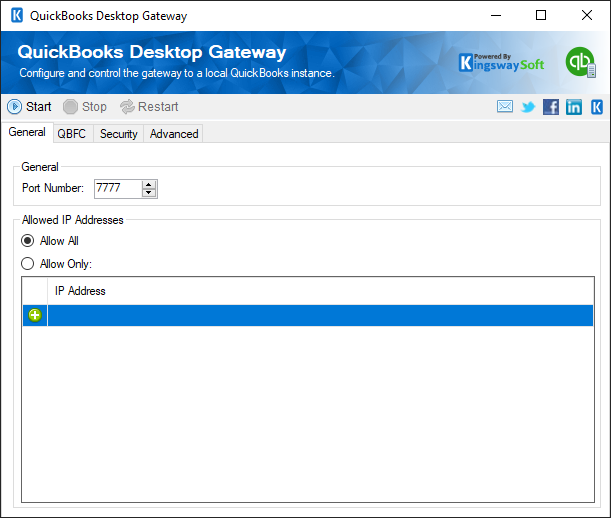
- Port Number
-
The Port Number option allows you to specify the port number of the QuickBooks server.
- Allow IP Addresses
-
The Allow IP Addresses option allows you to specify the IP Addresses of the users who are allowed to connect to the QuickBooks server.
QBFC page (since v21.1)
The QBFC page allows you to specify the additional QBFC SDK options to open a connection and begin a session.
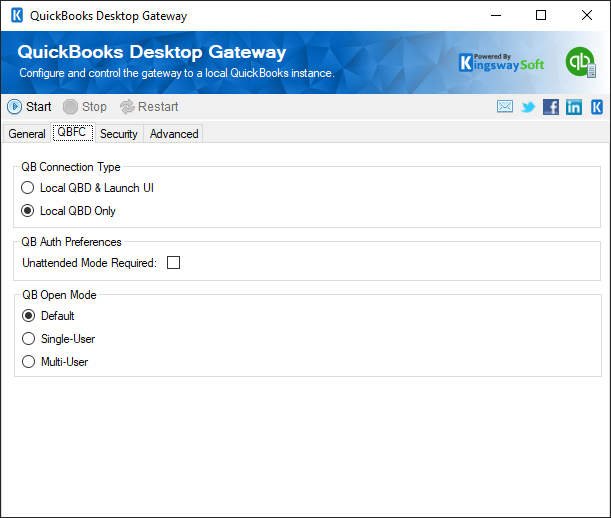
- QB Connection Type
-
The QB Connection Type allows you to specify the connection type when opening the connection. The available options are:
- Local QBD & Launch UI: This option tells the request processor to connect to a local QuickBooks and then request that the local copy of QuickBooks start up its user interface and prompt for the user to log in.
- Local QBD Only: This option tells the request processor to connect to QuickBooks running locally (i.e. on the same machine as the request processor and the client application).
- QB Auth Preferences
-
There is an Unattended Mode Required option available in QB Auth Preferences. Setting the option to False to indicate that the application does not require unattended mode; the authorization dialog will display the three default authorization options and let the administrator choose from them (including the option to allow unattended mode). Enable the "Unattended Mode Required" option to indicate that the application requires unattended mode to function properly; the authorization dialog will display only two choices: Yes, allow access even if QuickBooks is not running, which authorizes unattended mode, and No, which declines any authorization for the application.
- QB Open Mode
-
The QB Open Mode parameter indicates whether the application is requesting access to the company file in single-user mode or multi-user mode. There are three options available:
- Default: The Default option allows for either multi-user or single-user mode, depending on whether the company file is currently open or not.
- Single-User
- Multi-User
Security Page
The Security page allows you to specify security properties for QuickBooks Desktop.
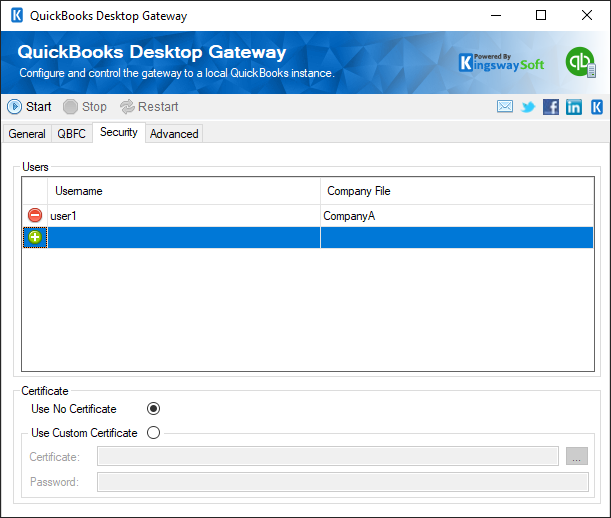
- Users
-
The Users grid allows you to add and remove users. When adding a new user, you have the option to associate a QuickBooks company file with this user. If no company file is specified, then the user will access whatever company file is open at the time of the request. This makes differentiating connections to different company files on the same machine possible while adding an additional layer of security.
- Certificate
-
To enable https you will need to use a custom certificate and provide a path to the certificate file along with the password.
Advanced Page
The Advanced page allows you to specify advanced connection properties to QuickBooks Desktop.
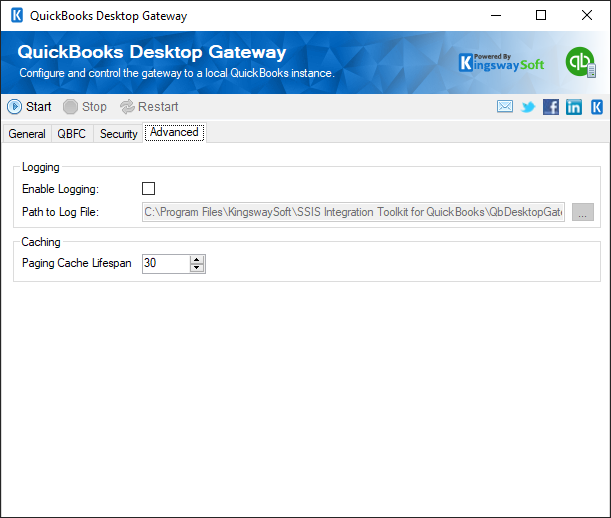
- Enable Logging
-
When enabled, this option will log requests made to the QuickBooks Desktop Gateway and log them in the file specified by Path to Log File.
- Path to Log File
-
The file to log requests to.
- Paging Cache Lifespan
-
This option is used for reading operations on that page. It specifies how long the nextPageTokens and the block of records they point to will be available in minutes.