Using the QuickBooks Source Component
The QuickBooks Source Component allows you to read data from QuickBooks. The component allows you to specify a source entity to read from and filter for desired records.
General page
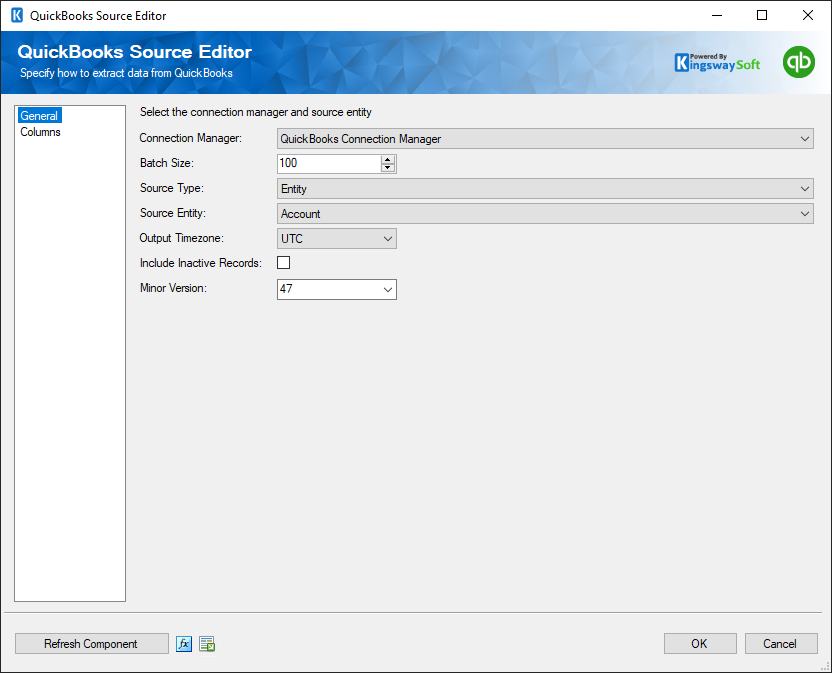
The General page is where you will configure most of the setup details.
- Connection Manager
-
The QuickBooks source component requires an active connection to QuickBooks Online or QuickBooks Desktop Gateway. You can specify a Connection Manager here to facilitate that connectivity.
- Batch Size
-
The Batch Size lets you specify how many records to retrieve per service call.
- Source Type
-
You can specify how you would like to retrieve data from QuickBooks Online. There are 3 options: Entity, Query, or Change Data Capture. This option is not available for QuickBooks Desktop connections, as it will always use Entity.
- Source Entity
-
If you chose Entity for the Source Type drop-down (Or are using a QuickBooks Desktop connection), you can specify which entity to read from the Source Entity drop-down.
- Output Timezone
-
This option allows you to specify the output timezone setting when reading from QuickBooks. There are two options available:
- UTC
- Local Time
- Include Inactive Records
-
If you choose a Name list entity (e.g., Customer) from the Source Entity drop-down, the Include Inactive Records checkbox is revealed. This option lets you retrieve records that have been Soft Deleted (Active field set to false). This option is only available for QuickBooks Online connections.
- Minor Version
-
This option allows you to choose the API Minor version you want to use from a drop-down list.
- QuickBooks Query
-
If you chose Query for the Source Type drop-down, you can specify a QuickBooks query to read data from.
If you have an Intuit Developer account, you may want to read the Querying data documentation. This option is only available for QuickBooks Online connections.
- QBXML Options
-
The QBXML option allows you to specify a QBXML filter string to only retrieve data that meets specified criteria. For example, using the <FromModifiedDate> and <ToModifiedDate> filters to query for objects modified during a specified range of dates. The best place to find further information on QBXML is to refer to the Creating Queries Chapter of the Intuit QuickBooks Programmer's Guide. This option is only available for QuickBooks Desktop connections. Please note that the value provided to this property should be in XML format such as shown below:
<IncludeLineItems>true</IncludeLineItems> <IncludeLinkedTxns >true</IncludeLinkedTxns>
Utilizing the Child Entities Output of the Source Component
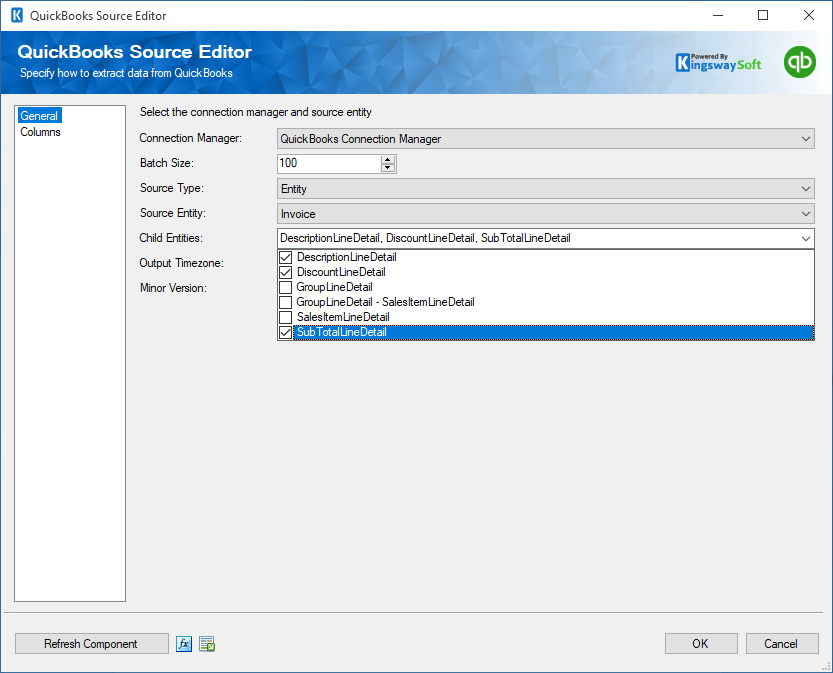
In QuickBooks, some entities have child entities. If a source entity has child entities they will appear as entities in the Child Entity combo box, and you can select any you wish to output. Each child entity that is selected will add an additional output to the QuickBooks Source component, as well as additional fields related to the child entities checked.
Columns Page
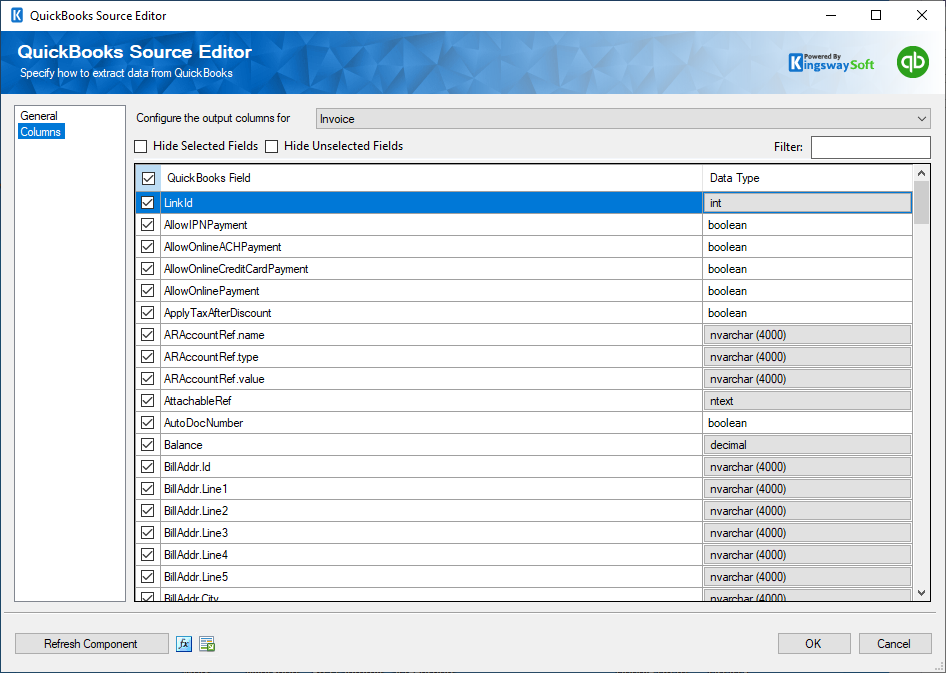
The Columns page lists all the available metadata fields for the entity that you wish to read from.