

File-based integrations often involve exchanging sensitive information between organizations, vendors, and external systems. Whether transferring financial records, customer information, or other confidential documents, ensuring that these files remain protected is an important part of maintaining secure integration workflows. PGP (Pretty Good Privacy) encryption provides a way to secure files using public and private key pairs. A public key is used to encrypt a file, while the corresponding private key is required to decrypt it. KingswaySoft's PGP Task, available in the SSIS Integration Toolkit, allows users to incorporate file encryption, decryption, signing, and signature verification directly into their SSIS packages.
In this blog post, we will demonstrate how to generate a PGP key pair, encrypt a file, and decrypt it using the PGP Task. We will also explore an alternative approach for handling certain OpenPGP encryption formats encountered in third-party integrations, using the KingswaySoft Windows Command Task together with GnuPG.
Generating a PGP Key Pair
Before encrypting or decrypting files, we first need a PGP key pair. This consists of a public key, which is used to encrypt files, and a private key, which is used to decrypt them. The public key can be shared with external parties, while the private key should be kept secure.
The KingswaySoft PGP Task can use compatible PGP key pairs generated through external tools or create new ones using its built-in key pair generator. For this example, we will use the built-in generator to create the required keys directly within SSIS. To get started, add a PGP Task to the SSIS Control Flow and open the task editor. From the General page, click Generate New Key Pair to open the key generation dialog.
In this dialog, configure the following fields:
- Key Identifier: Specify a name to identify the generated key pair.
- Private Key Passphrase: Enter a passphrase to protect the private key.
- Key Size: Select the desired key size.
- Public Key Location: Specify the file path where the public key will be saved.
- Private Key Location: Specify the file path where the private key will be saved.
For this example, we will use KWS PGP Test as the key identifier and save the generated keys as public.asc and private.asc in the C:\PGP directory. We will also use Test as a sample passphrase for demonstration purposes. In production environments, a strong, unique passphrase should be used to protect the private key. The file paths shown are examples and can be adjusted to match your environment.
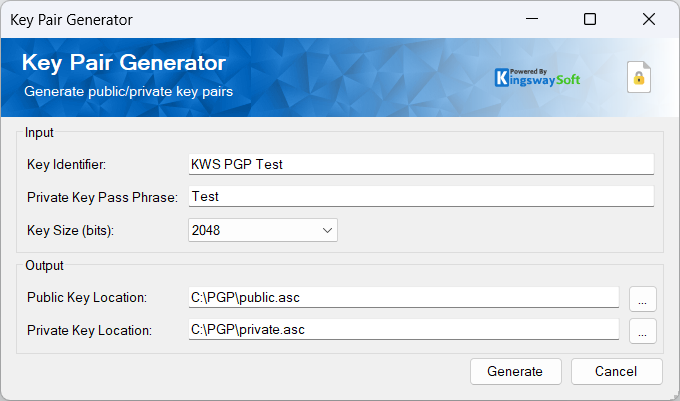
Once the fields are configured, click Generate. The public and private key files will be created at their specified locations. With our key pair generated, we can now use the public key to encrypt a file and the corresponding private key to decrypt it.
Encrypting and Decrypting Files Using the PGP Task
With our public and private keys generated, we can now configure the PGP Task to encrypt and decrypt files within our SSIS package. The task supports multiple operations through its Action dropdown, including Encrypt and Decrypt. For this example, we will use a simple text file named sample.txt and demonstrate both operations using two instances of the PGP Task.
Encrypting a File
To begin, open the PGP Task Editor and configure the following settings on the General page:
- Action: Select
Encryptto encrypt the source file using a public key. - Source File Path: Specify the location of the file to encrypt. In our example, we will use
C:\PGP\sample.txt. - Destination Path: Specify where the encrypted file should be created, such as
C:\PGP\sample.txt.pgp. - Public Key Location: Select the
public.ascfile generated in the previous section. - Public Key User ID: Select the appropriate key identifier from the public key file. In our example, this is
KWS PGP Test.
The PGP Task also provides additional options, such as selecting the Symmetric Key Algorithm, enabling ASCII Armor, and specifying whether an existing destination file should be overwritten. The destination file does not need to exist beforehand, as the task will create it during execution. For this example, we will use the configuration shown below.
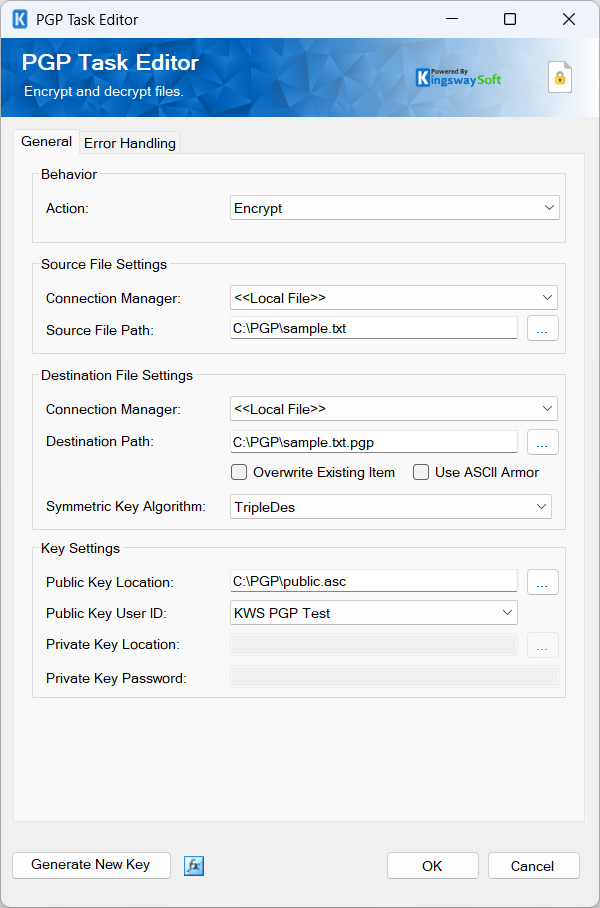
Once configured, execute the task. The PGP Task will create sample.txt.pgp at the specified destination. This encrypted file can then be shared with the intended recipient, who can decrypt it using the corresponding private key.
Decrypting a File
Next, add another instance of the PGP Task to decrypt the encrypted file and recover its original contents. Open the second PGP Task Editor and configure the following settings:
- Action: Select
Decrypt. - Source File Path: Specify the encrypted file,
C:\PGP\sample.txt.pgp. - Destination Path: Specify the location where the decrypted file should be saved, such as
C:\PGP\decrypted.txt. - Private Key Location: Select the
private.ascfile generated earlier. - Private Key Password: Enter the passphrase associated with the private key.
Unlike encryption, decryption requires the corresponding private key rather than the public key. The configuration for our example is shown below.
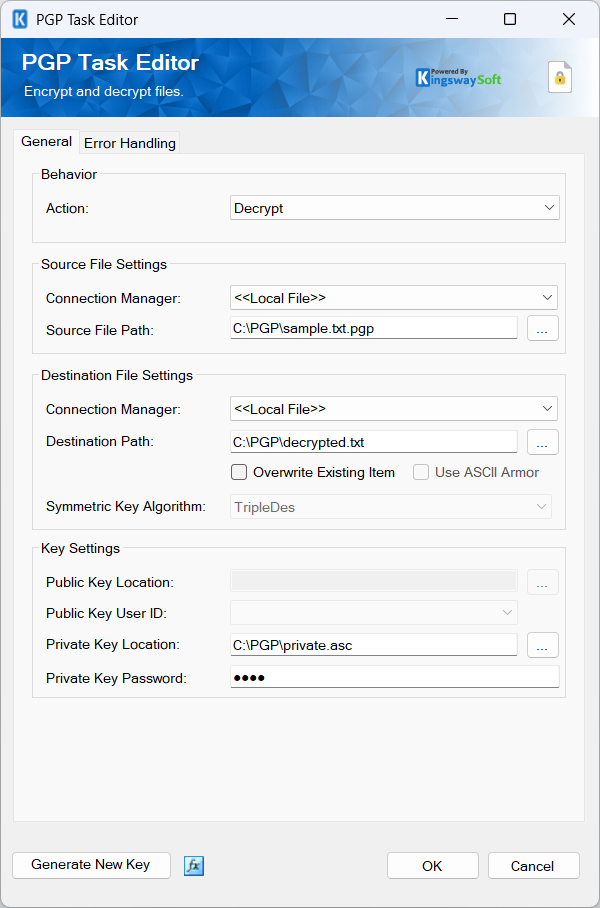
Once the configuration is complete, execute the task. The encrypted file will be decrypted, and the original contents will be saved to decrypted.txt. In our example, the decrypted file contains the same data as the original sample.txt, confirming that both encryption and decryption were completed successfully. These two PGP Tasks can also be connected within the SSIS Control Flow to perform encryption and decryption sequentially as part of a larger integration workflow.
Handling OpenPGP Format Compatibility
While the KingswaySoft PGP Task supports standard encryption and decryption operations, it relies on an underlying third-party library to process OpenPGP files. Certain encryption formats supported by other OpenPGP tools may not be supported by this library, resulting in compatibility issues when decrypting files generated by external systems.
One example involves Authenticated Encryption with Associated Data (AEAD), which combines data encryption with integrity verification. Certain OpenPGP implementations use packet type 20 to represent AEAD-encrypted data. When attempting to decrypt an AEAD-encrypted file generated using Kleopatra, for example, our SSIS PGP Task may fail with the following error:
[PGP Task] Error: System.Exception: unknown packet type encountered: 20This error occurs because the underlying library does not currently support this OpenPGP packet format. It does not necessarily indicate an issue with the private key or the task configuration. In scenarios where encrypted files are received from external systems or third-party vendors, modifying the encryption format may not always be possible. As an alternative, we can use the KingswaySoft Windows Command Task to execute the GnuPG command directly within our SSIS package, allowing us to decrypt files that use this unsupported format.
Decrypting Files Using GnuPG and the Windows Command Task
GnuPG is an open-source encryption tool that supports OpenPGP operations, including file encryption and decryption. For files that use unsupported encryption formats, we can use the KingswaySoft Windows Command Task to invoke GnuPG directly from our SSIS package. This allows us to execute GnuPG commands as part of an existing SSIS workflow without developing custom scripts.
Preparing GnuPG
Before configuring the Windows Command Task, ensure that GnuPG is installed on the machine where the SSIS package will execute. If GnuPG is not already installed, you can download it from the official GnuPG website. For Windows environments, you can also use Gpg4win, which includes GnuPG support along with Kleopatra, a graphical interface for managing OpenPGP keys and performing encryption operations. Once installed, open Command Prompt and run the following command to locate the GnuPG executable:
where gpgFor example, the executable may be located at:
C:\Program Files\GnuPG\bin\gpg.exeIf the command does not return a path, you can locate gpg.exe in the installation directory.
You will also need to ensure that GnuPG has access to the private key corresponding to the encrypted file. If the private key is not already available in the GnuPG keyring, you can import it using the following command:
gpg --import "C:\PGP\recipient-private.asc"The private key used for this operation must correspond to the AEAD-encrypted file and may be different from the key generated in our earlier PGP Task example. The required key must also be available to the Windows account executing the SSIS package. For automated execution, any private-key passphrase protection must be handled appropriately by the GnuPG environment.
Configuring the Windows Command Task
Once GnuPG is available, add a Windows Command Task to the SSIS Control Flow and open its editor. For this example, we will use an AEAD-encrypted file named test-aead.txt.gpg, generated using Kleopatra, and decrypt it using GnuPG.
On the General page, configure the following:
- Executable: Specify the full path to the
gpg.exeexecutable installed in your environment. - Execution Mode: Select
Synchronous - Wait for process to finish or timeout. - Arguments/Script: Provide the arguments required to decrypt the file.
For our example, we will use the following arguments:
--batch --yes --output "C:\PGP\decrypted-gpg.txt" --decrypt "C:\PGP\test-aead.txt.gpg"
These arguments perform the following operations:
--batch: Runs GnuPG in batch mode without interactive command prompts.--yes: Automatically confirms applicable prompts, such as overwriting an existing output file.--output: Specifies the destination where the decrypted file will be saved.--decrypt: Specifies the encrypted file to be decrypted.
The executable and file paths should be adjusted to match your environment. The completed Windows Command Task configuration is shown below.
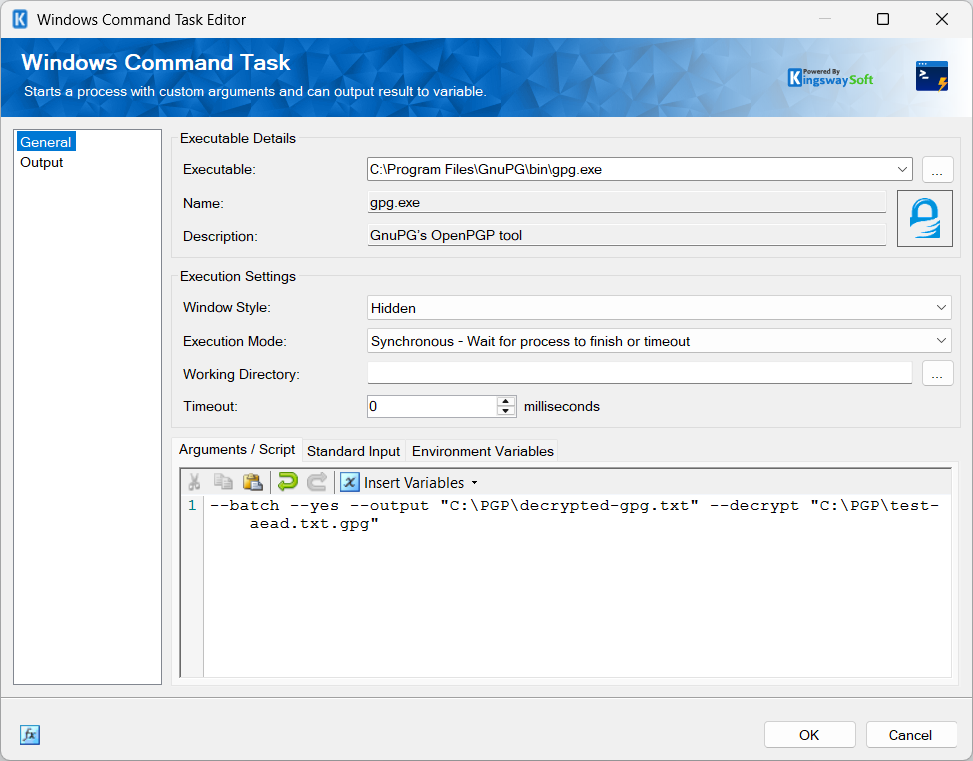
On the Output page, you can also enable Fail If Not Success Code so that the task reports a failure if the GnuPG process returns an unsuccessful exit code. For automated executions, ensure that GnuPG, the required private key, and any associated passphrase handling are configured for unattended access.
Executing the Task
Once the configuration is complete, execute the Windows Command Task. The task will invoke GnuPG using the specified arguments to decrypt the encrypted file. In our example, the execution completes successfully and creates the following output file:
C:\PGP\decrypted-gpg.txtThe decrypted output file is created at the specified destination, as shown below.
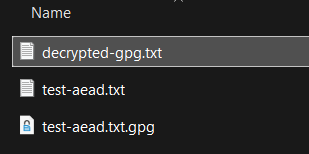
This demonstrates how the Windows Command Task can be used to process an AEAD-encrypted OpenPGP file that could not be decrypted using the PGP Task. The same approach can be incorporated into larger SSIS workflows where encrypted files are received from external systems and need to be decrypted before further processing.
Conclusion
Securing sensitive files is an important part of building reliable data integration workflows, particularly when exchanging information with external systems and business partners. With the KingswaySoft PGP Task, users can incorporate file encryption and decryption directly into their SSIS packages without requiring custom code.
For scenarios involving unsupported OpenPGP formats, such as AEAD packet type 20, the Windows Command Task provides an alternative approach by allowing GnuPG to handle the decryption process. This helps maintain compatibility with externally encrypted files while keeping the decryption process within the existing SSIS workflow. By combining these capabilities, organizations can build flexible and secure file-processing workflows using the KingswaySoft SSIS Integration Toolkit product.