

In today's data-driven environment, efficiently extracting large volumes of CRM data is a core integration requirement. Whether you are migrating data, loading a data warehouse, creating a backup, or synchronizing CRM data with another system, retrieving hundreds of thousands - or millions - of records through standard API requests can generate a substantial number of calls.
Zoho CRM's standard record-retrieval APIs are well-suited for smaller to intermediate data volumes, as they return a maximum of 200 records per request and are subject to API limits. For larger extractions, Zoho CRM's Bulk Read API provides a more scalable alternative. It creates an asynchronous export job that Zoho CRM processes in the background, allowing the integration to poll for completion and download the resulting file when it is ready.
For large datasets, the Bulk Read API offers several advantages:
- It can export up to 200,000 records in a single export job (for CSV exports), substantially reducing the number of requests required. See the Zoho API documentation for current limitations.
- Zoho CRM processes the extraction asynchronously, making the API well-suited to operations that may take longer to complete.
- Results are made available as downloadable files, which the KingswaySoft component parses into tabular columns for loading in an SSIS data flow.
- A Criteria filter (Zoho CRM query) can be used to control which records are included in the extraction.
- When more than 200,000 records match the query, Bulk Read can retrieve subsequent result pages, whereas the standard record-retrieval API has a maximum retrieval limit of 100,000 records.
In this post, we will configure a Zoho CRM Bulk Read operation with KingswaySoft's Zoho CRM REST Components, then compare it with standard paged retrieval to show why Bulk Read is a compelling choice for high-volume extractions.
Standard Paged Retrieval
With a standard read operation, the API returns records directly in the response. This synchronous approach is convenient for relatively small datasets because records can immediately continue through the SSIS data flow. However, the Contacts endpoint returns a maximum of 200 records per request, so larger extractions require repeated paged requests.
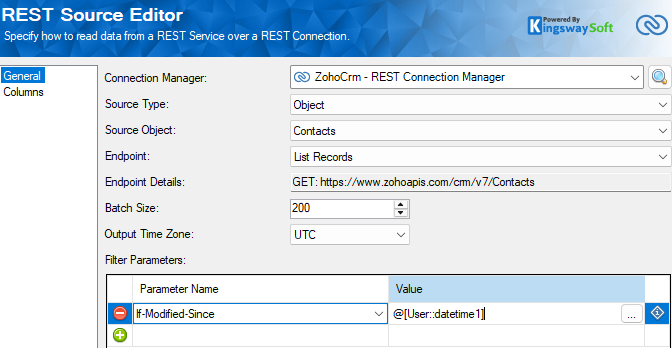
In this example, we specify an If-Modified-Since header value in ISO 8601 format (YYYY-MM-DDTHH:mm:ss±HH:mm). The filter is optional; here, it limits the extraction so that it remains within the standard API's maximum retrieval range.
Configuring the REST Source for Bulk Read
Rather than waiting for each page of records to be returned, a Bulk Read operation submits the extraction to Zoho CRM as an asynchronous job. Selecting the Bulk Read endpoint exposes additional configuration properties. In many cases, the default Bulk Read option will work pretty well, and no Criteria is necessary. If the goal is to retrieve every record from the selected Source Object, the source component may require little additional configuration.
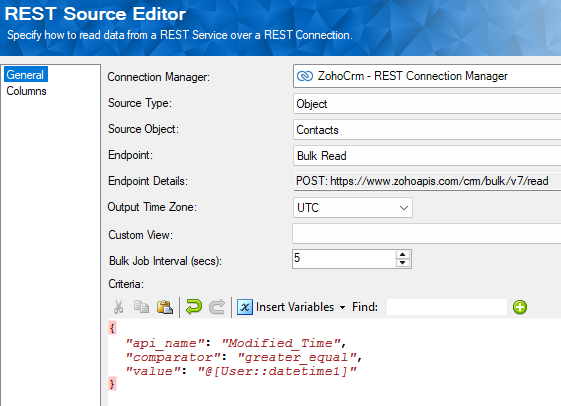
The Bulk Job Interval option controls how often the component polls Zoho CRM for the job's status. A shorter interval can reduce the time between job completion and result retrieval, but it also increases the number of status-check requests. The default of 5 seconds is generally a sensible balance, which means that we check for job status every 5 seconds.
For Bulk Read operations, the Query window provides a convenient way to configure the request sent to Zoho CRM. The query identifies the module to read and can include criteria that determine what records are included in the export job. Multiple criteria can be combined for more complex filtering. For example, you might retrieve records created after a specified date while also filtering on another field. Applying the filter in Zoho CRM avoids extracting unnecessary records only to discard them later in the SSIS data flow.
The following criterion uses the SSIS user variable datetime1. You can replace it with a hard-coded ISO 8601 date-time value when appropriate.
{
  "api_name": "Created_Time",
  "comparator": "greater_equal",
  "value": "@[User::datetime1]"
}
To use more than one criterion, place the individual criteria in a group and specify a group_operator, as shown below.
{
  "group": [
    {
      "api_name": "Created_Time",
      "comparator": "greater_equal",
      "value": "@[User::datetime1]"
    },
    {
      "api_name": "Email_Opt_Out",
      "comparator": "equal",
      "value": "true"
    }
  ],
  "group_operator": "and"
}
Performance Comparison
Performance is an important consideration. In the following tests, we queried the same fields on the same isolated machine. The first two tests each retrieved 100,000 records; the final test demonstrates a larger Bulk Read extraction.
Standard paged retrieval is appropriate when you need a smaller dataset and want records to be returned immediately. In this test, retrieving 100,000 Contact records required 500 requests - one request for each page of 200 records. Although the elapsed time was acceptable, the request count can reach the API limit, which can become a concern as data volumes grow.
Bulk Read is designed for high-volume extraction, where throughput and efficient API usage take priority. The polling interval can be reduced if necessary to detect job completion sooner, though doing so increases the number of status-check requests.
As the results show, the difference becomes more significant at scale. The standard paged retrieval took just over two minutes for 100,000 records, while Bulk Read completed the same extraction in 13 seconds using far fewer requests. The third result shows that Bulk Read continues to scale efficiently as the volume increases.
| Operation | Elapsed Time (HH:MM:SS) | API Calls |
| Standard Paged Read | 00:02:01 (100,000 records) | 500 |
| Bulk Read | 00:00:13 (100,000 records) | 3 |
| Bulk Read | 00:00:58 (427,210 records) | 13 |
Conclusion
Choosing the appropriate API operation can make a substantial difference when extracting data from Zoho CRM. Standard paged retrieval provides a straightforward synchronous approach for smaller datasets, while the Bulk Read API is designed for large, asynchronous export workloads.
With KingswaySoft's Zoho CRM REST components, you can configure the Bulk Read workflow efficiently in SSIS. For integrations involving large CRM datasets, this can mean fewer API requests, less request overhead, and higher throughput. Whether you are performing a migration, loading a data warehouse, or building a recurring high-volume integration, Zoho CRM Bulk Read is an efficient option for extracting data at scale.
We hope this guide has been helpful.