

Azure DevOps queries, commonly abbreviated as ADO queries, are managed filters in Azure Boards that help teams search for, organize, and track specific work items, such as User Stories, Bugs, Tasks, or Features, based on custom criteria. In many ways, they provide a high-level abstraction similar to SQL queries, allowing teams to focus on the work items that matter without manually parsing large backlogs.
Beyond their use within Azure DevOps itself, these queries can also play an important role in downstream reporting and analytics. By extracting Azure DevOps data through an SSIS ETL pipeline, organizations can automate the transfer of development and project data into a data warehouse, making it easier to integrate this information with other business data and maintain a historical record for analysis.
This type of integration can support a variety of enterprise use cases, including:
- Meeting Audit Requirements: Automatically retain information about who approved work items and when they were completed, helping maintain an auditable history.
- Predicting Future Project Costs and Deadlines: Preserve historical delivery data to help leadership better understand team performance and plan future budgets and schedules.
- Tracking Engineering ROI: Connect development activities with sales, accounting, or other business data to better understand the cost and value of new features.
- Creating Combined Executive Dashboards: Bring development data into broader analytics environments so leadership can view project and business performance in a single place.
Using the KingswaySoft SSIS Integration Toolkit and its dedicated Azure DevOps components, you can build a code-free extraction pipeline using the Azure DevOps Source Component. The component supports two approaches for retrieving data, allowing you to choose between leveraging queries already managed in Azure DevOps and defining your own query logic within the SSIS package:
- Predefined Queries: If your team already has saved queries in Azure Boards, you can select them directly from the Azure DevOps Source Component. This approach is useful when query logic is centrally managed in Azure DevOps and you want to maintain a consistent definition of the data being extracted.
- Custom Queries: When you need more control over filtering, query criteria, or runtime parameterization, you can define your own query directly within the Source Component. This provides greater flexibility for targeted or dynamic data extraction scenarios.
In this post, we will walk through both approaches, starting with predefined queries and then exploring how custom queries can provide additional flexibility. We will also look at how the Source Component's additional outputs can be incorporated into an SSIS data flow.
Note: The Source Component is named Team Foundation Source Component in the product. However, the component supports connections to both TFS and Azure DevOps. For ease of reference, we will refer to it as the Azure DevOps Source Component throughout this post.
Working with Predefined Queries
The Predefined Queries option allows you to select a query that already exists in your Azure DevOps instance. This can be especially useful when your team has established query definitions in Azure Boards and wants to reuse that logic as part of an SSIS integration.
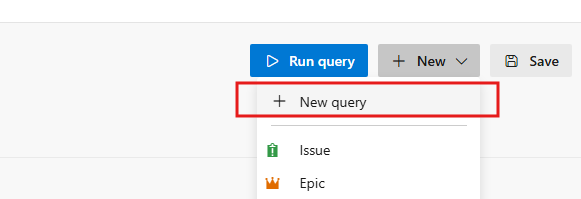
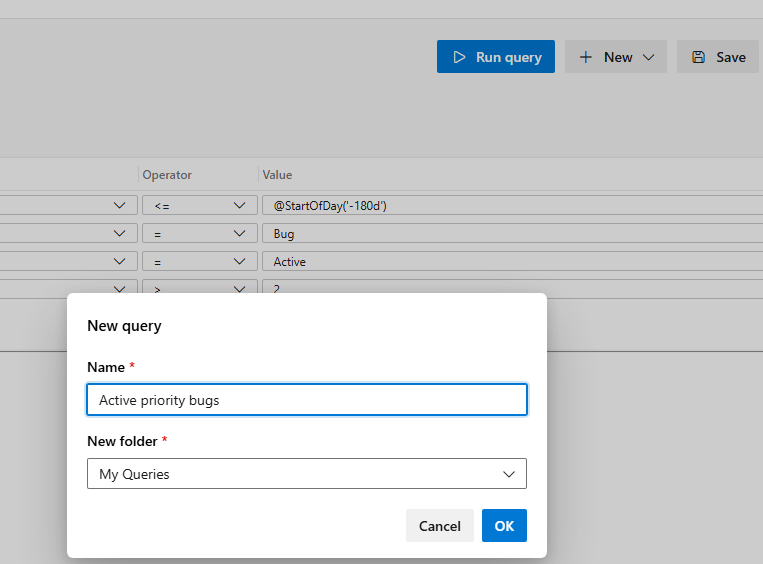
To create a new query in Azure DevOps, select the New Query command and provide a name for the query.
You can then use the Azure DevOps query interface to define the clauses and conditions that determine which work items should be returned.
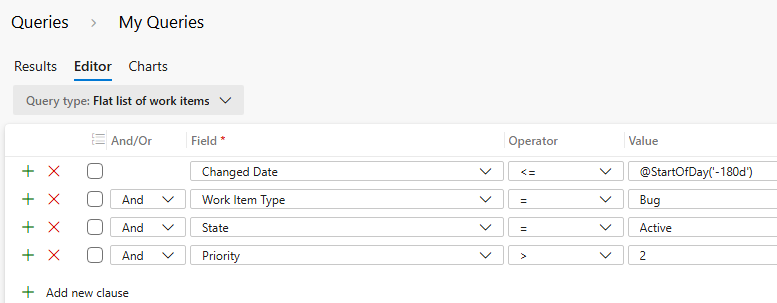
Using the query editor, add the required clauses and conditions to produce the desired result set.
Once the query has been created, configure the Azure DevOps Source Component and select the appropriate project. Set the Source Type to Predefined Queries. The available queries from the selected project will then appear in the Query drop-down list.
The query list also displays the folder name, which can help distinguish between queries if multiple queries have similar names. When selected, the predefined query is translated into a SELECT statement containing the conditions and clauses defined in the Azure DevOps query.
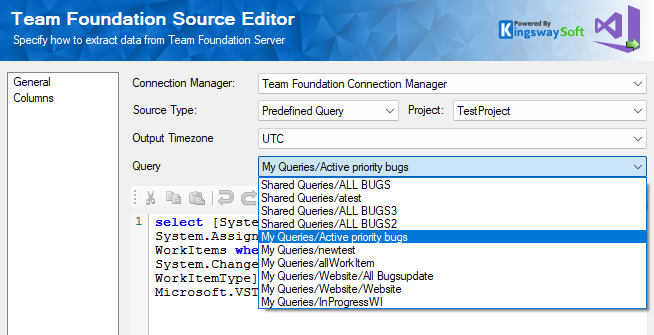
This approach provides a convenient way to reuse query definitions that are already maintained in Azure DevOps. It can also help establish a single source of truth for commonly used filters and business logic.
There is, however, an important consideration when using predefined queries. While the parameterization feature can be used to execute different predefined queries at runtime with the same Source Component, the query itself cannot be parameterized. This is because the component is executing a query that is managed and maintained by the Azure DevOps server.
If your integration requires an ad hoc query or you need to change query criteria dynamically at runtime, the Custom Query option provides the flexibility needed for that scenario.
Working with Custom Queries
The Custom Query Source Type allows you to enter your own query directly into the Source Component. In addition to giving you greater control over the query definition, this approach allows query criteria to be customized at runtime.
When you switch the Source Type to Custom Query, the predefined query selection becomes unavailable and the command area becomes available for manually entering or editing the query.
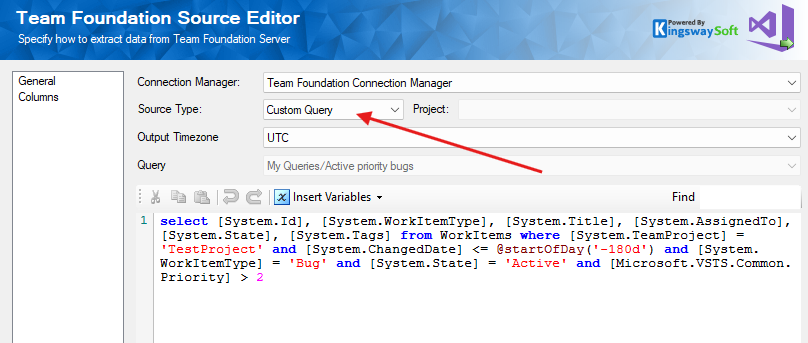
For example, the query shown below is configured to return Work Items that are Bugs, are currently active, and have been changed within the last 180 days.
This same approach can also be used to build an incremental extraction process. Instead of always looking back a fixed number of days, you can maintain a variable containing the date and time of the previous successful extraction and use that value against System.ChangedDate.
To parameterize the query, click the Insert Variable menu button and select the appropriate variable from the available list. The variable can then be inserted directly into the query.
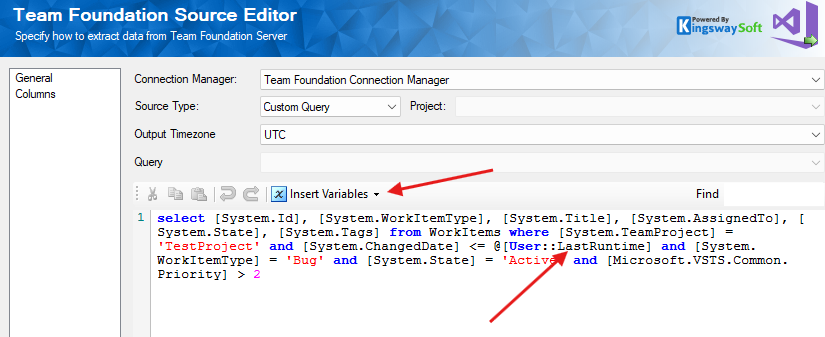
This provides a practical way to design an incremental data flow that retrieves only the Work Items that have changed since the previous extraction. For more information on designing an incremental flow that retrieves changes after the last run, refer to our related blog post.
Bonus SSIS Design Tip: Working with Additional Outputs
So far, we have focused on the query used to retrieve the primary Work Item data. However, the Azure DevOps Source Component provides additional outputs that can be useful when you need to bring more related information into your data pipeline or your data warehouse destination.
Three additional outputs are available:
- Attachments: Contains attachment binary content.
- Comments: Contains comment history associated with the Work Items.
- Links: Contains link types and URLs associated with the Work Items.
These outputs can be enabled on an as-needed basis from the General page of the Source Component.
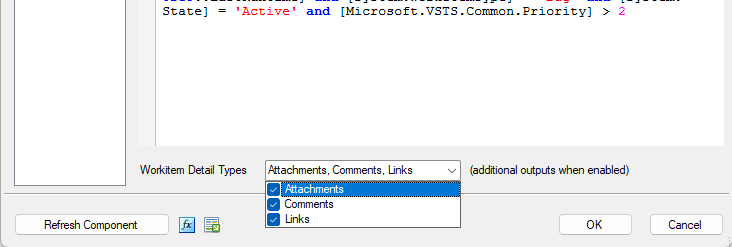
Once enabled, the additional outputs provide their own metadata and output columns. You can use the drop-down menu in the Source Component to switch between the available outputs and configure each one as needed.
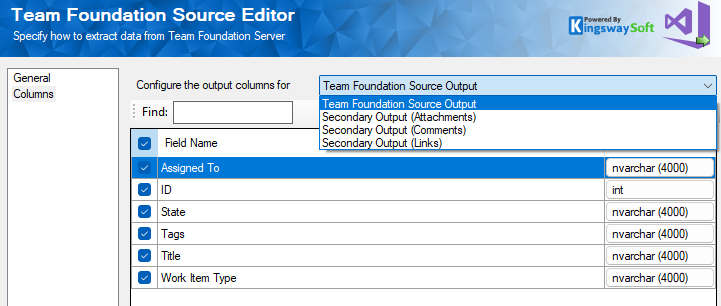
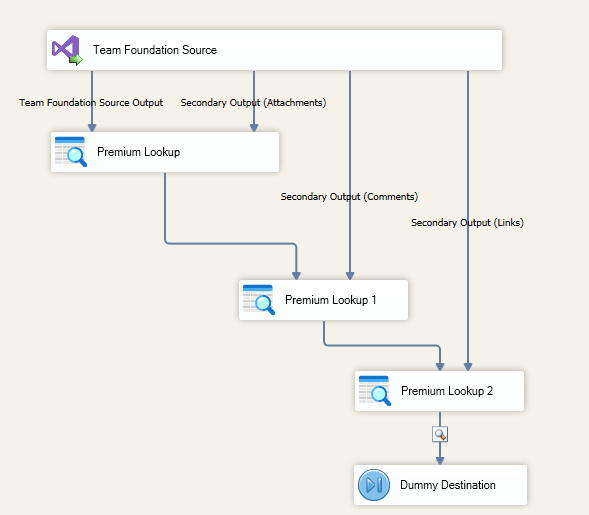
Because these additional data sets are exposed as separate outputs, you may need to combine them with the primary Work Item output as part of your SSIS data flow. One way to accomplish this is by using the Premium Lookup component.
The Premium Lookup component can be used to associate the additional child records with their corresponding parent Work Items, allowing the different outputs to be incorporated into a single integration flow. Our separate blog post, Joining Parent and Child Records Efficiently, provides more detail on this approach.
Choosing the Right Azure DevOps Query Approach
Both predefined and custom queries have a useful role to play in an Azure DevOps integration. The best approach depends largely on where you want to manage your query logic and how much flexibility your data extraction process requires.
- Use Predefined Queries when your query logic is already established and managed within Azure DevOps, and you want your integration jobs to reuse those definitions directly.
- Use Custom Queries when you need to define query criteria within your integration, introduce runtime variables, or build a more dynamic extraction process.
Once the appropriate query approach is selected, the Azure DevOps Source Component can do all the heavy lifting by extracting the requested development Work Item data. With support for attachments, comments, and links through additional outputs, you can design a more complete Azure DevOps data pipeline without having to build separate extraction mechanisms for each type of related information.
Conclusion
Whether your organization relies on centrally managed Azure DevOps queries or requires more dynamic, parameterized data extraction, KingswaySoft provides the flexibility to support both approaches within an SSIS-based integration workflow.
Predefined Queries offer a straightforward way to reuse query definitions that are already managed in Azure DevOps, while Custom Queries provide greater control when query criteria need to be tailored or parameterized at runtime. When your reporting requirements extend beyond basic Work Item data, the additional Attachments, Comments, and Links outputs provide a convenient way to bring related information into the same data integration process.
By combining these capabilities with the broader functionality of the KingswaySoft SSIS Integration Toolkit, you can build flexible and maintainable pipelines for moving Azure DevOps data into your data warehouse and downstream analytics environment.
If you are already using Azure DevOps for managing development work, taking advantage of these query and extraction capabilities can help turn that operational data into a more valuable and reusable source for enterprise reporting and analytics.