

Integrating KingswaySoft's JDBC Driver Pack into Pentaho Data Integration Platform (PDI / Spoon) provides a powerful, code-free way to build high-performance ETL data flows. By leveraging this combination, you can efficiently read and write data across diverse cloud and enterprise application and database systems, which can significantly simplify your ETL development workload. To truly maximize your ETL potential within Pentaho, it is essential to understand the underlying engine driving your connectivity.
What is KingswaySoft's JDBC Driver Pack
JDBC Driver Pack is a comprehensive collection of high-performance JDBC drivers designed to simplify the complexities of connecting to various enterprise applications. It functions by translating standard SQL queries into complex API calls, allowing developers to interact with non-relational data as if it were a traditional database. Rather than wrestling with complex API documentation or custom coding, these drivers provide a standardized way to interact with cloud and on-premises data. This is particularly beneficial when working with some complex application systems:
- SQL-Based Interactivity: Use familiar SELECT, INSERT, UPDATE, DELETE, and UPSERT commands to manage cloud data.
- Built-in API Intelligence: The drivers automatically handle technical hurdles like pagination, retry logic for intermittent errors, and intelligent caching.
- Broad Connectivity: The driver pack provides support for a vast array of modern APIs, including many popular CRM and ERP application systems, such as Microsoft Dynamics, Salesforce, ServiceNow, and many more. Instead of navigating intricate REST or SOAP API calls, the driver pack allows you to use familiar SQL queries to read and write data, significantly reducing development time.
- Robust Security: Advanced authentication support for OAuth, token-based access, and SSL/TLS ensures secure connections to sensitive enterprise data.
- Enterprise-Grade Reliability: Designed for high-volume environments, these drivers handle the heavy lifting of authentication, rate limiting/throttling, connection pooling, multi-threaded processing, schema discovery, and data type mapping intelligently and reliably.
With the right tools in place, the next step is integrating them into your workflow. Follow the guide below to bridge the gap between your enterprise data and Pentaho Data Integration. Let's dive in to see how it works in the real world.
Prerequisites
Before beginning the installation, ensure you have the following ready:
- Pentaho Data Integration (Spoon) installed and accessible.
- KingswaySoft JDBC Driver Pack JAR file (e.g., kingswaysoft.jdbc.jar).
- Valid database or network credentials.
- A dedicated test environment for initial configuration or testing purposes.
Installation & Configuration
To enable the driver within the Pentaho environment, follow these steps:
- Stop Spoon: Ensure the application is completely closed.
- Deploy the JAR: Copy the kingswaysoft.jdbc.jar file into the <pdi-install>/data-integration/lib/ directory.
- Restart Spoon: Open the application to initialize the new driver.
-
Create the Connection: Navigate to
View →
Database Connections →
New and enter the following details:
- Connection name: Provide a proper connection name, such as KingswaySoft JDBC.
- Connection Type: Generic database.
- Driver Class: com.kingswaysoft.jdbc.Drivers.
- URL: Paste your specific JDBC URL generated or obtained from the connection manager.
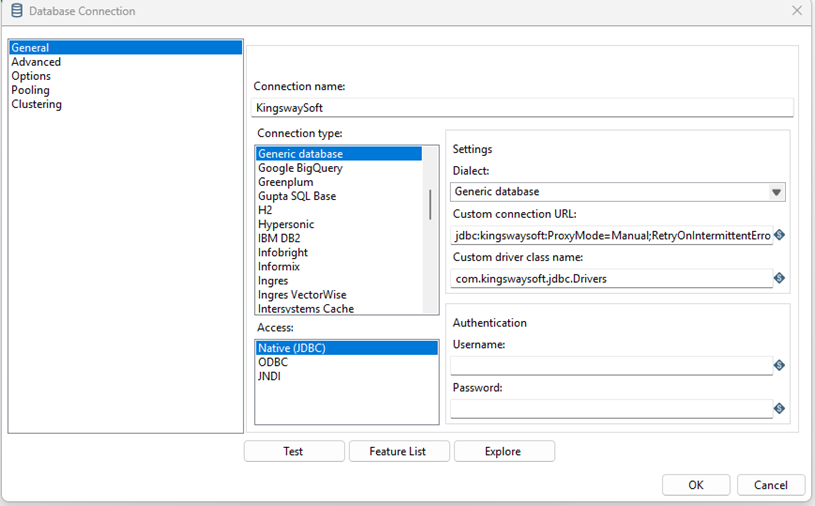
- Test: Click Test to verify connectivity. If a ClassNotFoundException occurs, ensure the JAR was placed in the correct folder, and Spoon was restarted.
Reading and Writing Data
Once the connection is established, you can begin designing your data flows to perform read or write operations as desired.
Reading Data
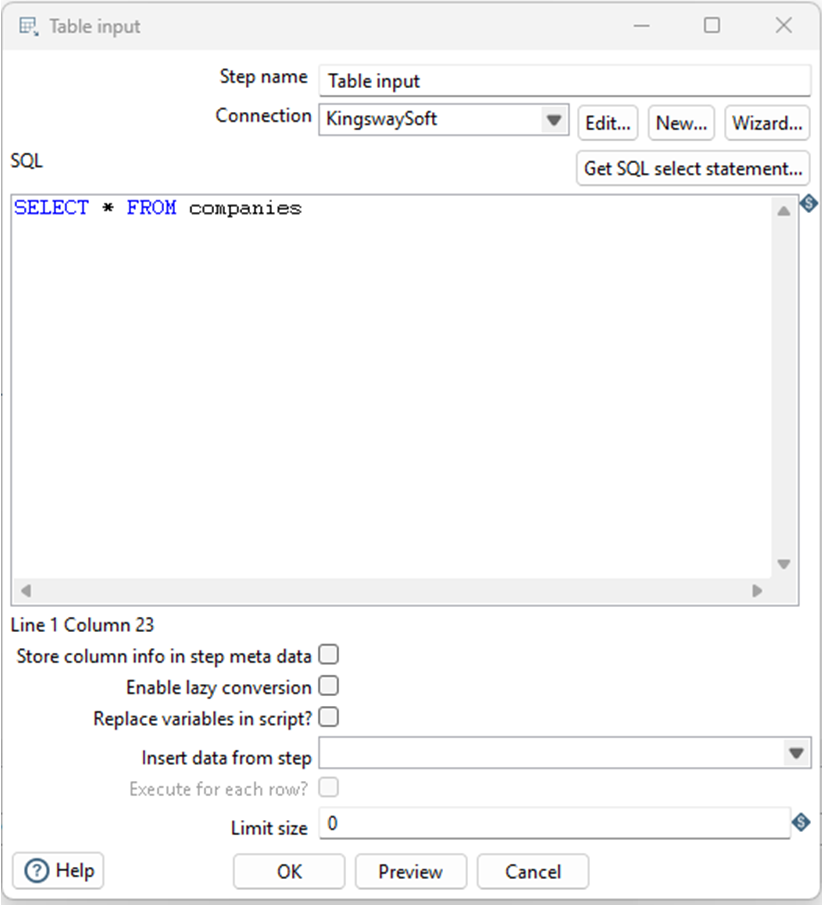
Reading data is generally achieved using the Table Input step.
- Create a new transformation, and drag a Table Input (Input → Table Input).
- Double-click to open the component.
- Select your KingswayJDBC connection previously created.
- Enter your SQL query into the SQL editor. You may use Pentaho variables (${VAR}) within your SQL editor to create parameter-driven queries. You might want the "Replace variables in script?" checked in the step settings as needed.
- Click Preview to ensure rows are properly returned.
Writing Data
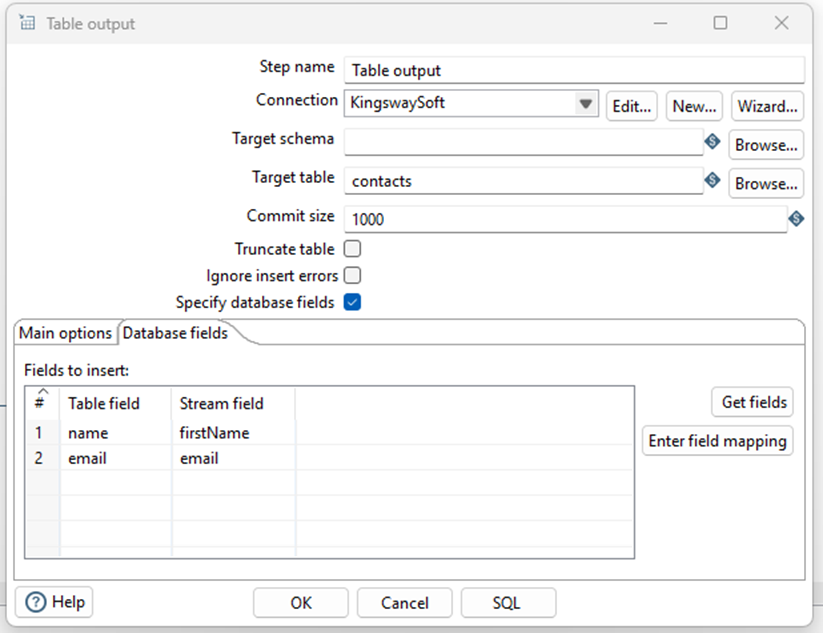
Writing data is generally achieved using the Table Output step.
- Drag a new Table Output step to the design canvas (Table Output).
- Double-click to open the step.
- Select the KingswayJDBC connection previously created, then set the target table.
- Click the Get Fields button to retrieve the list of columns or fields for the object, and properly map fields accordingly.
- Specify a proper Commit size option - this is set to 1000 by default, but you can always use a different number as desired. For instance, when working with a small data set, a smaller Commit size makes more sense.
- After everything is properly configured, you may run the flow and verify whether incoming rows are properly inserted.
High-Throughput Batch Writing
For high-volume data transfers, such as replicating or migrating millions of records to Salesforce or Microsoft Dynamics 365 application, enabling Batch Inserts is highly recommended as it reduces network roundtrips and statement preparation overhead, which can significantly improve the write throughput.
- Add the Table Output step and select your target table.
- In the dialog, check "Use batch update for inserts".
- Set an optimized Commit size (generally between 100 and 1000).
- Error Handling: Use "Step error handling" to redirect rejected rows to a separate analysis step. If a BatchUpdateException occurs, inspect the updateCounts to identify which specific rows failed.
Troubleshooting & Performance Tips
- Connection Failures: Verify firewalls and ensure your URL and login credentials are correct.
- Memory Issues: Utilize fetch sizes, chunked queries, or server-side cursors to prevent memory exhaustion on massive datasets.
- Scaling: For massive data volumes, consider implementing native bulk loaders or staging strategies.
- ClassNotFoundException: ensure JAR is in <pdi>/data-integration/lib or libext/JDBC folder and restart Spoon.
- Error Troubleshooting: Send failed/rejected rows to a different step for analysis.
Conclusion
Using Pentaho with the KingswaySoft JDBC Driver Pack provides a straightforward, high-performance ETL solution for the modern data landscape. By following the simple steps of installing the driver JAR and configuring a generic database connection, you can bypass the hurdles of custom API coding. Whether you are performing standard reads or high-volume batch writing, this combination allows your organization to quickly scale up your data integration efforts with confidence and efficiency.