

Using the Wave Accounting Source Component
The Wave Accounting Source Component is an SSIS data flow source component that can be used to read data from endpoints.
See Wave Accounting Connection Manager for how to connect to Act-On and Wave Accounting REST Destination Component for how to write to Wave Accounting.
The following pages can be configured in the component:
- General
- Columns
General Page
The General page can be used to configure the general settings for the Wave Accounting Source component.
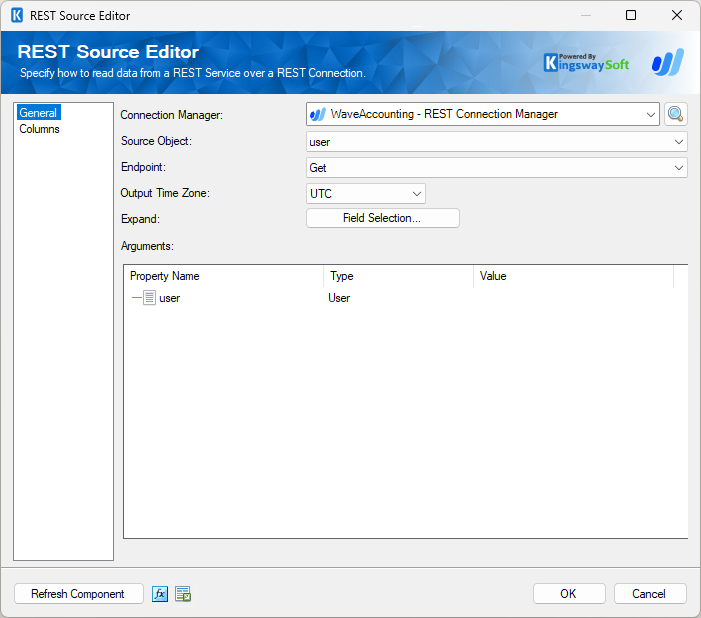
- Connection Manager
-
A Connection Manager is required for the Wave Accounting Source component to connect to an endpoint. A list of available connection managers is provided in the drop-down menu.
- Source Object
-
The Source Object drop-down lists available objects which you can read from.
- Endpoint
-
The Endpoint drop-down lists all available rest endpoints for the selected object.
- Output Time Zone
-
The Output Timezone option lets you specify how all datetime fields should be retrieved. Available options are:
- UTC
- Local
- Expand
-
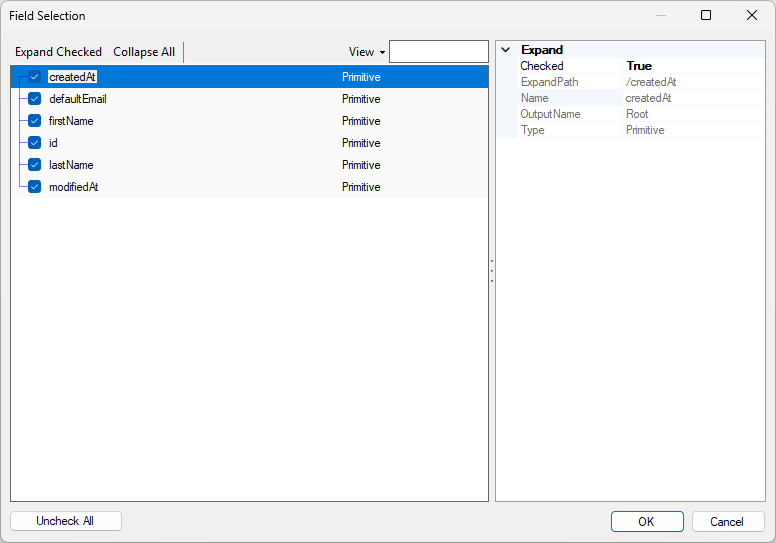
The Expand option provides a Field Selection button to retrieve the required fields and filters.
- Arguments
-
The Arguments window displays property details based on the metadata chosen through Field Selection.
- Refresh Component Button
-
Clicking the Refresh Component button retrieves the latest metadata and updates each field to its most recent metadata.
- Expression fx Button
-
Click the fx button to open the SSIS Expression Editor, which allows you to dynamically update the property at runtime.
- Generate Documentation Button
-
Click the Generate Documentation button to generate a Word document describing the component's metadata, including relevant mappings.
Columns
The Columns page provides metadata-related details for the Wave Accounting Source component based on the connected endpoint and the properties previously specified on the General page.
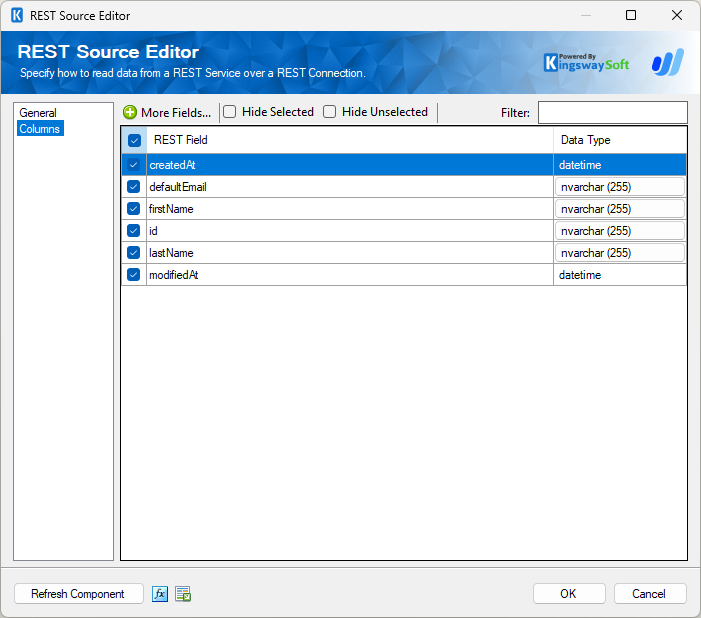
The checkbox at the top left of the grid allows you to select or deselect all available fields. This is a productive way to check or uncheck all available fields.
-
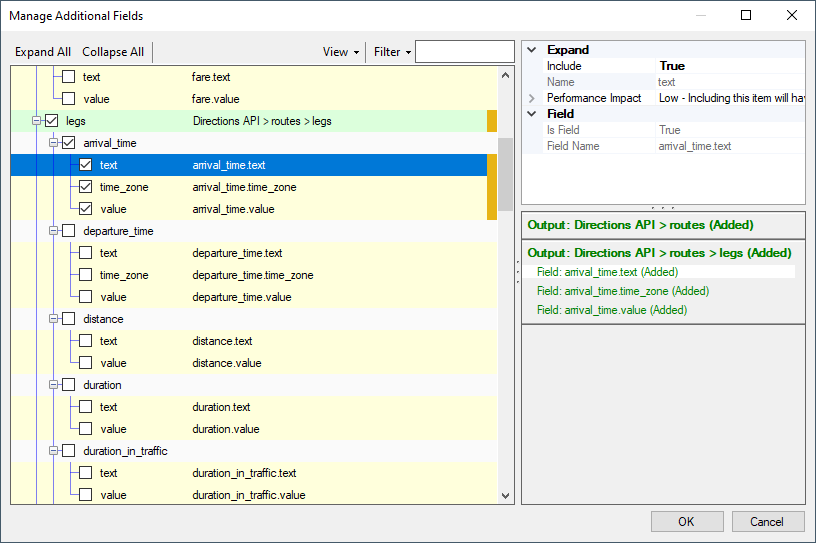
This button will open the Manage Additional Fields editor where you will be able to select additional outputs or fields from the returned object from the server.
-
- Expand All: This button will expand the tree view of all the fields under each object.
- Collapse All: This button will collapse the tree view to only show the sub-objects of the returned JSON document.
- View: This option enables you to view or hide the Details and Summary sections of the Manage Additional Fields editor.
- Filter: This option allows you to only show checked or unchecked items and it can be used to filter the list of fields using a keyword.
- Details section: This section displays the information of the selected field/output including the expected performance impact of the selected item if enabled.
- Summary section: This section displays a summary of what will be added to the component in terms of secondary outputs or fields based on the selected items.
The Columns page grid consists of the following columns:
- Checkbox: Allows you to specify which fields to read from the selected object.
- Field: Specifies the field to retrieve from the endpoint. When a field is selected, you will be able to see general details.
- Data Type: Displays the data type of the field. For certain types the data type can be clicked to rotate through available data types.