

File-based integrations often depend on a reliable, central location to store, exchange, and process enterprise data. For many AWS users, that location is Amazon S3. Whether it is acting as a staging area for incoming operational files, a secure destination for exported data, an archive layer for completed processes, or a storage bridge connecting disparate systems across an integration workflow, S3 is a critical piece of modern infrastructure.
When bringing Amazon S3 into an SSIS package, authentication is one of the first and most critical design choices to make. The Amazon S3 Connection Manager in KingswaySoft’s SSIS Integration Toolkit supports multiple flexible ways to authenticate. This allows you to easily match your security setup with where your package runs and how access to your S3 buckets is managed.
In this blog post, we will review the supported authentication methods, discuss when each option is typically used, cover the AWS setup required for access key credentials, and show how to leverage your S3 connection across various KingswaySoft SSIS components.
Authentication Options
The Amazon S3 Connection Manager in SSIS Integration Toolkit supports three robust credential configurations in the Authentication Mode dropdown on its General page. Before jumping into the implementation steps, it is important to understand what each mode offers and where it applies best.
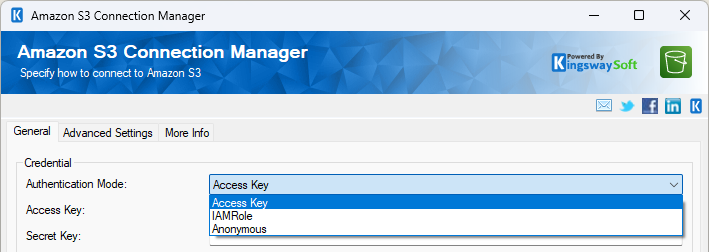
- Access Key: This is the most common approach for a wide variety of integration scenarios. You create an IAM user within AWS, grant it the appropriate permissions to your S3 bucket, and generate a credential pair consisting of an Access Key ID and a Secret Key. These keys are then supplied directly to the Connection Manager. Because this method works seamlessly regardless of where your SSIS runtime is hosted, it is the most portable and widely applicable option for teams getting started.
- Run as IAM Role: Introduced in KingswaySoft v23.2, this option is purpose-built for environments where the SSIS runtime is hosted directly on AWS infrastructure - specifically, an EC2 instance that has been assigned an IAM role. In this model, no credentials are required. The connection automatically assumes the execution role attached to the EC2 instance, and AWS handles the handshake. This approach represents a security best practice in AWS-native environments because it completely eliminates the need to store, rotate, or manage long-term access keys.
- Anonymous: Introduced in KingswaySoft v26.1, the Anonymous option allows you to connect to publicly accessible S3 buckets without providing any AWS credentials. This is highly useful when your pipeline consumes open datasets or publicly shared resources where the bucket owner has explicitly permitted unauthenticated read access. No IAM user or AWS account is required on your end; the bucket simply needs to be configured for public access on the AWS side in order for the option to work.
Which Authentication Option Should You Use?
Choosing the ideal authentication option depends heavily on your hosting topology and compliance requirements.
- For hybrid architectures, Access Key authentication provides the greatest flexibility. It functions perfectly whether SSIS is running on-premises, in a private data center, or within another cloud provider like Microsoft Azure. Since the credentials live inside the connection configuration or environment variables, the package does not rely on local AWS infrastructure to authenticate.
- Conversely, Run as IAM Role is the clear winner when your SSIS workloads are already running on AWS EC2. It streamlines administrative overhead by removing credential management entirely from the package configuration, allowing security teams to centrally manage access profiles through AWS IAM policies.
- Finally, reserving Anonymous authentication for specific public file retrieval tasks ensures your packages remain lightweight and free of unnecessary account configuration when interacting with public-facing data streams.
Setting Up Access in AWS
Before configuring the components inside Visual Studio, ensure that the foundational AWS resources are ready. For a secure connection, you will need an S3 bucket, an IAM user explicitly granted rights to that bucket, and an active access key.
If you need to establish a new bucket, the official AWS guide on creating a general-purpose bucket walks through the prerequisites. Once your bucket is ready, provision an IAM user with the minimal permissions required for your data pipeline. You can reference the AWS documentation on creating an IAM user to get started. When configuring permissions, remember to grant at least read/write access to the specific bucket target. Finally, generate the credentials following the steps for managing access keys for IAM users. Note: The Secret Key is only visible at the time of creation, so be sure to securely save it to your password manager or vault before navigating away.
Configuring the S3 Connection Manager
To initialize the connection, right-click the Connection Managers window within your SSIS project and choose New Connection. In the selection window, choose the Amazon S3 (KingswaySoft) entry to open the Connection Manager editor window.
On the General tab, select Access Key from the Authentication Mode dropdown. Enter your Access Key ID and Secret Key into their respective fields, and select or enter your target bucket name in the Bucket field.
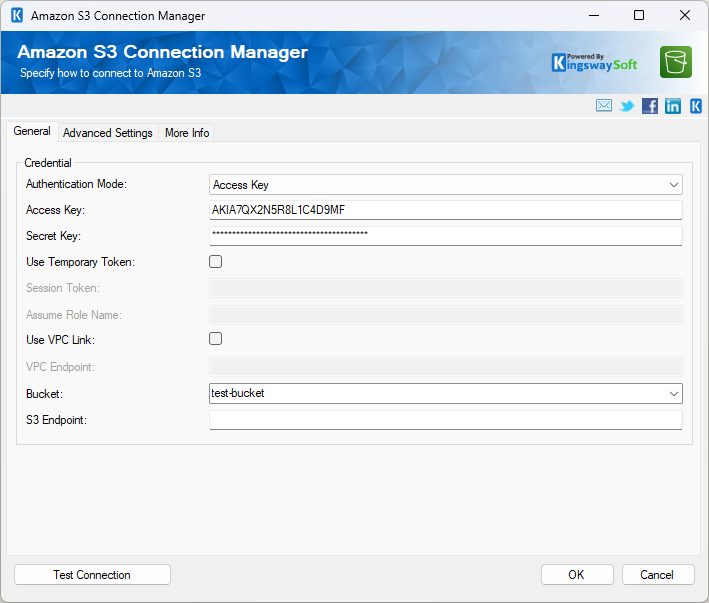
Once filled, click the Test Connection button to instantly validate your credentials and confirm network connectivity is working to the bucket.
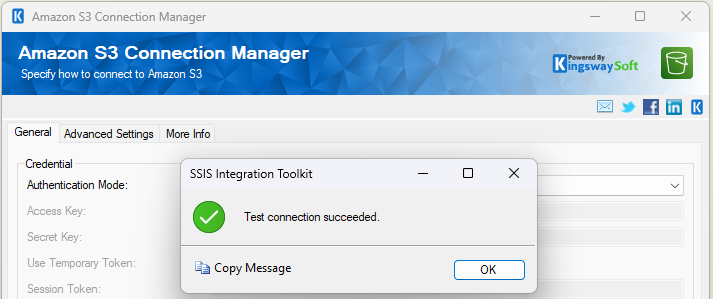
If you are leveraging Run as IAM Role, the setup is even simpler: select it from the dropdown, and leave the credential inputs blank, as the component automatically resolves permissions via the host EC2 instance.
For Anonymous connections, select the mode and supply only the bucket name.
Advanced Option: Securing Traffic via VPC Link
In highly regulated environments or enterprise architectures, routing S3 data traffic over the public internet may conflict with security policies. To address this, the Amazon S3 Connection Manager in SSIS Integration Toolkit features a built-in Use VPC Link setting (available since v21.2).
When enabled, this parameter forces the connection to interact with Amazon S3 using AWS PrivateLink. Instead of directing requests to public endpoints, traffic routes entirely through a private interface VPC endpoint established inside your AWS virtual network architecture.
To use this feature, ensure your network team has established an S3 interface endpoint. AWS offers detailed steps for creating an interface VPC endpoint and utilizing AWS PrivateLink for Amazon S3. Once generated, copy the endpoint-specific S3 DNS name provided by AWS.
Check the Use VPC Link box in the Connection Manager and paste that value into the VPC Endpoint field (it will resemble a format like vpce-1a2b3c4d-5e6f.s3.us-east-1.vpce.amazonaws.com). VPC Link works transparently alongside your chosen authentication mode - meaning you can combine private VPC routing with either Access Key or Run as IAM Role credential types.
Leveraging S3 Across Your SSIS Package Components
The core power of the Amazon S3 Connection Manager lies in its reusability. You configure the connection settings once, and it instantly becomes available to drive multiple tasks and data flow components throughout your integration pipeline.
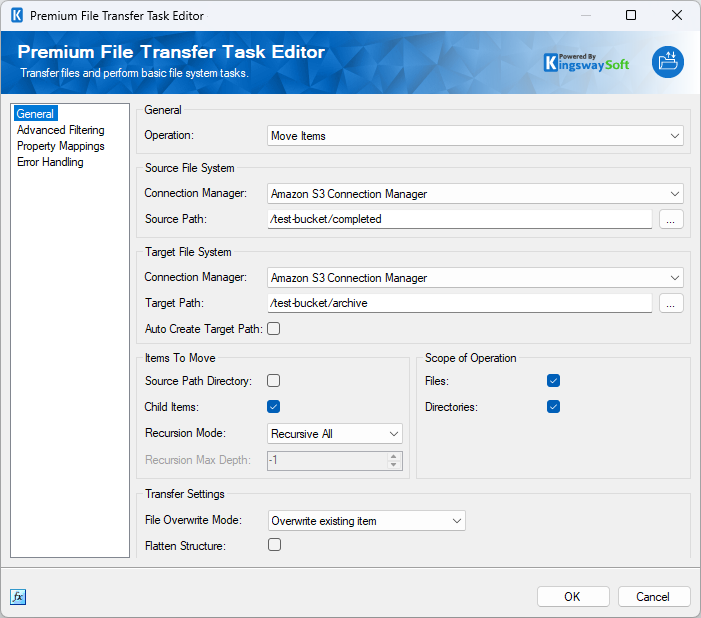
For file system operations, the Premium File Transfer Task is the easiest way to move files between different storage systems or file locations. By selecting your S3 Connection Manager as either the source or destination connection, you can upload local files, download cloud assets, or sync entire directories between S3 and other local or cloud storage platforms using intuitive file-matching patterns.
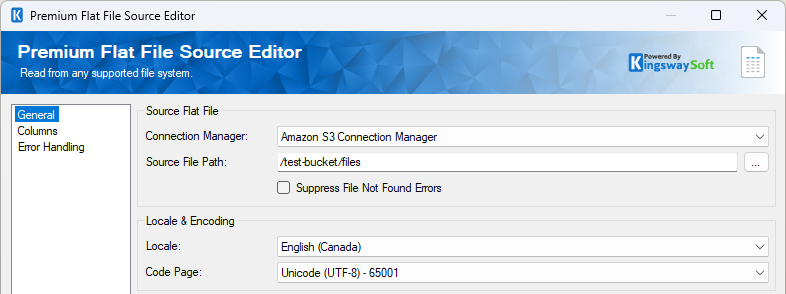
If you are processing structured data files in a CSV format, you can connect directly to your files using the Premium Flat File Source or Premium Flat File Destination components available as well in our SSIS Integration Toolkit. By referencing the S3 Connection Manager inside these data flow components, you can stream CSV, TXT, or fixed-width data directly out of or into S3, completely bypassing the need to download files to intermediary local storage disk space first before or after the process.
Additionally, for pipelines that require direct granular manipulation of binary object data stream content or AWS object metadata (such as tags and content types), the dedicated Amazon S3 Source and Amazon S3 Destination data flow components allow you to extract or map S3 files/objects directly to pipeline columns.
Conclusion
Integrating Amazon S3 into your SSIS packages is simple when you have the right tools. By identifying your optimal authentication method early - whether it is the universally portable Access Key mode, the zero-credential security of Run as IAM Role for EC2, or Anonymous access for open public data - you lay the groundwork for an ETL pipeline that is secure, scalable, and easy to maintain.
Full documentation for the connection parameters and all related cloud storage tasks can be found in the KingswaySoft Help Manual. Ready to test it out? Download the latest release of the SSIS Integration Toolkit to get started today.