

Using the Azure Devops (TFS) Destination Component
The Team Foundation Destination Component is an SSIS data flow pipeline component that can be used to write data to your TFS instance. You may Create, Update, Delete, or Upsert TFS records using the Team Foundation Destination Component.
The Team Foundation Destination Component includes the following three pages to configure how SSIS writes data to TFS.
- General
- Columns
- Error Handling
General Page
The General page allows you to specify the general settings of the destination component.
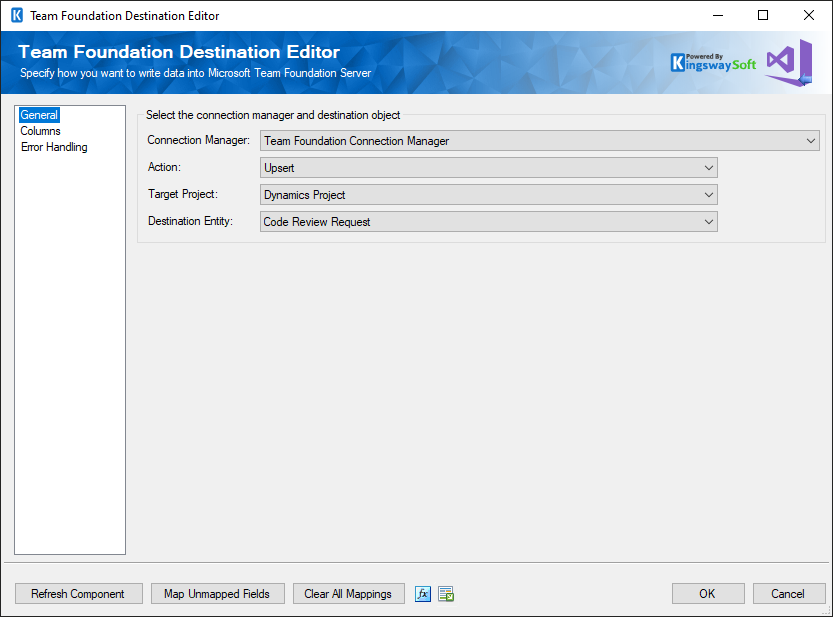
- Connection Manager
-
Team Foundation Destination Component requires a TFS connection in order to connect to your Team Foundation Server. The Connection Manager option will show all Team Foundation Server connection managers that are available in the current SSIS package.
- Action
-
The Action option specifies how the data should be written to Team Foundation Server. There are 4 action types available.
- Create: Create new record(s) in Team Foundation Server
- Update: Update existing record(s) in Team Foundation Server
- Delete: Delete record(s) from Team Foundation Server
- Upsert: Update an existing record in Team Foundation Server if a matching record can be found. Otherwise, create a new record using the information from upstream pipeline components.
- Target Project
-
The Target Project option specifies which target project to write the data. When the option is clicked, SSIS Integration Toolkit will retrieve a list of all available TFS projects for the selected Team Foundation Server connection.
- Destination Entity
-
The Destination Entity option lists all available work item types for the target project you've specified in the Target Project option.
- Refresh Component Button
-
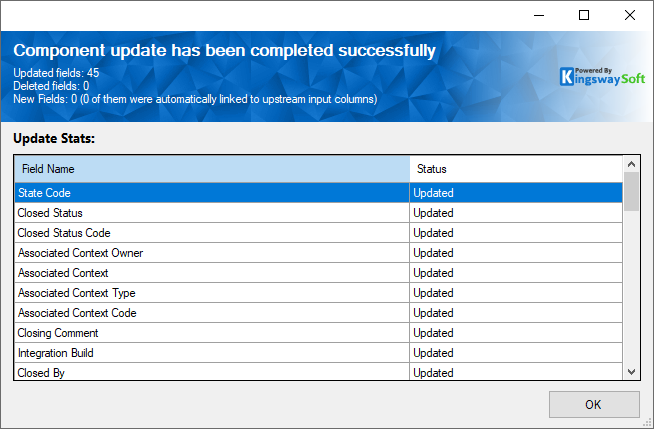
By clicking this button, the component will retrieve the latest metadata from Team Foundation Server and update each field. After clicking this button, you will receive the following screen once the refresh is done.
- Map Unmapped Fields Button
-
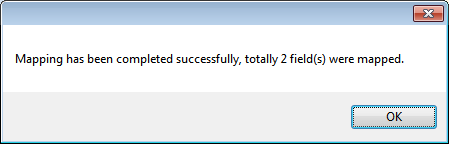
By clicking this button, the component will map any unmapped TFS fields by matching their names with the input columns from upstream components. This is useful when your source component has recently added more columns, in which case you can use this button to automatically establish the association between input columns and unmapped TFS fields.
After clicking this button, you will receive the following message.
- Clear All Mappings Button
-
By clicking this button, the component will reset all your mappings in the destination component.
Columns Page
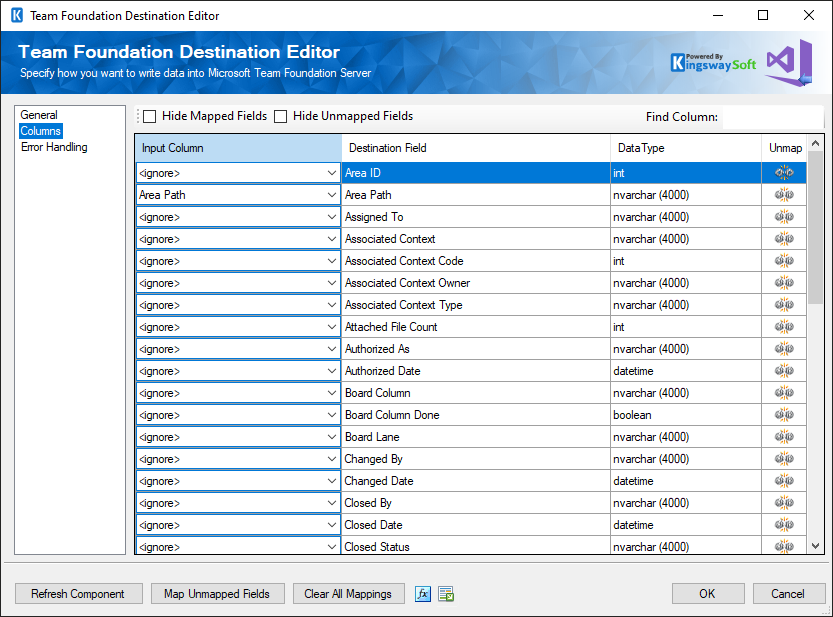
The Columns page of the Team Foundation Destination Component allows you to map input columns to TFS fields.
On the Columns page, you will see a grid that contains four columns as below.
- Input Column: You can select an input column from the upstream component for the corresponding TFS field.
- Destination Field: The TFS field that you are writing data to.
- Data Type: The target tfsfield's data type.
- Unmap: This column can be used to unmap the field from the upstream input column, or otherwise it can be used to map the field to an upstream input column by matching its name if the field is not currently mapped.
Error Handling Page
The Error Handling page allows you to specify how errors should be handled when they happen.
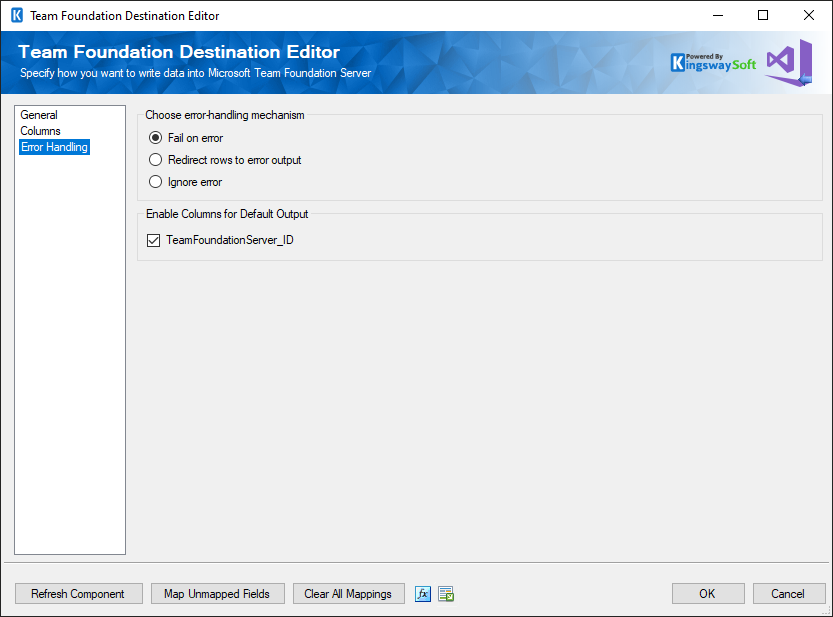
There are three options available.
- Fail on error
- Redirect rows to error output
- Ignore error
When the Redirect rows to error output option is selected, you can see the following columns in the Error Output:
- ErrorCode: Contains the error code that is reported by Team Foundation Server or the component itself.
- ErrorColumn: Contains the name of the column that is causing the error. Note that this column is not always populated.
- ErrorMessage: Contains the error message that is reported by Team Foundation Server or the component itself.
Note: Use extra caution when selecting the Ignore error option, since the component will remain silent for any errors that have occurred.
On the Error Handling page, there is also an option that can be used to enable or disable the following output fields for the destination component.
- TeamFoundationServer_ID - Contains the newly created TFS record's ID, which you can use to write to log or further process using additional data flow components.
Note: If you don't plan to use any of those fields for any further processing, it is generally recommended to turn them off, so you don't get any warning from SSIS by complaining that those fields are never used, and it should also provide slightly better performance by doing so.
Contact Us
If you need any further assistance with the toolkit, please don't hesitate to contact us.