Using the Azure Devops (TFS) Connection Manager
SSIS Integration Toolkit Connection Manager is an SSIS connection manager that can be used to establish connections with Team Foundation Server.
Team Foundation Server connection manager allows you to specify how you want to connect to your Team Foundation Server.
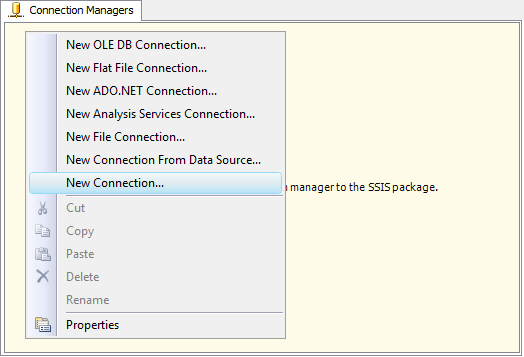
To add a Team Foundation Server connection to your SSIS package, right-click in the Connection Managers area, and choose "New Connection..." from the context menu.
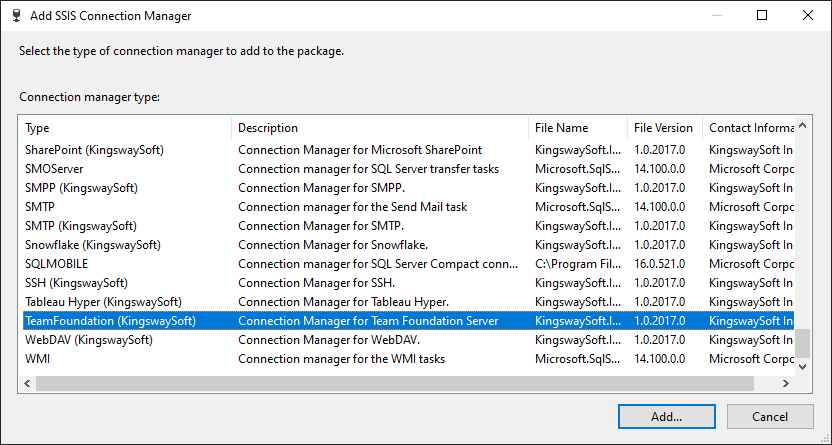
You will be prompted with the following window, where you can choose "TeamFoundation (KingswaySoft)" to add the connection.
Team Foundation Server Connection Manager contains the following three pages which configure how to connect to your Team Foundation Server.
- General
- Advanced Settings
- More Info
General page
The Connection page of Team Foundation Connection Manager allows you to specify the general settings of the connection.
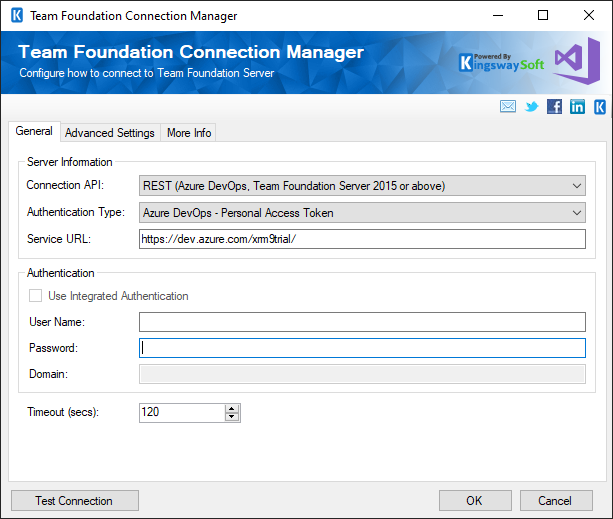
- Connection API (since v20.1)
-
The Connection API option allows you to specify the service endpoint that is used to connect to Team Foundation Server. There are two options available:
- REST (Azure DevOps, Team Foundation Server 2015 or above)
- SOAP (Azure DevOps, and all major versions of Team Foundation Server as of the release date)
When you choose to use the REST API, please make sure that you add the following code snippet to your DTExec.exe.config, DtsDebugHost.exe.config files in order for the runtime to work properly.
    <dependentAssembly>
        <assemblyIdentity name="Newtonsoft.Json" publicKeyToken="30ad4fe6b2a6aeed" culture="neutral" />
        <bindingRedirect oldVersion="0.0.0.0-6.0.0.0" newVersion="9.0.0.0" />
        <codeBase version="9.0.0.0" href="C:\Program Files (x86)\KingswaySoft\SSIS Integration Toolkit for Team Foundation Server\Newtonsoft.Json.dll"/>
      </dependentAssembly>
If it happens that the tool has been installed in a different folder, the above file path should be updated - the change is only required when using the REST API. Without the above changes, you will run into an error like the following when you try to execute an SSIS package that has a Team Foundation Source and/or Destination component which uses a REST connection.
System.MissingMethodException: Method not found: 'Newtonsoft.Json.JsonSerializerSettings System.Net.Http.Formatting.BaseJsonMediaTypeFormatter.get_SerializerSettings()'
It is important to note that DTExec.exe.config, DtsDebugHost.exe.config can be in many different folders in your system, make sure that all files are updated in order to avoid the error in case you might be running the SSIS packages against different runtimes.
- Authentication Type
-
The Authentication Type option allows you to specify the deployment type of your Team Foundation Server and what authentication is used. There are two options available:
- Active Directory (On-Premises)
- Visual Studio Team Services by Alternate Credentials
- Service URL
-
The Service URL option allows you to specify the Service URL which you can use to connect to your Team Foundation Server.
- User Name
-
The User Name option allows you to specify the user account used to connect to Team Foundation Server for your integration purposes.
- Password
-
The Password option allows you to specify the personal access token for the above user in order to be able to connect to Team Foundation Server.
Note: The Password is not included in the connection manager's ConnectionString property by default. This is by design for security reasons, however, you can include it in your ConnectionString if you want to parameterize your connection manager. The format would be Password=myPassword; (make sure you have a semicolon as the last character). It can be anywhere in the ConnectionString.
- Domain
-
The Domain option is used to specify the active directory domain of the Team Foundation Server user account. This option is only available if you have chosen Active Directory (On-Premises) as the Authentication Type.
- Use Integrated Authentication
-
The Use Integrated Authentication option specifies whether you want to use Integration Authentication or provide separate login credentials. Note this option is only available if you have chosen Active Directory (On-Premises) as the Authentication Type.
- Timeout (secs)
-
The Timeout (secs) option allows you to specify the maximum number of seconds that the Team Foundation Server connection manager will wait while trying to establish a connection with TFS.
- Test Connection
-
After you have provided all connection information, you may click the "Test Connection" button to test if you can successfully log in to TFS.
Advanced Settings Page
The Advanced Settings page of Team Foundation Connection Manager allows you to specify some advanced options when connecting to TFS.
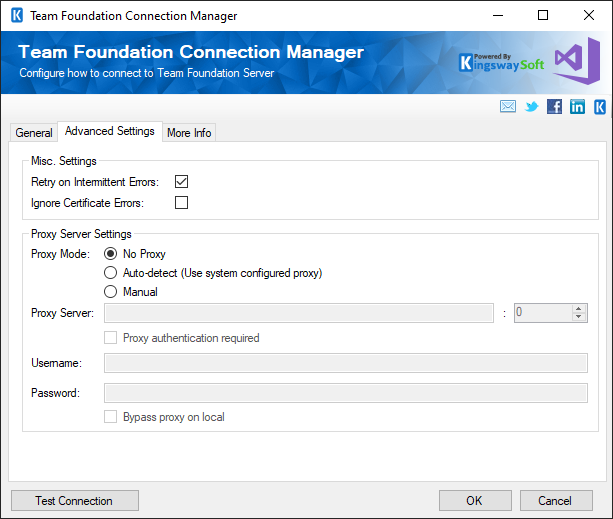
- Misc Settings
-
- Retry on Intermittent Errors
-
This is an option designed to help recover from possible intermittent outages or disruption of service so the integration does not have to be stopped because of such temporary issues. Enabling this option will allow service calls to be retried upon certain types of failure. A service call may be retried up to 3 times before an exception is fired. Retries occur after 0 seconds, 15 seconds, and 60 seconds.
Warning: We have designed our retry feature carefully so that the retry should only happen when it is deemed to be safe to do so. However, on some occasions, such retry service calls could result in the creation of duplicate data.
- Ignore Certificate Errors
-
This option can be used to ignore SSL certificate errors when connecting to a server, in case your server is using a temporary SSL certificate.
Warning: Enabling the "Ignore Certificate Errors" option is generally NOT recommended, particularly for production instances. Unless there is a strong reason to believe the connection is secure — such as the network communication occurring solely within an internal infrastructure — this option should be left unchecked for best security.
Note: When this option is enabled, it applies to all HTTP-based SSL connections in the same job process; it is not only limited to these specific connections.
- Proxy Server Settings
-
- Proxy Mode
-
The Proxy Mode option allows you to specify how you want to configure the proxy server setting. There are three options available.
- No Proxy
- Auto-detect (Using system-configured proxy)
- Manual
- Proxy Server
-
Using the Proxy Server option, you can provide a proxy server to connect to Team Foundation Server.
- Port
-
The Port option allows you to specify the port number of the proxy server for the connection.
- Username (Proxy Server Authentication)
-
The Username option (under Proxy Server Authentication) allows you to specify the proxy user account.
- Password (Proxy Server Authentication)
-
The Password option (under Proxy Server Authentication) allows you to specify the proxy user's password.
Note: The Proxy Password is not included in the connection manager's ConnectionString property by default. This is by design for security reasons. However, you can include it in your ConnectionString if you want to parameterize your connection manager. The format would be ProxyPassword=myProxyPassword; (make sure you have a semicolon as the last character). It can be anywhere in the ConnectionString.
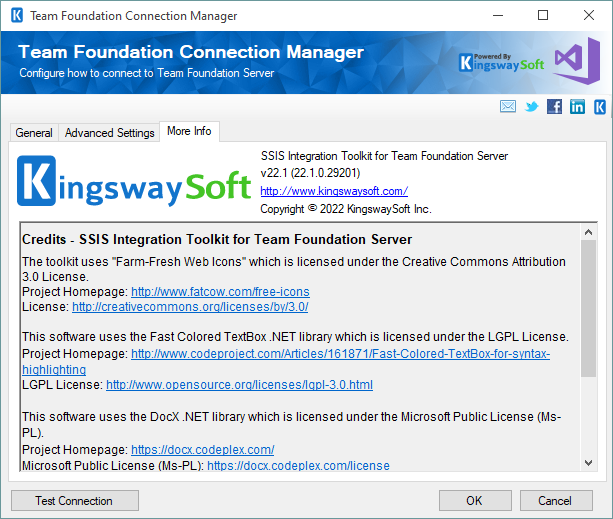
More Info Page
The More Info page shows some basic information about the toolkit. On this page, you can find the version information of the toolkit.