

Using the Marketo Source Component
The Marketo Source Component is an SSIS data flow pipeline component that can be used to read/retrieve data from Marketo.
The component includes the following two pages to configure how you want to read data from Marketo.
- General
- Columns
General Page
The General page of the Marketo Source Component allows you to specify the general settings of the component.
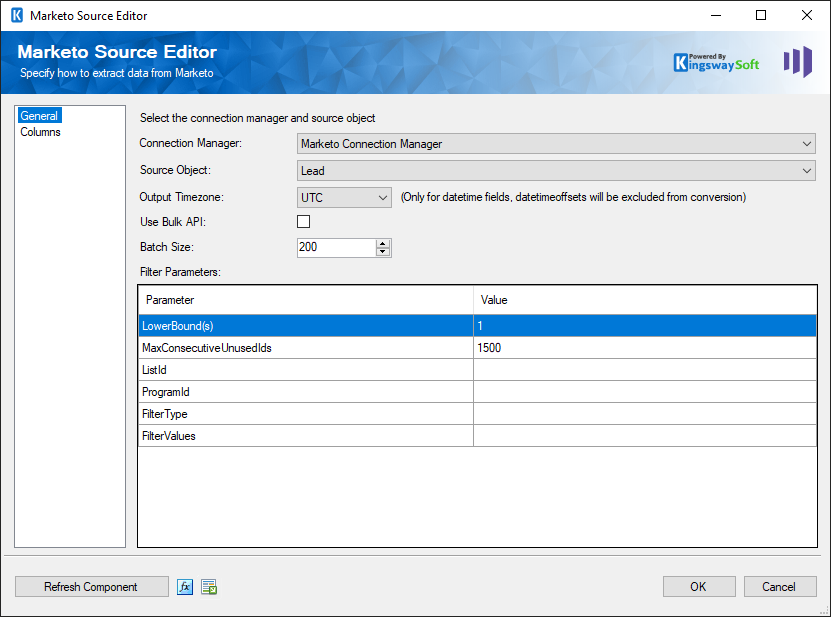
- Connection Manager
-
The Marketo Source Component requires a Marketo connection in order to connect with Marketo. The Connection Manager drop-down will show a list of all Marketo connection managers that are available to your current SSIS package.
- Source Object
-
The Source Object drop-down lists all of the currently supported objects that you can read from.
- Use Bulk API (since v3.0)
-
Use Bulk API option specifies whether you want to use Marketo Bulk Export API to read data from your Marketo organization. This option can be used when you have a significantly large number of records in the Marketo system.
Note: This option will only be available to Lead and Lead Activities objects.
- Polling Throttle Rate (minutes) (since v3.0)
-
The Polling Throttle Rate determines the frequency rate to poll the status of the job to determine if it has been completed.
Note: This option will only be available when the Use Bulk API option is enabled.
- Download Chunk Size (kilobytes) (since v3.0)
-
The chunk size to use when retrieving the export data.
Note: this option will only be available when the Use Bulk API option is enabled.
- Batch Size
-
The Batch Size lets you specify how many records to retrieve per service call to Marketo. The default is set to 200.
- Lead Activity Types
-
The Lead Activity Type drop-down is enabled when the LeadActivities Source Object is specified. You may select as many Lead Activity Types as you prefer.
It is important to note that when you choose a combination of Lead Activity Types, you may have duplicate Column Names on the Columns page. If this is the case, this issue can easily be corrected by going into the Input and Output Properties tab of the Advanced Editor of the Destination Component, and changing the name of the field listed in the Output Columns.
- Filter Parameters
-
You can specify filtering parameters so that the source component only returns those records that satisfy such filtering parameters. Filter Parameters are supported by most objects and some objects require a Filter Parameter to be specified. If you wish to specify multiple values for a single Filter Parameter, just separate the values with a comma. In some cases, an object will support the use of "LowerBound(s)" and "MaxConsecutiveUnusedIds" parameters. These special parameters do the following:
The LowerBound(s) specifies the ID value(s) you would like to start reading records from.
The MaxConsecutiveUnusedIds parameter specifies the maximum number of empty consecutive IDs starting from the LowerBound(s) values onwards until it hits the maximum consecutive unused IDs you have specified. It will either start reading again from the next LowerBound value or stop if no additional LowerBound values are listed. This is an option that can help retrieve the entire list of records when there have been some large deletions in the past in which a large number of records were removed. For instance, if you have ever removed 10,000 records altogether once, then you could set the parameter to 10,000 to accommodate the gap created by such deletions when the source component pages through the records.
Since v3.1, we added the support that allows you to get specific record(s) by setting MaxConsecutiveUnusedIds = 0. If you specify a list of record ID(s) separated by comma(s) in LowerBound(s) option, the component will only return the record(s) you've specified.
If the LowerBound(s) and MaxConsecutiveUnusedIds parameters are not specified (and they are supported in the currently selected object), the default values of 1 and 1500 will be used.
The Lead Activities object supports SinceDatetime as a filter parameter to retrieve the next page token for a given date. (since v1.1)
The supported datetime format is as follows:
- 2014-10-06T13:22:17 or 2014-10-06T13:22:17-08:00
- 2014-10-06T13:22 or 2014-10-06T13:22-07:00
- 2014-10-06
- Refresh Component Button
-
Clicking the Refresh Component button causes the component to retrieve the latest metadata and update each field to its most recent metadata.
- Expression fx Icon
-
Click the blue fx icon to launch SSIS Expression Editor to enable dynamic updates of the property at run time.
- Generate Documentation Icon
-
Click the Generate Documentation icon to generate a Word document that describes the component's metadata including relevant mapping, and so on.
Columns Page
The Columns page of the Marketo Source Component shows you all available attributes from the object that you specified on the General page.
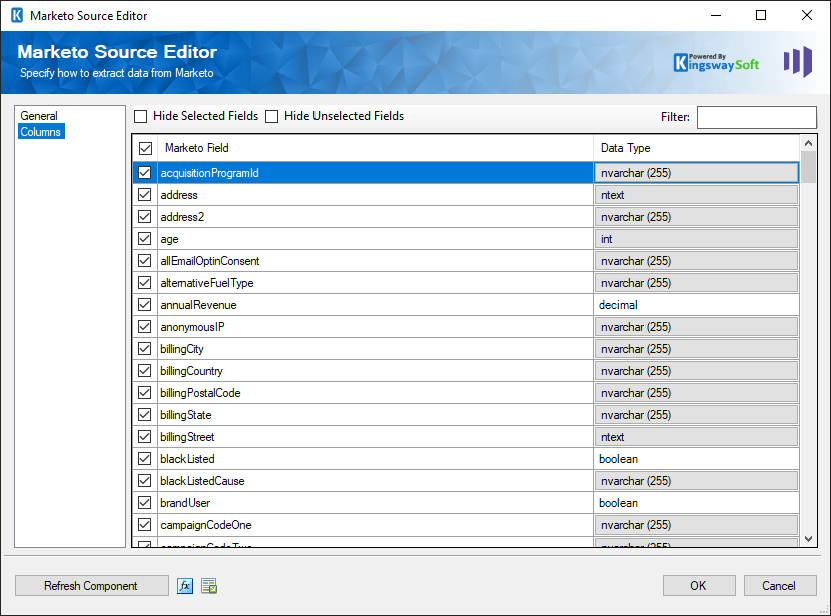
On the top left of the grid, you can see a checkbox, which can be used to toggle the selection of all available Marketo fields. This is a productive way to check or uncheck all available fields.
Note: As a general best practice, you should only select the Marketo fields that are needed for the downstream pipeline components.