

Using the Marketo Destination Component
The Marketo Destination Component is an SSIS data flow pipeline component that can be used to write data to Marketo. You can Create, Update, Upsert, or Delete objects that allow a particular action with this component. There are three pages of configuration:
- General
- Columns
- Error Handling
The General page is used to specify general settings for the Marketo Destination Component. The Columns page allows you to map the columns from upstream components to Marketo fields in the destination object. The Error Handling page allows you to specify how errors should be handled when they occur.
General Page
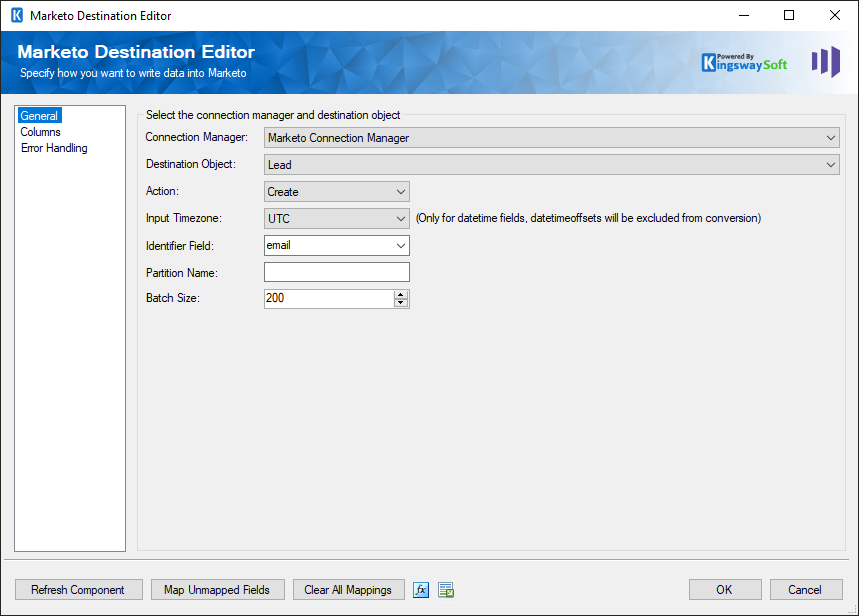
The General page allows you to specify general settings for the component.
- Marketo Connection Manager
-
The Marketo Destination Component requires a Marketo connection. The Marketo Connection Manager option will show all Marketo connection managers that have been created in the current SSIS package or project.
- Destination Object
-
The Destination Object drop-down lists all of the currently supported objects which you can write to.
- Action
-
The Action option allows you to specify how data should be written to Marketo. There are currently five (5) supported:
- Create
- Update
- Upsert
- Delete
- Merge (since v1.4) (Lead object only)
- Dedupe By
-
The Dedupe By option is available when performing an Update action on most objects. "Dedupe" is a Marketo term for de-duplicate. You can choose to dedupe by Dedupe Fields or the Id Field. Depending on what option is selected determines what field(s) will uniquely identify records while updating.
- Delete By
-
The Delete By option is available when performing a Delete action on most objects. You can choose to delete by Dedupe Fields or the Id Field. Depending on what option is selected determines what field(s) will uniquely identify records while deleting.
- Identifier Field
-
The Identifier Field specifies the field that will behave like the primary key field. This only applies to the Lead object when you are Creating, Updating, or Upserting. The way the field behaves is different for the different actions:
- Create: The Identifier Field behaves like a duplicate detection field. The record cannot be created if the value of the Identifier Field matches that of a record in Marketo.
- Update: The Identifier Field behaves like a selector. The record in Marketo that gets updated is the one whose Identifier Field matches that of the record being sent.
- Upsert: The Identifier Field behaves like a combination of the Create and Update actions.
- Partition Name (since v2.2)
-
The Partition Name allows you to specify the partition when creating or updating leads in Marketo.
Note this option will only be available to the Lead object with Upsert action and use Email as Identifier Field.
- Bulk API (since v3.0)
-
Use Bulk API option dictates whether you want to use Marketo Bulk Import API to write to your Marketo system. By default, this option is not selected. When using Marketo Bulk API, your data will be processed asynchronously, which can provide some significant performance improvement.
Note: This option will only be available to Lead and Custom Objects.
When the option is enabled, the following bulk API-related options become available for configuration.
- Static List Id (Lead Object Only)
-
Specify the ID of the static list to import Leads into.
- Polling Throttle Rate
-
The Polling Throttle Rate determines the frequency rate to poll the status of the job to determine if it has been completed.
- Batch Size
-
The Batch Size lets you specify how many records to send per service call to Marketo.
- Refresh Component Button
-
Clicking the Refresh Component button causes the component to retrieve the latest metadata and update each attribute to its most recent metadata.
- Map Unmapped Fields Button
-
By clicking this button, the component will try to map any unmapped Marketo attributes by matching their names with the input columns from upstream components. This is useful when your source component has recently added more columns, in which case you can use this button to automatically establish the association between input columns and unmapped destination attributes.
- Clear All Mappings Button
-
By clicking this button, the component will reset all your mappings in the destination component.
- Expression fx Icon
-
Click the blue fx icon to launch SSIS Expression Editor to enable dynamic updates of the property at run time.
- Generate Documentation Icon
-
Click the Generate Documentation icon to generate a Word document that describes the component's metadata including relevant mapping, and so on.
Columns Page
The Columns page of the Marketo Destination Component allows you to map the columns from upstream components to the Marketo destination fields.
On the Columns page, you will see a grid that contains four columns as shown below.
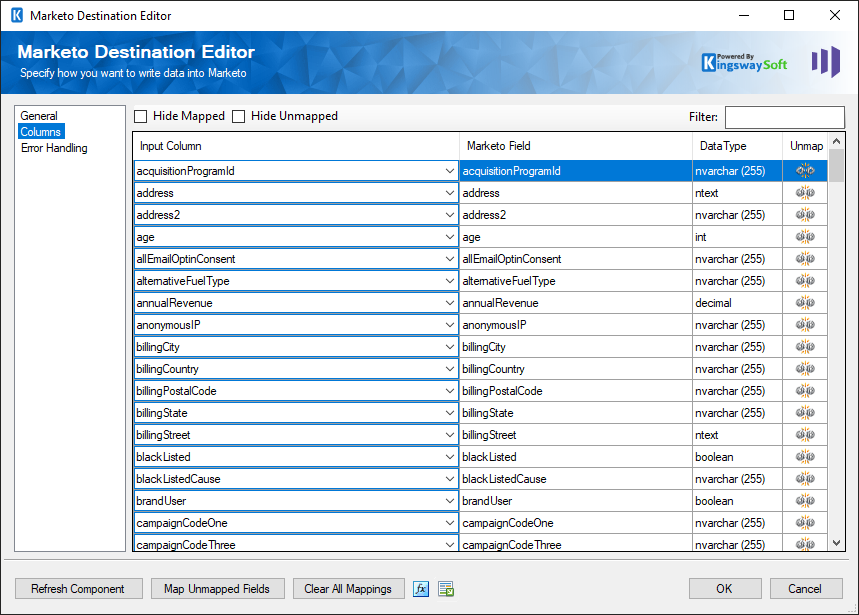
- Input Column: You can select an input column from an upstream component for the corresponding Marketo field.
- Marketo Field: The Marketo field where you are writing data.
- Data Type: This column indicates the type of value for the current field.
- Unmap: This column can be used to unmap the field from the upstream input column, or otherwise it can be used to map the field to an upstream input column by matching its name if the field is not currently mapped.
Error Handling Page
The Error Handling page allows you to specify how errors should be handled when they happen.
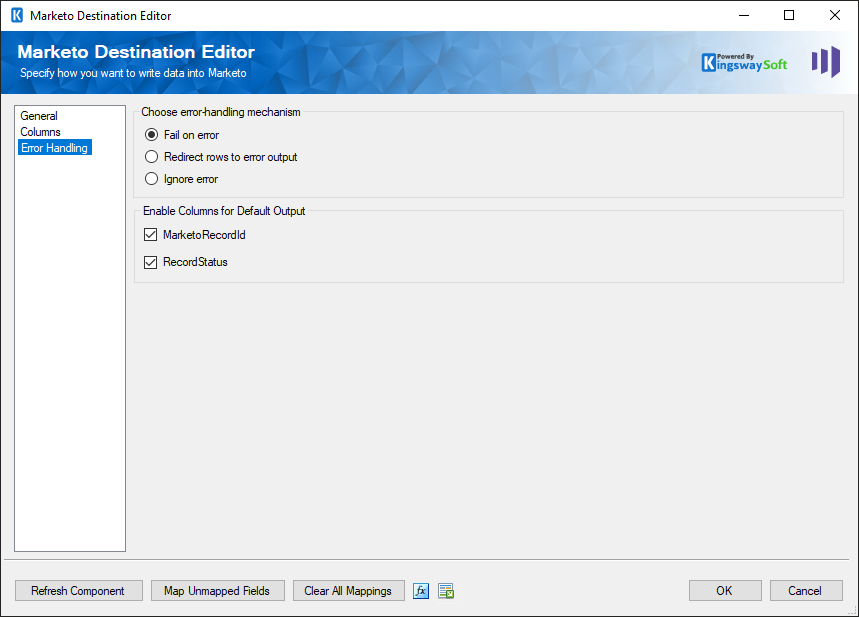
There are three options available:
- Fail on error
- Redirect rows to error output
- Ignore error
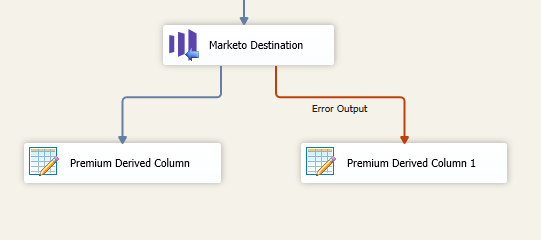
When the Redirect rows to error output option is selected, rows that failed to write to Marketo will be redirected to the 'Error Output' output of the Destination Component. As indicated in the screenshot below, the green or blue output connection represents rows that were successfully written, and the red 'Error Output' connection represents erroneous rows. The 'ErrorMessage' output column found in the 'Error Output' may contain the error message that was reported by Marketo or the component itself.
Note: Use extra caution when selecting the Ignore error option, since the component will remain silent for any errors that have occurred.
Enable Columns for Default Output.
- MarketoRecordId: Contains the ID of the Marketo item
- RecordStatus: Contains the status of the Marketo record