Using the Marketo Connection Manager
The Marketo Connection Manager is an SSIS connection manager component that can be used to establish connections with Marketo.
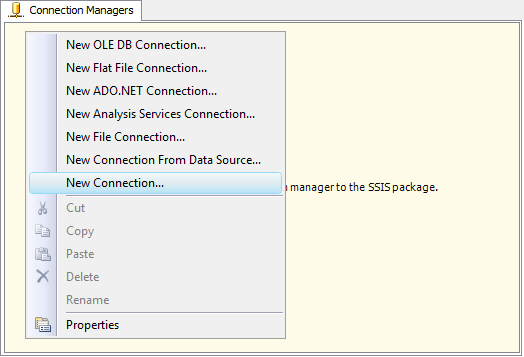
To add a Marketo connection to your SSIS package, right-click the Connection Manager area in your Visual Studio project, and choose "New Connection..." from the context menu.
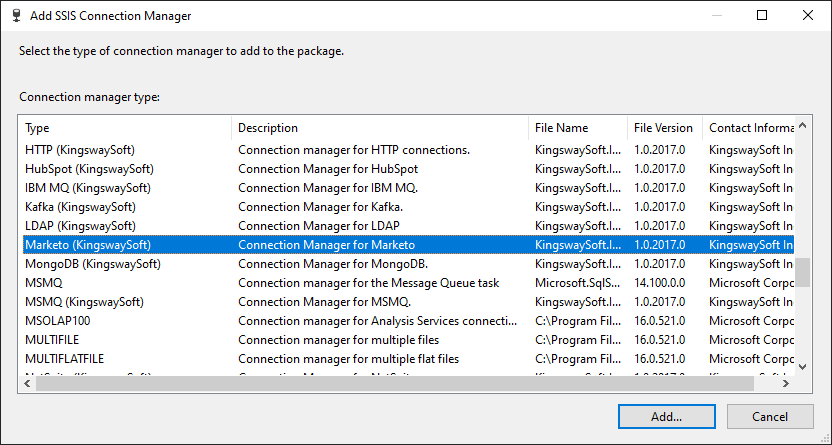
You will be prompted with the "Add SSIS Connection Manager" window. Select the "Marketo" item to add the new Marketo Connection Manager.
The Marketo Connection Manager contains the following three pages for configuring how you want to connect to Marketo:
- General
- Advanced Settings
- More Info
General Page
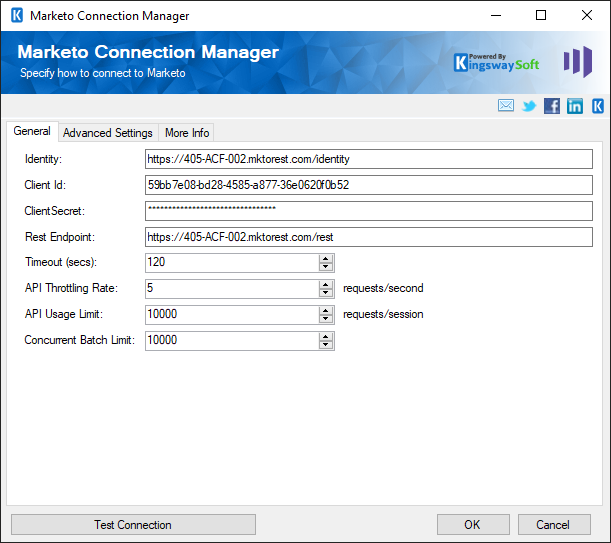
The General page on the Marketo Connection Manager allows you to specify general settings for the connection. Before you can connect to Marketo, you must first create a Custom Service.
- Identity
-
The Identity field specifies the identity URL the connection will use to request an access token. The Identity can be found in Marketo under Admin > Integration > Web Services > REST API
- Client ID
-
The Client ID field specifies the Client ID of the Custom Service you created. It is used to request an Access Token. The Client ID can be found in Marketo under Admin > Integration > LaunchPoint > View Details
- Client Secret
-
The Client Secret field specifies the Client Secret of the Custom Service you created. It is used to request an Access Token. The Client Secret can be found in Marketo under Admin > Integration > LaunchPoint > View Details
- Rest Endpoint
-
The Rest Endpoint field specifies the rest endpoint the connection will use to read and write data. The Rest Endpoint can be found in Marketo under Admin > Integration > Web Services > REST API
- Timeout (secs)
-
The Timeout (secs) option allows you to specify a timeout value in seconds for the connection. The default value is 120 seconds.
- API Throttling Rate (requests/sec)
-
The API Throttling Rate is based on the Throttle Limits in Marketo. This rate is set to 5 requests per second, by default, to respect the Marketo API Throttle limit. If the API Throttling Rate exceeds 5 requests per second, the Marketo server may stop your request for a short period.
- API Usage Limit (requests/session) (since v3.0)
-
The API Usage Limit option limits the number of API calls being used per session, which can be used to avoid hitting the Marketo Daily API Quota. Marketo has a Default Daily API Quota of 10,000 API calls. If you would like to increase your Rate Limit due to high volume integrations, Marketo recommends that you contact your account representative to request to increase your daily API quota.
When the specified limit is reached,
- The Marketo Source Component would stop processing and throw a warning message.
- The Marketo Destination Component would stop processing and report an error message.
- Test Connection
-
After all the connection information has been provided, you may click the Test Connection button to test if the connection settings entered are valid.
Advanced Settings Page
The Advanced Settings page on the Marketo Connection Manager allows you to specify some advanced and optional settings for the connection.
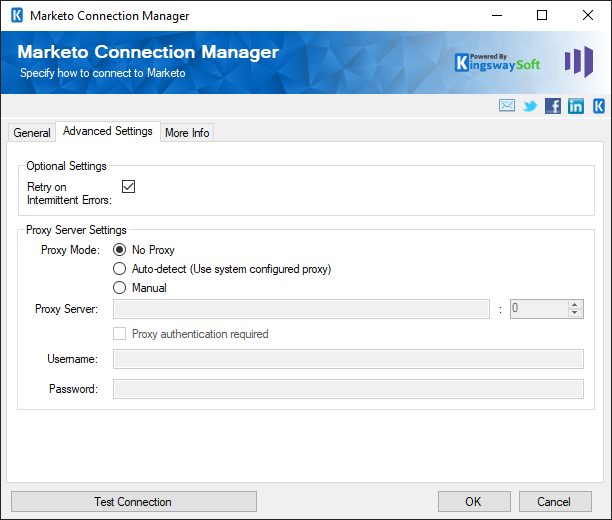
- Optional Settings
-
- Retry on Intermittent Errors
-
This is an option designed to help recover from possible intermittent outages or disruption of service so the integration does not have to be stopped because of such temporary issues. Enabling this option will allow service calls to be retried upon certain types of failure. A service call may be retried up to 3 times before an exception is fired. Retries occur after 0 seconds, 15 seconds, and 60 seconds. Warning: Although we have carefully designed this feature so that such retries should only happen when it is deemed to be safe to do so. However, in some extreme occasions, such retried service calls could result in the creation of duplicate data.
- Proxy Server Settings
-
- Proxy Mode (since v2.2)
-
The Proxy Mode option allows you to specify how you want to configure the proxy server setting. There are three options available.
- No Proxy
- Auto-detect (Using system-configured proxy)
- Manual
- Proxy Server
-
Using the Proxy Server option allows you to specify the name of the proxy server for the connection.
- Port
-
The Port option allows you to specify the port number of the proxy server for the connection.
- Proxy authentication required
-
Select this option if your proxy server requires authentication. Doing so will activate the Username and Password fields below.
- Username (Proxy Server Authentication)
-
The Username option (under Proxy Server Authentication) allows you to specify the proxy user account.
- Password (Proxy Server Authentication)
-
The Password option (under Proxy Server Authentication) allows you to specify the proxy user's password.
Note: The Proxy Password is not included in the connection manager's ConnectionString property by default. This is by design for security reasons. However, you can include it in your ConnectionString if you want to parameterize your connection manager. The format would be ProxyPassword=myProxyPassword; (make sure you have a semicolon as the last character). It can be anywhere in the ConnectionString.
More Info Page
The More Info page shows some basic information about the toolkit, such as the version number.