

Using the Google Drive Source Component
The Google Drive Source Component is an SSIS data flow pipeline component that can be used to read/retrieve data from Google Drive.
The component includes the following two pages to configure how you want to read data from Google Drive.
- General
- Columns
General Page
The General page of the Google Drive Source Component allows you to specify the general settings of the component.
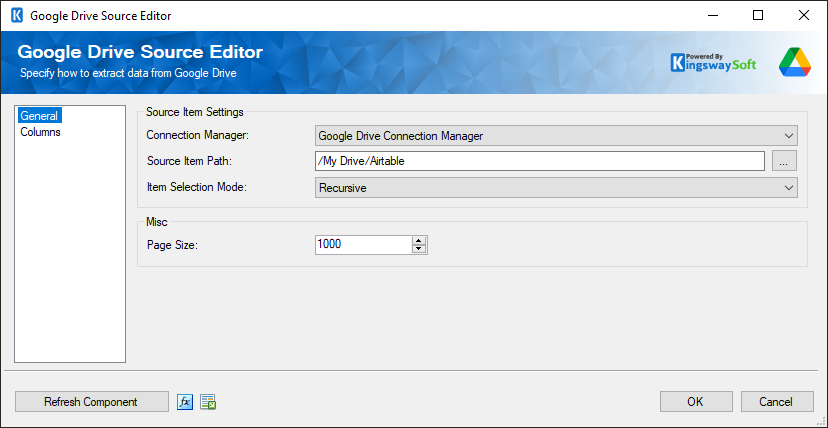
- Source Item Settings
-
- Connection Manager
-
The Google Drive Source Component requires a Google Drive connection in order to connect to Google Drive. The Connection Manager drop-down will show a list of all Google Drive Connection Managers that are available for your current SSIS package.
- Source Item Path
-
The Source Item Path option specifies the base item to select. Click the ellipsis button ('...') to open a Google Drive browser dialog and select an item.
- Item Selection Mode
-
The Item Selection Mode specifies what Google Drive item(s) will get selected. The Files Only modifier will still go through folders to retrieve items but will not return any records for the folders. Available options are:
- Selected Item: Retrieves only the item specified by Source Item Path.
- Recursive: Retrieves the selected item (specified by the Source Item Path option) and all sub-items recursively.
- Selected Level: Retrieves the selected item and all immediate sub-items under the folder as specified by the Source Item Path option.
- Recursive (Files Only): Retrieves items the same as the Recursive mode but only returns files.
- Selected Level (Files Only): Retrieves items the same as the Selected Level mode but only returns files.
- Misc
-
- Page Size
-
The Page Size option allows you to specify how many records to retrieve per service call to Google Drive. The default value is 1000.
- Refresh Component
-
Clicking the Refresh Component button causes the component to retrieve the latest metadata and update each field to its most recent metadata.
- Expression fx Button
-
Click the fx button to launch the SSIS Expression Editor to enable dynamic updates of available properties at run time.
- Generate Documentation Button
-
Click the Generate Documentation button to generate a Word document that describes the component's metadata, including relevant mapping, and so on.
Columns Page
The Columns page of the Google Drive Source Component shows you all available fields from the object that you specified on the General page.
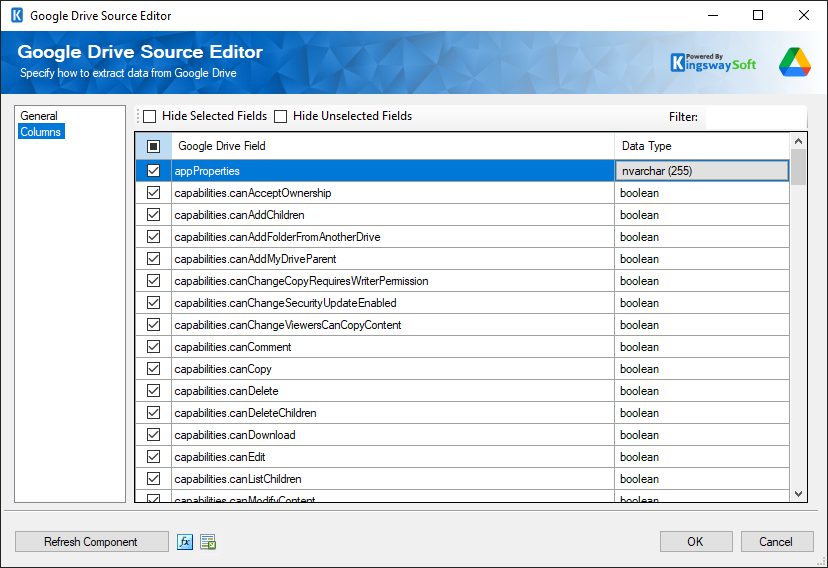
On the top left of the grid, the checkbox can be used to toggle the selection of all available fields. This is a productive way to check or uncheck all available fields.
The Hide Selected Fields and Hide Unselected Fields options can be used to narrow the list of columns, and the Filter box can be used to locate a specific field.
- The Columns Page grid consists of:
-
- Google Drive Field: Column that will be retrieved from the current item (file or folder).
- Data Type: The data type of this field.
Note: As a general best practice, you should only select the fields that are needed for the downstream pipeline components.