

Using the Dropbox Source Component
The Dropbox Source Component is an SSIS data flow pipeline component that can be used to retrieve files, folders, and related information from Dropbox.
The component contains the following pages to configure how you want to retrieve data from Dropbox:
- General
- Columns
General Page
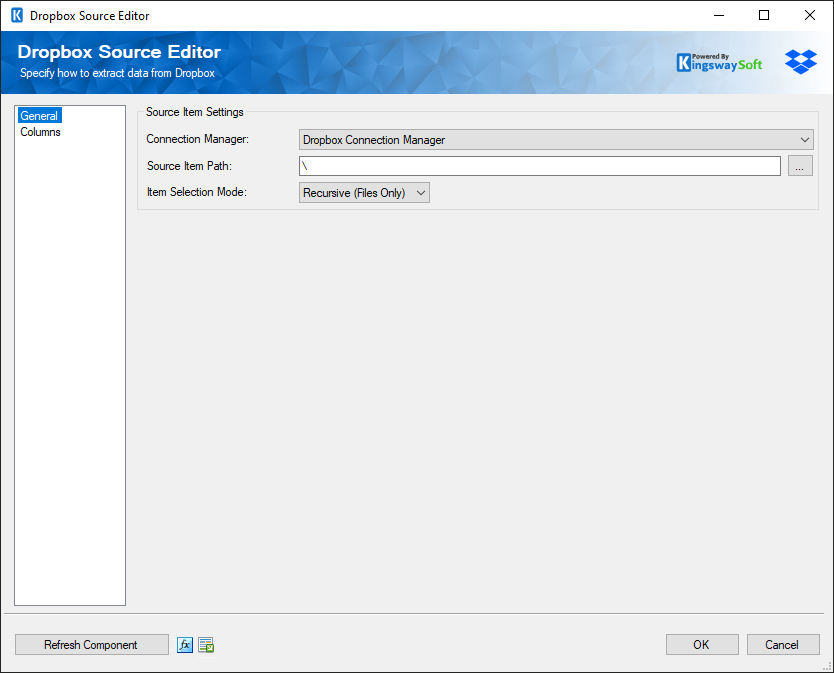
The General page of the Dropbox Source Component allows you to configure the connection, source path, and item selection settings.
- Connection Manager
-
The Dropbox Source Component requires a Dropbox connection in order to retrieve information from Dropbox. The Connection Manager drop-down displays all Dropbox connection managers available to the current SSIS package.
- Source Item Path
-
The Source Item Path option specifies the file or folder in Dropbox that will be used as the starting point for retrieval.
You can enter the path directly or click the ellipsis button ('...') to open the Select a File or Folder window.
This window allows you to navigate through the available Dropbox files and folders and select the required item. It also provides options to refresh the current view, expand or collapse folders, create a new folder or file, download a file, and filter the displayed items.
- Item Selection Mode
-
The Item Selection Mode option determines which Dropbox items are retrieved relative to the selected Source Item Path. The following options are available:
- Selected Item: Retrieves only the item specified by the Source Item Path, without including any additional items.
- Recursive: Retrieves the selected item and all sub-items recursively, including files and folders located within nested subfolders.
- Selected Level: Retrieves the selected item and its immediate sub-items, including both files and folders, without searching through additional subfolder levels.
- Recursive (Files Only): Retrieves files recursively from the selected folder and all its subfolders, without returning records for the folders themselves.
- Selected Level (Files Only): Retrieves only files located directly within the selected folder, without returning folder records or searching through additional subfolders.
The Files Only modifier excludes folder records from the output. When used with Recursive mode, subfolders are still traversed to retrieve files.
- Refresh Component Button
-
Clicking the Refresh Component button causes the component to retrieve the latest metadata and update the available fields.
- Property Expressions Button
-
Clicking the fx button opens the Property Expressions Editor, allowing you to configure expressions that dynamically update component properties at runtime.
- Generate Documentation Button
-
Clicking the Generate Documentation button generates a Word document that describes the component's metadata, including relevant configuration information.
Columns Page
The Columns page of the Dropbox Source Component displays the available Dropbox fields from the current Source configuration. You can select which fields should be included in the Source output.
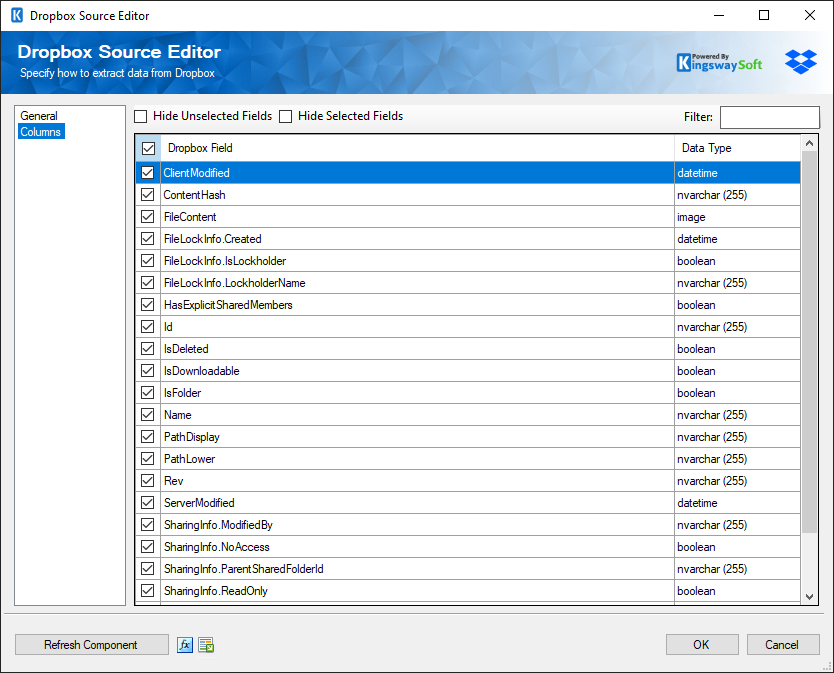
Each field contains a checkbox that determines whether it is included in the Source output. The grid also displays the Dropbox field name and its corresponding data type.
The Hide Unselected Fields and Hide Selected Fields options can be used to control which fields are displayed in the grid. You can also use the Filter box to locate a specific field.
The checkbox at the top of the grid can be used to select or deselect all available fields.
Note: As a general best practice, you should only select the Dropbox fields that are required by downstream pipeline components.