

Using the Dropbox Connection Manager
The Dropbox Connection Manager is an SSIS connection manager component that can be used to establish connections with Dropbox.
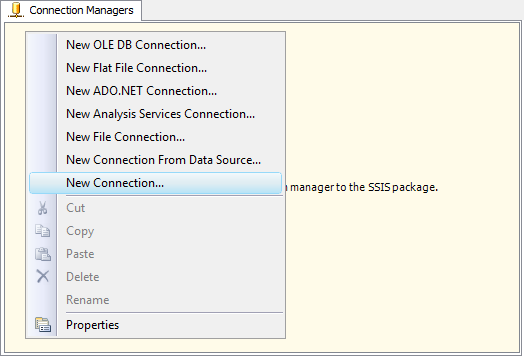
To add a Dropbox connection to your SSIS package, right-click the Connection Manager area in your Visual Studio project and choose "New Connection..." from the context menu. In the "Add SSIS Connection Manager" window, select the "Dropbox" item to add the new Dropbox connection manager.

The Dropbox Connection Manager contains the following three pages, which configure how you want to connect to Dropbox.
- General
- Advanced Settings
- More Info
General Page
The General page on the Dropbox Connection Manager allows you to configure the authentication settings used to connect to Dropbox.

- Generate Token File...
-
The Generate Token File... button opens the OAuth Configuration & Sign In window, where you can configure the application details and authorize access to your Dropbox account.

Under App Type, the following options are available:
- KingswaySoft: Uses the Client ID and Client Secret provided by KingswaySoft for convenience when setting up or testing a connection. This option should not be used in a production environment.
-
My Own App: Allows you to provide the credentials from your own Dropbox application. This is the recommended option for production use.
- Client ID: The identifier of your Dropbox application.
- Client Secret: The client secret associated with your Dropbox application.
- Redirect URL: The redirect URL configured for your Dropbox application.
Warning: The Dropbox application credentials provided by KingswaySoft are intended for evaluation and testing purposes only. They should NEVER be used in a production environment. For production use, you should register and configure your own Dropbox application.
Under Sign In & Authorize, the following option is available:
- Use Default Browser to Sign In: When enabled, the authorization process takes place in your default web browser. When unchecked, the authentication process is completed within the toolkit.
Click Sign In & Authorize... to begin the Dropbox authorization process. Sign in to your Dropbox account and grant the application the requested permissions.
After completing authorization, you can specify a password to protect the generated token file and use the Save To Token File option to select the location and filename where the token file will be saved.
- Path To Token File
-
The Path To Token File option specifies the location of the saved token file used for authentication. You can enter the path directly or click the ellipsis button ('...') to locate the token file.
- Token File Password
-
The Token File Password option allows you to specify the password assigned when the token file was created. This password is used to access the authentication information stored in the token file.
- Token File Details
-
The Token File Details section displays information about the authenticated Dropbox account and application associated with the selected token file. The following fields are available:
- Account ID: The identifier of the authenticated Dropbox account.
- Account Name: The name of the authenticated Dropbox account.
- Account Type: The type of Dropbox account.
- App Type: The application type used during authentication.
- App Client ID: The identifier of the application used during authentication.
- Test Connection
-
After all the connection information has been provided, click the Test Connection button to verify that the connection and authentication settings are valid.
Advanced Settings Page
The Advanced Settings page on the Dropbox Connection Manager allows you to configure proxy server settings and other optional connection settings.

- Proxy Mode
-
The Proxy Mode option allows you to specify how the connection should use a proxy server. The following options are available:
- No Proxy: The connection does not use a proxy server.
- Auto-detect: Uses the proxy configuration already available on the system.
- Manual: Allows you to manually configure the proxy server settings.
- Proxy Server
-
The Proxy Server option allows you to specify the address of the proxy server when Manual proxy configuration is selected.
- Port
-
The Port option allows you to specify the port number of the proxy server.
- Proxy Authentication Required
-
Enable the Proxy Authentication Required option if the proxy server requires authentication.
- Username (Proxy Server Authentication)
-
The Username option allows you to specify the user account used to authenticate with the proxy server.
- Password (Proxy Server Authentication)
-
The Password option allows you to specify the password used to authenticate with the proxy server.
Note: The proxy password is not included in the connection manager's ConnectionString property by default. This is by design for security reasons. However, you can include it in your ConnectionString if you need to parameterize your connection manager. The format is ProxyPassword=myProxyPassword;. Make sure to include the semicolon at the end.
- Timeout (secs)
-
The Timeout (secs) option allows you to specify a timeout value in seconds for the connection. The default value is 120 seconds.
- Retry on Intermittent Errors
-
The Retry on Intermittent Errors option is designed to help recover from temporary service interruptions or outages, allowing the integration to continue without immediately failing.
When enabled, certain failed service calls may be retried up to three times before an exception is raised. Retries occur after 0 seconds, 15 seconds, and 60 seconds.
Note: Although retries are designed to occur only when considered safe, in some exceptional circumstances, retried service calls may result in duplicate data being created.
More Info Page
The More Info page provides basic information about the installed toolkit, including version information.

OAuth Sign-In Procedure
The OAuth Sign-In Procedure is initiated by clicking the Generate Token File... button on the General page of the Dropbox Connection Manager and selecting Sign In & Authorize... in the OAuth Configuration & Sign In window.
This procedure allows the application to access your Dropbox data without requiring your Dropbox credentials to be stored in the Connection Manager. During authorization, you sign in to Dropbox and grant the application the requested permissions.
After authorization has been completed, the authentication information can be saved in a password-protected token file, which is then used by the Connection Manager when connecting to Dropbox.
Note: If your environment requires a proxy server, configure the proxy settings on the Advanced Settings page before initiating the OAuth sign-in procedure.

