

Using the Dropbox Destination Component
The Dropbox Destination Component is an SSIS data flow pipeline component that can be used to write data to Dropbox. The component supports creating, upserting, moving, and deleting Dropbox items.
The component contains the following configuration pages:
- General
- Columns
- Error Handling
The General page is used to configure the connection and select the action to perform. The Columns page allows you to map columns from upstream components to Dropbox fields. The Error Handling page determines how errors are handled during processing.
General Page
The General page allows you to specify the connection and action settings for the Dropbox Destination Component.
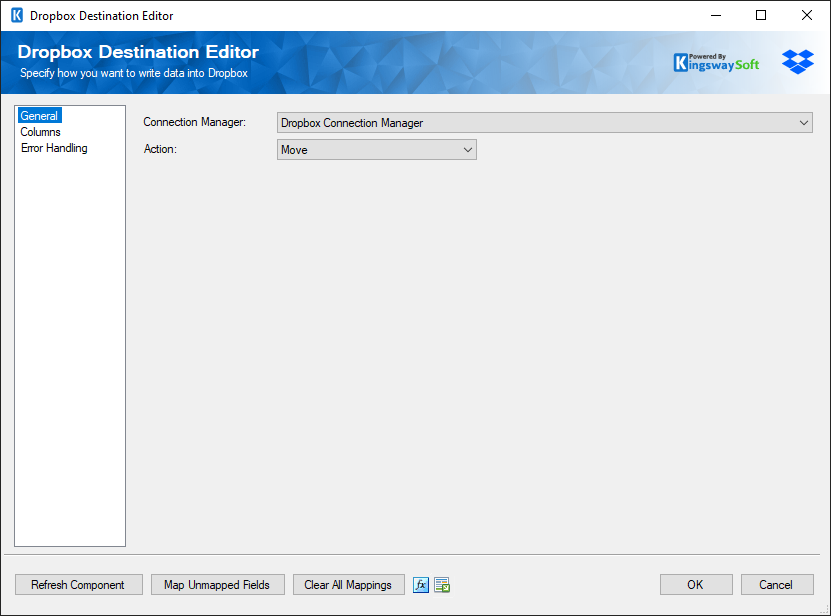
- Connection Manager
-
The Dropbox Destination Component requires a Dropbox connection. The Connection Manager drop-down displays all Dropbox connection managers available to the current SSIS package.
- Action
-
The Action option determines which operation the Destination component performs on the incoming data. The following four actions are available:
-
Create: Creates new items in Dropbox.
- The Path field is required.
-
Upsert: Updates an existing item if a match is found or creates a new item if one does not already exist.
- The Path field is required.
-
Move: Moves an existing file or folder from one Dropbox path to another. This action can also be used to rename an item by specifying a different name in the destination path.
- The Path and toPath fields are required.
-
Delete: Deletes an existing file or folder from Dropbox.
- The Path field is required.
-
Create: Creates new items in Dropbox.
- Refresh Component Button
-
Clicking the Refresh Component button causes the component to retrieve the latest metadata and update the available fields.
- Map Unmapped Fields Button
-
Clicking the Map Unmapped Fields button causes the component to attempt to map any unmapped Dropbox fields by matching their names with the input columns from upstream components.
This is useful when additional columns have been added to an upstream component and you want to automatically establish mappings for corresponding Dropbox fields.
- Clear All Mappings Button
-
Clicking the Clear All Mappings button removes all existing input column mappings from the Destination component.
- Property Expressions Button
-
Clicking the fx button opens the Property Expressions Editor, allowing you to configure expressions that dynamically update component properties at runtime.
- Generate Documentation Button
-
Clicking the Generate Documentation button generates a Word document describing the component's metadata, including relevant mappings and configuration information.
Columns Page
The Columns page of the Dropbox Destination Component allows you to map columns from upstream components to the corresponding Dropbox destination fields.
The available destination fields and required mappings depend on the action selected on the General page.
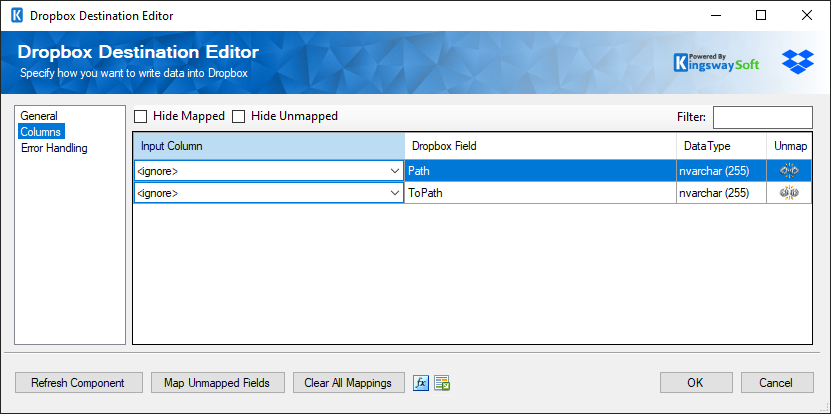
The Columns page contains a grid with the following columns:
- Input Column: Allows you to select an input column from an upstream component for the corresponding Dropbox field.
- Dropbox Field: Identifies the Dropbox destination field that receives the incoming value.
- Data Type: Displays the expected data type of the destination field.
- Unmap: Allows you to remove an existing mapping or attempt to map an unmapped field to an upstream input column with a matching name.
For the Create, Upsert, and Delete actions, the Path field must be mapped to an input column containing the Dropbox item path.
For the Move action, both Path and toPath must be mapped. The Path field identifies the existing item, while the toPath field specifies its destination path.
When uploading file contents, the FileContent field can be mapped to an upstream column containing the file data.
The Hide Mapped and Hide Unmapped options can be used to control which fields are displayed in the grid. The Filter box can also be used to locate a specific Dropbox field.
Error Handling Page
The Error Handling page allows you to specify how the Dropbox Destination Component responds to errors that occur during processing.
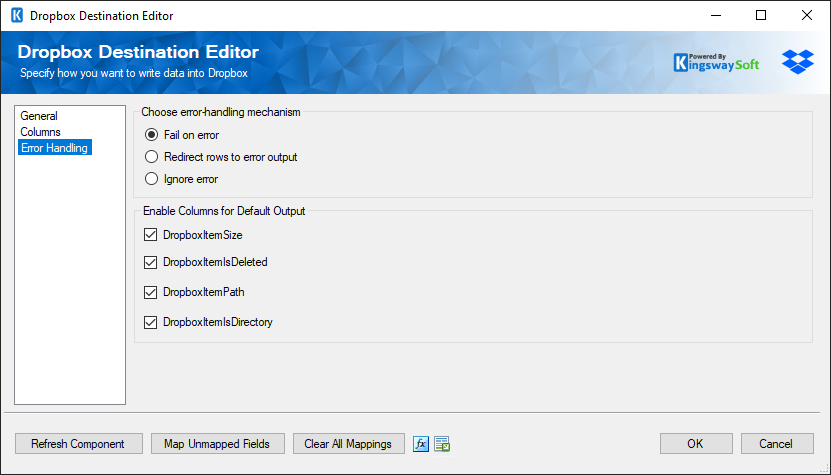
There are three available error-handling options:
- Fail on error: Reports a component failure when an error occurs.
- Redirect rows to error output: Redirects unsuccessful rows to a separate error output for logging or additional processing.
- Ignore error: Ignores errors and allows the component to continue processing subsequent rows.
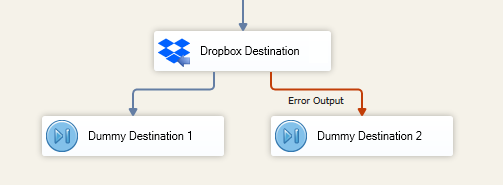
When the Redirect rows to error output option is selected, rows that fail to write to Dropbox are redirected through the Destination component's Error Output connection.
As shown in the screenshot below, the green output connection represents rows that were successfully processed, while the red Error Output connection represents rows that encountered errors.
The ErrorMessage column available in the Error Output may contain an error message reported by Dropbox or by the component itself.
Note: Use caution when selecting the Ignore error option, since the component will not report individual processing errors.
Enable Columns for Default Output
The Enable Columns for Default Output section allows you to select additional Dropbox fields to include in the Destination component's default output.
The following fields are available:
- DropboxItemSize: Contains the size of the processed Dropbox item.
- DropboxItemIsDeleted: Indicates whether the Dropbox item is marked as deleted.
- DropboxItemPath: Contains the path of the processed Dropbox item.
- DropboxItemIsDirectory: Indicates whether the Dropbox item is a directory.
These output fields can be useful when additional information about the processed Dropbox items is required by downstream pipeline components.