

Using the Google Drive Connection Manager
The Google Drive Connection Manager is an SSIS connection manager that can be used to establish connections with Google Drive.
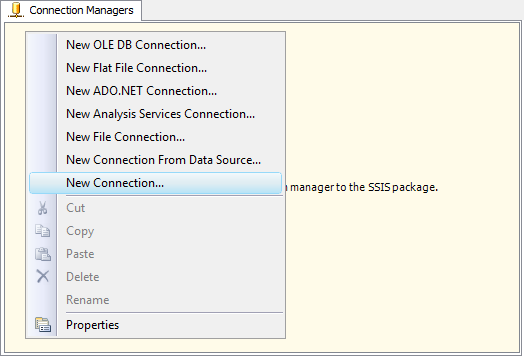
To add a new connection, right-click the Connection Manager area in your Visual Studio project and choose "New Connection..." from the context menu. You will be prompted with the "Add SSIS Connection Manager" window. Select the "Google Drive (KingswaySoft)" item to add a new Google Drive Connection Manager.

The Google Drive Connection Manager contains the following configuration pages:
- General
- Advanced Settings
General Page
The General page allows you to specify connection properties and authentication settings for Google Drive.

- Authentication
-
- Generate Token File
-
This button opens a dialog that allows you to log in to the service endpoint and authorize your app to generate a new token.

- App Type
-
Specify the app that will be used to connect to Google Drive. Available options are:
- KingswaySoft: The Connection Manager will use the Client ID and Client Secret provided by KingswaySoft for your convenience when setting up the connection. It should NEVER be used for production purposes.
- My Own App: Select this option to use your own Client ID and Client Secret to connect to Google Drive.
- App Info
-
- Client ID
-
The Client ID option allows you to specify the unique ID that identifies the application making the request.
- Client Secret
-
The Client Secret option allows you to specify the secret associated with your Google application.
- Redirect Uri
-
The Redirect Uri option allows you to specify the redirect URI configured for the Google application in order to complete the authentication process.
- Scope
-
The Scope option allows you to specify the OAuth scope of the token being generated.
- Sign In & Authorize
-
- Use Default Browser to Sign In
-
When this option is checked, the Sign In & Authorize button will open your default web browser to complete the OAuth authentication. When this option is unchecked, the Sign In & Authorize button will complete the OAuth authentication process inside the toolkit.
- Sign In & Authorize Button
-
This button allows you to log in to the service endpoint and authorize your app to generate a token.
- Path To Token File
-
This option allows you to specify the path to the token file on the file system.
- Token File Password
-
This option allows you to specify the password for the selected token file.
- Google Workspace Documents Export MIME Types
-
The following export formats are available for each Google Workspace document type:
- Documents
- MS Word document
- HTML
- HTML (zipped)
- Plain text
- Rich text
- Open Office doc
- EPUB
- Spreadsheets
- MS Excel
- Open Office sheet
- CSV (first sheet only)
- Sheet Only
- HTML (zipped)
- Drawings
- PNG
- JPEG
- SVG
- Presentations
- MS PowerPoint
- Open Office presentation
- Plain text
- Documents
- Misc
-
- Upload Chunk Size
-
Specify the chunk size used to upload large files to Google Drive in parts. The default value is 20 MB.
- Download Chunk Size(since v22.1)
-
Specify the chunk size used to download large files from Google Drive in parts. The default value is 20 MB.
- Timeout (secs)
-
The Timeout (secs) option allows you to specify a timeout value in seconds for the connection. The default value is 120 seconds.
- Retry on Intermittent Errors
-
This option is designed to help recover from possible intermittent outages or service disruptions. It prevents the integration process from stopping due to temporary issues. Enabling this option allows service calls to be retried upon certain types of failure. A service call may be retried up to 3 times before an exception is fired.
- Test Connection
-
After all the connection information has been provided, click the Test Connection button to test whether the connection settings entered are valid.
Advanced Settings Page
The Advanced Settings page of the Google Drive Connection Manager allows you to specify advanced and optional settings for the connection.

- Proxy Server Settings
-
The Proxy Server Settings section allows you to specify how you want to configure the proxy server.
- Proxy Mode
-
The Proxy Mode option allows you to specify how you want to configure the proxy server settings. There are three options available:
- No Proxy
- Auto-detect (Use system configured proxy)
- Manual
- Proxy Server
-
The Proxy Server option allows you to specify the proxy server to use for the connection.
- Port
-
The Port option allows you to specify the port number of the proxy server for the connection.
- Proxy authentication required
-
Select this option if the proxy server requires authentication.
- Username
-
The Username option allows you to specify the proxy user account.
- Password
-
The Password option allows you to specify the proxy user's password.
Note: Proxy Password is not included in the Google Drive Connection Manager's ConnectionString property by default. This is done by design for security reasons. However, you can include it in your ConnectionString if you want to parameterize your connection manager. The format would be ProxyPassword=myProxyPassword; (make sure you have a semicolon as the last character). It can appear anywhere in the ConnectionString.