

Using the Temu REST Destination Component
The REST Destination Component is an SSIS data flow pipeline component that can be used to write data to Temu REST services.
See Temu REST Connection Manager for how to connect to Temu and Temu REST Source Component for how to retrieve data from Temu.
There are three configuration pages:
- General
- Columns
- Error Handling
General Page
The General page allows you to specify general settings for the REST Destination Component.
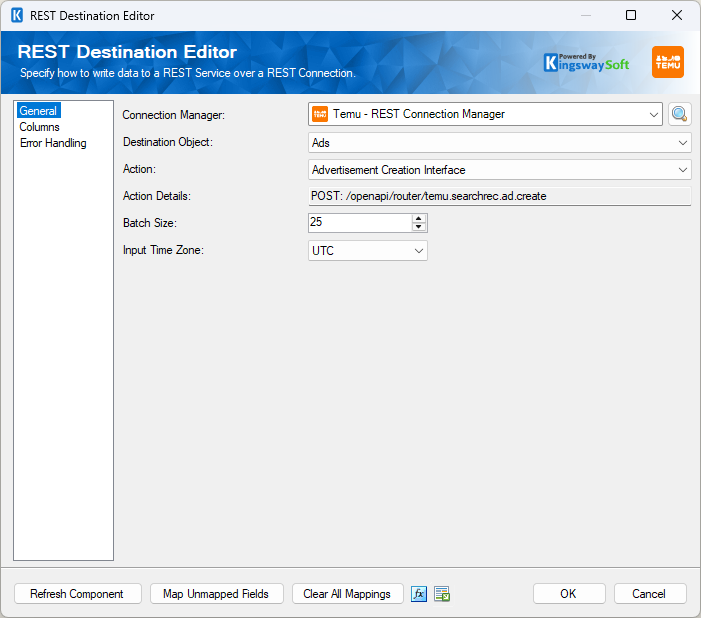
- Connection Manager
-
The destination component requires a REST connection to Temu. The Connection Manager drop-down will show a list of all connection managers that are available to your current SSIS package.
- Search
-
Click the search button (or press Ctrl + F on your keyboard) to launch the Search Objects & Actions dialog. This dialog will open to the side of the destination editor and allows you to search for an object or action. Results are ordered by relevance. Clicking on a result will select that object or action in the destination editor.
- Destination Object
-
The Destination Object option allows you to specify which object to write data to. The Destination Object drop-down lists all the available objects that you can write data to.
- Action
-
The Action option allows you to specify how data should be written to Temu.
Note: Supported actions may vary depending on the selected object.
- Action Details
-
This is a read-only property that displays the route and HTTP method of the currently selected action.
- Batch Size
-
The Batch Size lets you specify how many records to send per service call to Temu.
Note: Some actions do not support batch size, in which case this option will not be available.
- Input Time Zone
-
The Input Time Zone option specifies the time zone of all incoming datetime fields. Available options are:
- UTC
- Local
- Refresh Component Button
-
Clicking the Refresh Component button causes the component to retrieve the latest metadata and update each field to its most recent metadata.
- Map Unmapped Fields Button
-
By clicking this button, the component will try to map any unmapped attributes by matching their names with the input columns from upstream components.
- Clear All Mappings Button
-
By clicking this button, the component will reset and clear all mappings in the destination component.
- Expression fx Icon
-
Click the blue fx icon to launch the SSIS Expression Editor to enable dynamic updates of the property at run time.
- Generate Documentation Icon
-
Click the Generate Documentation icon to generate a Word document that describes the component's metadata, including relevant mappings, and so on.
Utilizing the Child Input of the Destination Component
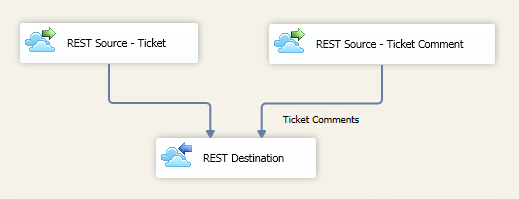
If you want to write child object data to a parent object, you can connect an inbound component containing child object data to the secondary inputs. Once you have made a connection to a secondary input, you must specify the REST Object you are adding in the Inputs grid on the General page.
When a child is mapped in the Inputs grid on the General page, it will be available in the select input drop-down on the Columns page. This allows you to select input for both parent and child fields. The parent input will have a field called _LinkId, which can be any string and is used to link the parent to its child object. All child inputs will have a field called _{parentObjectName}._LinkId. This field should have a value that matches the value used for the _LinkId of the parent.
Columns Page
The Columns page of the REST Destination Component allows you to map columns from upstream components to REST Fields.
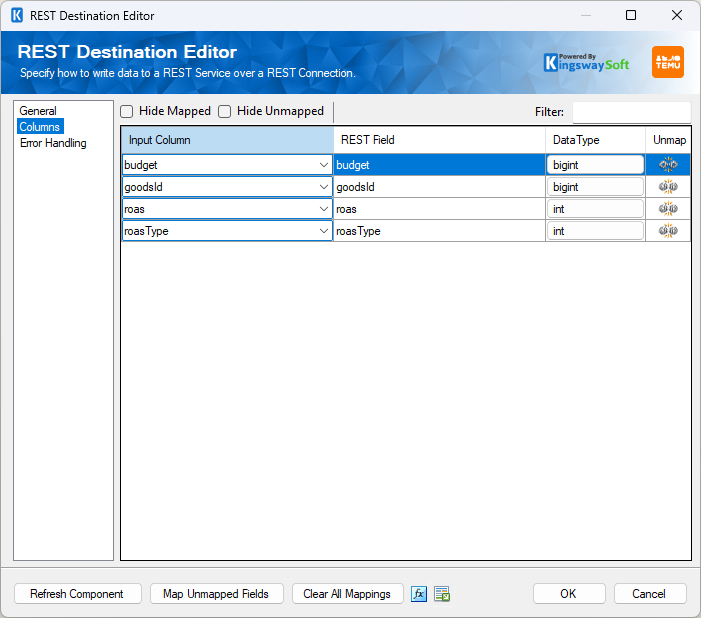
The Hide Mapped and Hide Unmapped options allow you to control which fields are displayed in the grid. The Filter option allows you to find fields using a keyword.
On the Columns page, you will see a grid that contains the following columns:
- Input Column: You can select an input column from an upstream component for the corresponding REST Field.
- REST Field: The field that you are writing data to.
- Additional Field Details: An information icon will appear here if the column is special. Hover over the icon to see additional details about the column.
- Data Type: This column indicates the type of value for the current field.
- Unmap: This column can be used to unmap the field from the upstream input column. If the field is not currently mapped, it can be used to map the field to an upstream input column with a matching name.
Error Handling Page
The Error Handling page allows you to specify how errors should be handled when they happen.
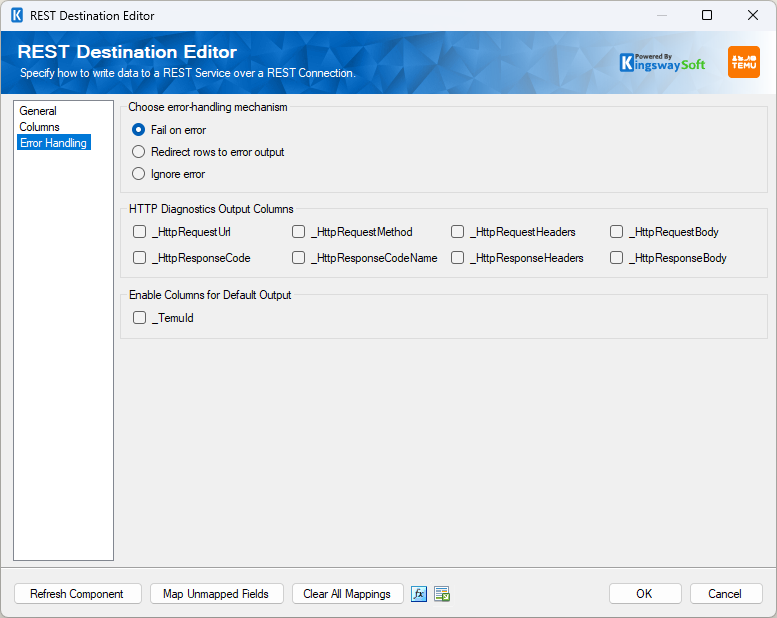
There are three options available:
- Fail on error
- Redirect rows to error output
- Ignore error
When the Redirect rows to error output option is selected, rows that failed to write to the target REST service will be redirected to the 'Error Output({PrimaryInputName})' output of the Destination Component. Rows from a Child Input that failed to find the parent record will be redirected to the 'Orphaned Children Error Output' output of the Destination Component.
- Error Output({PrimaryInputName})
- ErrorCode: Contains the error code that is reported by the target service or the component itself.
- ErrorColumn: Contains the name of the column that is causing the error. Note that this column is not always populated.
- ErrorMessage: Contains the error message that is reported by the target service or the component itself.
- Orphaned Children Error Output
- ErrorCode: Contains the error code that is reported by the target service or the component itself from the Child Inputs.
- ErrorColumn: Contains the name of the column that is causing the error from the Child Inputs. Note that this column is not always populated.
- Input Name: Contains the name of the Child Input that is having an issue.
- Column Name: Contains the name of the column that is having an issue in the specific Child Input.
- Column Value: Contains the value of the column that is having an issue in the specific Child Input.
- Parent Input Name: Contains the Parent Input name of the specific Child Input.
- Parent Column Name: Contains the name of the column that is having an issue in the specific Parent Input.
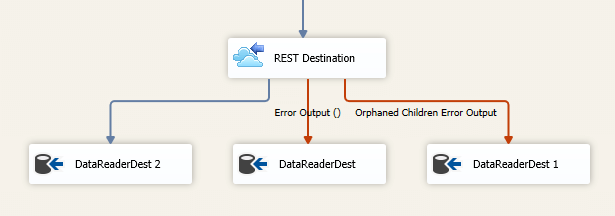
On the Error Handling page, there is also an option that can be used to enable or disable the following output field for the destination component.
- _TemuId: Contains the newly created Temu record's ID, which you can use to write to a log or further process using additional data flow components.
Note: If you do not plan to use this field for any further processing, it is recommended to disable it. This prevents warnings from SSIS indicating that the field is never used and may also provide slightly better performance.
- HTTP Diagnostics Output Columns
-
The following columns are available on the Error Handling page in the default output. They can be used to view and work with the HTTP requests sent by the component and the responses received in downstream data flow components.
- _HttpRequestUrl: The URL of the request.
- _HttpRequestMethod: The HTTP method of the request.
- _HttpRequestHeaders: All HTTP headers included in the request.
- _HttpRequestBody: The text body of the request.
- _HttpResponseCode: The HTTP status code of the response.
- _HttpResponseCodeName: The name of the HTTP status code of the response.
- _HttpResponseHeaders: All HTTP headers included in the response.
- _HttpResponseBody: The text body of the response.