Using the Dynamics GP Source Component
The GP Source Component allows you to read data from your GP database. The component allows you to write custom queries to retrieve data, or simply choose a source object to read from.
General Page
The General page is where you will configure most of the setup details. You can specify your query, or select a source object to read data from.
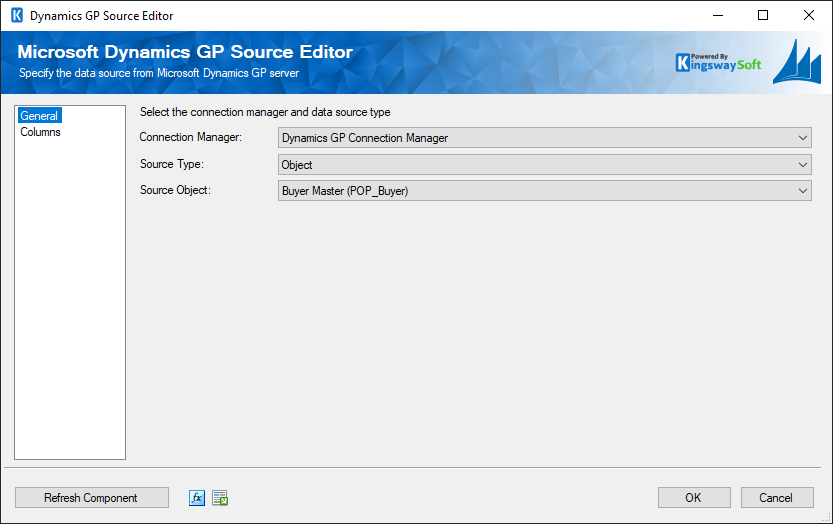
- Connection Manager
-
The GP source component requires a database connection to your GP database catalog. You can specify a GP Connection Manager here to facilitate database connectivity.
- Source Type
-
Select either to retrieve data from a source object, or from a custom SQL query.
- Source Object
-
If the Source Type selected is Object this dropdown is enabled to let you select which object to read data from.
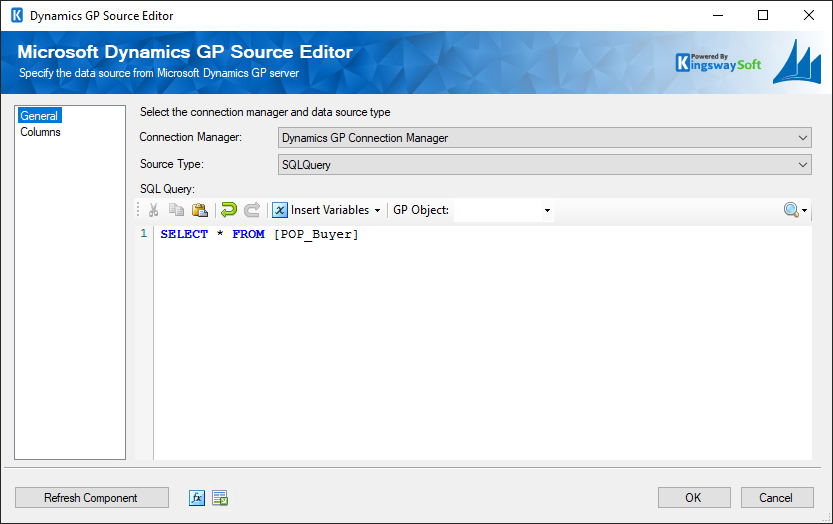
- SQL Query
-
If the Source Type selected is SQLQuery, the SQL Query builder is shown. The SQL Query builder allows you to write custom SQL queries. You may also insert SSIS variables into your custom query.
- Refresh Component Button
-
Clicking the Refresh Component button causes the component to retrieve the latest metadata and update each field to its most recent metadata.
- Expression fx Icon
-
Click the blue fx icon to launch SSIS Expression Editor to enable dynamic updates of the property at run time.
- Generate Documentation Icon
-
Click the Generate Documentation icon to generate a Word document that describes the component's metadata including relevant mapping, and so on.
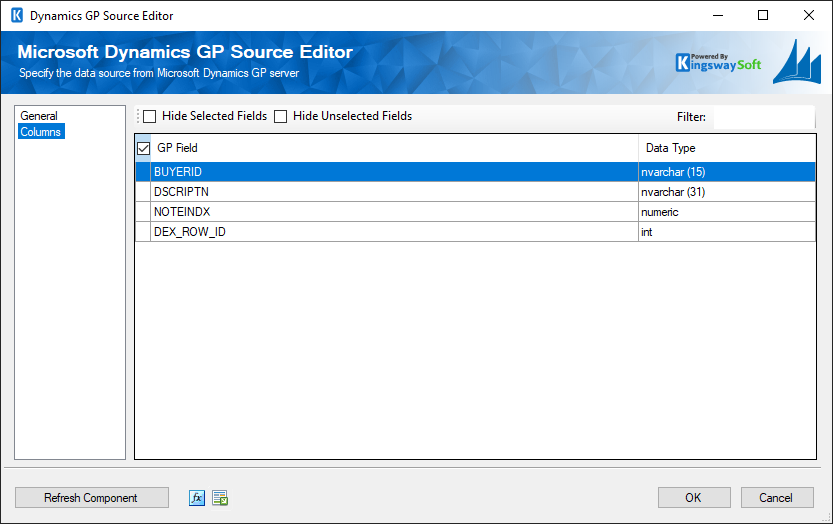
Columns Page
The Columns page lists all the available metadata fields for the object that you wish to read from. You can choose a subset of metadata fields for which you want to retrieve data.