

Using the Dynamics GP Destination Component
GP Destination Component is an SSIS data flow pipeline component that can be used to write data to the Microsoft Dynamics GP server. You may Create, Update, Delete, and Void GP records using the GP Destination Component.
GP Destination Component includes the following three pages to configure how you want to write data to the Microsoft Dynamics GP server.
- General
- Columns
- Error Handling
The General page is used to specify the general settings of the GP destination component. The Columns page allows you to map the columns from upstream components to GP fields in the destination table. The Error Handling page allows you to specify how errors are handled should they occur.
General Page
The General page of the GP Destination Component allows you to specify the general settings of the component.
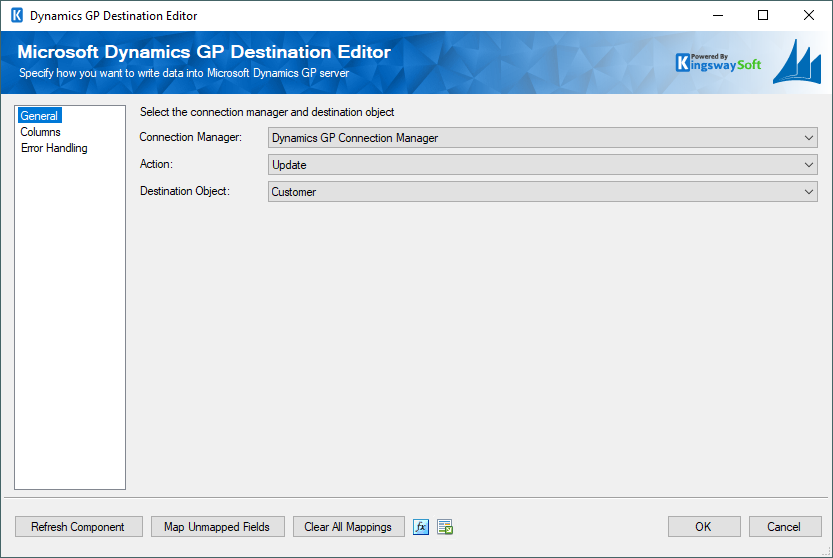
- Connection Manager
-
The GP destination component requires a GP connection to connect with a Microsoft Dynamics GP server. The GP Connection Manager option will show all DynamicsGP connection managers that have been created in the current SSIS package or project.
- Action
-
The Action option allows you to specify how the data should be written to Microsoft Dynamics GP. There are four (4) action types available.
- Create: Create new record(s) in GP
- Update: Update existing record(s) in GP
- Delete: Delete record(s) from GP
- Void: Void records in GP
- Destination Object
-
The Destination Object option allows you to specify which GP object to write data to. A drop-down with available objects is listed here.
- Refresh Component button
-
By clicking this button, the component will retrieve the latest metadata defined in the GP Stored Procedure XML Schema File and update each field. After clicking this button, you will receive a status message indicating how many fields have been updated, added, or deleted.
- Map Unmapped Fields button
-
By clicking this button, the component will map any unmapped GP fields by matching their names with the input columns from the upstream component. This is useful when your source component has recently added more columns, in which case you can use this button to automatically establish associations between input columns and unmapped GP fields.
- Clear All Mappings button
-
By clicking this button, the component will remove all field mappings. You can use this button to reset your mappings.
- Expression fx Icon
-
Click the blue fx icon to launch SSIS Expression Editor to enable dynamic updates of the property at run time.
- Generate Documentation Icon
-
Click the Generate Documentation icon to generate a Word document that describes the component's metadata including relevant mapping, and so on.
Columns Page
The Columns page of Dynamics GP Destination Component allows you to map the columns from upstream components to Dynamics GP fields for the destination object.
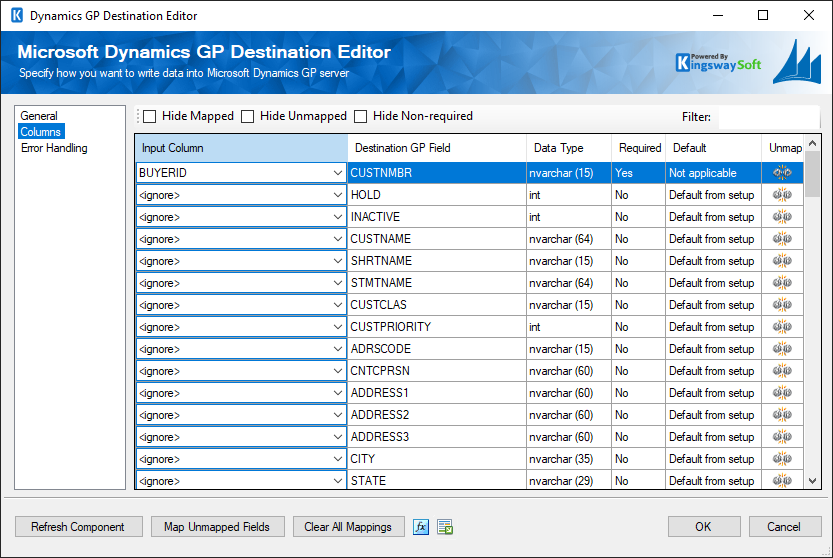
On the Columns page, you will see a grid with six columns as seen above.
- Input Column: You can select a column from your upstream component to be used as the input of the corresponding GP field.
- Destination GP Field: The GP field where you are writing data.
- Data Type: This column indicates the type of value for the current GP field in the GP system. Typically you would need to pass in the value using the format indicated in the Data Type column.
- Required: Indicates whether the GP field requires an input.
- Default: The default value for the GP field if left unmapped.
- Unmap: This column can be used to unmap the field from the upstream input column, or otherwise it can be used to map the field to an upstream input column by matching its name if the field is not currently mapped.
Error Handling Page
The Error Handling page allows you to specify how errors should be handled when they happen.
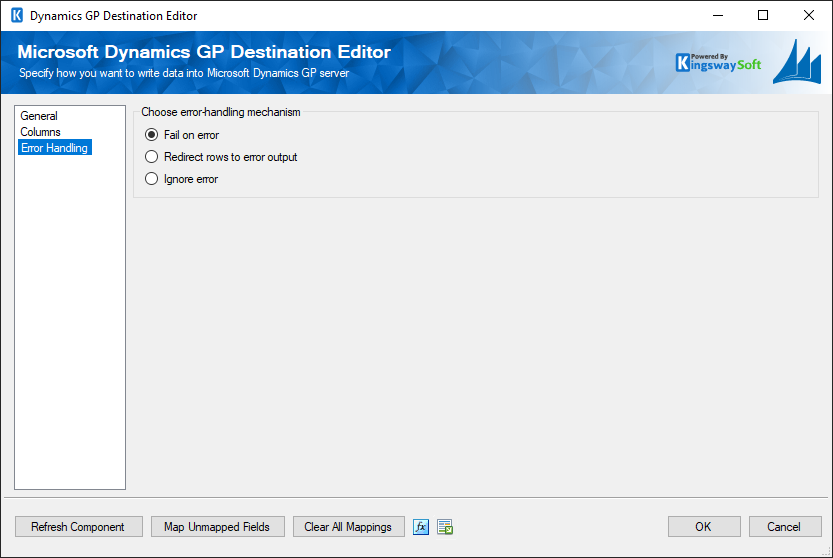
There are three options available.
- Fail on error
- Redirect rows to error output
- Ignore error
When the Redirect rows to error output option is selected, rows that failed to write to Dynamics GP will be redirected to the 'Dynamics GP Destination Error Output' output of the Destination Component. As indicated in the screenshot below, the green output connection represents rows that were successfully written, and the red 'Dynamics GP Destination Error Output' connection represents rows that were erroneous. The 'ErrorMessage' output column found in the 'Dynamics GP Destination Error Output' may contain the error message that was reported by Dynamics GP or the component itself.
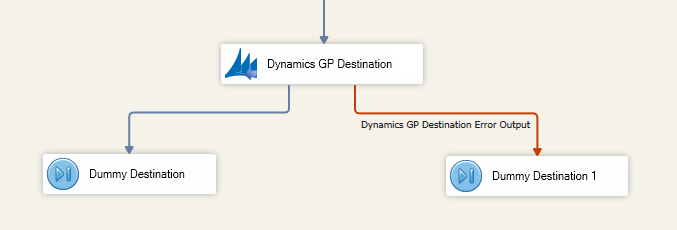
Note: Use extra caution when selecting Ignore error option, since the component will remain silent for any errors that have occurred.