

Using the SharePoint Source Component
The SharePoint Source Component is an SSIS data flow pipeline component that can be used to read/retrieve data from the Microsoft SharePoint server.
The SharePoint Source Component includes the following three pages to configure how you want to read data from Microsoft SharePoint:
- General
- Columns
- Attachment Settings
General page
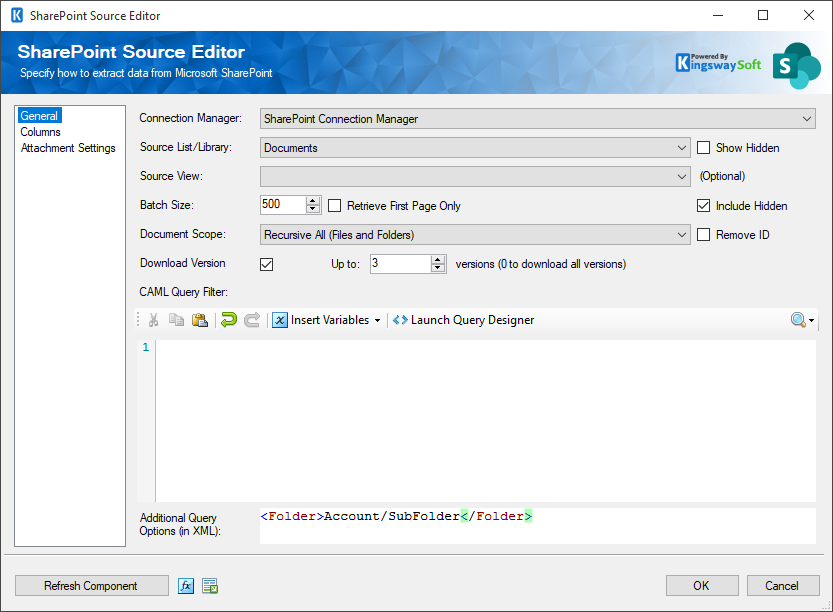
The General page of the SharePoint Source Component allows you to specify the general settings of the component.
- Connection Managers
-
The SharePoint source component requires a SharePoint connection in order to connect to the Microsoft SharePoint server. The Connection Manager option will show all SharePoint connection managers that have been created in the current SSIS package.
- Source List
-
The SharePoint List option is only available after a SharePoint Connection Manager is selected. After you select a SharePoint Connection Manager, the component will retrieve a list of all available SharePoint lists & document libraries.
- Show Hidden
-
The Show Hidden checkbox, when checked, allows you to see hidden SharePoint lists and document libraries.
- Source View
-
After selecting a Source List, this dropdown will be populated with the selected list's available views. Selecting a view can be used to help filter for desired list items.
- Output Timezone
-
The Output Timezone option lets you specify how all datetime fields should be retrieved. Available options are:
- Local System Time
- UTC
- Batch Size
-
The Batch Size option allows you to specify how many records you want to retrieve each time.
- Retrieve First Page Only
-
The Retrieve First Page Only option can be used to limit the number of records to return when reading from SharePoint. When the option is enabled, the number specified in the Batch Size would be used as the limit parameter.
- Include Hidden Fields
-
SharePoint uses a number of hidden fields. The Include Hidden Fields option allows you to specify whether the hidden fields are read and returned.
- Document Scope
-
The Document Scope option allows you to specify what sub-items (if any) you wish to retrieve. The available modes are:
- Root Level (Files Only): Retrieve only the file items specified at the root level.
- Root Level (Files and Folders): Retrieve the file and folder items specified at root-level.
- Recursive (Files Only): Retrieve the file items specified at the Source List and its sub-folders recursively.
- Recursive All (Files and Folders): Retrieve the file and folder items specified in the Source List and its sub-folders recursively.
- Remove ID Prefixes
-
By default, SharePoint returns ID prefixes for a number of fields, such as lookup fields. The returned value of those fields is in the format of NNN#;Text Value. Those IDs may not have any business value for the other side of the integration, in which case you can enable the option to remove them from the returned values.
- Download Version
-
You can enable this option in order to retrieve the available versions for each document in your SharePoint Document Library. When this option is checked, a secondary output of the Source Component called Version History (Document Library) will be available, which would include the available versions of your document. This feature currently only supports SharePoint Document Libraries, but not Lists.
- Up to
-
This option allows you to specify the maximum number of versions which will be retrieved for each document.
- CAML Query Filter
-
The CAML Query Filter text box lets you specify filter criteria to help retrieve only the records you specify. The following is a sample query for reference purposes.
<Query xmlns=''>
	<Where>
		<Eq>
			<FieldRef Name='MyFieldName' />
			<Value Type='Text'>{MyFieldValue}</Value>
		</Eq>
	</Where>
</Query>
Our software is shipped with a CAML Query builder tool (since v4.1) that helps you create or edit CAML Queries in a visual fashion. The query builder tool can be launched by clicking the "Launch Query Designer" button, you will be prompted with the designer window as shown below.
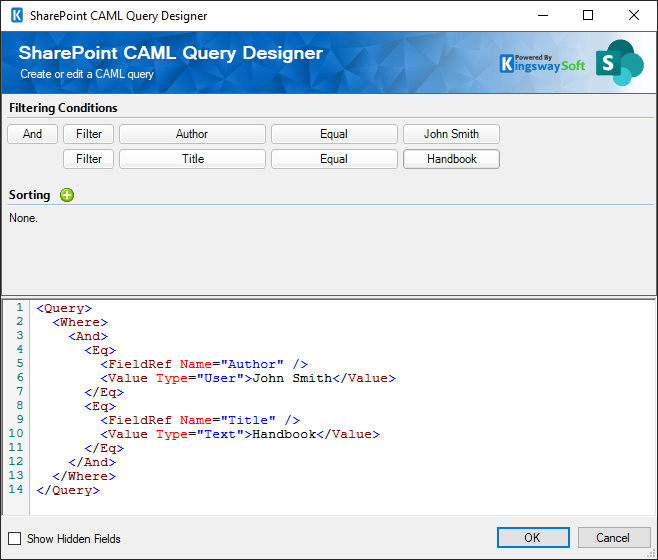
The query designer does not show those hidden fields by default. In order to show those hidden fields, you would need to click the "Show Hidden Fields" checkbox.
- Additional Query Options (in XML) (since v5.0)
-
The AdditionalQuery Options text box lets you specify any additional properties to influence the returned list items. The option is only applicable to a connection that uses the SOAP service endpoint. The value for this property should be in XML format like below:
<Folder>Documents/SubFolder</Folder>
- Note that since the v5.1 release, this option supports using SSIS variables. When doing so, the variable should be in the format such as @[User::VariableName] or @[System::VariableName].
- Refresh Component Button
-
Clicking the Refresh Component button causes the component to retrieve the latest metadata and update each field to its most recent metadata.
Columns Page
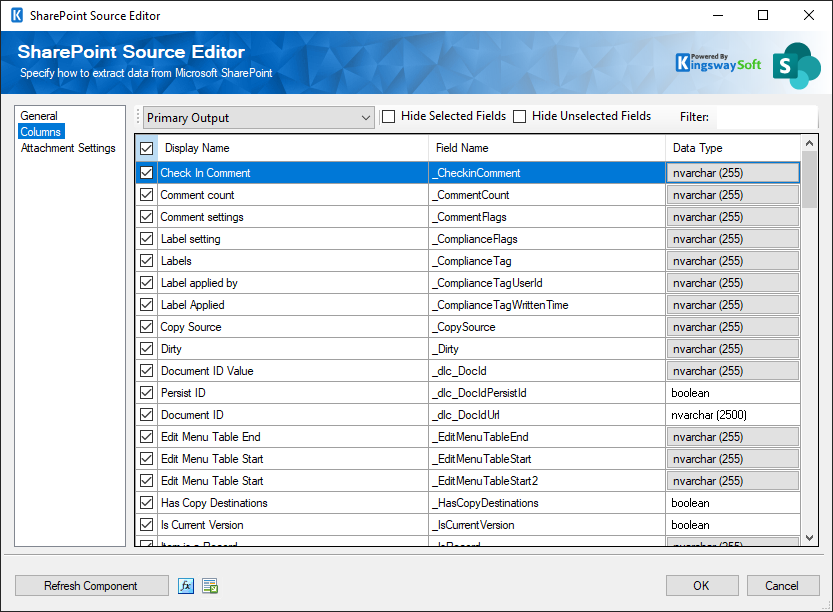
The Columns page of the SharePoint Source Component shows you all available columns from the SharePoint list that you specified on the General page. If you enabled Downloading of Attachments and Documents, and used the Output Data Column(s) option as Download Destination, output columns will be generated and listed here, based on the Column Prefix that you specified.
Attachment Settings Page
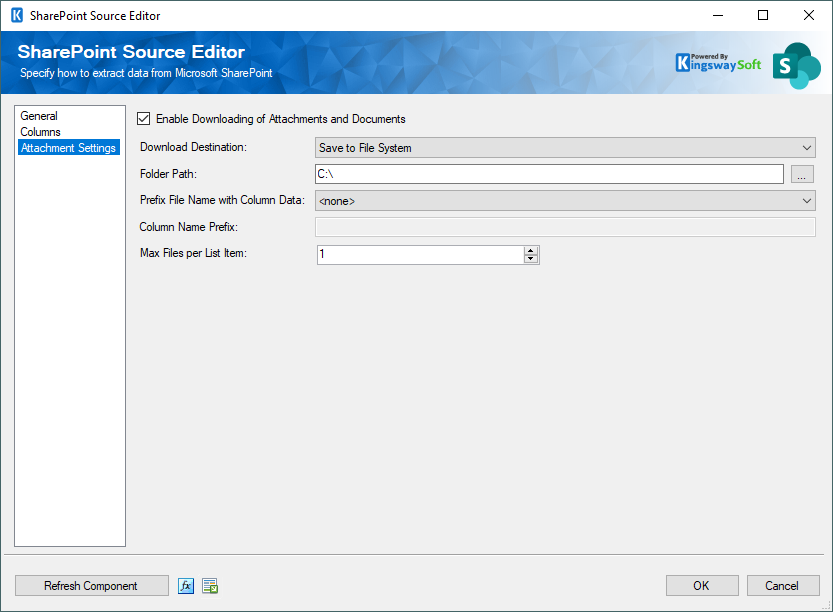
The Attachment Settings page of the SharePoint Source Component allows you to specify how you would like to handle lists with file attachments, or how you would like to handle reading document library files.
- Enable Downloading of Attachments and Documents
-
This checkbox enables or disables the whole Attachment Settings section.
- Download Destination
-
There are two options for the Download Destination drop-down:
- Save to File System
- Write to Output Data Column(s).
If you specify the File System option, attachments from your SharePoint source list will be downloaded to a file system folder. If you specify the Output Data Column(s) option, attachments from your SharePoint source list will be inserted into a data column in the SSIS output buffer.
- Folder Path
-
The Folder Path option is valid if you specified the File System download destination. You can specify where to store the files by selecting a folder.
- Prefix File Name with Column Data
-
The Prefix File Name with Column Data option is valid if you specified the File System download destination. You can append some data to the prefix of the file names to be created by specifying a column to pull data from. This value is optional, but may help prevent potential file name conflicts.
- Column Prefix
-
The Column Prefix option is valid if you specified the Output Data Column(s) download destination. You must specify a value here to be used in creating the SSIS output buffer column name. Column names to be created will be suffixed with a number depending on the maximum number of files per list item to download. (e.g. MyColumn_1, MyColumn_2)
- Max Files per List Item
-
Because a SharePoint list item can contain multiple attachments, the Max. The Files per List Item option is provided to regulate the maximum number of files to download, per list item. If you specified a document library as your source, this option will default to 1.