

Google Sheets Source Component
The Google Sheets Source Component is an SSIS data flow pipeline component that can be used to read/retrieve data from a Google Sheets worksheet.
The component includes the following two configuration pages:
- General
- Columns
General Page
The General page of the Google Sheets Source Component allows you to specify the general settings of the component.
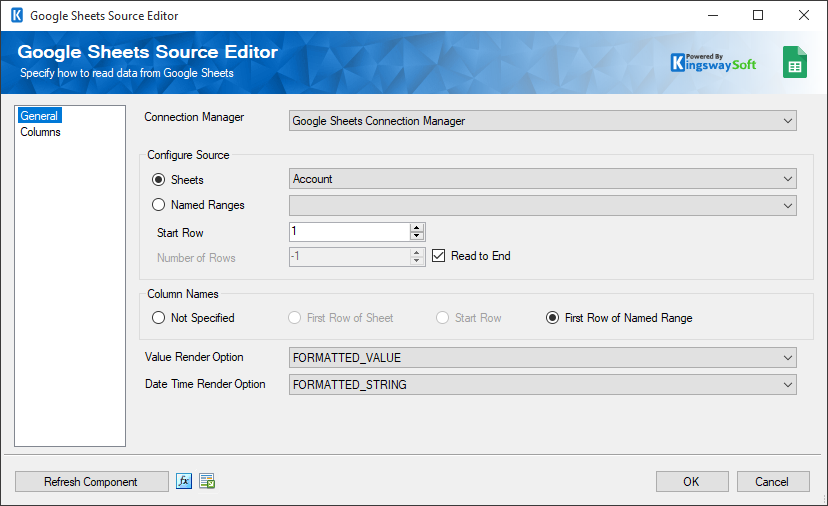
- Connection Manager
-
The Google Sheets Source Component requires a connection to Google Sheets. The Connection Manager drop-down will show a list of all connection managers that are available to your current SSIS package.
- Configure Source
-
- Sheets
-
Specify the worksheet you want to work with.
- Named Ranges
-
Specify the Named Ranges defined in Google Sheets.
- Start Row
-
Use the Start Row option to specify the row from which to start reading data.
- Number of Rows
-
Specify how many rows you want to retrieve.
- Read to End
-
When this option is checked, the component will read all rows from the specified Start Row to the last row of the worksheet. When this option is checked, the Number of Rows option will be disabled.
- Column Names
-
There are four options that you can use to indicate column names:
- Not specified: Choose this option if the worksheet does not contain column names.
- First row of sheet: Choose this option if the first row of the worksheet contains column names.
- Start row: Choose this option to use the specified Start Row as the column names.
- First row of named range: This option is only available when the Named Ranges source is selected. The first row in the named range will be used as the column names.
- Value Render Option
-
The Value Render Option allows you to determine how values should be rendered in the output. There are three options available:
- FORMATTED_VALUE: Values will be calculated and formatted in the output according to the cell's formatting.
- UNFORMATTED_VALUE: Values will be calculated but not formatted in the output.
- FORMULA: Values will not be calculated, and the actual formulas defined in the cells will be returned.
- Date Time Render Option
-
The Date Time Render Option allows you to determine how date, time, datetime, and duration fields should be rendered in the output. There are two options available:
- SERIAL_NUMBER: Date, time, datetime, and duration fields will be returned as doubles in "serial number" format. The whole number portion of the value (left of the decimal) counts the days since December 30, 1899. The fractional portion (right of the decimal) counts the time as a fraction of the day.
- FORMATTED_STRING: Date, time, datetime, and duration fields will be returned as strings in their given number format.
- Refresh Component Button
-
Clicking the Refresh Component button causes the component to retrieve the latest metadata and update each field to its most recent metadata.
- Expression fx Button
-
Click the fx button to launch SSIS Expression Editor to enable dynamic update of the property at run time.
- Generate Documentation Button
-
Click the Generate Documentation button to generate a Word document which describes the component's metadata including relevant mapping and more.
Columns Page
The Columns page of the Google Sheets Source Component shows you all available attributes from the source that you specified on the General page.
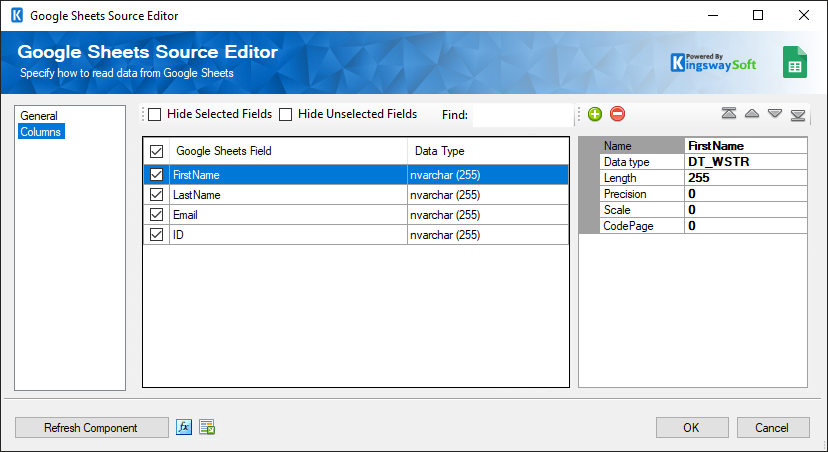
On the top left of the grid, the checkbox can be used to toggle the selection of all available fields. This is a productive way to check or uncheck all available fields.
The Columns page grid consists of:
- Google Sheets Field: Column that will be retrieved from Google Sheets.
- Data Type: The data type of this field.
- Properties window for the field listed:
- Name: Specify the column name.
- Data type: Specify the data type of the field.
- Length: Specify the length of the field. If the specified data type is a string, the length specified here will be the maximum size. If the data type is not a string, the length will be ignored.
- Precision: Specify the number of digits in a number.
- Scale: Specify the number of digits to the right of the decimal point in a number.
- CodePage: Specify the Code Page of the field.
- Suppress Value Conversion: Specifies whether value conversion should be suppressed for the field.
- + sign: Add a field to the Google Sheets worksheet.
- - sign: Remove a field from the Google Sheets worksheet.
- Arrows: Move the fields to the desired location in the worksheet.