

Google Analytics Source Component
The Google Analytics Source Component is an SSIS data flow pipeline component that can be used to read/retrieve data from Google Analytics.
The component includes the following pages to configure how you want to read data from Google Analytics. The available pages may vary depending on the selected API and report configuration.
- General
- Columns
- Metric Filter
- Dimension Filter
- Cohort Spec
General Page
The General page of the Google Analytics Source Component allows you to specify the general settings of the component.
General page: Google Analytics Data API
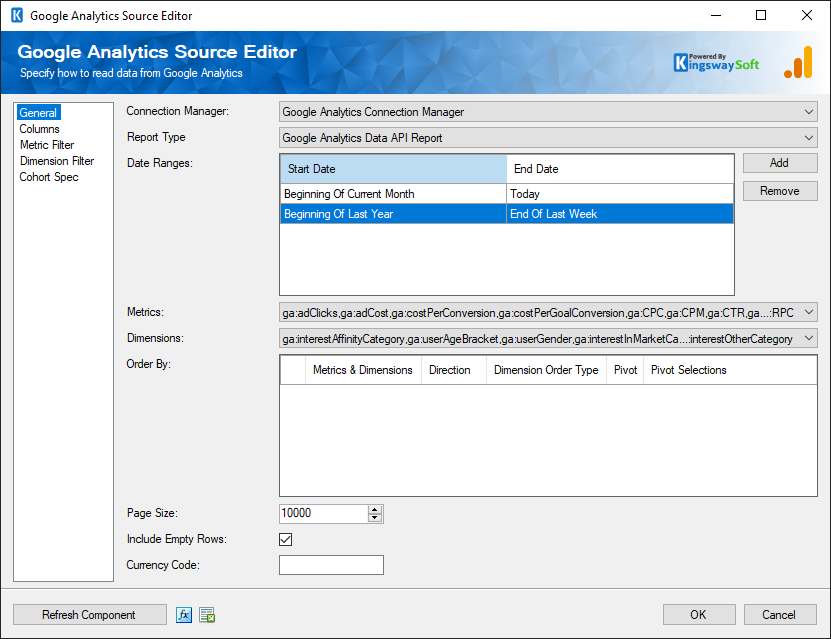
- Connection Manager
-
The Google Analytics Source Component requires a connection in order to connect to Google Analytics. The Connection Manager drop-down will show a list of all connection managers that are available in your current SSIS package.
- Report Type
-
Specify the Report Type of the Google Analytics Data API. Available options are:
1. Google Analytics Data API Report
2. Google Analytics Data API Realtime Report
- Date Ranges
-
The Date Ranges option allows you to add one or more date ranges for a Google Analytics Data API Report. Click Add and specify a start date and an end date for each range. The Date value can be for a specific date by using the DateTimePicker controls or can be selected from the drop-down list, which contains several pre-defined date values, including Today, Yesterday, NDaysAgo, Beginning/End of Current/Last Week/Month/Year.
- Metrics
-
The Metrics option allows you to specify one or more numeric metrics from Google Analytics to retrieve.
- Dimensions
-
The Dimensions option allows you to specify one or more dimensions to break down the metrics you specified.
- Order By
-
The Order By grid contains the selected metrics and dimensions that can be used to specify the sorting order for the returned data.
- Dimension Order Type
-
When ordering by a dimension, the Dimension Order Type option specifies how the dimension values should be sorted.
- Pivot
-
The Pivot and Pivot Selections options can be used to configure pivot-style report requests.
- Page Size
-
The Page Size option allows you to specify how many records you want to retrieve each time.
- Include Empty Rows
-
If the Include Empty Rows option is disabled, rows with empty or zero metric values will be omitted from the returned data.
- Currency Code
-
Specify the Currency Code for Google Analytics Data API in ISO4217 formats, such as "AED", "USD", and "JPY".
- Minute Ranges
-
For a Google Analytics Data API Realtime Report, the Minute Ranges option allows you to add one or more recent time ranges. Specify a name and the start and end minutes ago for each range to define the time window used for the realtime data request.
- Refresh Component
-
Click the Refresh Component button to retrieve the latest metadata and update each field based on the current component configuration.
- Expression fx Button
-
Click the fx button to launch SSIS Expression Editor to enable dynamic updates of available properties at run time.
- Generate Documentation Button
-
Click the Generate Documentation button to generate a Word document that describes the component's metadata including relevant mapping, and so on.
Columns Page
The Columns page of the Google Analytics Source Component shows you all available fields from the metrics and dimensions that you specified on the General page.
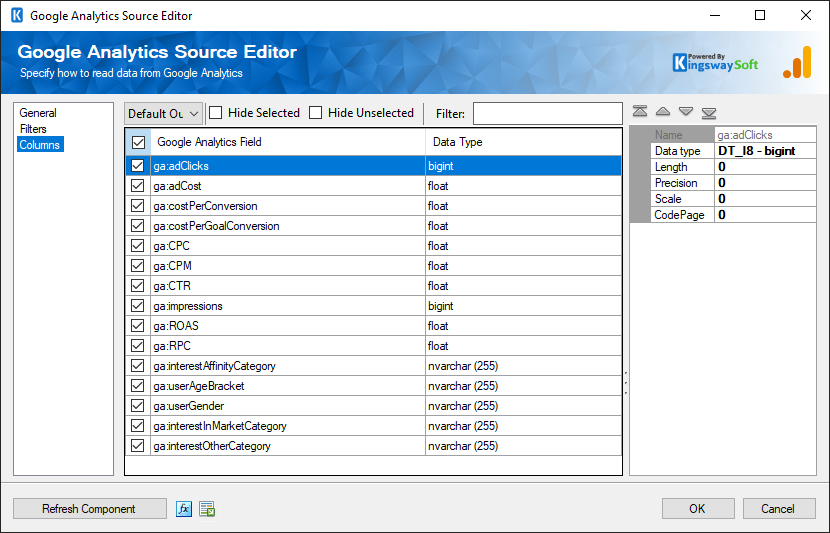
On the top left of the grid, the checkbox can be used to toggle the selection of all available fields. This is a productive way to check or uncheck all available fields.
The Hide Selected and Hide Unselected options can be used to narrow the list of columns, and the filter box can be used to locate a specific column.
-
The Columns Page grid consists of:
- Google Analytics Field: Column that will be retrieved from Google Analytics.
- Data Type: The data type of this field.
- Properties window for the selected field
- Name: Specify the column name.
- Data type: Specify the data type of the field.
- Length: Specify the Length of the fields. If the data type specified is a string, the length specified here would be the maximum size. If the data type is not a string, the length will be ignored.
- Precision: Specify the number of digits in a number.
- Scale: Specify the number of digits to the right of the decimal point in a number.
- CodePage: Specify the Code Page of the field.
Metric Filter Page
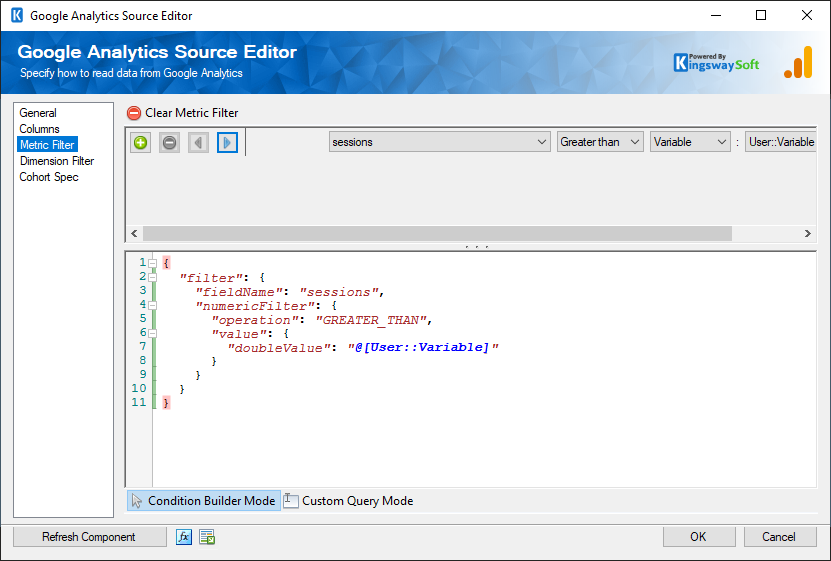
The Metric Filter page of the Google Analytics Source Component allows you to build the filter clause of metrics when retrieving data from Google Analytics Data API. The page comes with a condition builder on the top which you may use to create filter clauses of the metrics.
In Condition Builder Mode, add filter conditions by selecting a metric, choosing an operator, and providing either a static value or a variable. The condition builder supports various operators, including "Equal", "Between", and "Greater than", among many others. Once you have built such matching conditions, the component should display the query that will be used during runtime.
Switching the query designer to Custom Query Mode will allow you to freely edit the query text. This can help in some cases where certain advanced queries may not be supported in the condition builder. When switching to Custom Query Mode, the component displays a prompt indicating that input values are text merged at runtime, and that switching back to Condition Builder Mode will lose any customizations made to the query.
Dimension Filter Page
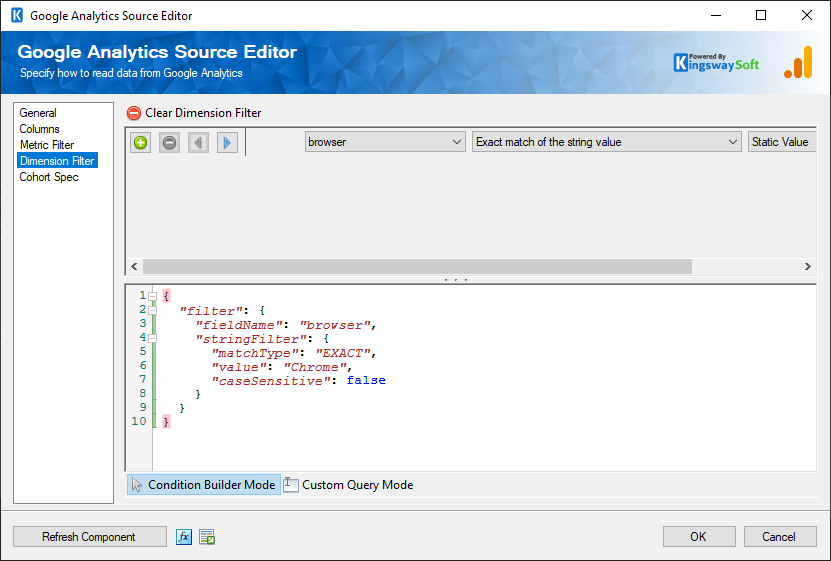
The Dimension Filter page of the Google Analytics Source component allows you to build the filter clause of dimensions when retrieving data from Google Analytics Data API. The page comes with a condition builder on the top which you may use to create filter clauses of the dimensions.
In Condition Builder Mode, add filter conditions by selecting a dimension, choosing an operator, and providing either a static value or a variable. The condition builder supports various operators, including "Equal", "Between", and "Greater than", among many others. Once you have built such matching conditions, the component should display the query that will be used during runtime.
Switching the query designer to Custom Query Mode will allow you to freely edit the query text. This can help in some cases where certain advanced queries may not be supported in the condition builder. When switching to Custom Query Mode, the component displays a prompt indicating that input values are text merged at runtime, and that switching back to Condition Builder Mode will lose any customizations made to the query.
Cohort Spec Page
The Cohort Spec page of the Google Analytics Source component allows you to configure the cohort group associated with this GA4 report request.
When Create Cohort Report is enabled, the component removes the Date Ranges settings from the General page since the cohort configuration defines the report date details instead.
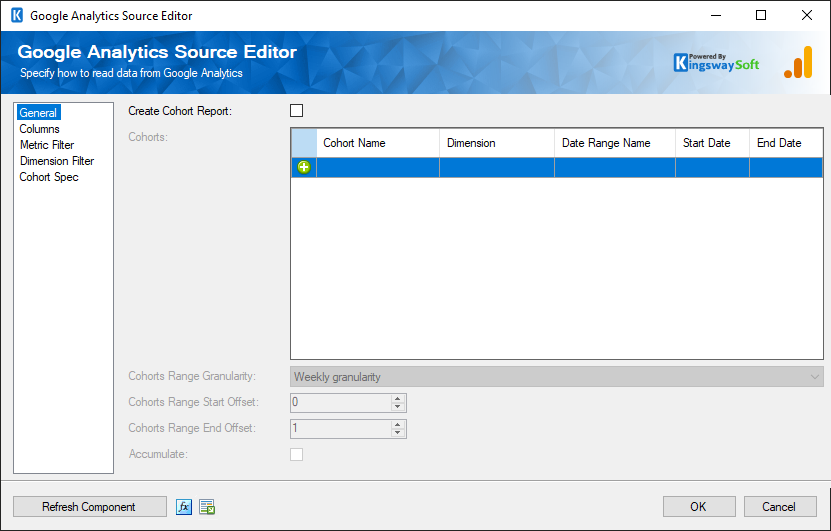
- Cohorts
-
Defines the selection criteria to group users into cohorts. In the Cohorts grid, specify the cohort name, dimension, date range name, start date, and end date.
- Cohort Range Granularity
-
The Cohort Range Granularity is used to interpret the startoffset and endoffset for the extended reporting date range for a cohort report. Available granularity options include daily, weekly, and monthly.
- Cohorts Range Start Offset
-
Specify the start offset of the extended reporting date range for a cohort report.
- Cohort Range End Offset
-
Specify the end offset of the extended reporting date range for a cohort report.
- Accumulate
-
If true, accumulates the cohort values across the specified range.
Google Analytics Reporting API (Legacy)
General page: Google Analytics Reporting API (Legacy)
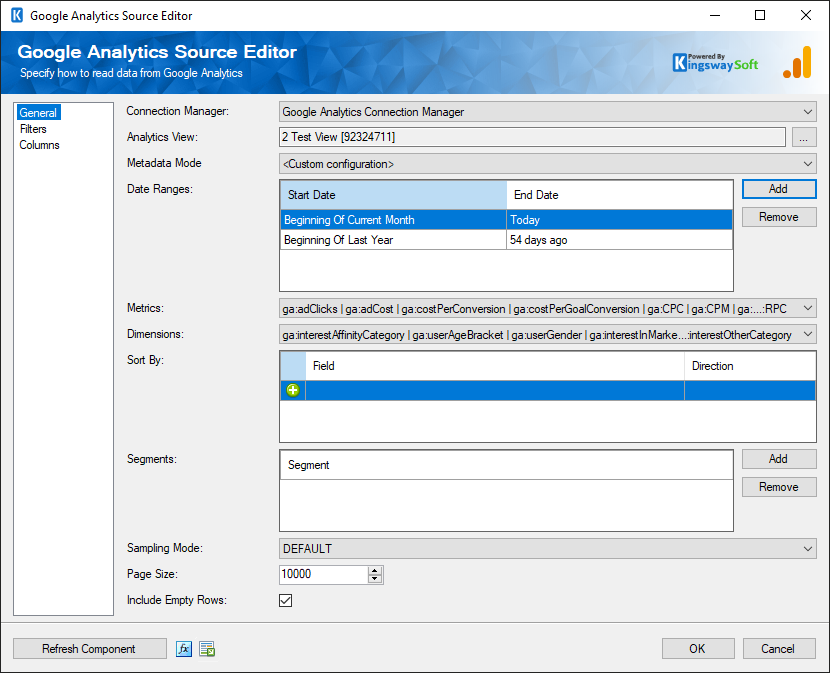
- Connection Manager
-
The Google Analytics Source Component requires a connection in order to connect to Google Analytics. The Connection Manager drop-down will show a list of all connection managers that are available in your current SSIS package.
- Analytics View
-
The Analytics View option specifies the Google Analytics view to select. Click the eclipse button (‘…’) to open up a Google Analytics Web Profile dialog to select a view.
- Metadata Mode
-
The Metadata Mode drop-down contains a list of commonly used queries in Google Analytics. Each mode indicates a configuration that defines a combination of Metrics, Dimensions, Filters and Sort parameters, so you can select and use them directly.
Note: This option is only available to the Google Analytics Reporting API (Legacy).
- Date Ranges (v8.0)
-
The Date Ranges option allows you to specify a start date and an end date for fetching Google Analytics data. The Date value can be for a specific date by using the DateTimePicker controls or can be selected from the drop-down list, which contains several pre-defined date values, including Today, Yesterday, NDaysAgo, Beginning/End of Current/Last Week/Month/Year.
- Metrics
-
The Metrics option allows you to specify the metrics from Google Analytics. This option is required.
- Dimensions
-
The Dimensions option allows you to specify the dimensions to break down the metrics you specified. This option is optional.
- Sort By
-
The Sort By option contains a list of metrics and dimensions indicating the sorting order for the returned data. Specify the sorting fields and directions so the result will be sorted. This option is optional.
- Segments
-
The Segments option allows you to choose a segment in Google Analytics from the drop-down. This option is optional.
- Sampling Mode
-
The Sampling Mode option specifies the sampling level to query data from Google Analytics. There are three types available for a V3 connection:
- Default: Returns response with a sample size that balances speed and accuracy.
- FASTER: Returns a fast response with a smaller sample size.
- HIGHER_PRECISION: Returns a more accurate using a large sample size, but this may result in the response being slower.
There are three types available for a V4 connection:
- SMALL: Returns a fast response with a smaller sampling size.
- LARGE: Returns a more accurate but slower response.
- DEFAULT: Returns a response that balances speed and accuracy.
- Page Size
-
The Page Size option allows you to specify how many records you want to retrieve each time.
- Include Empty Rows
-
If the Include Empty Rows option is disabled, the rows where all the metric values are zero will be omitted. This option is enabled by default.
Filters Page (Legacy)
The Filters page of the Google Analytics Source component allows you to build the filter condition when retrieving data from Google Analytics Reporting API (Legacy).
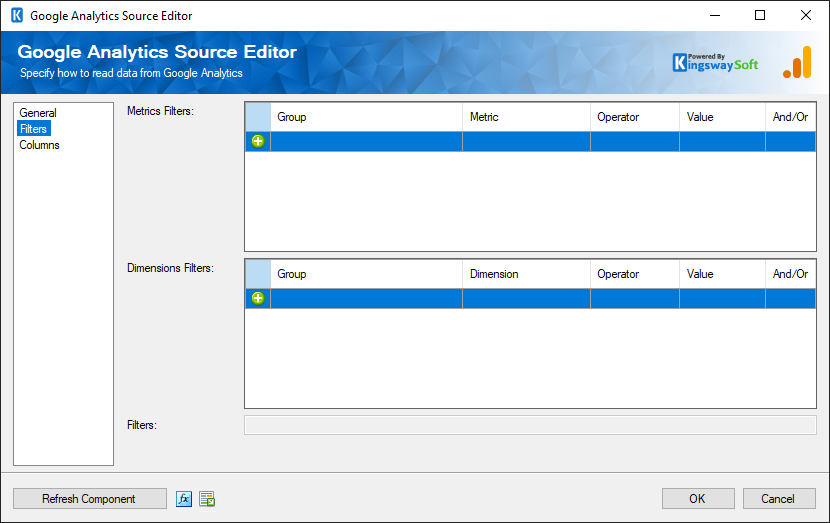
- Metrics Filters
-
The Metrics Filters grid allows you to specify the filtering condition for metrics.
- Dimensions Filters
-
The Dimensions Filters grid allows you to specify the filtering condition for dimensions.
- Filters
-
The Filters option shows the filter query that is auto-generated by the Metrics Filters and Dimensions Filters.