
Google Sheets Destination component
The Google Sheets Destination component is an SSIS data flow pipeline component that can be used to write data to Google Sheets. These pages are available for configuration:
- General
- Columns
- Error Handling
The General page is used to specify general settings for the Google Sheets Destination component. The Columns page is used to manage columns from the upstream component. The Error Handling page allows you to specify how errors should be handled when they occur.
General Page
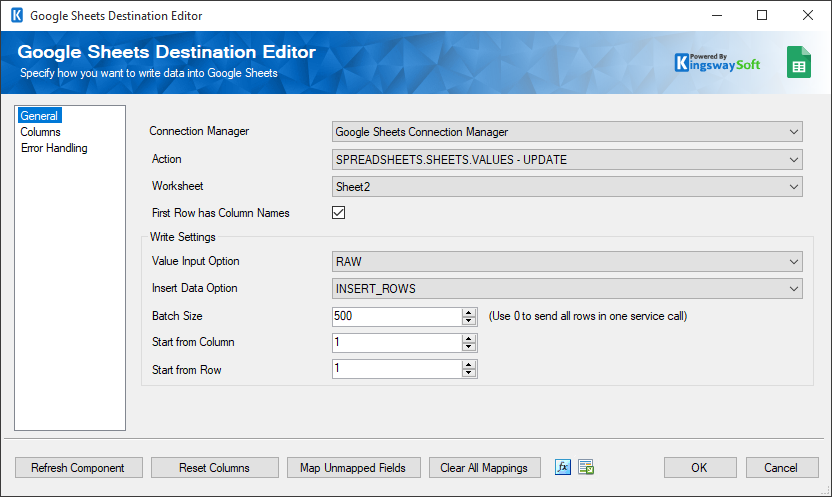
The General page allows you to specify general settings for the component.
- Connection Manager
-
The Google Sheets Destination component requires a connection. The Connection Manager drop-down will show a list of available connection managers.
- Action
-
The following options are available:
- SPREADSHEETS.SHEETS.VALUES - APPEND: Choose this option to append values to a worksheet.
- SPREADSHEETS.SHEETS.VALUES - UPDATE: Choose this option to set values in a range of a worksheet.
- SPREADSHEETS.SHEETS.VALUES - CLEAR: Choose this option to clear values from a range of a worksheet.
- SPREADSHEETS.SHEETS - COPY TO: Choose this option to copy a worksheet from one spreadsheet to another spreadsheet.
- SPREADSHEETS - CREATE: Choose this option to create a spreadsheet in Google Sheets. The input column should be an instance of a spreadsheet in JSON format.
- SPREADSHEETS - BATCH UPDATE: Choose this option to apply one or more updates to the spreadsheet. The input column should be a spreadsheet request in JSON format.
- SPREADSHEETS - DELETE ROWS OR COLUMNS: Choose this option to delete rows using RowsStartIndex and RowsEndIndex, and/or columns using ColumnsStartIndex and ColumnsEndIndex.
- Worksheet
-
Specify the Worksheet in Google Sheets that you want to work with.
- First Row has Column Names
-
Select this option if you would like the first row of the worksheet to contain column names.
- Write Settings
-
- Value Input Option
-
The Value Input Option allows you to specify how input data should be interpreted. The following options are available:
- RAW: Values will not be parsed and will be stored as-is in the worksheet.
- USER_ENTERED: Values will be parsed as if they were entered through the Google Sheets UI and will follow the same rules applied when entering values into a cell.
- Insert Data Option
-
The Insert Data Option allows you to specify how input data should be inserted. The following options are available:
- OVERWRITE: The new data will overwrite existing data in the area where it is written.
- INSERT_ROWS: Rows will be inserted for the new data.
Note: This option is available when the SPREADSHEETS.SHEETS.VALUES - APPEND action is selected.
- Batch Size
-
The Batch Size option allows you to specify how many rows are sent per service call. Use 0 to send all rows in one service call.
- Start from Column
-
The Start from Column option allows you to specify the starting column to write to.
- Start from Row
-
The Start from Row option allows you to specify the starting row to write to.
- Refresh Component Button
-
Clicking the Refresh Component button will bring up a prompt for you to confirm the refresh. After clicking "Yes", it will remove any existing columns and add all columns from the selected worksheet.
- Reset Columns Button
-
Clicking the Reset Columns button will bring up a prompt for you to confirm the reset. After clicking "Yes", it will remove any existing columns and replace them with those of the input columns.
- Map Unmapped Fields Button
-
Clicking the Map Unmapped Fields button causes the component to try to map any unmapped fields by matching their names with the input columns from upstream components.
- Clear All Mappings Button
-
Clicking the Clear All Mappings button clears all mappings in the destination component.
- Expression fx Button
-
Click the fx button to launch the SSIS Expression Editor to enable dynamic updates of the property at run time.
- Generate Documentation Button
-
Click the Generate Documentation button to generate a Word document that describes the component's metadata, including relevant mapping and more.
Columns Page
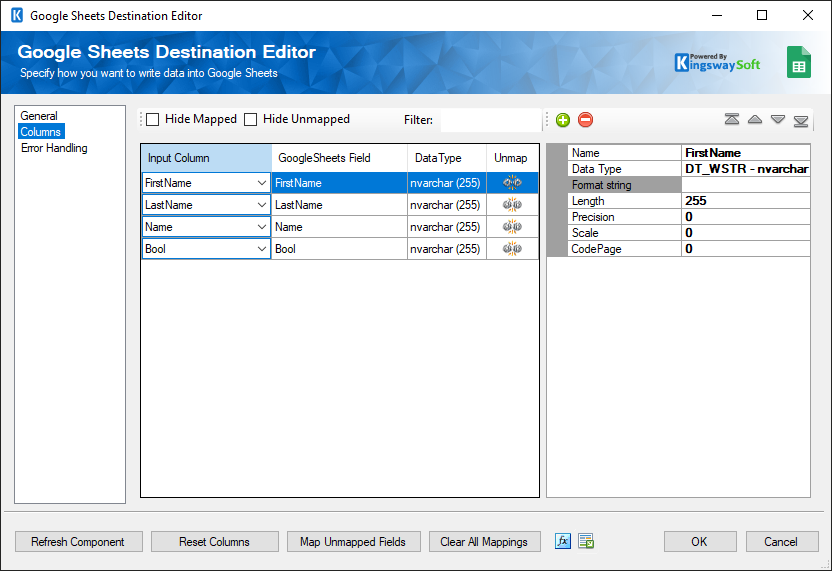
The Columns page of the Google Sheets Destination component allows you to map columns from upstream components to Google Sheets fields.
On the Columns page, the grid contains four columns as shown below.
- Hide Mapped
-
Select the Hide Mapped option to hide fields that are currently mapped to an upstream input column.
- Hide Unmapped
-
Select the Hide Unmapped option to hide fields that are not currently mapped to an upstream input column.
- Filter
-
Use the Filter option to filter the fields displayed in the grid.
The Columns page grid consists of:
- Input Column: Select an input column from an upstream component for the corresponding Google Sheets field.
- GoogleSheets Field: The field in Google Sheets that you are writing data to.
- DataType: Indicates the data type of the current field.
- Unmap: This column can be used to unmap the field from the upstream input column. If the field is not currently mapped, it can also be used to map the field to an upstream input column by matching its name.
- The Properties window for the selected field. These values are configurable:
- Name: Specify the column name.
- Data Type: Specify the data type of the field.
- Format string: Specify the format string for the field.
- Length: Specify the length of the field. If the specified data type is a string, the length specified here will be the maximum size. If the data type is not a string, the length will be ignored.
- Precision: Specify the number of digits in a number.
- Scale: Specify the number of digits to the right of the decimal point in a number.
- CodePage: Specify the Code Page of the field.
- + sign: Add a field to the Google Sheets worksheet.
- - sign: Remove a field from the Google Sheets worksheet.
- Arrows: Move the fields to the desired order.
Error Handling Page
The Error Handling page allows you to specify how errors should be handled when they occur.
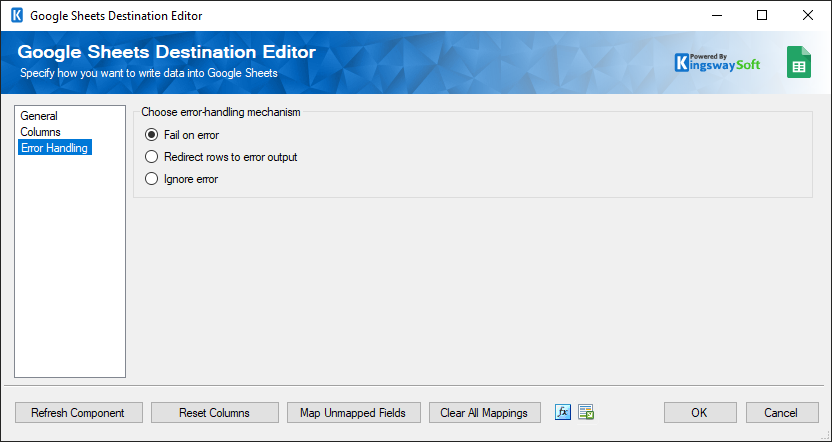
The following options are available:
- Fail on error
- Redirect rows to error output
- Ignore error
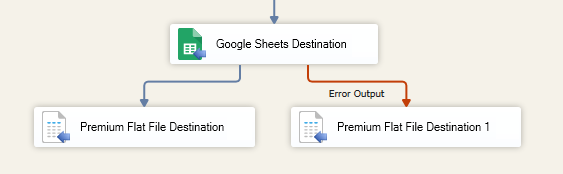
When the Redirect rows to error output option is selected, rows that fail to write to Google Sheets will be redirected to the Error Output output of the destination component. As indicated in the screenshot below, the blue output connection represents rows that were successfully written, and the red Error Output connection represents erroneous rows. The ErrorMessage output column found in the Error Output may contain the error message reported by the server or the component itself.