Using the Dynamics SL Source Component
The Dynamics SL Source Component allows you to read data from your SL system. The component allows you to specify a source object to read from and filter for desired records.
General Page
The General page is where you will configure most of the setup details.
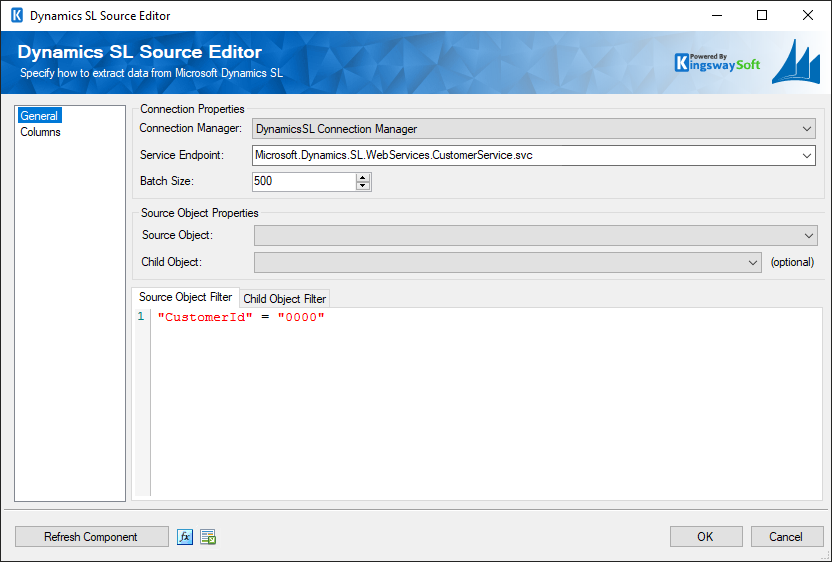
- Connection Properties
-
- Connection Manager
-
The Dynamics SL source component requires an active connection to your Dynamics SL web services. You can specify a Connection Manager here to facilitate that connectivity.
- Service Endpoint
-
Listed here are the default service endpoints provided by Dynamics SL's web services. If you have created your own web service, you must manually enter the name of your service endpoint here.
- Batch Size
-
You can configure how many records each web service call will retrieve at a time with the Batch Size setting.
- Source Object Properties
-
- Source Object
-
If a valid Service Endpoint is specified, this drop-down will list all available objects from which you can read data.
- Child Object
-
Source Objects may contain links to Child Objects. E.g. Customers (source) contain a list of Contacts (child). If you want to read data from a Child Object, choose an item from this drop-down.
Note: This is an optional setting.
- Source Object Filter
-
If you wish to filter for specific Source Object records, you can specify your filter criteria here.
The filtering syntax follows an SQL-like pattern, with fields and values encapsulated in double quotes. See examples below:
- General syntax: "MyField" = "MyValue"
- LIKE keyword: "ProjectID" LIKE "CO123%"
- AND keyword: "ProjectID" = "CO123456" AND "FiscalYear" = "2010"
- Child Object Filter
-
If you wish to filter for specific Child Object records, you can specify your filter criteria here.
- Refresh Component Button
-
Clicking the Refresh Component button causes the component to retrieve the latest metadata and update each field to its most recent metadata.
- Expression fx Icon
-
Click the blue fx icon to launch SSIS Expression Editor to enable dynamic updates of the property at run time.
- Generate Documentation Icon
-
Click the Generate Documentation icon to generate a Word document that describes the component's metadata including relevant mapping, and so on.
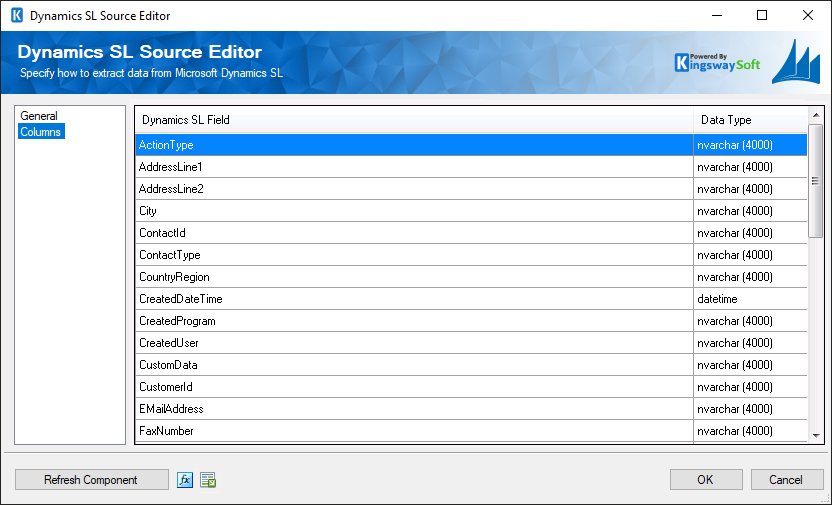
Columns Page
The Columns page lists all the available metadata fields for the object that you wish to read from.