

Using the HTTP Requester Task
The HTTP Requester Task is an SSIS control flow task component that can be used to send an HTTP request and receive a response. A common use case for this component is to download a file.
The component includes the following two pages to configure how the request should be sent and how to process the response:
- General
- Error Handling
General Page
The General page of the HTTP Requester Task allows you to specify the general settings of the component.
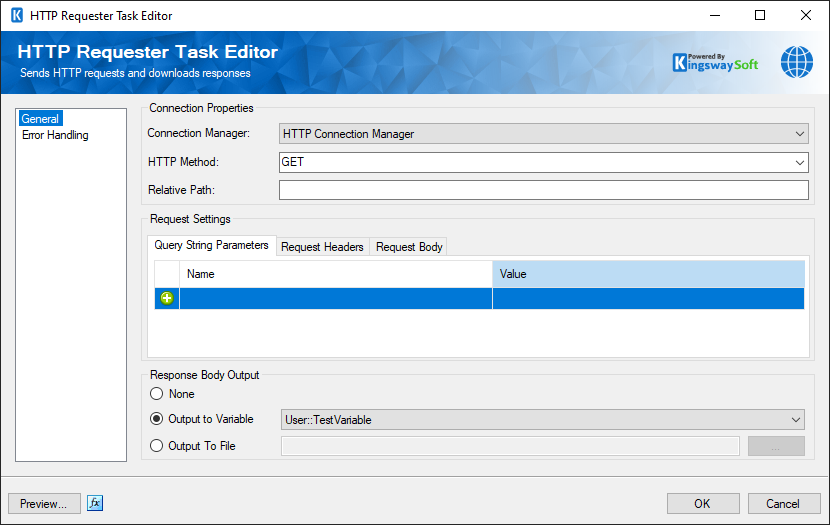
- Connection Properties
-
- Connection Manager
-
The HTTP Requester Task requires a connection in order to connect to the web service. The Connection Manager drop-down will show a list of all HTTP Connection Managers that are available to your current SSIS package.
- HTTP Method
-
The method that will be used when sending HTTP requests. Available methods include:
- GET
- POST
- PUT
- DELETE
- PATCH
- Relative Path
-
The Relative Path field allows you to specify a string containing the relative location of the URL that the request will be sent to. The base URL comes from the connection manager. For example, if you want to download a file called "file1.txt" from http://www.example.com/ you would create a connection manager with the base URL http://www.example.com/ and in the HTTP Requester Task set the Relative Path to "file1.txt".
- Request Settings
-
- Query String Parameters
-
The Query String Parameters grid allows you to add query string parameters and values that will be appended to the URL of the request.
- Requester Headers
-
The Requester Headers grid allows you to add HTTP headers that will be used for the request.
- Request Body -Body Type
- There are four options available for Body Type:
- Raw
- Form-Data
- URL Encoded
- AS2 (since v21.2)
- Binary (since v25.1.1)
- Request Body -Body
- The Body field allows you to configure the body of your request. If the connection manager is using the GET method, such as when downloading files, the body would typically be left empty.
- Note: Since v24.1, the request body is available with GET request type as well.
- Response Output
The Response Output grid can be used to save various parts of the raw response to either a file or a variable. The following options are available:
- Property: The dropdown provides the various response parts that can be chosen and assigned an output type and location.
- Output Type: Choose between File and Variable for the response property to be saved as that.
- Output Variable: The variable reference or the file location can be chosen. This field is dependent on the Output Type chosen.
- Preview
- This button will open up a dialog that allows you to send a request to the defined URL in order to preview the server response during design time.
- Expression fx Icon
-
Click the blue fx icon to launch SSIS Expression Editor to enable dynamic updates of the property at run time.
Error Handling Page
The Error Handling page allows you to specify how errors should be handled when they happen.
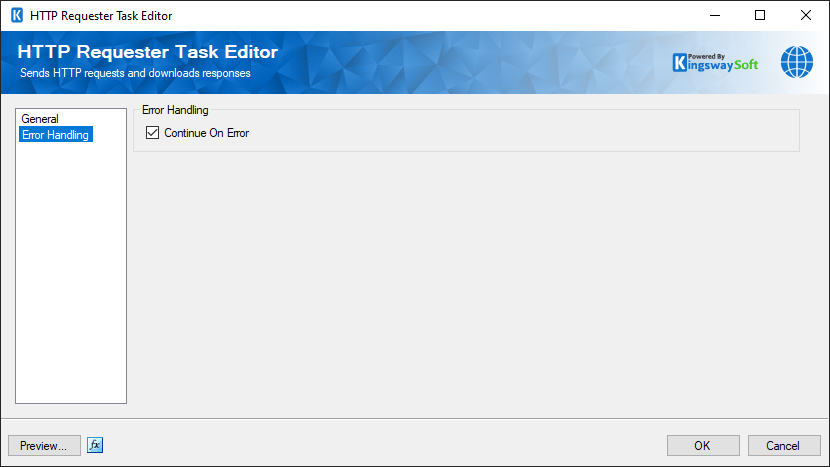
There is one option available.
- Continue on Error
Checking or unchecking this option will determine if the task should continue or fail when an error occurs.